
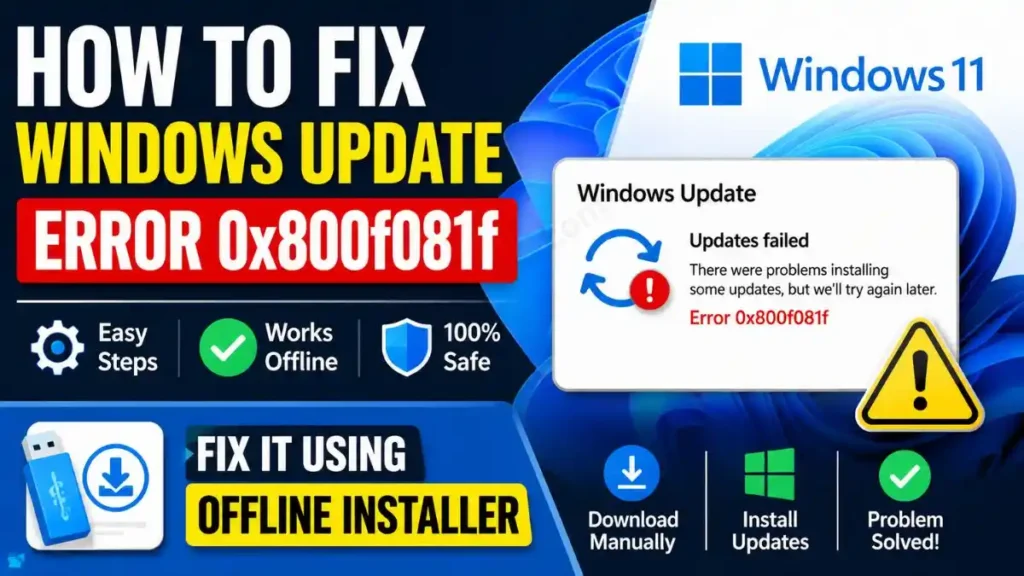
Friends, if your Windows PC is suddenly failing at 99% while installing a new update and showing a strange error code on the screen, there’s absolutely no need to worry about this. And if you find yourself stuck in this situation and are searching online for the Windows Update error 0x800f081f offline installer or how to fix it immediately, then the easiest solution is this.
To fix Error 0x800f081f, go to ‘Windows Update History’ and copy the KB number of the failed update, such as KB5012345. Then, go to the official ‘Microsoft Update Catalog’ website and search for that KB number. Download the standalone .msu file for your system (x64). Thane, turn off your Wi-Fi and manually install it by double-clicking the offline installer for this Windows Update error 0x800f081f. That’s all there is to it.
When we’re creating new short-form technical guides on our PC or editing video scripts, these sudden update errors completely halt our entire workflow. Whether you’re looking to fix error 0x800f081f on Windows 10 or you need a perfect fix for Windows 11 update error 0x800f081f, this standalone manual method works like a charm on both OS. So let’s go through this step-by-step guide to see how to fix it.
Also Read: How to Find Error Codes on Windows 11 Quickly
Why Does Error 0x800f081f Occur?
In fact, this error is not new at all. This error occurs when the Windows updater detects that some essential core files of the OS have become corrupt, or that files for the .NET Framework 3.5 are missing from the system.
In this situation, your background automatic updater gets completely confused and then starts failing repeatedly. The only way to break this endless loop, or this cycle of repeated failures, is to bypass the internet updater and manually download the Windows Update offline, and forcing your PC to install it.
Also Read: How to Get Help in Windows 11 Quickly
Method 1: Download the Offline Installer from the Microsoft Update Catalog
For this, we first need to download the exact update package file from the internet that keeps failing. To understand this process properly, follow the simple steps given below:
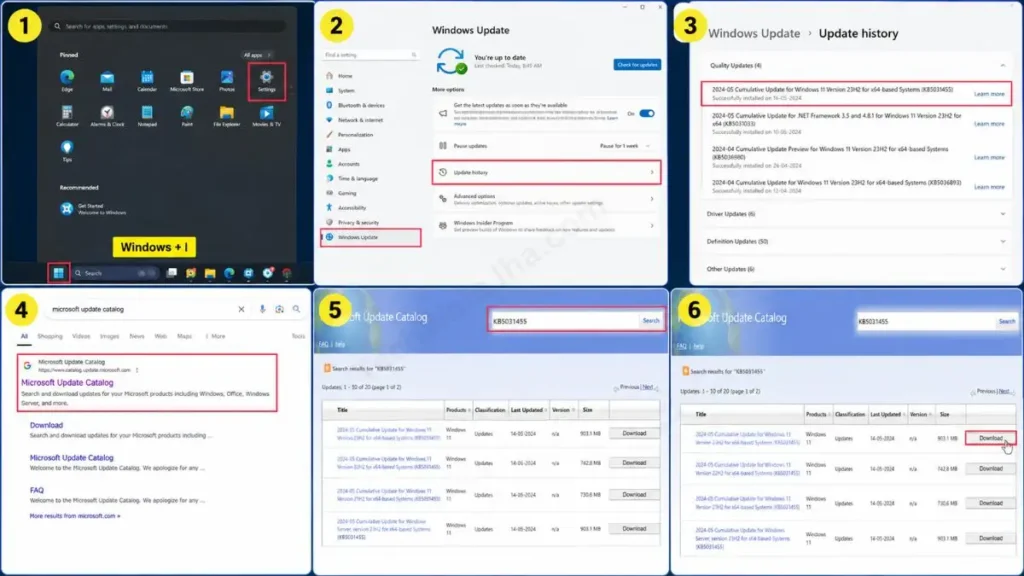
- First, find the KB number of this error. To do this, press Windows + I on your PC to go to Settings. Then go to Windows Update and click on Update History. Here, for the update that failed, like “Cumulative Update for Windows 11,” look carefully in the brackets next to it and you will see a number written there, such as KB5031455 or something else. Then copy it.
- Then open the Update Catalog. To do this, search for “Microsoft Update Catalog” in your browser and open the first official Microsoft website.
- Then, download the correct file. To do this, paste the KB number you copied from your system into the search bar in the top-right corner of the website and then press Enter. After this, a list of many different files will appear. From here, you need to download your Windows Update error 0x800f081f offline installer file.
How to Identify the Correct Update File for Your PC?
Seeing so many files in the list, regular users get confused and download the wrong file, which then results in a “Not applicable” error. Identify your correct file using the table below:
| Architecture Name (see in the list) | Who is it for? (Your PC) |
|---|---|
| x64-based Systems | This is the most common. If your laptop or desktop is 64-bit, then download this. |
| x86-based Systems | This is for 32-bit computers that are about 10–15 years old. |
| ARM64-based Systems | This specifically applies to new laptops with Qualcomm Snapdragon processors, such as the Surface Pro. |
After the file downloads, your Windows Update error 0x800f081f offline installer is ready. But if this installer file also gets stuck while running, it means the Windows image is severely corrupted. In that case, we’ll have to use our CMD tool, namely the DISM offline installer command for 0x800f081f, which we’ll cover in the next advanced step.
Also Read: How to Fix Blue Screen Error in Windows 11 Using Command Prompt
Method 2: Repair System Image with the DISM Tool
Sometimes we download the correct .msu file, but when we try to install it, it freezes halfway through. This simply means that the core files on your system are already damaged and need to be repaired first. Here, we need to use CMD and the DISM offline installer command to easily replace the corrupt source files.
If you want a deep technical understanding of how this command repairs the OS hard drive image in the background, you should definitely read Microsoft Learn’s official Repair a Windows Image guide. It is the most trusted and detailed documentation for IT admins that teaches how to safely restore system integrity.
How to Fix This?
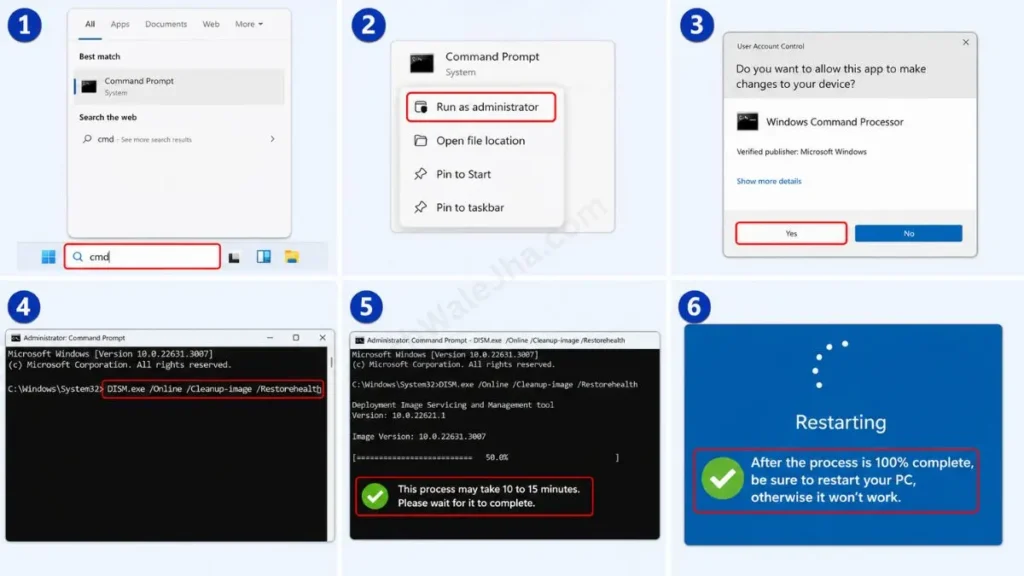
- Type cmd in your Windows search bar and right-click on it to select ‘Run as administrator’.
- After the CMD screen opens, type this powerful command carefully:
DISM.exe /Online /Cleanup-image /Restorehealth - Then press Enter. This process may take 10 to 15 minutes. Wait for it to finish. The process will automatically find the files that are blocking the update, fetch their original, clean copies from Microsoft’s servers, and fix the corrupted Windows update files.
- After the process is 100% complete, be sure to restart your PC, otherwise it won’t work.
3 Things to Keep in Mind When Updating Offline
When I’m recording vertical shorts on Windows configurations and mobile hardware specs for my platform, I always follow some basic rules to keep these advanced update processes smooth. If you want to know how to actually install Windows updates manually without any errors, be sure to keep these three things in mind:
- Disconnect the Internet: As soon as you download your 500MB or 1GB .msu file from the Microsoft Update Catalog offline portal, immediately disconnect your Wi-Fi. This ensures the background auto-updater doesn’t interfere in the middle of the installation.
- Disable Antivirus: If you have a third-party antivirus like McAfee or QuickHeal, pause or disable it for 15 minutes. This is because strict security often blocks the standalone Windows Update installer, mistaking it for a malicious file.
- Fresh Reboot: Before double-clicking to install the update, perform a normal restart of your system to properly clear any old processes lingering in RAM.
Also Read: Top 10 Hidden Features in Windows 11 You Must Try Today
Frequently Asked Questions
When update error 0x800f081f occurs, why does a .NET Framework error appear on my screen?
This is a very common link. It’s often observed that the .NET Framework 3.5 error 0x800f081f occurs when files from older frameworks on the system are deleted or corrupted, which are essential for running new Windows features. In that case, go to the ‘Turn Windows features on or off’ settings, check the box for .NET Framework 3.5 to reinstall it, and then try the offline installer.
Will using the offline installer (.msu) file delete the personal data on my laptop?
Not at all! This is an official and 100% safe troubleshooting method. The Windows Update error 0x800f081f offline installer only adds system files and security patches to the OS drive (C: Drive). Your personal files, such as photos, videos, or games, remain completely safe.
The KB number is missing from the update history. How do I download the update now?
If the update history was cleared due to an error, click the ‘Check for updates’ button again. When the download starts, the KB50… number will clearly flash on the screen. Just note it immediately and search for that exact number in the Microsoft catalog.
Conclusion
Friends, Windows updates are very important for a PC’s security and smooth performance. If errors start to occur with them, the PC can start to hang. I hope that after reading this detailed and easy-to-follow guide, you now know how to properly use the Windows Update error 0x800f081f offline installer and how to permanently bypass any stubborn errors.
When we make technical solutions easy to learn, it becomes very simple for regular users to do the work themselves. If you have successfully updated your PC using this manual .msu file trick, be sure to let me know by writing your KB number in the comment box below.
For more pro-level Windows troubleshooting guides and fast mobile or PC tricks, stay connected daily with your own TechWaleJha platform. And yes, if you have any questions related to this, you can ask me in the comments, and I will guide you completely there. Until then, take care and bye-bye.
Disclaimer: This guide and the CMD or DISM tricks mentioned in it are for educational and PC repair purposes only. When downloading files from the Microsoft Update Catalog, always make sure you select the correct file for your CPU architecture (x64 or ARM). Because installing the wrong file may cause system errors or boot issues, the TechWaleJha platform or its author will not be held responsible.




