
An automated software installer script uses the built-in Windows Package Manager to silently download and install all your essential applications at once. It eliminates manual browser searches, skips annoying setup wizards, and saves hours of time when setting up a new Windows 11 PC.
Hello friends, it’s your very own TechWaleJha! Today, I’m back with a new tool that’s going to be a huge help on your new laptop. The joy of buying a new laptop or PC is amazing, but do you know what the most boring and tiring task is after that? Downloading essential software like Chrome, VLC, WinRAR, and OBS one by one from their websites and installing them on your PC.
It takes hours of clicking “Next, Next, I Agree, Finish” over and over. During this manual process, we sometimes accidentally install bundled software with malware or ads. That’s why, to solve this problem for good, I’ve created a 1-click Software auto installer script. This is a smart automated software installer script that will do all the work for you in the background. You just have to press one button and your PC will get all the necessary apps without you having to click the mouse even once. So, without further delay, let’s learn how to create this Software Auto Installer script.
Also Check This Tool: 1-Click Empty Folder Cleaner Script (Windows 11 & 10)
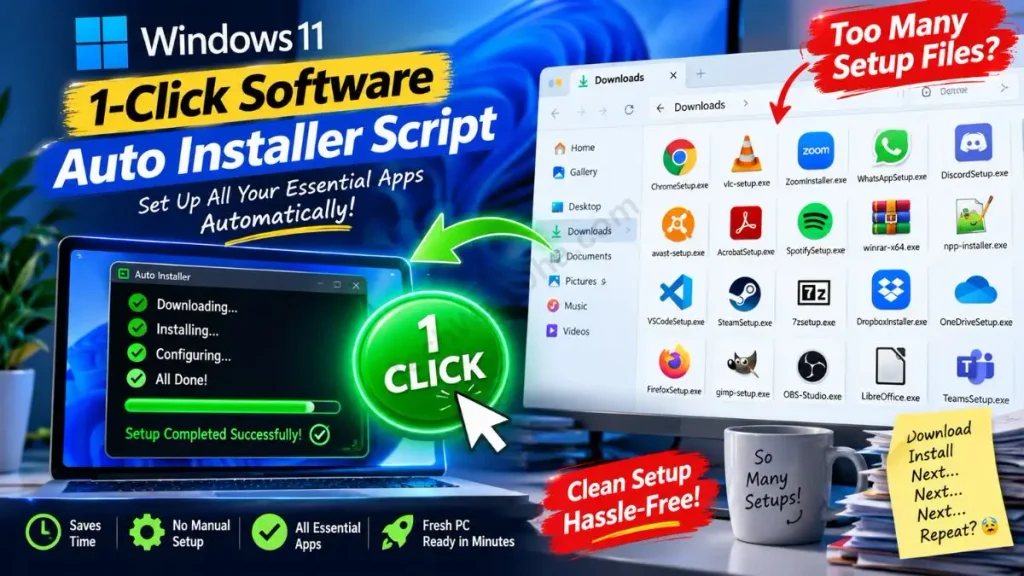
How the 1-Click Auto-Installer Works?
Friends, you might be wondering if it’s safe to use such a script. Well, let me tell you that this tool doesn’t pull apps from any shady third-party websites; instead, it directly uses Microsoft’s official ecosystem, sources the necessary software from there, and installs it on your system.
Let’s understand exactly how this Automated Software Installer script works in the background:
| Script Feature | How does it work? | Real Benefit for You |
|---|---|---|
| Uses Windows Package Manager | This script uses Microsoft’s official Winget command-line tool. | 100% safe and fast downloading. No risk of viruses or malware. |
| Silent Installation | When you run it, apps install in the background. | No manual effort! You don’t have to click “Next” or “I Accept” over and over. This silent installer makes installing multiple software perfectly seamless. |
| Always the Latest Version | This tool always pings the official developer servers of the software to fetch the latest file. | There’s no need to worry about installing an old version. You get the updated app directly. |
| Highly Customizable | There’s no need to worry about installing an old version. You get the updated app directly. | You only install the things you need, no unnecessary bloatware. This is the best approach for installing essential apps on Windows 11. |
You don’t need to lift a finger to set up any new laptop. This is going to be an ultimate VIP experience for you.
Also Check This Tool: 1-Click Windows Frozen Screen Fix Script: Unfreeze PC Safely
Create the Software Auto Installer Script Manually (BAT Code)
Friends, whether you’re an average person using your PC in a normal way or part of the tech community working at an advanced level, everyone always appreciates technical originality. That’s why I want you to build your own custom unattended Windows software installation tool. If you’re somewhat tech-savvy, creating this software auto installer script with Notepad will be very easy and fun for you.
To create your own 1-Click Auto Installer, carefully follow the steps given below:
- Now, on your new PC, press the Windows Key, type “Notepad” in the search, and open it.
- Then, copy the advanced code given below and paste it into Notepad without any changes:
@echo off
title TechWaleJha - Software Auto Installer
color 0A

:: Check for Administrator Privileges
net session >nul 2>&1
if %errorLevel% NEQ 0 (
    color 0C
    echo =====================================================
    echo ERROR: Please run this script as Administrator!
    echo Right-click and select "Run as administrator".
    echo =====================================================
    pause
    exit
)

:MENU
cls
color 0A
echo =====================================================
echo           1-Click Software Auto Installer
echo =====================================================
echo.
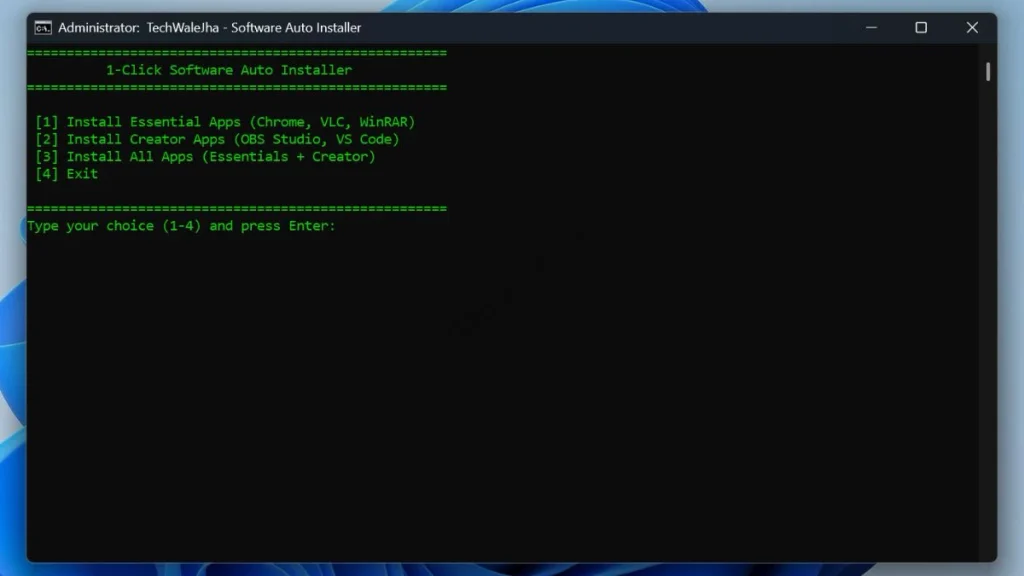
echo  [1] Install Essential Apps (Chrome, VLC, WinRAR)
echo  [2] Install Creator Apps (OBS Studio, VS Code)
echo  [3] Install All Apps (Essentials + Creator)
echo  [4] Exit
echo.
echo =====================================================
set /p choice="Type your choice (1-4) and press Enter: "

if "%choice%"=="1" goto ESSENTIALS
if "%choice%"=="2" goto CREATOR
if "%choice%"=="3" goto ALL
if "%choice%"=="4" goto EXIT

echo.
echo Invalid Choice! Please select between 1 and 4.
timeout /t 2 >nul
goto MENU


:ESSENTIALS
cls
call :LOADING_ANIMATION
echo =====================================================
echo           Installing Essential Apps...
echo =====================================================
echo [*] Installing Google Chrome...
winget install -e --id Google.Chrome --accept-source-agreements --accept-package-agreements --silent
echo [*] Installing VLC Media Player...
winget install -e --id VideoLAN.VLC --accept-source-agreements --accept-package-agreements --silent
echo [*] Installing WinRAR...
winget install -e --id RARLab.WinRAR --accept-source-agreements --accept-package-agreements --silent
echo.
echo All Essential Apps Installed Successfully!
pause
goto MENU


:CREATOR
cls
call :LOADING_ANIMATION
echo =====================================================
echo           Installing Creator Apps...
echo =====================================================
echo [*] Installing OBS Studio...
winget install -e --id OBSProject.OBSStudio --accept-source-agreements --accept-package-agreements --silent
echo [*] Installing Visual Studio Code...
winget install -e --id Microsoft.VisualStudioCode --accept-source-agreements --accept-package-agreements --silent
echo.
echo All Creator Apps Installed Successfully!
pause
goto MENU


:ALL
cls
call :LOADING_ANIMATION
echo =====================================================
echo           Installing All Apps...
echo =====================================================
echo [*] Installing Google Chrome...
winget install -e --id Google.Chrome --accept-source-agreements --accept-package-agreements --silent
echo [*] Installing VLC Media Player...
winget install -e --id VideoLAN.VLC --accept-source-agreements --accept-package-agreements --silent
echo [*] Installing WinRAR...
winget install -e --id RARLab.WinRAR --accept-source-agreements --accept-package-agreements --silent
echo [*] Installing OBS Studio...
winget install -e --id OBSProject.OBSStudio --accept-source-agreements --accept-package-agreements --silent
echo [*] Installing Visual Studio Code...
winget install -e --id Microsoft.VisualStudioCode --accept-source-agreements --accept-package-agreements --silent
echo.
echo All Apps Installed Successfully!
pause
goto MENU


:LOADING_ANIMATION
cls
color 0E
echo =====================================================
echo           Preparing Environment...
echo =====================================================
echo.
<nul set /p ="Loading: ["
:: This loop runs 20 times and prints '#' one by one
for /L %%i in (1,1,20) do (
    <nul set /p ="#"
    :: Using the ping trick to create a fake delay for the animation
    ping 192.0.2.1 -n 1 -w 100 >nul
)
echo ] 100%%
echo.
echo Initialization Complete!
timeout /t 1 >nul
cls
color 0A
goto :EOF


:EXIT
exit- After pasting the code into Notepad, click on File at the top and then select the “Save As” option. A pop-up window will appear; in the “Save as type” drop-down menu, select “All Files.”
- Then, name the file Auto-Installer.bat and save it to the Desktop of your new PC.
Also Check This Tool: Delete Files Older Than 30 Days Batch Script (1-Click)
Line-by-Line Code Breakdown (How does it work?)
Let’s understand what advanced techniques are used in this batch script to install programs:
net session >nul 2>&1: This command checks if you have given the script Administrator rights. Admin permission is required to install software on the C: Drive.winget install -e --id ...: This is the heart of the script!--idfetches the official tag of the specific software, and-e(exact) ensures that no similar fake app gets installed.--silent: This magic word hides the setup wizards. This way, you won’t be prompted to click ‘Next’.ping 192.0.2.1 ... >nul: This is a pro CMD trick! It creates a fake delay in the loading animation so the interface looks professional and smooth.
Also Check This Tool: 1-Click Game Booster Script: Fix Lag & Boost FPS
Download the 1-Click Software Auto Installer (ZIP File)
Friends, if you want to avoid errors in Notepad, coding, and copy-pasting, I won’t waste your time at all. I’ve prepared this same script for you in a fully professional, error-free format. You can download this “setup new pc automatically” tool completely free by clicking the button below.
Is this ZIP file safe to download?
Absolutely, it's 100% safe, and you can download it without any hesitation. Often, when you download a .bat (Batch) script directly from the internet, Google Chrome or Windows Defender may mistake it for a false positive and block the download. They think background CMD commands could be dangerous. To avoid this inconvenience, I've securely packed this tool into a ZIP folder. It contains no third-party bloatware, viruses, or ads.
Also Check This Tool: 1-Click Laptop Battery Health Checker Script (Windows)
How to Use the Auto-Installer on a New PC?
Friends, now that you have the tool, it's very important to run it the right way, otherwise your new PC might crash. Because this script installs apps on the system's C: drive, you shouldn't open it by simply double-clicking. To set up your new PC without any headaches, follow the simple steps below:
- Step 1: On your new laptop, right-click the downloaded Auto-Installer-TechWaleJha.zip file and extract it.
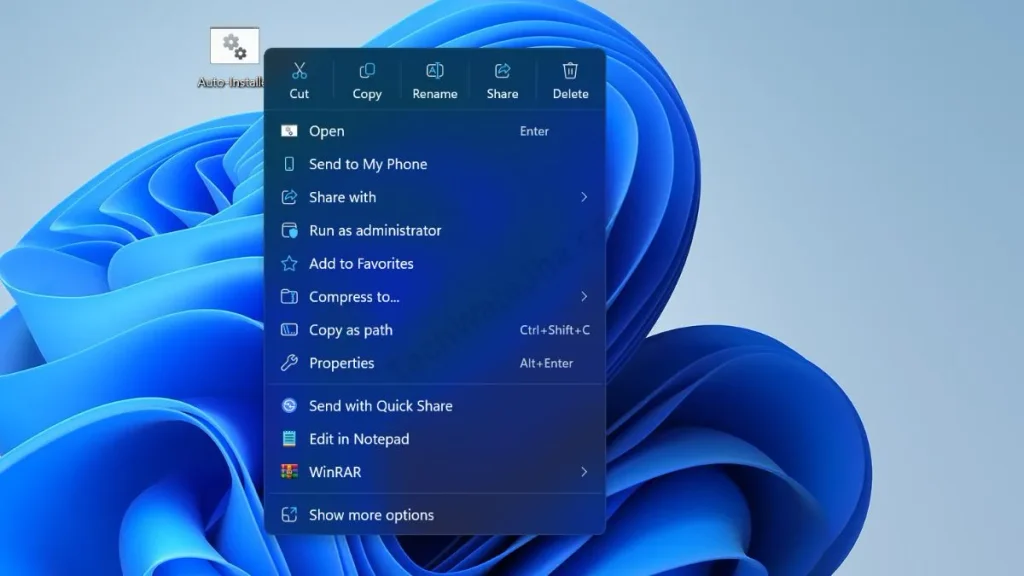
- Step 2: Inside the extracted folder, you'll find the Auto-Installer.bat file. Right-click it and be sure to select “Run as Administrator.” If you don't, the script will automatically close with an error.
- Step 3: A cool green and black CMD screen will open with a menu. You can choose the option according to your needs. If you want all the apps, press ‘3’ on your keyboard and press Enter.
- Step 4: After this, you don't need to do anything. A loading animation will appear on the screen, and then the script will automatically start installing Chrome, VLC, WinRAR, etc., one by one in the background.
- Step 5: Once the process is complete, you will see “All Apps Installed Successfully!” written on the screen. Now, close the CMD window and restart your PC. After that, you will see that all your essential apps are ready on your Desktop.
This is the smartest and most time-saving method for unattended software installation in Windows, and it's something every new PC buyer should know.
Also Check This Tool: 1-Click Folder Locker Script For Windows: Hide & Lock Files Safely
Frequently Asked Questions (FAQs)
Is this script safe to use on a new laptop?
Yes, absolutely! This script directly uses Microsoft's official winget (Windows Package Manager) tool. It downloads software from the original official servers instead of shady websites, so there is no chance of a virus.
Do I need to install any third-party software to run this?
No. Winget is already built-in on Windows 10 and Windows 11. You don't need to download or install anything extra to run this script.
Can I add more apps like WhatsApp or Spotify to this script?
Yes! You can easily add your own custom apps. Just open CMD and type `winget search WhatsApp`. From there, copy the exact ID of the app (like `WhatsApp.WhatsApp`) and paste it into the script in the same format.
Why is the script asking for Administrator permission?
Windows always requires admin rights to install any software into the Program Files folder on your system drive (C: Drive). The installation will fail without Administrator permission.
Conclusion
So, friends, that was the easiest and most ninja way to set up a new PC. Now you don't have to waste hours on manual downloads and annoying setup wizards at all.
What other apps (like Spotify, Discord, or Telegram) did you add to your custom installer? Be sure to share your list with me in the comments below.
And for more advanced Windows package manager scripts, PC tips, and automation tricks, be sure to follow and subscribe to your tech-buddy, TechWaleJha, on Instagram, Facebook, and YouTube. Until we meet again in another detailed guide like this, take care and bye-bye.
Disclaimer: Friends, I have personally tested all the Batch (.bat) scripts provided in this article, and they are completely safe and secure. However, since every PC's configuration is different, please use them at your own risk. Before running any system-level script, be sure to back up your important data. TechWaleJha or this website will not be held responsible for any unexpected data loss, system errors, or PC crashes. Please run the script exactly as instructed and avoid making any unintended changes to the code.




