
Have you ever been in the middle of an intense battle (like Valorant, a BGMI emulator, or GTA 5) when your screen suddenly starts to lag? In such cases, these sudden FPS drops and stuttering are enough to ruin any gamer’s mood, and you end up having to quit the game midway. You then start looking into your system to figure out why this problem is occurring.
Then we think our processor or graphics card is outdated, but the truth is the problem lies in your memory management, not your processor or graphics card. When you turn on your PC, many memory-hogging apps like Chrome tabs, Spotify, Discord, or cloud sync apps quietly run in the background. These apps consume your available RAM and disk processing power, and as a result, when you open your favorite game, there isn’t enough free memory for it to run, which causes the game to start lagging.
Every time you play a game, manually closing each app one by one is extremely time-consuming and boring. That’s why I’m going to create a powerful 1-Click Game Booster script specifically designed to fix game lag in Windows. Just one click, and all your background memory will be freed up. So let’s learn how to manually create this 1-Click Game Booster script or download and use a ready-made one, so this problem doesn’t happen again while playing games.
Also Check This Tool: 1-Click Laptop Battery Health Checker Script (Windows)
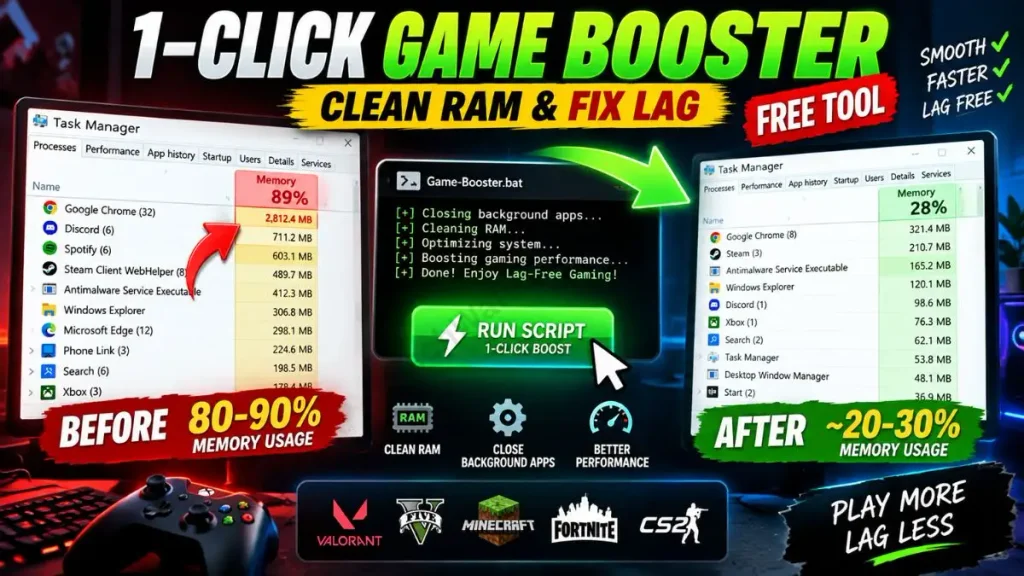
How Does This RAM Cleaner & Game Booster Work?
Friends, before installing any “magic” booster software, a smart gamer should know exactly what changes are happening in the background of their PC. Many third-party game boosters you find online, like Razer Cortex, consume a lot of resources themselves and, instead of cleaning your PC, put even more load on it. But our custom RAM cleaner script for gaming is extremely lightweight and 100% transparent.
Let’s understand what magic this Game Booster script works on your system to make your FPS speed faster in just a few seconds:
3-Step Gaming Optimization Process
| Action by Script | Technical Process | Real Benefit for Gamers |
|---|---|---|
| Frees Up RAM | It forcibly closes background apps like Chrome, OneDrive, and Skype. | Boost FPS on low end PC: My game gets maximum RAM and CPU power, which instantly increases the FPS. |
| Clears Temp Junk | It forcibly empties the system’s temporary cache folder (%temp%). | Fixes Stuttering: This reduces the PC’s disk usage and makes the game’s map loading even faster. |
| Drops Ping | Flushes the DNS cache. | Stable Online Gaming: It fixes sudden high ping spikes and packet loss in multiplayer games. |
If you want to read more in-depth about this advanced network troubleshooting, you can read Microsoft’s official IPConfig guide, which will explain it to you in greater detail.
For a true gamer, this is the perfect combination of a clear temp files bat script and a network optimizer that removes all PC bottlenecks with a single click, making the system run even faster.
Also Check This Tool: 1-Click Folder Locker Script For Windows: Hide & Lock Files Safely
Create the Game Booster Script Manually (BAT Code)
Friends, if you’re tech-savvy and want to know exactly what’s running on your PC and have full control over it, then creating your own custom tool is the best way. Instead of downloading unknown boosters from the internet, it’s better to write and build your own free up RAM for gaming script.
To create this script, just follow the simple steps below:
- Press the Windows key on your PC, type “Notepad” in the search bar, and open it.
- Then copy the code below and carefully paste it into Notepad:
@echo off
color 0C
title 1-Click Game Booster & RAM Cleaner By Techwalejha.com

:: Admin Rights Check (Required for deep cleaning and changing Power Plan)
echo Checking for Administrator privileges...
net session >nul 2>&1
if %errorLevel% NEQ 0 (
    echo ========================================================
    echo WARNING: For best results, please close this window and
    echo Right-click -^> "Run as Administrator".
    echo ========================================================
    pause
)

echo =========================================
echo   1-Click Game Booster & RAM Cleaner
echo =========================================
echo.

echo [1/5] Enabling High Performance Power Plan...
:: Sets CPU to max performance to prevent frame drops
powercfg -setactive 8c5e7fda-e8bf-4a96-9a85-a6e23a8c635c >nul 2>&1
echo Power Plan updated!
echo.

echo [2/5] Closing heavy background apps (RAM Clean)...
taskkill /f /im onedrive.exe 2>nul
taskkill /f /im skype.exe 2>nul
taskkill /f /im msedge.exe 2>nul
taskkill /f /im chrome.exe 2>nul
taskkill /f /im spotify.exe 2>nul
taskkill /f /im discord.exe 2>nul
taskkill /f /im teams.exe 2>nul
echo.

echo [3/5] Deep Cleaning temporary junk & Cache...
:: Clears local Temp, Windows Temp, and Prefetch files
del /q /f /s "%temp%\*" 2>nul
del /q /f /s "C:\Windows\Temp\*" 2>nul
del /q /f /s "%WINDIR%\Prefetch\*" 2>nul
echo.

echo [4/5] Clearing Clipboard Memory...
:: Frees up RAM used by the clipboard
echo off | clip
echo.

echo [5/5] Optimizing Network for low Ping...
ipconfig /flushdns >nul
echo.

echo =========================================
echo   Optimization Complete! Ready for Gaming.
echo =========================================
pause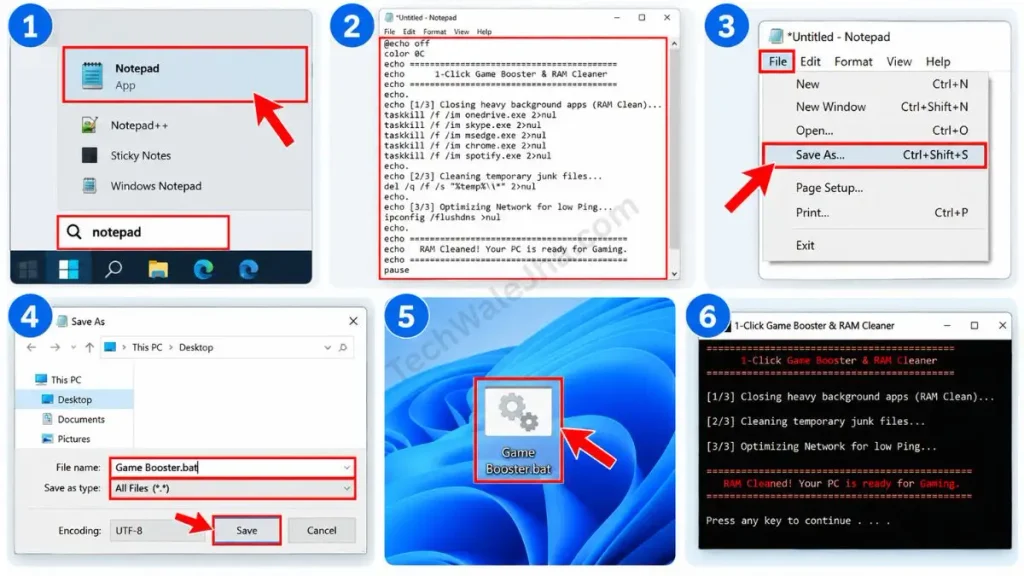
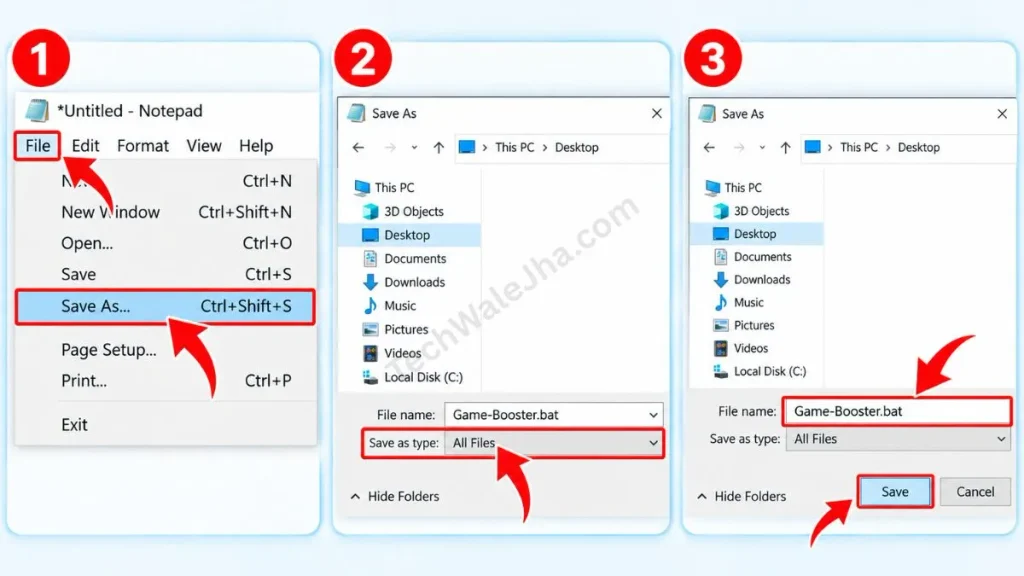
- After pasting the code in Notepad, click on File in the top left corner and select the “Save As” option.
- A window will pop up; in the “Save as type” drop-down, select “All Files”.
- Right above the ‘Save as type’ option, name the file Game-Booster.bat and save it to your Desktop so it can be run directly before starting the game.
Also Check This Tool: 1-Click Windows Auto Repair Tool Script: Fix BSOD & Errors
Line-by-Line Code Breakdown (How does it work?)
Let me give you a technical breakdown of this lower ping bat script and RAM cleaner so you can understand what kind of magic this code works on your system to boost your FPS:
taskkill /f /im chrome.exe...: This command forcefully (/f) closes memory-hogging apps like Chrome, Spotify, and OneDrive. This instantly frees up your maximum RAM.del /q /f /s “%temp%\*”: This is an aggressive cleanup command that silently (/q) and without confirmation deletes all the junk from the system’s hidden Temp folder (%temp%), which reduces disk load.ipconfig /flushdns: This is a pro-level network command. It clears your PC’s DNS cache, which helps keep ping stable and prevents lag spikes in online games.
Also Check This Tool: One Click Windows Telemetry Disable Script (Boost Speed 2026)
Download the 1-Click Game Booster Script (ZIP File)
If you don’t want to get into the technical steps of Notepad and coding and are looking for a completely error-free, ready-to-use Game Booster tool that you can install on your desktop right away, there’s no need to worry because I’ve already prepared the bat file download for you. You can download it for free by clicking the button below.
Why is this Game Booster tool saved in ZIP format?
A very common problem is that whenever you download any .bat (Batch) file directly from the internet, browsers like Chrome and Edge or Windows Defender will mark it as a “harmful file” as a “harmful file.” This is called a security false-positive. To avoid this problem, I have packed this file into a ZIP folder. This tool is 100% safe, it has no virus, and it does not install any kind of third-party bloatware on your PC. It is fully tried and tested.
Also Check This Tool: One Click Network Fixer Script: Fix WiFi No Internet Fast
How to Use This Game Booster Tool Before Gaming? (Best Practice)
Friends, any tool's real benefit is only realized when it's used correctly. A common mistake most people make is opening a file by simply double-clicking it, and when you do that, the script can't shut down the background services, so you don't get the full benefit. If you really want to get the maximum FPS boost, be sure to follow this step-by-step guide:
- Step 1: First, right-click on the downloaded ZIP file and extract it. Then, take the Game-Booster.bat file and place it directly on your Desktop so it's right in front of you before you play the game and you can easily boost your game with a single click.
- Step 2 (Most Important): One minute before opening your game (like Valorant or GTA 5), right-click this file and be sure to select “Run as Administrator.” This gives the tool system-level permissions so it can perform a deep clean.
- Step 3: As soon as you click “Run as administrator,” a black window will open on the screen and within just 2–3 seconds it will clear your background and display “RAM Cleaned! Your PC is ready for Gaming.”
- Step 4: After that, just open your game and enjoy smooth gaming without any lag or stutter! This is by far the easiest way to fix stuttering in games.
Also Check This Tool: 1-Click Shortcut Virus Remover Script (Fix Pendrive)
Frequently Asked Questions (FAQs)
Will this tool close my Chrome tabs?
Yes! Google Chrome and Microsoft Edge are the biggest enemies of RAM. This script completely closes them in the background to free up maximum RAM. Therefore, before running this script, be sure to save any important browsing work or tabs.
Is this safe for my laptop and battery?
100% Safe! In fact, closing background apps reduces the load on your laptop's processor (CPU). This also makes your laptop run cooler and improves battery life, along with providing ultimate Windows 11 gaming optimization.
Can it fix low FPS in heavy games like Valorant or GTA 5?
Absolutely Yes! On low-end PCs (with only 4GB or 8GB of RAM), the main reason for lag is a memory bottleneck. This script dedicates your PC's maximum available RAM directly to the game, which boosts FPS and stops stuttering.
Do I need to run this every time I play a game?
Yes. For the best gaming experience and consistent performance, you should run this script exactly 1 minute before you start any new and heavy game.
Conclusion & Social Proof CTA
So, friends, that was the easiest and most effective way to turn your PC into a gaming beast without any heavy third-party software. Now you won't have to compromise on your chicken dinner or clutch because of background apps and RAM.
How many FPS did you get in your game after using this 1-Click Game Booster script? Be sure to share your experience and your PC's specs (RAM, Processor) with me in the comments below.
For more advanced PC optimization scripts, daily tech hacks, and gaming tricks, be sure to follow and subscribe to your friend @TechWaleJha on Instagram, Facebook, and YouTube. Until we meet again with another powerful tech solution, take care and bye-bye.
Disclaimer: Friends, I have personally tested all the Batch (.bat) scripts provided in this article, and they are completely safe. However, since everyone's PC configuration is different, please use them at your own risk. Before running any system-level script, be sure to back up your important data. TechWaleJha, its author, or this website will not be held responsible for any unexpected data loss, system errors, or PC crashes. Please run the script exactly as per the steps provided and avoid making any unintended changes to the code.




