
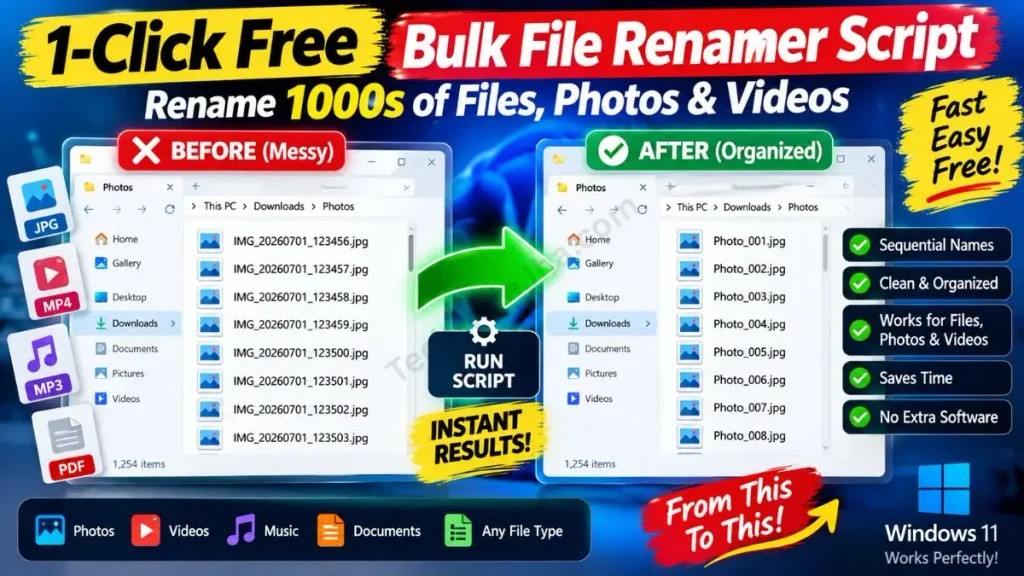
A custom bulk file renamer script is the best way to securely rename multiple files in Windows. Unlike the default Windows rename feature, which adds unprofessional brackets like (1), (2), this script instantly renames thousands of files sequentially without requiring any heavy, ad-supported third-party software.
Hello friends, I’m your very own TechWaleJha! If you’re a photographer, a content creator, or have just returned from a recent trip, your hard drive is probably full of photos and videos with weird names like IMG_20260919_1146.jpg. When you need to use these files in a project or send them to a client, these names don’t look very professional.
So what people do is select all these files, press ‘F2’, and rename them. But Windows does something really annoying: it adds (1), (2), etc., to the filenames. Then some people end up downloading heavy third-party software that slows down their PC and constantly shows ads.
That’s why I’ve brought you a perfect auto rename photos script. It’s a lightweight bulk rename tool for Windows 11 and 10 with unparalleled benefits, such as:
- No Installation Needed: You don’t need to install any 50 MB software. It’s just a 1 KB file that won’t affect your system’s speed.
- Customizable Names: You can name the files however you like, without those annoying brackets.
- 100% Safe Targeting: It will only target the files whose extension (like .jpg or .mp4) you choose, and it won’t touch any other files without your permission.
Also Check This Tool: 1-Click Software Auto Installer Script for New Windows 11 PC
Create the Bulk File Renamer Script Manually (BAT Code)
Friends, both a regular user and my tech community always want to gain in-depth knowledge about any script I share. That’s why, instead of relying on any app, we’ll build our own custom batch file rename tool using the command prompt.
If you’re tech-savvy, follow these simple steps to manually create this bulk file renamer script:
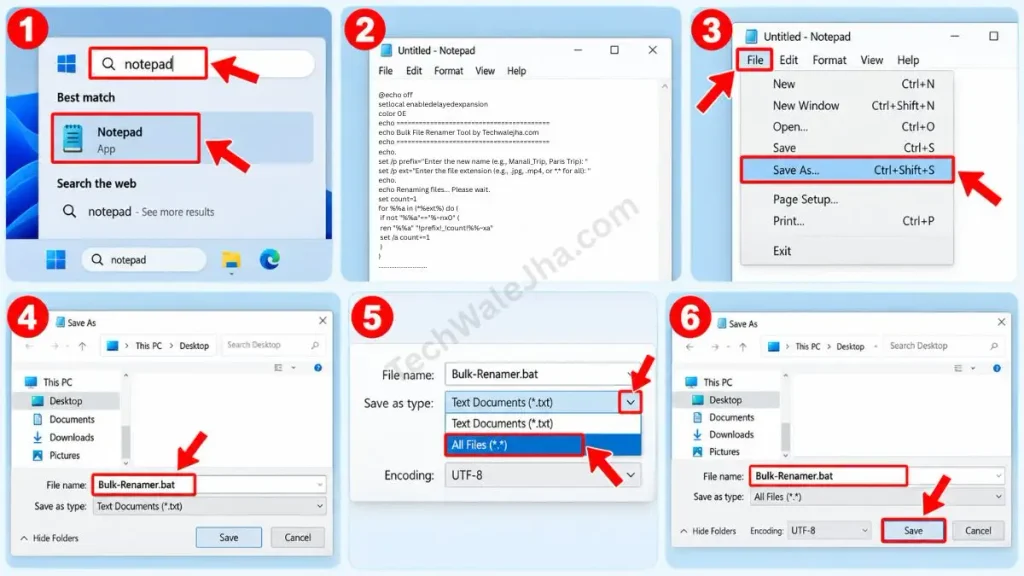
- Now, on your laptop or PC, press the Windows Key, type “Notepad” in the search bar, and open it.
- Then, copy the code below and carefully paste it into Notepad:
@echo off
setlocal enabledelayedexpansion
color 0E
echo =========================================
echo Bulk File Renamer Tool by Techwalejha.com
echo =========================================
echo.
set /p prefix="Enter the new name (e.g., Manali_Trip, Paris Trip): "
set /p ext="Enter the file extension (e.g., .jpg, .mp4, or *.* for all): "
echo.
echo Renaming files... Please wait.
set count=1
for %%a in (*%ext%) do (
    if not "%%a"=="%~nx0" (
        ren "%%a" "!prefix!_!count!%%~xa"
        set /a count+=1
    )
)
echo.
echo =========================================
echo   All Files Renamed Successfully!
echo =========================================
pause- After pasting the code into Notepad, a File option will appear in the top left corner. Click on it and then select “Save As”.
- A pop-up window will then appear. From the “Save as type” drop-down menu, select “All Files”.
- Then, right above it, name the file Bulk-Renamer.bat and save it to your Desktop.
Also Check This Tool: 1-Click Empty Folder Cleaner Script (Windows 11 & 10)
Line-by-Line Code Breakdown (How does it work?)
Let’s understand how this code works its magic in the background. If you want to learn the advanced details of scripting, you can read Microsoft’s official CMD documentation.
setlocal enabledelayedexpansion: This is the script’s most crucial masterstroke because it tells CMD that variables (like our number count 1, 2, 3…) inside loops should update in real-time. Without this line, all the files would get the same number.set /p: This command prompts the user for input, such as the desired new name and extension.for %%a in (*%ext%) do: This loop finds all the files in your folder that match the extension you provided (.jpg, .mp4).if not “%%a”==“%~nx0”: This is a safety lock. It ensures the script doesn’t accidentally rename itself (Bulk-Renamer.bat)!ren “%%a” “!prefix!_!count!%%~xa”: This is the main Rename command that removes the old name and applies your new prefix and updated number.
Also Check This Tool: 1-Click Windows Frozen Screen Fix Script: Unfreeze PC Safely
Download the 1-Click Bulk Renamer Script (ZIP File)
Friends, if you’re not tech-savvy and want to stay away from the hassle of coding, Notepad, or errors, then I’ve made the job super easy for you. I’ve already prepared an error-free, ready-to-use file for you. You can download this tool directly by clicking the button below.
Why is this tool in ZIP format?
Often when we download a .bat (Batch) script directly from the internet, Google Chrome, Microsoft Edge, or your antivirus flag it as a false positive (a wrong alarm) and block it. They think a file that automatically opens CMD could be harmful. To avoid this inconvenience and security warning, I have securely packed it in a ZIP folder, which is 100% safe and virus-free.
Also Check This Tool: Delete Files Older Than 30 Days Batch Script (1-Click)
How to Use the Script to Rename Your Files?
This batch file renamer without software will only work properly if you place it in the correct location. To avoid accidentally renaming another folder and to ensure the script runs smoothly, carefully follow the simple steps below:
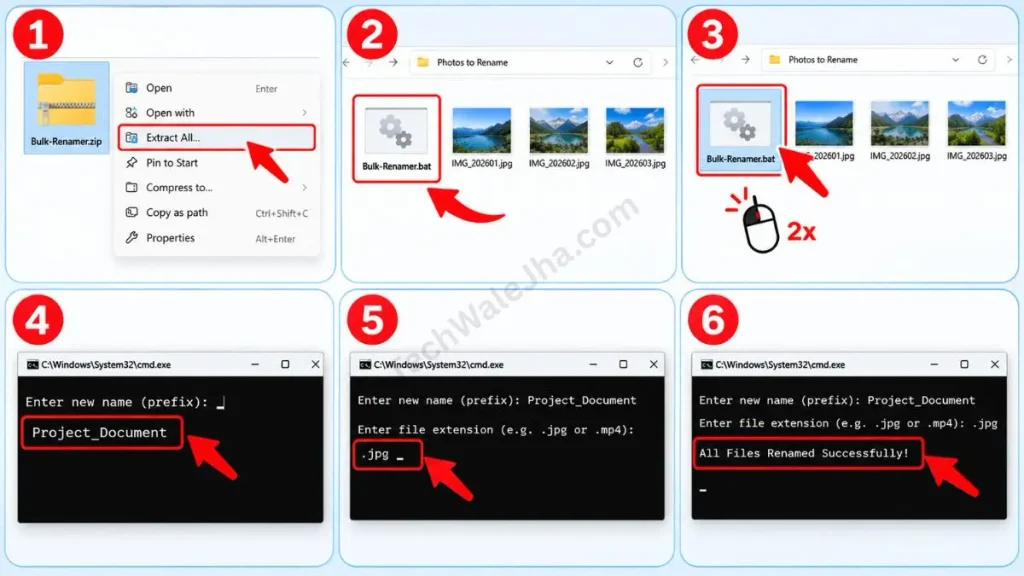
- Step 1: First, right-click the downloaded ZIP file, extract it, and copy the Bulk-Renamer.bat file from inside.
- Step 2 (Most Important): Paste this script into the specific folder where all the photos or videos you want to rename are stored, because the script needs to be with those files to work properly.
- Step 3: Now, inside that same folder, double-click on Bulk-Renamer.bat. A black CMD window will open.
- Step 4: You will be prompted on the screen for the new name (prefix). Type your new name (e.g., Project_Document or Goa_Vlog) and press Enter. Tip: Use an underscore ( _ ) instead of a space between words for a more professional look.
- Step 5: You will now be prompted for the file extension. If they are photos, type .jpg, and if they are videos, type .mp4 and press Enter.
- Step 6: In less than a second, the message “All Files Renamed Successfully!” will appear on the black screen.
Check your folder, and you will now see that all your files have been perfectly renamed in the sequence Project_Document_1, Project_Document_2.
Also Check This Tool: 1-Click Game Booster Script: Fix Lag & Boost FPS
Frequently Asked Questions (FAQs)
Will this script accidentally rename my other folders?
No, absolutely not! This script is specially designed to work only inside the specific folder where it is pasted. Also, it only renames files (like photos, videos, documents), keeping your sub-folders completely safe and untouched.
What happens if I type . in the extension box?
This is a very cool pro-trick! If you type *.* in the extension box, then every type of file in that folder (whether it's .pdf, .jpg, or .txt) will be renamed in the same sequence and with the same name.
Can I undo the changes if I make a mistake?
Windows batch scripts don't have a direct “Undo” (Ctrl+Z) option. Once a script runs, it's final. That's why my advice is always to first create a ‘Test Folder’ and check the tool on 4-5 dummy files, or to be sure to take a backup before renaming bulk files.
Does this tool work on large files like 4K videos?
Yes! The renaming process doesn't depend on the actual size of the file at all; it only changes the file's name. You can instantly rename 50 large 10GB 4K video files in just 1 second.
Conclusion
So friends, this was the ultimate ninja method to give your thousands of oddly named files a perfect, professional look all at once, without any heavy or ad-supported software. Now you won't have to waste hours pressing F2 to manage your projects and albums.
How many files did you rename at once using this tool? 500, 1000, or even more? Be sure to share your record in the comments section below; I love reading everyone's comments myself.
If you want to see more time-saving PC automation scripts and advanced technical tricks in short videos, be sure to follow and subscribe your tech-buddy, TechWaleJha, on Instagram, Facebook, and YouTube. See you again with a solid solution to a new problem. Until then, take care and bye-bye.




