We all have a pendrive or USB flash drive where we save our most important data, photos, or office documents. But what if you plug it into your PC and see an error on the screen like “USB Device Not Recognized” or “You need to format the disk before you can use it”? It’s completely normal to panic after seeing this error.
After seeing all this, many people think their USB flash drive is permanently broken and that they’ll have to forget all their old data and buy a new drive. But the truth is that in 90% of cases the problem isn’t hardware but software (file system). If you’re worried and want to know how to repair a USB flash drive without going to a technician, then you’ve come to the right place.
In this step-by-step guide, we’ll show you simple methods so you can easily fix a corrupted USB drive, RAW errors, and an undetectable flash drive from home.

Quick Answer: How to Repair a USB Flash Drive?
If you’re in a hurry and want to know instantly how to fix a corrupted USB drive, you can follow the proven steps given below:
Steps to securely repair a USB flash drive on Windows:
- Switch Ports: First, try changing the PC’s USB port.
- Run CHKDSK: Open Command Prompt (Admin) and type chkdsk X: /f (replace X with your USB drive letter) to fix the file system.
- Update Drivers: Update the USB controllers in Device Manager.
- Use DiskPart: If the drive has become RAW, use the DiskPart tool in CMD to rebuild the partition.
Pro Tip: Never directly “Format” your corrupted USB drive without trying data backup or recovery, as this can permanently delete your important files. If you want to see Microsoft’s official advice, be sure to read their USB troubleshooting guide.
Basic Checks & Causes: Why Isn’t a USB Drive Detected?
Before repairing your flash drive, it’s important to understand the root cause of the problem. This will help you choose the right repair method.
Why Do USB Drives Get Corrupted?
The most common reasons for a pendrive to get corrupted are:
- Removing Without Ejecting: Pulling out the pendrive without properly ejecting it is the biggest mistake you can make. This corrupts the file system and makes the drive RAW.
- Power Cuts: If the power suddenly goes out while files are being copied, it can also cause an error because the data is only partially written.
- Virus & Malware: Plugging a pendrive into an infected computer can create hidden files that cause the “USB device not recognized” error.
Hardware Alert: Many times when you’re transferring large files via USB, the PC suddenly shuts down due to overheating. This abrupt shutdown can instantly corrupt the USB drive. To avoid such hardware issues and keep your processor cool, learn proven methods here: How to Improve CPU Health: 5 Tips to Keep PC Fast
Try These Basic Hardware Fixes First
If you’re facing the “USB not detected” issue, be sure to try these simple hardware tricks before opening Command Prompt (CMD):
- Try a Different Port: Plug your USB into the rear (motherboard) port instead of the front port on your computer. The rear ports receive a more direct and stronger power supply.
- Try Another PC: Plug the drive into a friend’s computer or another laptop to check. If it works there, the problem is with your PC’s USB drivers, not your flash drive.
- Check for Physical Damage: Carefully inspect the flash drive’s connector (the metal part) to see if it is bent or has any dirt or debris stuck in it.
Data Recovery: How to Save Files Before Repairing?
When Windows repeatedly tells you, “You need to format the disk,” don’t panic and click “Format.” Formatting will create a new file system, but all your data will be permanently lost!
If you’re facing a RAW USB drive error where Windows can’t read the flash drive, your data is still safe inside.
Recover Your Files Before Repairing
Saving your data should be the top priority before starting the process of repairing a corrupted USB drive. Here is a list of some of the best free and paid recovery software:
| Recovery Software | Best For |
|---|---|
| Recuva (Free) | The best and easiest way to recover deleted photos and documents. |
| PhotoRec (Free/Open Source) | RAW drives are quite powerful for deep scans (the interface is a bit technical). |
| Disk Drill (Freemium) | For a user-friendly interface and quick data backup on Windows 10/11. |
How to do it? Install any of these software programs, select your USB drive, and run a “Deep Scan.” Any important files you find, instead of saving them to the USB drive, copy them to your PC’s hard drive like the C: or D: drive.
App crashing issue? If any of your data recovery software or any other app on your PC keeps freezing or won’t open properly, don’t uninstall it right away. You can see how to make any app feel like new again with a simple hidden setting here: How to Reset Any Application on Windows (Quick Guide)
Advanced Windows Tools: Fix USB Using CMD (Safest Method)
If Windows cannot read your USB drive due to file system errors, you can use the CMD tools provided below to forcefully repair the drive.
Method 1: Repair USB Using CHKDSK (Safest Method)
If your drive is not opening due to file system errors, then the CHKDSK USB repair tool is the safest and best option. It fixes the error without deleting any data.
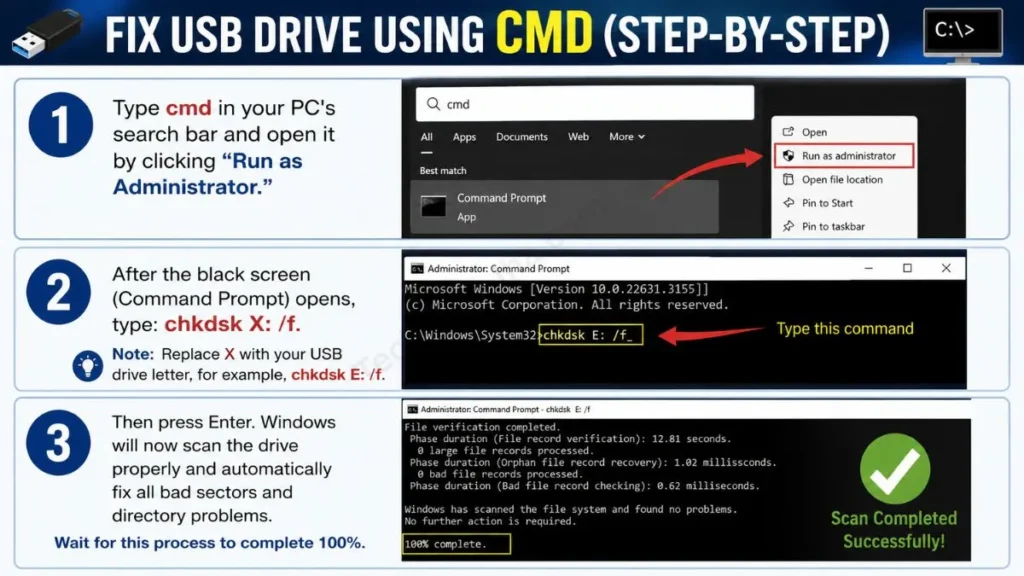
- Step 1: Type cmd in your PC’s search bar and open it by clicking “Run as Administrator.”
- Step 2: After the black screen (Command Prompt) opens, type: chkdsk X: /f. Note: Replace X with your USB drive letter, for example, chkdsk E: /f.
- Step 3: Then press Enter. Windows will now scan the drive properly and automatically fix all bad sectors and directory problems. Wait for this process to complete 100%.
Method 2: Fix Severe Errors Using DiskPart (Data Erasure Warning)
If the drive has become ‘RAW’ or its partitions are not showing, then CHKDSK will not work. In such cases, the DiskPart USB repair method completely rebuilds the pendrive.
Warning: This step will permanently delete all the data on your pendrive, so only use this method after you have completed recovery!
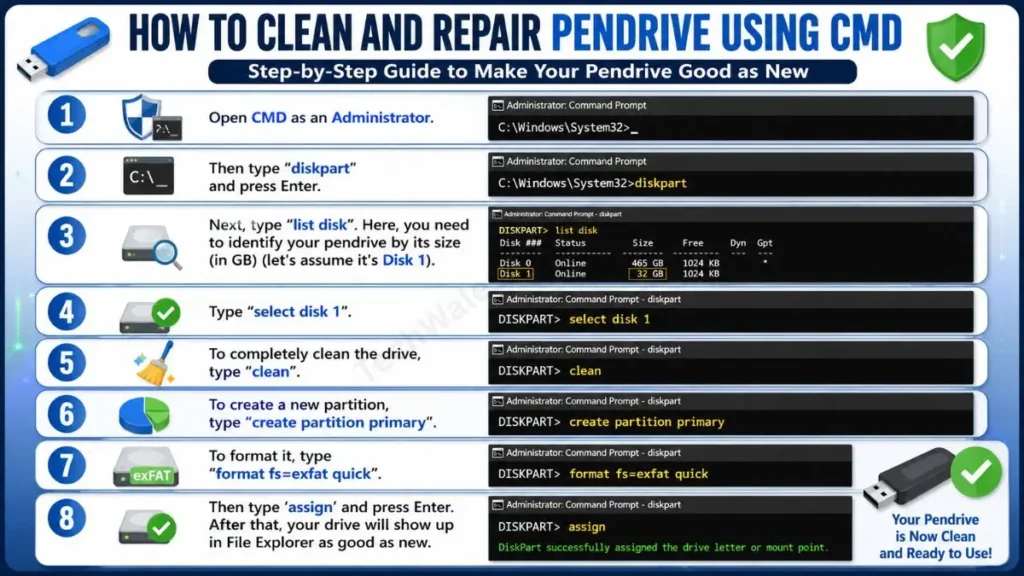
- Step 1: Open CMD as an Administrator.
- Step 2: Then type
diskpartand press Enter. - Step 3: Next, type
list disk. Here, you need to identify your pendrive by its size (in GB) (let’s assume it’s Disk 1). - Step 4: Type
select disk 1. - Step 5: To completely clean the drive, type
clean. - Step 6: To create a new partition, type
create partition primary. - Step 7: To format it, type
format fs=exfat quick. - Step 8: Then type ‘assign’ and press Enter. After that, your drive will show up in File Explorer as good as new.
Method 3: Remove Write Protection Command
Many times the drive is fine, but you can’t copy or delete anything to it because it keeps showing a ‘Write Protected’ error.
- Physical Lock Check: For this, first check if there is a small physical lock switch on the side of the flash drive. If there is, unlock it.
- CMD Method: If there is no switch, open DiskPart in CMD. After selecting your disk (Step 4), type this command:
attributes disk clear readonlyand press Enter. This will successfully remove the USB write protection.
Formatting & Drivers: Final Solutions
If you have recovered all your data, or if the CMD method seems a bit technical to you, then File Explorer and Device Manager are your best friends.
How to Properly Format the USB Drive
Many times, formatting the USB flash drive is the easiest and quickest solution, especially when the drive is virus-infected. For this, you can follow the steps given below.
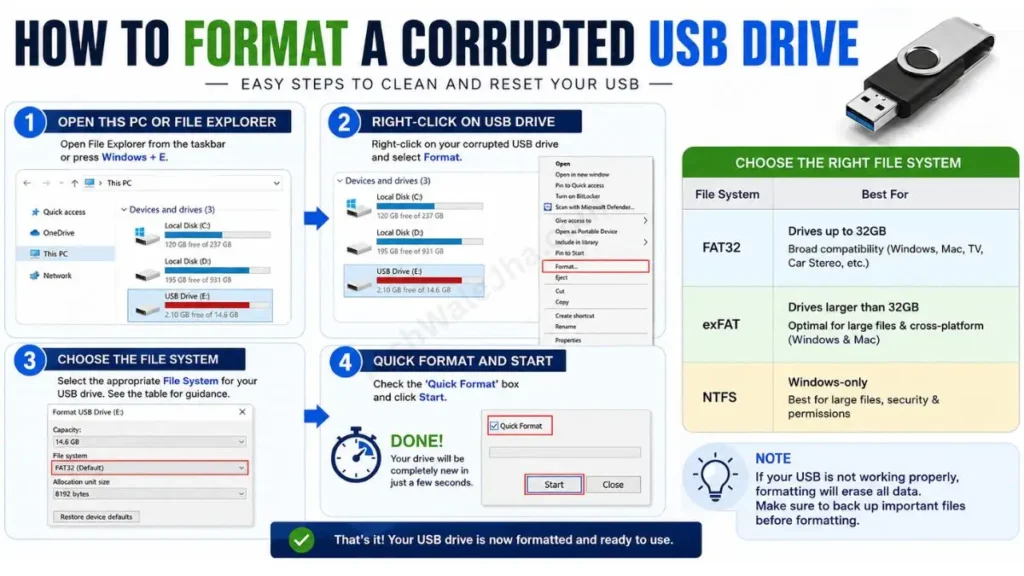
- Step 1: Open This PC or your File Explorer.
- Step 2: Right-click on your corrupted USB drive and select Format.
- Step 3: Choose the ‘File System’. For guidance, see the table below.
- Step 4: Check the ‘Quick Format’ box and click Start. That’s it, your drive will be completely new in just a few seconds.
FAT32 vs exFAT vs NTFS – Which One to Choose?
The biggest confusion people have when formatting is choosing the ‘File System’. Therefore, select the right option according to your needs:
| File System | Best For (Which one is right for you?) | Maximum File Size |
|---|---|---|
| FAT32 | Best (Max Compatibility) for old TVs, cameras, and cars. | It only supports a file up to 4 GB. |
| exFAT | For modern devices to run simultaneously on both Windows and macOS. | Unlimited (no 4GB limit) |
| NTFS | Best only for Windows PCs and security (encryption). | Unlimited |
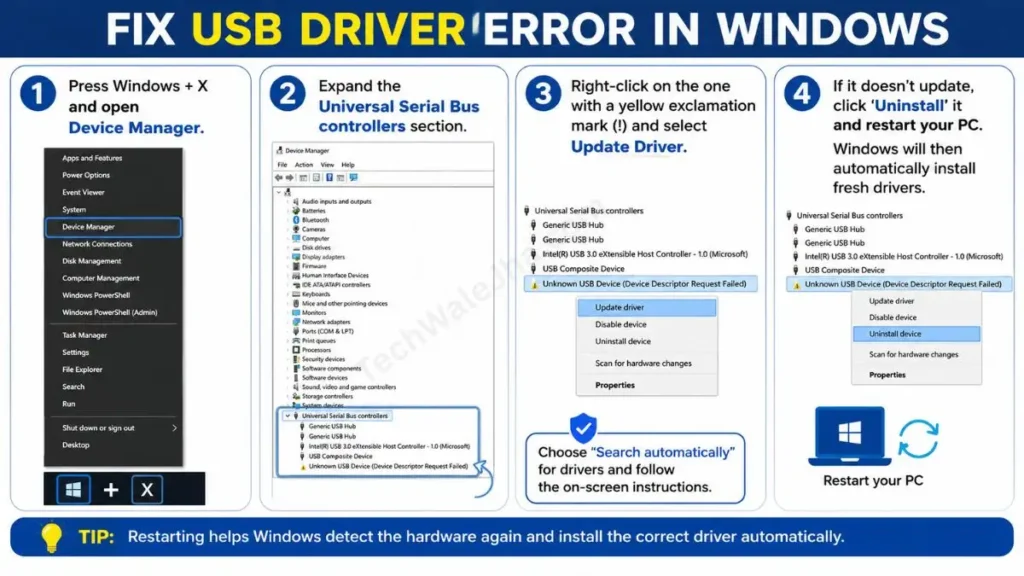
Update USB Drivers via Device Manager
If the drive is working fine in another PC but not in your laptop, then the problem is with your USB drivers, not your drive. This trick works flawlessly to repair USB in Windows 11 and Windows 10, so follow these steps carefully:
- Press Windows + X and open Device Manager.
- Expand the Universal Serial Bus controllers section.
- Right-click on the one with a yellow exclamation mark (!) and select Update Driver.
- If it doesn’t update, ‘Uninstall’ it and restart your PC. Windows will then automatically install fresh drivers.
Monthly USB Maintenance Checklist
Prevention is always better than treatment. To extend the life of your USB drive, always be sure to keep these things in mind.
- Safely Remove: Always remove the drive by clicking “Safely Remove Hardware” on the taskbar.
- Storage Space: Never fill the USB drive to 100%; instead, always leave some free space.
- Scan Regularly: Be sure to scan the drive with Windows Defender or a good antivirus at least once a month. This will remove any viruses.
- Avoid Physical Damage: Keep the drive away from water and extreme heat, such as direct sunlight.
Overall PC Health: It’s not just the USB drive—your computer needs to be healthy to read it properly. So to remove unnecessary junk files and keep your Windows OS fast and error-free for months, be sure to check out our detailed guide: How to Maintain Your Windows System
Frequently Asked Questions
How can I fix a RAW USB drive without formatting it?
To fix this, you can try running the chkdsk X: /f command in CMD (Command Prompt). Often, this repairs the file system without formatting. If that fails, first use data recovery software (like Recuva), and only then format.
Will DiskPart delete all my data?
Yes! The clean command in DiskPart permanently erases every file and partition on the drive. Always use it as a last resort.
My pendrive is showing “0 Bytes” of space, what should I do?
The “0 Bytes” error means that the file system has become corrupt, meaning it has become RAW. To fix this, follow our ‘Method 2 (DiskPart)’ mentioned above, which will create a new partition.
Final Thoughts
When a USB drive stops working or suddenly starts asking to be formatted, it doesn’t necessarily mean it’s fit for the trash can. Most USB not detected errors are caused by a corrupted file system, which you can easily fix with Windows’ built-in CHKDSK and DiskPart tools.
From now on, always keep a backup of your important files in at least two places (PC and Cloud) and never forget to ‘Safely Eject’ the USB drive before removing it. Happy troubleshooting!
Did these tricks fix your corrupted USB drive? Or is a new error code showing up in the command prompt? Be sure to share your questions or experiences in the comments below, and I’ll do my best to help you! 👇
Disclaimer: The information provided in this guide is for educational and troubleshooting purposes only. Attempting to repair a USB flash drive using command-line tools (such as CHKDSK and DiskPart) or formatting it carries a significant risk of permanent data loss. Always attempt to back up or recover your important files using dedicated data recovery software before executing any repair commands. We are not responsible or liable for any accidental data loss, hardware failure, or system damage that may occur while following these methods. Proceed at your own risk.