
You should never hard reset a frozen PC, because pressing the power button instantly destroys all your unsaved work and can severely corrupt your Windows system files. Often, only the Windows UI (explorer.exe) crashes, which can be easily fixed without forcing a full system restart.
Hello friends, I’m your very own TechWaleJha! Has it ever happened to you that you’re typing a very important Word document, or you’re on the final level of a heavy game, and suddenly your laptop hangs? The mouse cursor keeps spinning, but neither the Taskbar nor the Start Menu works, and you can’t click any icon. We call this condition “PC hangs mouse moves but can’t click.”
In such a panic, 99% of people make the same mistake and directly press the power button on their CPU or laptop to perform a ‘hard reset’ (force-restart). Let’s see what damage this mistake can cause:
- Complete Data Loss: All your unsaved work (Word, Excel, or gaming progress) is gone forever.
- System Corruption: A sudden power outage can create bad sectors on the hard drive, risking a Blue Screen of Death (BSOD) the next time you turn on your PC.
In fact, in most cases your entire computer doesn’t hang; only the Windows “User Interface Manager,” known as explorer.exe, crashes. If you want to read in detail about this background process, you can read Microsoft’s official Explorer process details. Therefore, instead of restarting the PC, if we just refresh that UI, our PC will instantly unfreeze, and the Windows frozen computer screen problem will be solved without any data loss.
So let’s see how this Windows frozen screen fix script is made, and we’ll also understand how to run it so that your problem is fixed in just a few seconds.
Also Check This Tool: Delete Files Older Than 30 Days Batch Script (1-Click)
Create the Windows Frozen Screen Fix Script Manually (BAT Code)
Friends, both regular users and tech experts always appreciate originality, and I want you to properly understand the core mechanism of this trick how it actually works. If you want to code it manually, it’s very easy to create your own custom one-click Windows frozen screen fix script without any third-party software.
To create this life-saving script, carefully follow the steps below:
- Now press the Windows key on your keyboard, type Notepad in the search bar, and open it. If your PC isn’t hanging right now, create this tool in advance so it’ll be ready when you need it.
- Then copy the code provided below and carefully paste it into Notepad:
@echo off
title Windows Frozen Screen Fixer
color 0B

echo =========================================
echo Windows Frozen Screen Fixer (Explorer Restart) by Techwalejha.com
echo =========================================
echo.
echo Restarting Windows Explorer, please wait...

:: Hiding the default taskkill output for a cleaner screen
taskkill /f /im explorer.exe >nul 2>&1

:: Adding a 2-second delay to ensure the process shuts down completely
timeout /t 2 /nobreak >nul

:: Starting Explorer again
start explorer.exe

echo.
echo =========================================
echo    Screen Restored Successfully!
echo =========================================
echo Press any key to exit...
pause >nul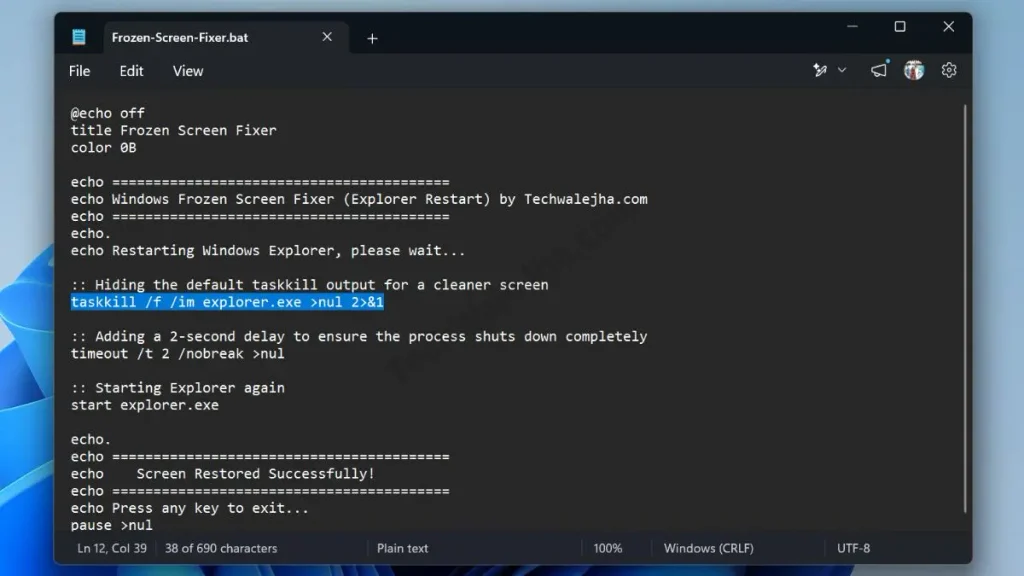
- After pasting the code, click on File at the top and then click Save As.
- A window will pop up where you should select All Files from the ‘Save as type’ drop-down.
- Then, right above it, name the file Frozen-Screen-Fixer.bat and save it to your Desktop.
Also Check This Tool: 1-Click Game Booster Script: Fix Lag & Boost FPS
Line-by-Line Code Breakdown (How does it work?)
Let’s now understand the technical magic behind this Windows Explorer crash script: what each line of code actually does and how it works:
taskkill /f /im explorer.exe: This command is very aggressive./fmeans ‘Force,’ and/immeans ‘Image Name.’ It forcibly closes the crashedexplorer.exe(taskbar, desktop icons) on your system. At this point, your screen will go completely black for 1 second. but you don’t need to worry at all.start explorer.exe: As soon as the black screen appears, this command immediately starts a brand new, hang-free UI.
The biggest advantage of this script is that this trick to unfreeze your PC without restarting doesn’t close any Chrome tabs, software, or games running in the background.
Also Check This Tool: 1-Click Laptop Battery Health Checker Script (Windows)
Download the 1-Click Windows Frozen Screen Fixer (ZIP File)
Friends, if you want to avoid Notepad, commands, and coding errors, I won’t waste your time at all. I’ve packed this same script for you in an error-free, ready-to-use format. You can download this taskbar frozen fix script completely free by clicking the button below.
Is it safe to download? Why is the BAT file in a ZIP?
Often, when we download a .bat (Batch) script directly from the internet, Windows Defender, Google Chrome, or Microsoft Edge block it as a false-positive. They believe that any direct file that opens a background CMD can be harmful. To avoid this inconvenience, I have securely packed this tool into a ZIP folder. This is the safest way to unfreeze a Windows 11 screen, and it contains no hidden third-party bloatware or viruses, so you can download it without any fear.
Also Check This Tool: 1-Click Folder Locker Script For Windows: Hide & Lock Files Safely
PRO TIP: How to Run the Script When the Mouse is Not Working?
Friends, now we come to the most important and life-saving part of this article. You've surely asked yourself, “Hey, if my screen is completely frozen and the mouse isn't working, how am I supposed to double-click on your BAT file?” That question is only natural.
And this is a perfectly valid question! That's why we're going to create a secret shortcut in this script to unfreeze the computer screen so you don't even need the mouse. To set up this magic trick, follow the steps below carefully:
- Step 1: Extract the downloaded ZIP file and find the Screen-Fixer.bat file, then place it on your Desktop.
- Step 2: Right-click on this
.batfile and click “Create Shortcut.” A new shortcut will then appear on your Desktop. - Step 3: Now, right-click on that new shortcut file and go to “Properties.”
- Step 4 (The Magic Step): In the Properties window, you will see a ‘Shortcut Key’ box. Click once in that box and press
Ctrl + Alt + Eon your keyboard, or any other key combination you prefer, likeCtrl+Alt+F, all at the same time.
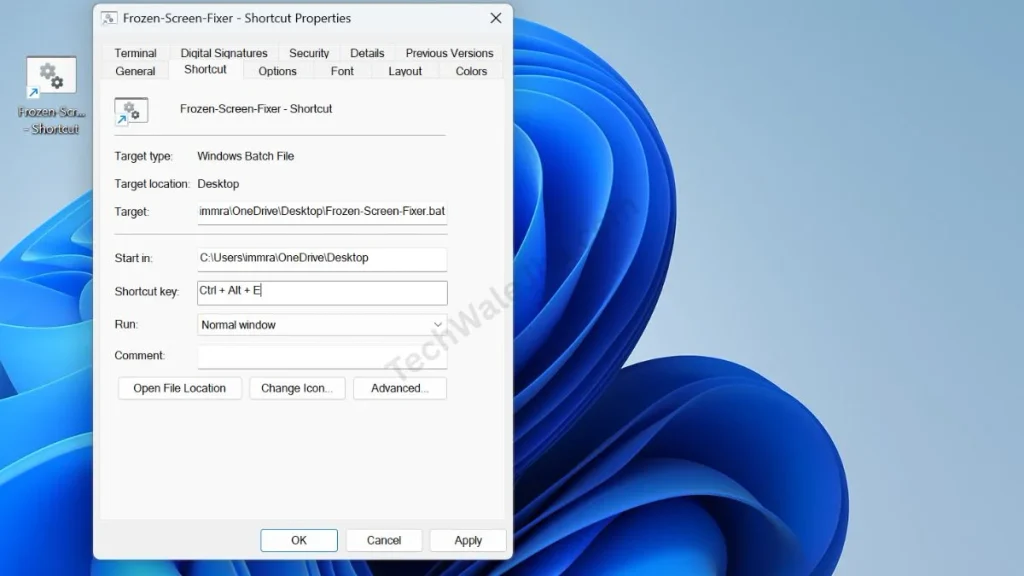
- Step 5: Finally, click ‘Apply’ and ‘OK’ at the bottom to save it.
After that, your system is completely hack-proof. Now, the next time your frozen laptop screen needs fixing and the mouse gets stuck, don't press the power button at all. Just press Ctrl + Alt + E on your keyboard, or whatever key combination you've set. Then, the script will run automatically in the background and in just 2 seconds, your screen will refresh and be fixed, all while keeping your work safe.
Also Check This Tool: 1-Click Windows Auto Repair Tool Script: Fix BSOD & Errors
Frequently Asked Questions (FAQs)
Will restarting Windows Explorer close my open Chrome tabs or games?
No, not at all! This script only refreshes your Windows UI, like the Taskbar, Start Menu, and Desktop icons. Your open apps, Chrome tabs, and heavy games will remain completely safe and open, and not a single one of your unsaved words will be deleted.
Is this script safe for Windows 11?
Yes, this 1-click windows frozen screen fix script is 100% safe and it works perfectly and safely on all versions of Windows, including Windows 7, Windows 10, and the latest Windows 11.
What if the keyboard shortcut also doesn't work during a freeze?
If nothing happens after pressing the Ctrl + Alt + E shortcut, it means your system has completely crashed, which is called a Hard Freeze. In such a situation, try opening the Task Manager by pressing Ctrl + Shift + Esc. If that doesn't work either, then a force-restart (Power Button) is your last option.
Can I keep this tool on a USB drive?
Yes! You can easily keep this .bat file on your USB drive and show off this “unfreeze PC without restarting” trick on any office, school, or friend's system that's hanging.
Conclusion
So friends, that was the most ninja and professional way to fix a hanging PC without losing your data. Now, the next time your screen freezes, don't go for the power button; instead, just use your secret keyboard shortcut.
Did this frozen screen fixer tool help you save any unsaved data? Be sure to let me know in the comments section below, I love reading your experiences!
If you want to see more advanced PC troubleshooting, hidden Windows scripts, and daily tech hacks through live videos, be sure to follow and subscribe to my friend @TechWaleJha on Instagram, Facebook, and YouTube. Until we meet again with a solid solution to a new problem, take care and bye-bye.
Disclaimer: Friends, I have personally tested all the Batch (.bat) scripts provided in this article, and they are completely safe. However, since everyone's PC configuration is different, please use them at your own risk. Before running any system-level script, be sure to back up your important data. TechWaleJha, its author, or this website will not be held responsible for any unexpected data loss, system errors, or PC crashes. Please run the script exactly as per the steps provided and avoid making any unintended changes to the code.




