
Have you ever had this happen: you plugged your USB drive into a friend’s PC, and when you plugged it back into your laptop, all your important files were gone? In their place, you only see strange 1KB shortcut icons that give an error when clicked. It’s perfectly normal to panic in such a situation, but you shouldn’t worry at all.
Often, in such situations, people make the biggest mistake out of fear by formatting their USB drive. But you absolutely must not format your USB drive. If you do, your data will be permanently deleted and can never be recovered.
In fact, this virus doesn’t delete your files; instead, it hides them by changing their properties at the system level. Let’s see why it’s better to use a shortcut virus remover script instead of formatting:
- Original Files Are Safe: The virus only creates an illusion, so your original data is still on the USB drive but is not visible.
- Prevent Permanent Data Loss: Formatting wipes the file system, but by using this script you can easily recover hidden files from the USB.
- Instant Recovery: Without any heavy software, everything is back to normal with just one click.
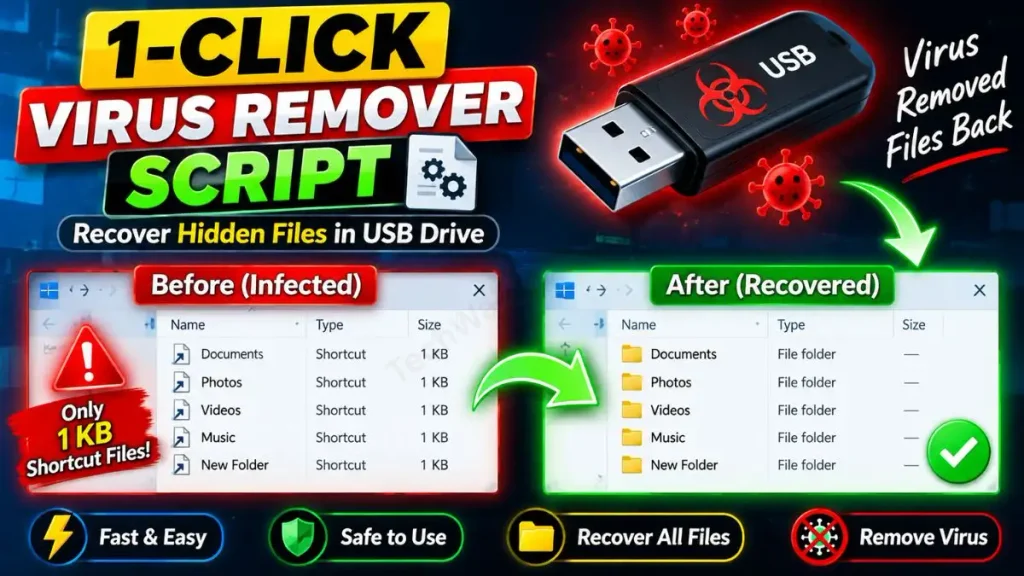
The main technical mechanism behind this virus is based on Windows’ ‘attrib’ command. If you want to learn in detail about file attributes, you can read Microsoft’s official Attrib documentation. But instead of typing manual commands, we will remove the shortcut virus from the pendrive with our custom tool.
Also Check This Tool: 1-Click Folder Locker Script For Windows: Hide & Lock Files Safely
Manually Create the Shortcut Virus Remover Script (BAT Code)
Friends, the tech community always prefers original troubleshooting methods. If you want to understand how coding and scripts work, you can create your own shortcut virus remover script. This method is 100% transparent because you can see the code with your own eyes.
To create your own custom recovery tool, follow these easy steps below:
- Now, press the Windows Key on your keyboard, type “Notepad” in the search bar, and open it.
- Then, copy the script code provided below and paste it into Notepad:
@echo off
color 0A
echo =========================================
echo       Shortcut Virus Remover Tool
echo =========================================
echo.
set /p drive="Enter your Pendrive Letter (e.g., E, F, G, H): "
echo.
echo Removing Shortcut Virus from Drive %drive%:\ ...
del "%drive%:\*.lnk" /q /f
attrib -h -r -s /s /d "%drive%:\*.*"
echo.
echo =========================================
echo  Virus Removed & Files Restored Successfully!
echo =========================================
pause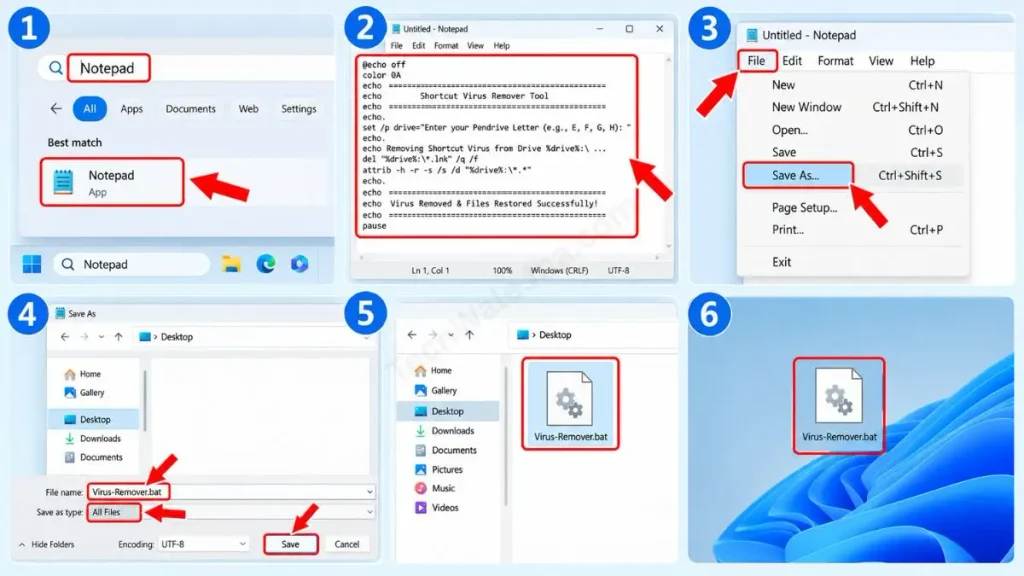
- After pasting the code into Notepad, click “File” at the top left, then select “Save As” from the menu.
- A window will pop up; in the “Save as type” drop-down, select “All Files”.
- Then, just above it, name the file “Virus-Remover.bat” and save it to your Desktop.
Also Check This Tool: 1-Click Windows Auto Repair Tool Script: Fix BSOD & Errors
Line-by-Line Code Breakdown (How it Works?)
Let me explain the technical magic of this shortcut virus remover BAT file so you know what’s actually happening in the background:
set /p drive=...: This command prompts you on the screen for the letter of your infected USB drive (like F or G) so the script doesn’t run on the wrong drive.del “%drive%:\*.lnk” /q /f: This command silently (/q) and forcefully (/f) deletes all the fake shortcut files (with the .lnk extension) on the pendrive.attrib -h -r -s /s /d: This is the most powerful command in this script! It permanently removes the Hidden (-h), Read-only (-r), and System (-s) attributes from your original hidden files. The/sand/densure that all sub-folders and files are recovered.
Also Check This Tool: One Click Windows Telemetry Disable Script (Boost Speed 2026)
Download the 1-Click Shortcut Virus Remover (ZIP File)
Friends, if you don’t want to get into any technical hassle with Notepad, extensions, or commands, and you want your data back with just one click, then don’t worry at all. I’ve packed this same script into an error-free, ready-made file for you. You can download it directly from the link below and use it.
You can use this tool to easily fix shortcut viruses on SD cards, pen drives, and external hard drives.
Why did I put this tool in a ZIP format?
Often when we download a .bat (Batch) file directly from the internet, security features in Google Chrome, Microsoft Edge, or Windows Defender flag it as a “harmful file,” trigger a false alarm, and block the download. That's why I've securely packed this file into a ZIP folder so the download goes smoothly and the browser won't block it. This download shortcut virus remover file is 100% virus-free and has been personally tested by me.
Also Check This Tool: One Click Network Fixer Script: Fix WiFi No Internet Fast
How to Use the Tool to Recover Your Files?
Friends, now the most important step is to use this tool correctly so that your problem is completely solved. If you enter your drive letter incorrectly, the script won't work. If you've been searching for how to safely remove the shortcut virus, just follow the steps given below exactly as instructed:
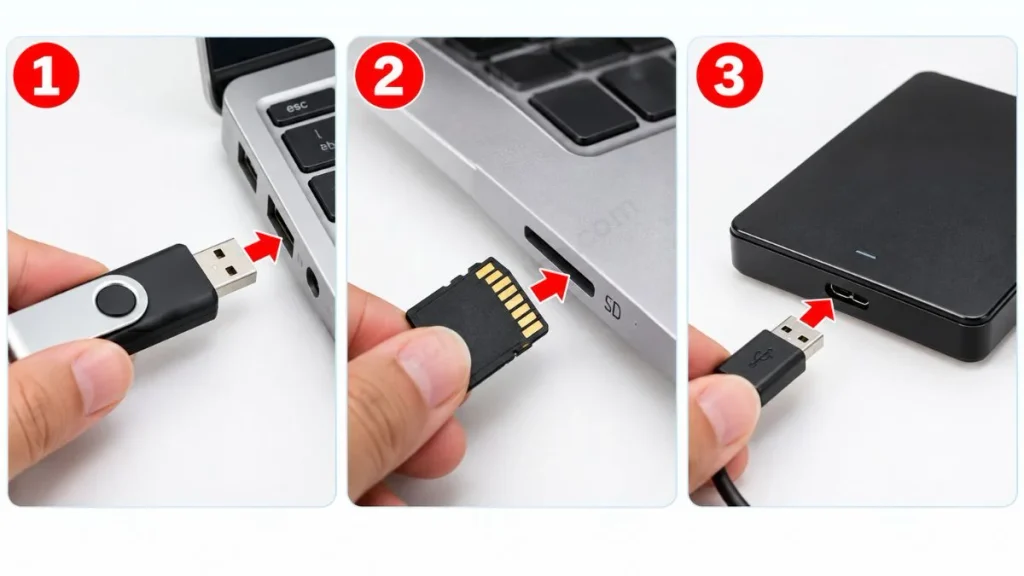
- Step 1: First, insert your infected USB drive, SD card, or hard drive into your PC or laptop.
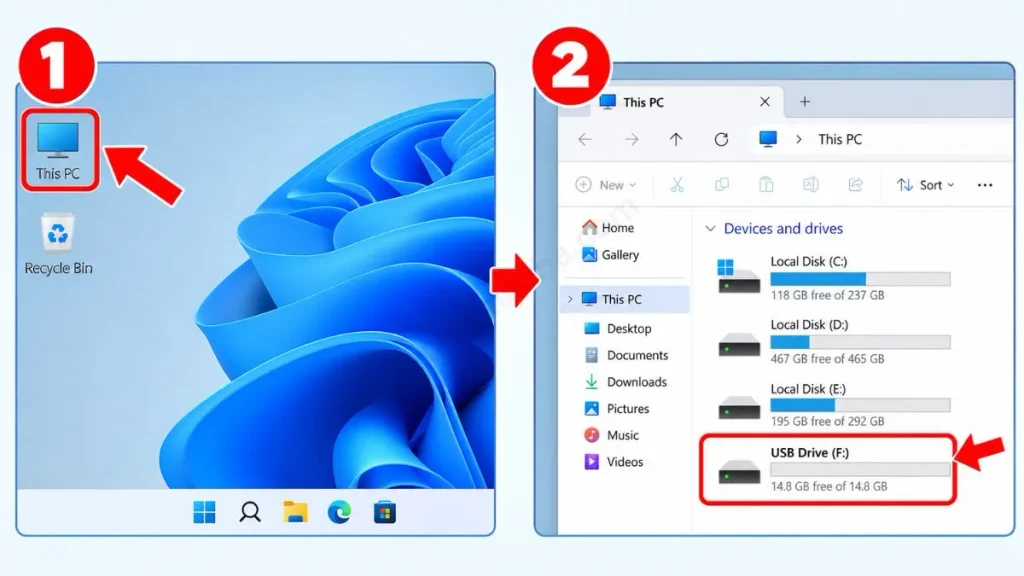
- Step 2: Open “This PC” (or My Computer) on your system. Here, carefully note which drive letter has been assigned to your pendrive. For example, if it says USB Drive (F:), then your letter is F.
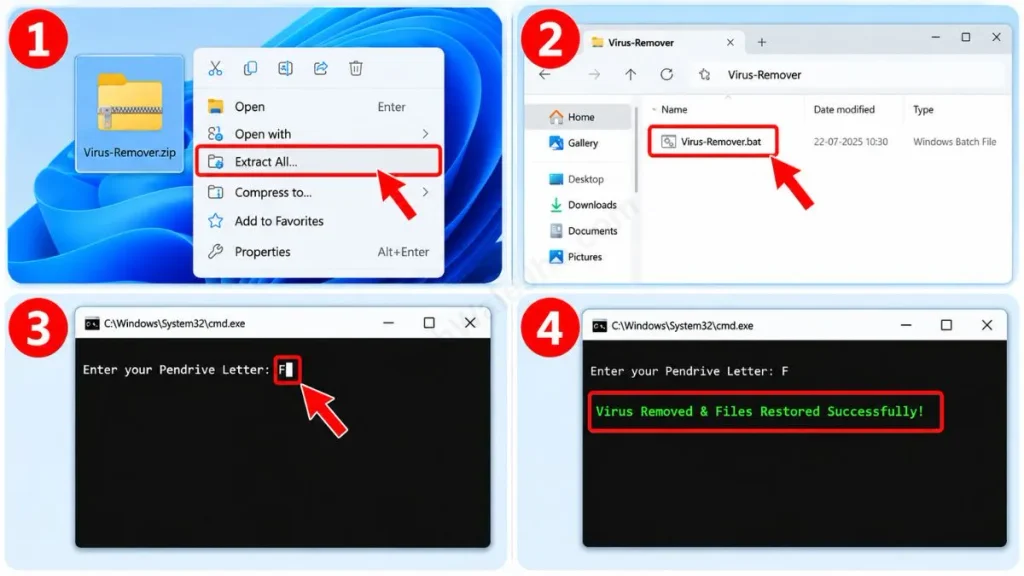
- Step 3: Now right-click the downloaded ZIP file on your Desktop and click “Extract Here” or “Extract All” to unzip it. After extraction, double-click the Virus-Remover.bat file inside to open it.
- Step 4: A black Command Prompt window will appear on the screen asking: “Enter your Pendrive Letter”. Here, just type your drive letter (e.g., F) and press Enter on your keyboard.
- Step 5: Just wait a few seconds, and then the message “Virus Removed & Files Restored Successfully!” will appear on the screen.
Now open your pendrive and check; all your data and original folders will be back, completely safe, through the recover data from shortcut virus process.
Also Check This Tool: 1-Click PC Speedup Script: Clean Temp & Cache Files Fast
Frequently Asked Questions (FAQs)
Will this script delete my original files?
No, not at all. This shortcut virus remover script only deletes the fake shortcut files (which have a .lnk extension) that the virus has created. It unhides your original files that were hidden. Your personal data will remain 100% safe.
Does this work on SD cards and external hard drives?
Yes! This script not only works perfectly on pendrives (USB) but also on Memory Cards (SD) and External Hard Drives (HDD/SSD). You just need to enter the correct drive letter.
Can an antivirus remove the shortcut virus?
Antiviruses (like Windows Defender or Quick Heal) often detect and delete viruses and fake shortcuts, but they cannot unhide your original files at the system level. That's why it's necessary to run this BAT script to restore the files.
Do I need the internet to use this tool?
No, this is a completely offline tool. You don't need any active internet connection to run this 1-click shortcut virus remover.
Conclusion
So friends, I hope this little ninja trick has calmed your nerves! Now, whenever you see only 1KB shortcuts on a USB drive, just run this Shortcut Virus Remover script without panicking, and your job will be done in just a few seconds.
Did this tool save your important data from formatting? Or did you encounter any errors during the process? Be sure to let me know in the comments below! I read and reply to every comment.
For more life-saving PC troubleshooting tricks, hidden coding hacks, and daily tech updates, be sure to follow my social media handles @TechWaleJha on Instagram, Facebook, and YouTube. See you again with another awesome solution to a problem. Until then, take care and bye-bye.
Disclaimer: Friends, I have personally tested all the Batch (.bat) scripts provided in this article, and they are completely safe. However, since everyone's PC configuration is different, please use them at your own risk. Before running any system-level script, be sure to back up your important data. TechWaleJha, its author, or this website will not be held responsible for any unexpected data loss, system errors, or PC crashes. Please run the script exactly as per the steps provided and avoid making any unintended changes to the code.




