Is your favorite software suddenly refusing to open? Or does it freeze as soon as it launches? When apps like Discord, Spotify, or Chrome get their settings corrupted, most people think of only one solution: “I’ll uninstall it and install a new version.” Do you think the same way?
But the truth is you don’t need to go through such a long process. That’s because most apps on Windows save their settings and cache in a hidden folder. In this way, if you just remove those corrupted files, your software will run like brand-new. This technique not only saves your data and internet bandwidth but also prevents you from wasting time.
If you’re looking online for a solution to your problem on how to reset any application on Windows, then you’ve come to the right place. In this step-by-step guide, we will show you how to fix a corrupted Windows application error without any third-party software, whether you’re using Windows 10 or the new Windows 11.

Quick Answer: How to Reset Any Application on Windows?
If you’re in a hurry and want to know how to reset software without reinstalling, you can follow these simple steps:
How to safely reset any application on a Windows PC:
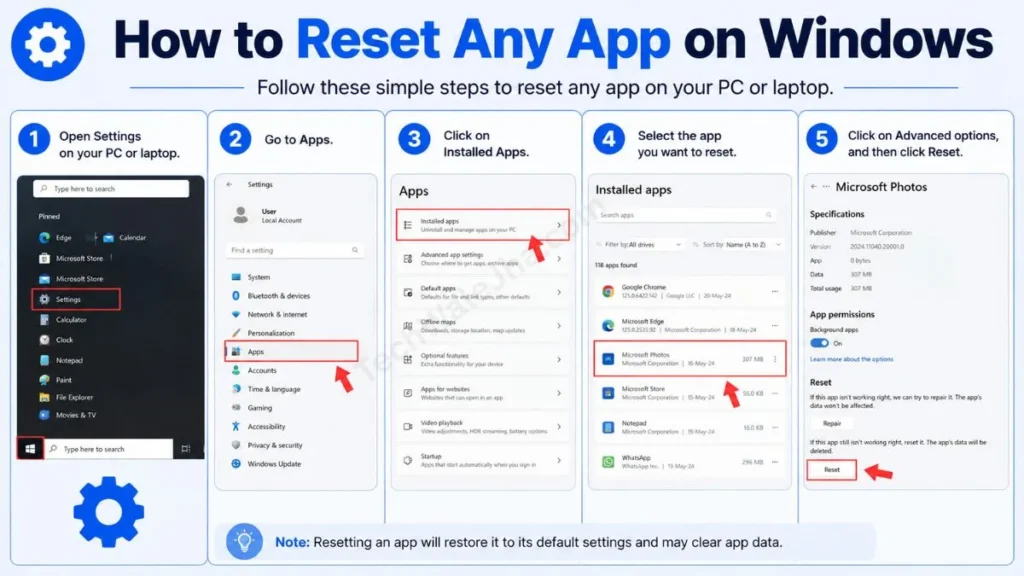
- Using Windows Settings: Open Settings on your PC or laptop, go to Apps, then Installed Apps, select the app you want to reset, click on Advanced options, and then click Reset.
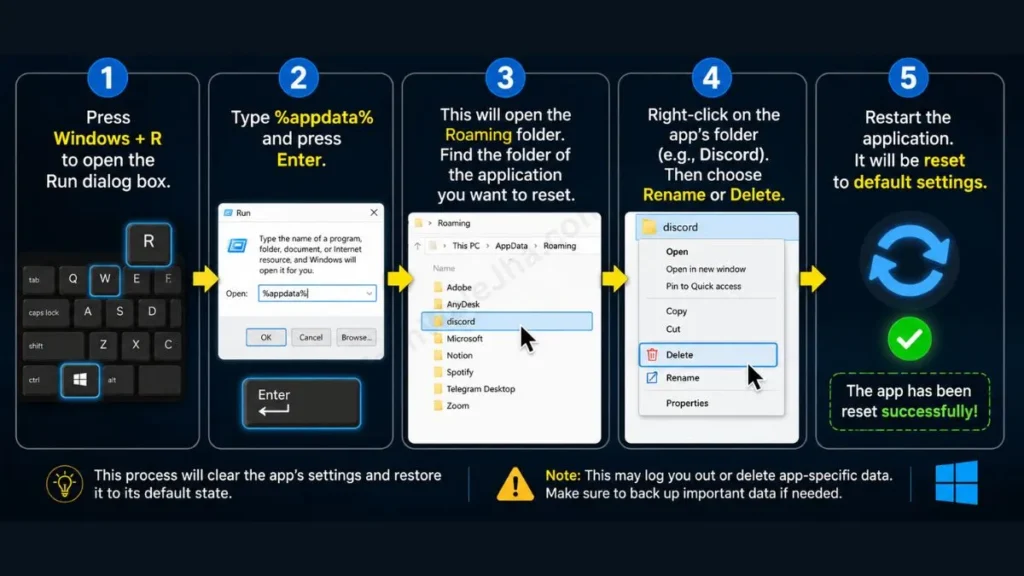
- Using the AppData Folder: Press Windows + R, then type %appdata%, and press Enter. Find the app’s folder (e.g., Discord) and rename or delete it.
- Using the Repair Option: Always try the built-in Repair button before resetting to fix files without losing preferences.
Pro Tip: When you delete an app’s AppData folder, the next time the app opens, it will automatically create a new, fresh folder, which fixes all startup errors.
Concept Clear: What is the AppData Folder and When to Reset It?
Many times we think that a software has become faulty, but in reality, it’s just a small configuration file that has become corrupt. To fix this error, we need to understand the concept of the system’s “Hidden Folders.”
What Does Resetting an App Mean?
When you reset an app, you aren’t actually uninstalling the software. You’re just deleting its stored settings, cache files, and custom preferences. This makes the app behave exactly as if it were installed for the very first time when you open it again! This is the best remedy for fixing corrupted Windows application problems.
Understanding AppData: Roaming vs Local
Windows saves each user’s app preferences in a hidden Windows AppData folder. It has 3 main sections:
- Roaming (%appdata%): This is the folder where your login details, profile settings, and themes are saved. If you log in to another PC on the network, these settings ‘roam’ with you.
- Local (%localappdata%): This is where apps store their heavy data and cache files (like a browser’s cache). Deleting this can make the system faster.
- LocalLow: This is specifically used for low-permission software or browser background processes.
If you want to understand the technical structure of the AppData directory in detail, you can read this detailed AppData folder guide from How-To Geek.
Method 1: The AppData Trick (For Desktop Softwares)
If you are using third-party desktop softwares like Discord, Spotify, or OBS Studio, they don’t have a default “Reset” button. In such cases, the most reliable way to reset any application on Windows is this:
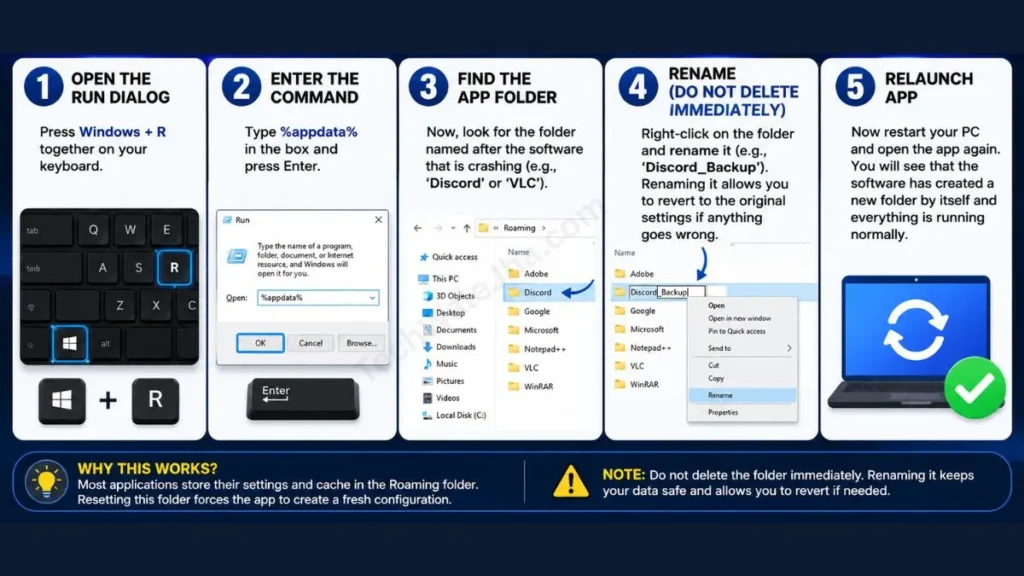
Step-by-Step: How to Reset Using %appdata%
- Step 1: Open the Run Dialog: Press Windows + R together on your keyboard.
- Step 2: Enter the Command: Type %appdata% in the box and press Enter. This will take you directly to the Roaming folder.
- Step 3: Find the App Folder: Now, look for the folder named after the software that is crashing (e.g., ‘Discord’ or ‘VLC’).
- Step 4: Rename (Do Not Delete Immediately): Right-click on the folder and rename it (e.g., ‘Discord_Backup’). Renaming it allows you to revert to the original settings if anything goes wrong.
- Step 5: Relaunch App: Now restart your PC and open the app again. You will see that the software has created a new folder by itself and everything is running normally.
Apps That Can Be Reset Using This Method
This trick works 100% on these popular desktop software applications:
| App Category | Supported Software Examples |
|---|---|
| Browsers | Mozilla Firefox, Brave, Chrome (Local folder) |
| Media & Comm. | Discord, VLC Media Player, Spotify |
| Productivity | VS Code, Notepad++, OBS Studio |
| Creativity | Adobe Creative Cloud (Settings files) |
Method 2 & 3: Fix Store Apps from Windows Settings
Sometimes, built-in Windows apps like Calculator, Photos, Mail, or Xbox suddenly start shutting down. Has this ever happened to you? To fix this, Microsoft has provided a direct setting.
Repair Option: Try This Before Resetting
If you use the Repair Windows apps feature, it attempts to fix corrupt files in the Windows app, and it won’t delete any of your saved data or logins.
- Step 1: Open your PC’s Settings, or you can use the shortcut Windows + I.
- Step 2: Go to Apps, then to Installed Apps or Apps & Features.
- Step 3: Find the app that is causing the problem, click the 3-dots icon next to it, and select Advanced Options.
- Step 4: Scroll down a bit and click the Repair button. Wait for a small checkmark (✔) to appear.
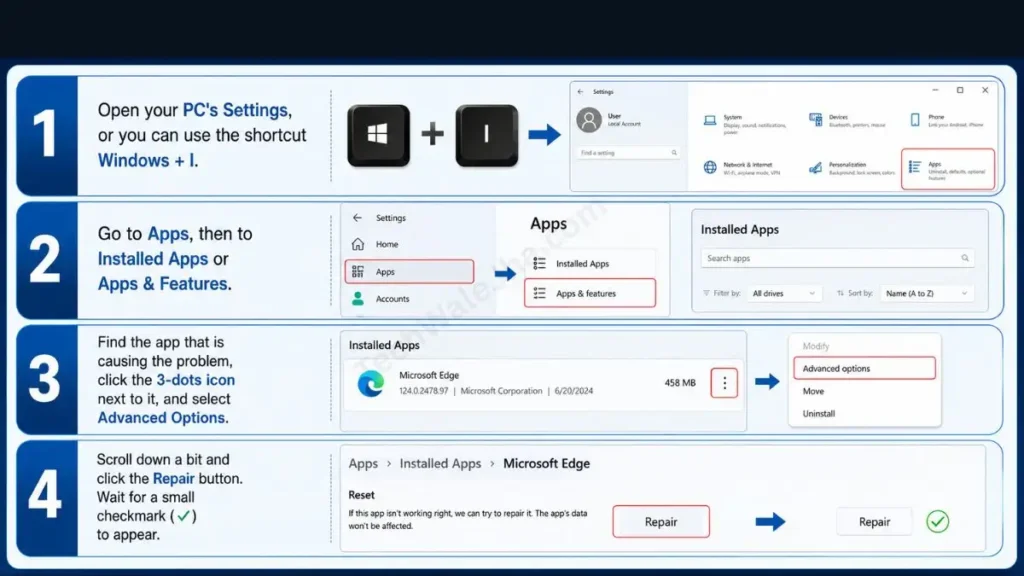
Reset Microsoft Store Apps via Settings
If ‘Repair’ doesn’t work and the app is still crashing, you’ll have to choose the final ‘Reset’ option. This trick is especially the best for resetting apps on Windows 11 and Windows 10.
- Go to the same Advanced Options page.
- This time, press the Reset button located just below Repair.
- Note: This step will delete all data and cache for the app, such as browser history or a game’s offline save file. Therefore, only use it when absolutely necessary. We also call this a safe way to clear an app’s cache.
Advanced Fixes: What if the App Still Doesn’t Work?
Suppose you’ve tried the AppData trick and also reset it from Settings, but the app still won’t open. In that case, the problem might not be with the app, but with Windows itself or your PC’s drivers. You can use these two pro-tips for this Windows app troubleshooting:
Update Windows & Graphics Drivers
It’s often seen that apps crash on Windows 10 or 11 when your Windows is outdated or the graphics driver is not updated, especially with video editing software or games.
- For this, go to Settings, then to Windows Update, and install any pending updates.
- Download the latest drivers for your GPU from the official website of NVIDIA, AMD, or Intel.
- Hardware Tip: If your heavy apps like video editors or games keep freezing or crashing, it’s not always a software issue. Often it’s caused by processor overheating (thermal throttling). So learn proven ways to keep your processor cool and fast here: How to Improve CPU Health: 9 Tips to Keep PC Fast.
Scan for Corrupted Files (SFC & DISM)
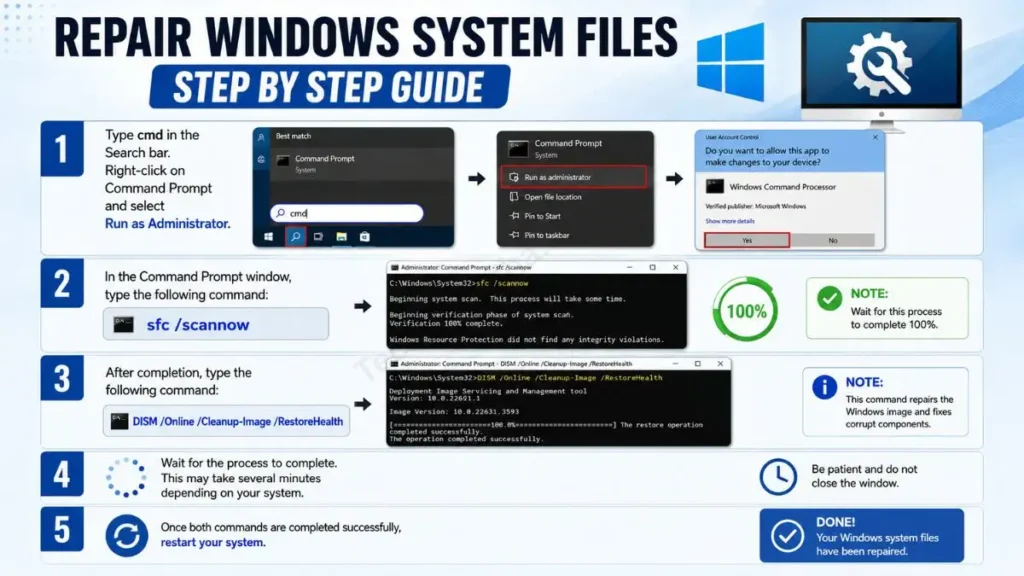
If Windows system files, such as .dll files, are missing, then no app will run properly. If you want to fix this, you will need to use the command prompt:
- To do this, type cmd in the Search bar and click Run as Administrator, or right-click it and select Run as Administrator.
- Then type: sfc /scannow and press Enter. Let this process complete 100%.
- After that, type: DISM /Online /Cleanup-Image /RestoreHealth and restart your system. These commands automatically fix any internal damage to Windows.
Fixing your app is a great idea, but a small mistake can wipe out your months of settings or game saves. So before taking any steps, be sure to keep these warnings in mind.
- Keep Your System Healthy: After fixing a corrupt app, it’s also very important to maintain your entire PC’s speed and health so that such errors don’t recur. To develop the habit of deep-cleaning your system and keeping your OS fast, be sure to read our detailed guide: How to Maintain Your Windows System.
Common Mistakes to Avoid (Mistakes You Shouldn’t Make)
- Tampering with a Running App: Never delete or rename an app’s Windows AppData folder while the app is open in the background. Always make sure to completely close the software from the system tray!
- Deleting Program Files: Some people go into C:\Program Files and directly delete the app’s main folder. This doesn’t reset the app; instead, it completely corrupts it.
- Deleting Without a Backup: Instead of directly deleting the folder, always rename it by adding “_Backup” to its name. This way, if anything goes wrong, you can easily restore the original settings.
- Deleting the Wrong Folder: Only touch the folder of the specific software that’s having the problem. Never delete the entire Local or Roaming folder by mistake.
Frequently Asked Questions
Will deleting AppData uninstall the app?
Absolutely not! The biggest advantage of resetting software without reinstalling is that your main program remains intact. It just removes its corrupted cache and settings so it can get a fresh start.
Will resetting the app delete my personal data like photos, projects, or game saves?
In most cases, no. However, some software and offline games store their save files in AppData. That’s why renaming the folder and keeping a backup is the safest method.
What is the difference between ‘Repair’ and ‘Reset’?
When you use Repair, Windows only fixes the missing files, so your login and preferences are saved. The Reset option, on the other hand, clears all the app’s junk and returns it to its “Factory Default” condition, which deletes all of your data.
Final Thoughts: Now Every App Will Run Like Butter!
So friends, I hope you now understand how easy it is to “how to reset any application on Windows”! There’s no need to immediately press the “Uninstall” button in anger when an app freezes or crashes.
Whether you use the Reset app setting in Windows 11 for modern Store apps, or the pro-trick with the Run command (%appdata%) for desktop software, you can fix corrupted Windows application errors in just a few minutes. Just remember to always create a restore point and not ignore Windows updates.
If the app still doesn’t work after following these steps, then consider a clean reinstall. Happy Troubleshooting!
Did this trick fix your app that was crashing? Or is there still a specific software that won’t open? Be sure to let me know in the comments below, and I’ll do my best to solve your problem! 👇
Disclaimer: The information provided in this guide is for educational and troubleshooting purposes only. Modifying, renaming, or deleting files in the Windows AppData folder can result in the loss of application preferences, active login sessions, or locally saved data if not done correctly. Always create a backup or use the “Rename” method instead of permanently deleting system folders. We are not responsible or liable for any accidental data loss, software corruption, or system instability that may occur while following these steps. Proceed at your own risk.