Did your Windows PC run really fast when it was new, but now that it’s a bit older it takes a long time to open a folder or boot up? Many people think their laptop or computer has become old, so it’s performing slowly. But the truth is a bit different! The real reason is often poor maintenance.
Whether you’re gaming, handling heavy office work, or attending online classes, if you don’t regularly clean your system, cache files and background apps will choke your PC. On top of that, the risk of system crashes and malware increases even more.
So there’s no need to worry in 2026, you don’t have to buy expensive software or become an IT expert to keep your PC fast. Windows already comes with plenty of powerful tools for the job. Let’s look at the 6 proven methods you can use to keep your PC fast and secure like new. So, let’s get started and go through them step-by-step.

Quick Summary: How to Maintain Your Windows System?
If you’re wondering where to start caring for your PC, tech experts suggest these essential steps.
How to effectively maintain your Windows system:
- Install Updates: Always keep your Windows OS and device drivers up to date.
- Run Antivirus: Schedule weekly full scans using Microsoft Defender.
- Clean Storage: Remove temporary files and cache using the built-in Disk Cleanup tool.
- Manage Startup Apps: Disable unused background applications to speed up boot time.
- Repair System Files: Run SFC and DISM scans in Command Prompt to fix corrupted data.
- Check Disk Health: Optimize your SSD/HDD and keep at least 15-20% free space.
Note: Spending just 10 minutes a month on this PC maintenance routine can save you hours of troubleshooting and prevent unexpected crashes!
System Updates & Security: Your PC’s First Protection Shield
If you want your computer to run for a long time without any crashes or errors, never ignore its basic security and software updates.
Keep Windows & Drivers Updated
Many people ‘Pause’ Windows updates thinking it will delete their data. But Microsoft doesn’t release updates just for new designs; they’re also to fix security vulnerabilities and bugs. If drivers become outdated, Blue Screen errors, Wi-Fi disconnections, or lag during gaming become common.
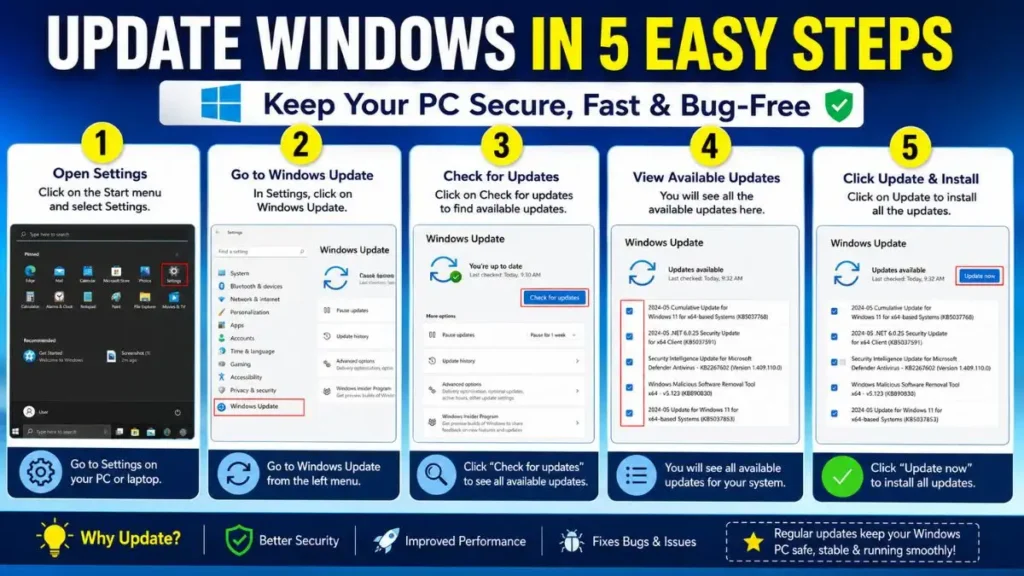
- How to Update: First, go to Settings on your PC or laptop, then to Windows Update, and click on Check for updates. You will then see all available updates. Click on Update to install them all.
- Driver Rule: Always update your graphics and audio drivers from your laptop/PC manufacturer’s official website, because using a third-party website can be dangerous for your device.
Maximize Microsoft Defender Protection
Nowadays, you don’t need to spend money on expensive third-party antivirus software, because Windows’ own built-in Microsoft Defender has become quite powerful. If you want to follow the best Windows security tips, always keep these 3 settings ON:
- Real-Time Protection: This instantly blocks malware in the background.
- Cloud-Delivered Protection: Enable this to protect against new and advanced threats.
- Monthly Full Scan: In addition to quick scans, be sure to run a ‘Full Scan’ once a month to detect hidden viruses so you can easily delete them.
Storage Optimization & Cleaning: Remove Unwanted Files
A full storage drive is the biggest cause of PC slowdowns. If your PC’s C: drive is showing red, it means your PC is about to choke.
Clean Temporary Files & System Junk
As you use your PC, Windows and web browsers create thousands of cache and junk files. Removing these is the easiest way to boost performance. You can follow these steps to do so.
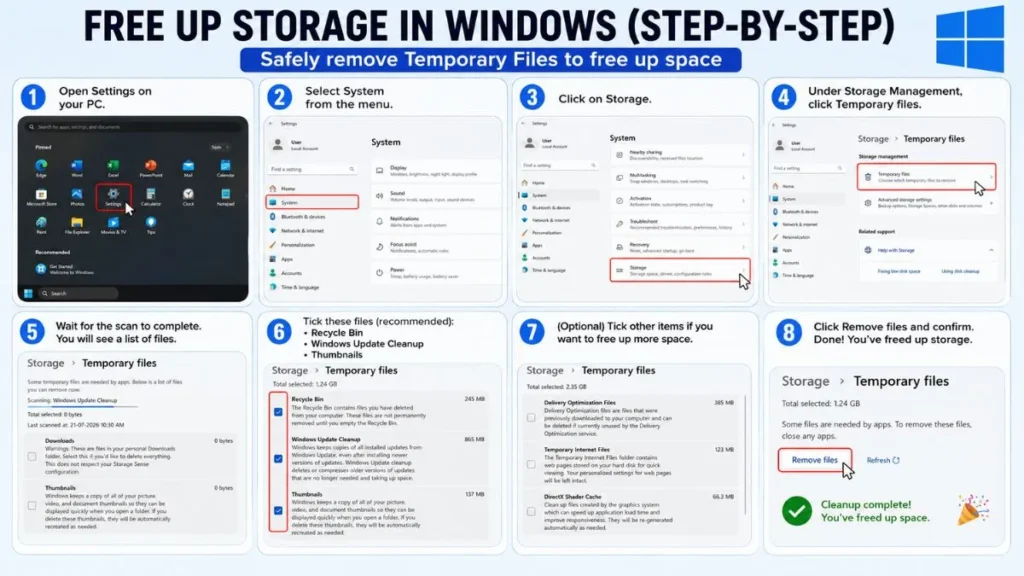
- From Settings: Go to your PC’s Settings, then System, then Storage, and under Temporary Files, safely tick and remove these files (Recycle Bin, Windows Update Cleanup, Thumbnails). Or, if you want to free up a bit more storage, you can select other options below as needed.
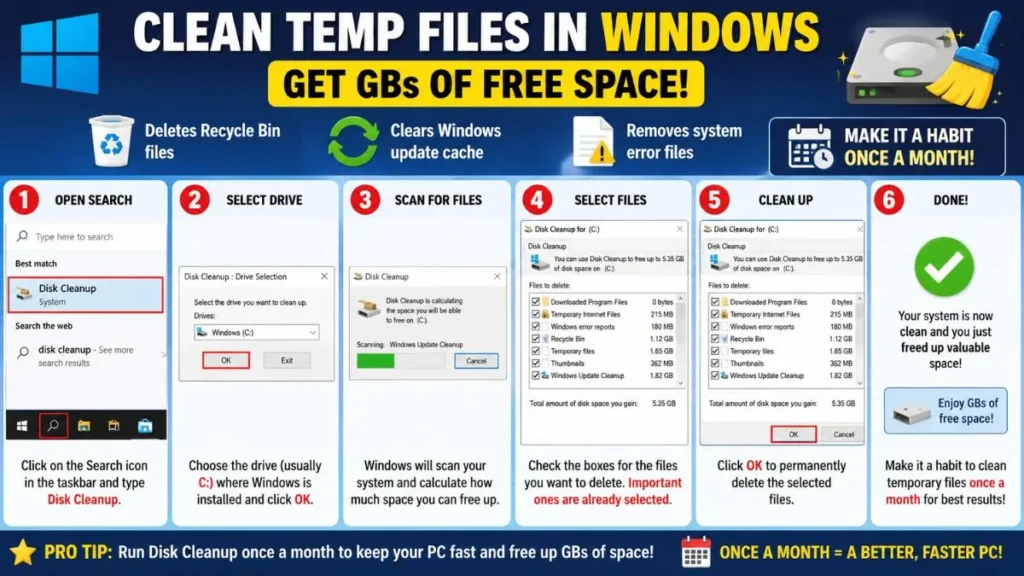
- Disk Cleanup Tool: You can open this tool by typing “Disk Cleanup” in the search bar. It deletes the Recycle Bin, update cache, and system error files. Make it a Windows habit to clean temporary files once a month; you’ll get GBs of free space.
Manage Free Disk Space & SSD Health (TRIM)
Expert rule says that your system drive (where Windows is installed) should always have 15-20% free space.
If your PC has an SSD (Solid State Drive), never make this mistake. Never manually defragment an SSD! Instead, Windows automatically optimizes the SSD using the TRIM feature. TRIM tells the SSD which data has been deleted and frees up the blocks, helping to maintain its lifespan and speed.
For older Hard Drives (HDDs), you can definitely search for “Optimize Drives” and run the defragmentation tool.
(For more technical details on how TRIM works, you can check Microsoft’s Official Storage Guide.)
Boot Time & App Management: Power On Your PC Faster
Does your PC take so long to start that you could make a cup of tea in the meantime? If your answer is yes, the culprit isn’t your processor, but the apps running in the background.
Disable Unnecessary Startup Apps
When you turn on Windows, many apps like Spotify, Skype, Adobe Updater, or Steam automatically start in the background. These can completely consume your RAM and CPU. To reduce boot time, you need to get into the habit of managing Windows startup apps. To do this, carefully follow the steps given below:
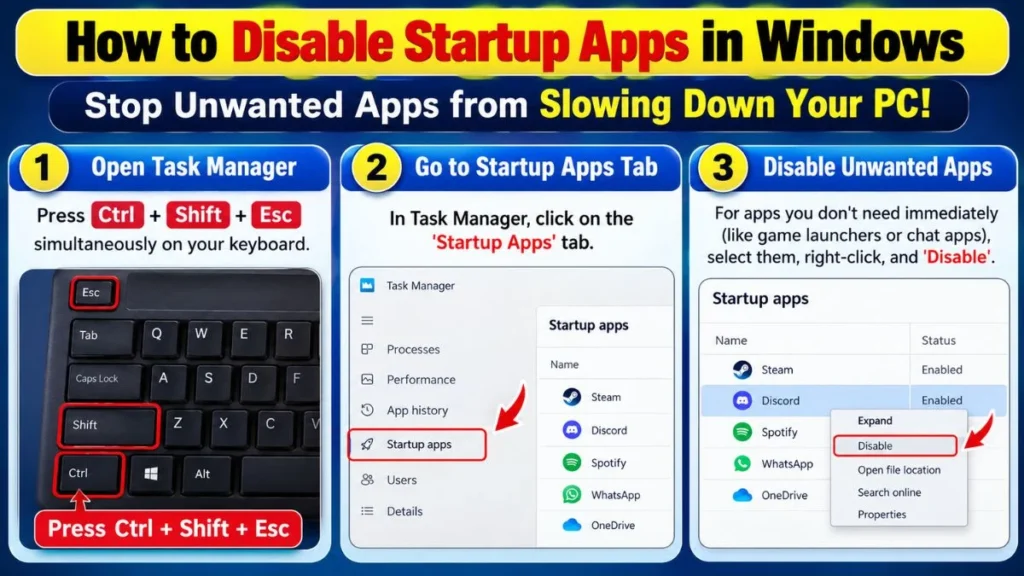
- Open Task Manager: Press Ctrl + Shift + Esc simultaneously on your keyboard. Then, click on the ‘Startup Apps’ tab.
- Disable: For apps you don’t need immediately (like game launchers or chat apps), select them, right-click, and choose ‘Disable’.
(Note: Do not disable your antivirus or essential Microsoft services, as this can cause system issues.)
Pro Tip for Gamers & Heavy Users: Maintaining Windows at a software level is very important, but if your hardware (processor) is overheating, the system will still run slowly. If your PC is making noise or getting hot quickly, be sure to read our guide to extend your processor’s life: How to Improve CPU Health: 5 Tips to Keep PC Fast
Uninstall Bloatware & Unused Programs
We often install some software or games, use them once or twice, and then forget about them. These unused apps take up storage and keep running background services.
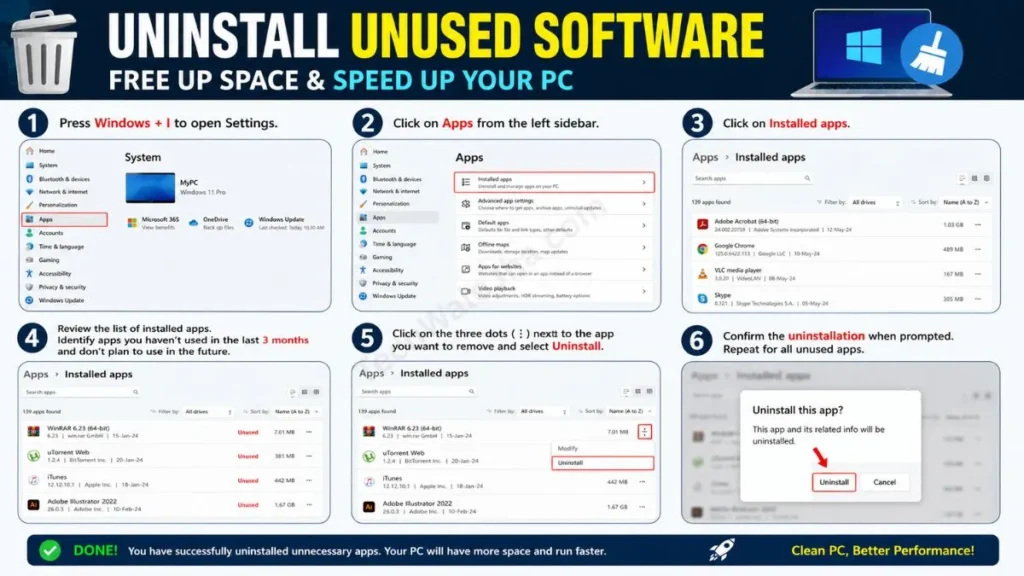
- Action Step: Go to your PC’s Settings, click on Apps, then go to Installed Apps and uninstall all the software you haven’t used in the last 3 months and don’t plan to use in the future. This one step will make your PC feel much lighter and faster, and you won’t notice any lag at all.
System Repairs & Disk Checks: Prevent Errors and Crashes
Sometimes, sudden power cuts, incomplete updates, or malware can cause the internal files (system files) in Windows to become corrupted. The result? The PC repeatedly freezes or shows a Blue Screen. To fix this, Windows already has built-in command line tools.
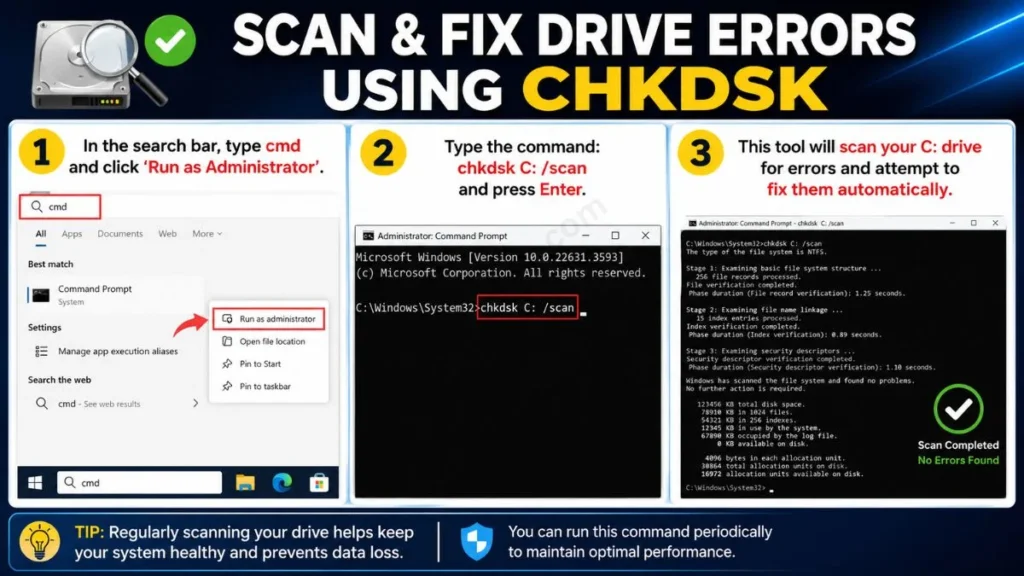
Check Disk Health Using CHKDSK
Whether it’s an SSD or an HDD, a drive can develop errors (bad sectors) over time. To fix this:
- In the search bar, type cmd and click ‘Run as Administrator’.
- Type the command: chkdsk C: /scan and press Enter.
- This tool will scan your C: drive for errors and attempt to fix them automatically.
Repair Corrupted Files with SFC & DISM
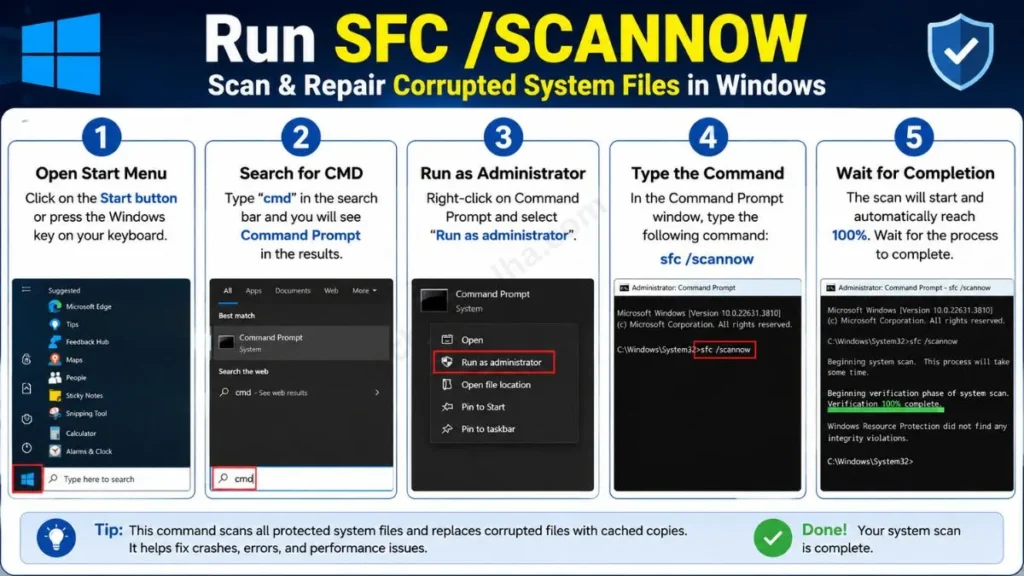
If the system is still unstable after a check disk, you should use a combination of the SFC and DISM commands to repair corrupted system files. This is Windows’ built-in doctor.
- To do this, open an Administrator command prompt (cmd). Then type “sfc /scannow” and wait for it to complete 100%. (This System File Checker finds and replaces your missing or corrupt files).
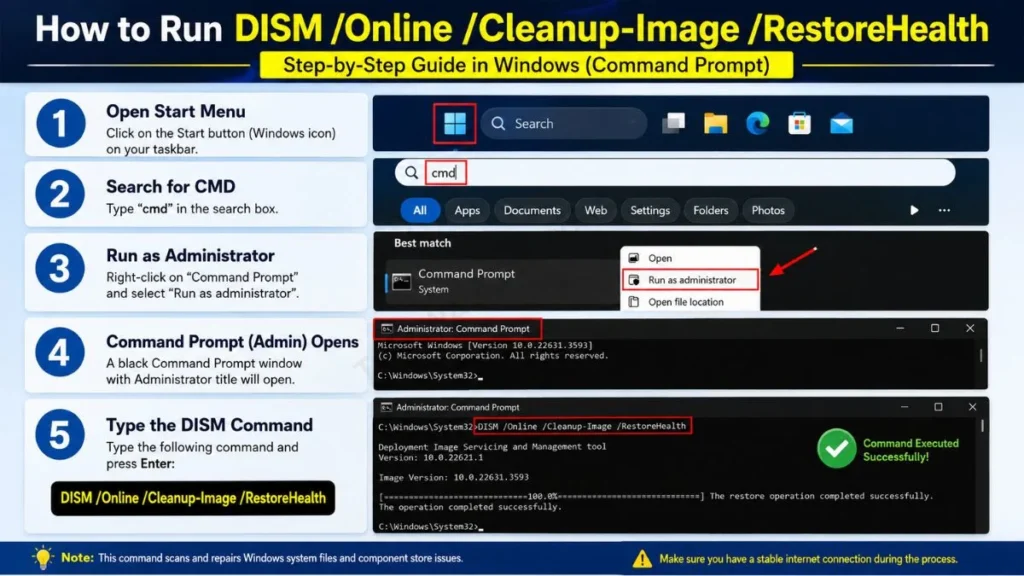
- If SFC can’t fix the problem, then run the DISM tool. To do this, open an Administrator command prompt (cmd) then type DISM /Online /Cleanup-Image /RestoreHealth. This command downloads fresh files from Microsoft’s servers and repairs your system, making it just like new.
App Troubleshooting: If during maintenance you notice that a specific app keeps crashing or won’t start properly, there’s no need to completely uninstall it. You can easily fix its cache. For a step-by-step process, read this guide: How to Reset Any Application on Windows.
Data Safety, Browser Cleanup & Restart Habits
Making Windows faster is not enough; your personal data and daily habits are just as important.
Back up Important Data & Create Restore Points
Hardware can fail at any time, so be sure to back up your photos, documents, and project files. You can use the storage options listed below for this.
- Cloud Storage: Use OneDrive or Google Drive so your data syncs automatically.
- System Restore Point: Whenever you install a major driver or new software, be sure to create a “System Restore Point” beforehand. If the system crashes after an update, you can restore your PC to its previous state.
Keep Browsers Clean & Restart Regularly
Nowadays, we spend most of our time on Chrome, Edge, or Brave browsers, don’t we? For that, be sure to follow these steps.
- Browser Cleanup: Browsers store cache and cookies, which can consume a lot of RAM. To clean this up, go to Settings, remove unused extensions, and clear the cache.
- Restart Your PC: Many people leave their laptops in “Sleep mode” for weeks. Don’t do this! Restart your PC properly every 2-3 days. This clears memory leaks and finishes pending updates, so you can see an immediate boost in your Windows PC’s speed.
Monthly Maintenance Checklist & Common Mistakes
If you’re searching for how to maintain your Windows system consistently, then take a screenshot of this simple checklist:
Your Monthly Windows Maintenance Guide Checklist:
- Check for Windows and device driver updates.
- Run a “Full Antivirus Scan” with Microsoft Defender.
- Delete temporary files using Disk Cleanup.
- Empty the Recycle Bin.
- Check that the C: drive has 15-20% free space.
- Disable unnecessary startup apps from the Task Manager.
- Take an external backup of important files.
- Restart the PC.
Common Mistakes to Avoid (Errors that damage your PC)
- Fake PC Cleaners: Never install fake software from the internet like “Speed Booster” or “Registry Cleaner.” These are malware.
- Multiple Antivirus: Don’t install two different antivirus programs (like McAfee and Norton together) on the same PC. They will conflict with each other and freeze the system.
- Full C: Drive: Never let your system drive get 100% full.
Conclusion: PC Maintenance Is Easy
So friends, we hope that after reading this Windows maintenance guide, you’ve understood that you don’t need an IT expert for PC maintenance. If you properly use Windows Update, storage optimization, and the built-in repair tools, your computer will stay fast, stable, and secure for years to come. Start this routine today and you’ll feel the difference yourself.
FAQs: Common Windows Maintenance Doubts
How often should I maintain my Windows PC?
Basic disk cleanup, virus scans, and updates should be done at least once a month.
Is Windows Defender enough for security?
Yes, it is. As of 2026, Microsoft Defender is the best and completely sufficient security solution for normal home and office users. You don’t need to buy a paid antivirus.
Should I defragment my SSD?
Absolutely not! Defragmenting an SSD shortens its lifespan. Windows automatically uses the “TRIM” feature for SSDs, which is optimal for them.
Will deleting temporary files delete my personal photos?
Absolutely not. The Windows Temporary Files cleanup only removes system cache and update junk. Your personal folders (Documents, Pictures) remain completely safe.
Disclaimer: The information provided in this guide is for educational and informational purposes only. While we have ensured that all troubleshooting steps and commands (such as SFC, DISM, and Disk Cleanup) are safe and standard, modifying Windows system settings always carries an inherent risk. Always create a System Backup or Restore Point before making any major changes to your PC. We are not responsible or liable for any data loss, system instability, or hardware damage that may occur while following this guide. Proceed at your own risk.