
Have you ever had a friend or family member ask to borrow your laptop, and your heart start racing as you hand it over? Everyone’s PC has personal photos, private videos, or important documents they don’t want anyone else to see.
And here’s the problem: in Microsoft Windows there’s no easy option to right-click a folder and apply a password directly. So people often ask how to password-protect a folder in Windows without installing any third-party software. If you want to read directly about Windows’ default encryption (BitLocker), you can check Microsoft’s official BitLocker guide, but it’s quite complicated and time-consuming.
But there’s no need to worry, because today I’m going to show you an awesome trick to easily create your own secret ninja folder locker with the help of Folder Locker Script. This is a simple trick that will keep your files safe from both hackers and snooping friends. So, without wasting any more time, let’s get to how to make it.
Also Check This Tool: 1-Click Windows Auto Repair Tool Script: Fix BSOD & Errors
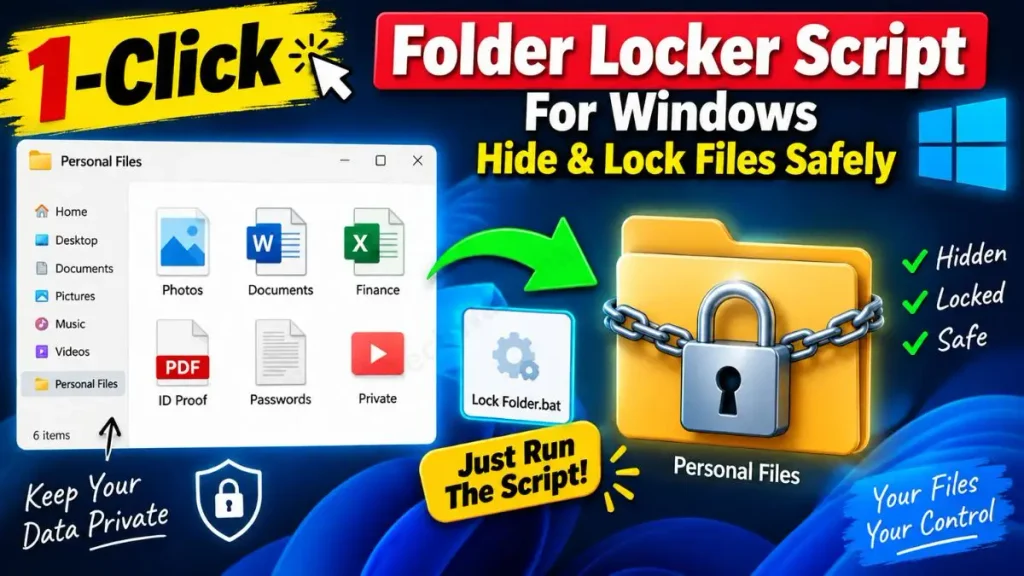
Why Use a BAT Script Instead of Third-Party Locker Apps?
Friends, when you search Google for “lock folder without software,” you get lots of suggestions to download third-party programs like Folder Lock or WinMend. But I personally don’t recommend them at all. Why is that? Because most of these free apps have annoying ads, slow down your PC in the background, and the biggest fear is that they might be stealing your personal data and uploading it to their servers.
In comparison, using a plain folder locker script is a thousand times better than these. Let’s see why:
Also Check This Tool: One Click Windows Telemetry Disable Script (Boost Speed 2026)
BAT Script vs Third-Party Locker Apps
| Features | Secret Folder Locker Batch Script | Third-Party Locker Softwares |
|---|---|---|
| Privacy & Safety | 100% Safe. No data collection, completely offline. | Risky. Might track your data or contain spyware. |
| Performance | Zero background RAM usage. Runs only when clicked. | Always runs in background, slowing down your PC. |
| Cost & Ads | Completely FREE forever, NO Ads. | Full of popup ads, asks for premium upgrades. |
| Double Security | It prompts for a password and hides the folder. | It only requires a password, and the folders remain visible to everyone. |
The best thing about this folder locker script is that with its help you can perfectly hide and lock folders on Windows 11, Windows 10, and even Windows 7 with ease. It doesn’t require any installation because it uses Windows’ own native commands.
Also Check This Tool: One Click Network Fixer Script: Fix WiFi No Internet Fast
Create the Folder Locker Script Manually (BAT Code)
Friends, tech experts always appreciate originality and transparency. That’s why I want you to see how this secret ninja folder locker script actually works. If you’re even a little tech-savvy, you can easily create your own tool using Notepad.
To create your own custom folder locker, follow these simple steps:
- Press the Windows key on your keyboard, type “Notepad” in the search bar, and open it.
- Copy the code below and carefully paste it into Notepad:
@echo off
title Folder Locker
color 0A

if EXIST "Control Panel.{21EC2020-3AEA-1069-A2DD-08002B30309D}" goto UNLOCK
if NOT EXIST Private goto MDLOCKER

:CONFIRM
echo =========================================
echo Are you sure you want to lock the folder? (Y/N)
echo =========================================
set/p "cho=>"
if %cho%==Y goto LOCK
if %cho%==y goto LOCK
if %cho%==n goto END
if %cho%==N goto END
echo Invalid choice.
goto CONFIRM

:LOCK
ren Private "Control Panel.{21EC2020-3AEA-1069-A2DD-08002B30309D}"
attrib +h +s "Control Panel.{21EC2020-3AEA-1069-A2DD-08002B30309D}"
echo Folder locked successfully!
goto End

:UNLOCK
echo =========================================
echo Enter your password to unlock the folder:
echo =========================================
set/p "pass=>"
if NOT "%pass%"=="TechWaleJha123" goto FAIL
attrib -h -s "Control Panel.{21EC2020-3AEA-1069-A2DD-08002B30309D}"
ren "Control Panel.{21EC2020-3AEA-1069-A2DD-08002B30309D}" Private
echo Folder Unlocked successfully!
goto End

:FAIL
color 0C
echo Invalid password! Access Denied.
pause
goto end

:MDLOCKER
md Private
echo Private folder created successfully!
goto End

:End
Crucial Step (Password Change): In this code, where TechWaleJha123 is written, delete it and enter any secret password of your choice, such as MySecret@2026 or whatever you find suitable.
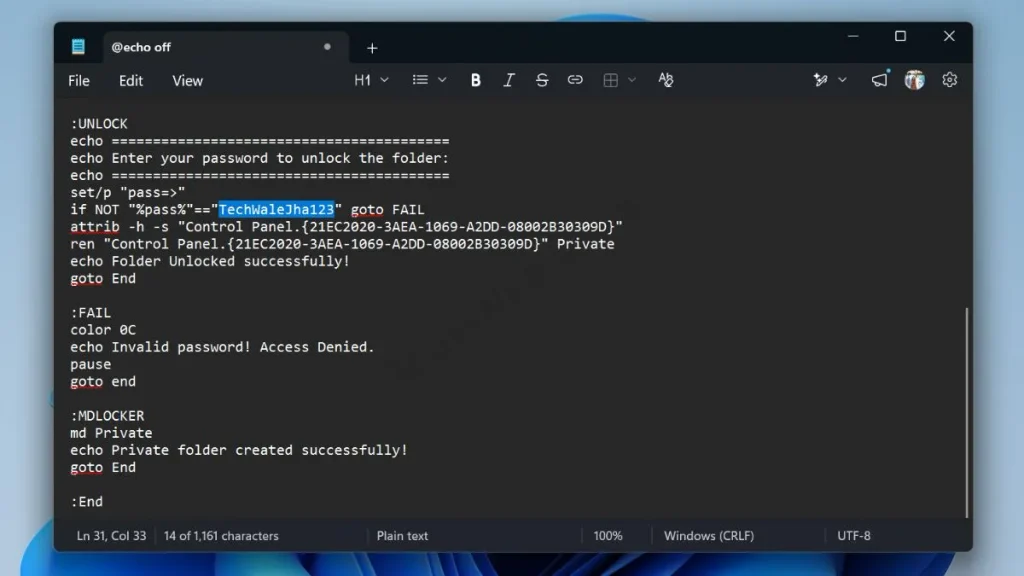
- After setting the password, click on File in the top left corner and select the “Save As” option from the menu. Then change the “Save as type” to “All Files,” name the file Folder-Locker.bat, and save it to your Desktop.
Also Check This Tool: 1-Click PC Speedup Script: Clean Temp & Cache Files Fast
Line-by-Line Code Breakdown (How It Works?)
Let’s understand how this One Click Folder Locker Batch Script works:
- md Private: This command, when run for the first time, creates a normal folder named “Private” where you keep your data.
- attrib +h +s: This is the masterstroke of the script because it makes your folder a “System File” (+s) and a “Hidden File” (+h). This way, the folder won’t be visible to anyone, even with a normal Windows search or with “Show Hidden Files” enabled.
- if NOT %pass%==…: This condition checks whether the password you entered matches the password written in the code.
Download the 1-Click Folder Locker Script (ZIP file)
If you don’t want to get bogged down in the technical details of coding and Notepad, and you’re looking for a completely error-free, ready-to-use tool, don’t worry at all! I’ve already prepared this folder lock .bat file for you. You can download it directly from the link below.
(In this video, I showed live how to extract this zip file and set your password.)
How to Use the Downloaded Script (Step-by-Step Guide)
Friends, it's very important to know the right way to use any new thing, otherwise you might get confused. If you were searching for “how to lock folder in PC,” then your solution is just a few clicks away. To run this tool properly, follow these steps carefully:
- Step 1: Extract & Edit Password (Very Important): First, extract the ZIP file to your desktop. Before running this file directly, right-click on
Folder-Locker.batand select “Edit.” The file will open in Notepad. Here, replace the default password TechWaleJha123 with your own secret password, then save and close the file.
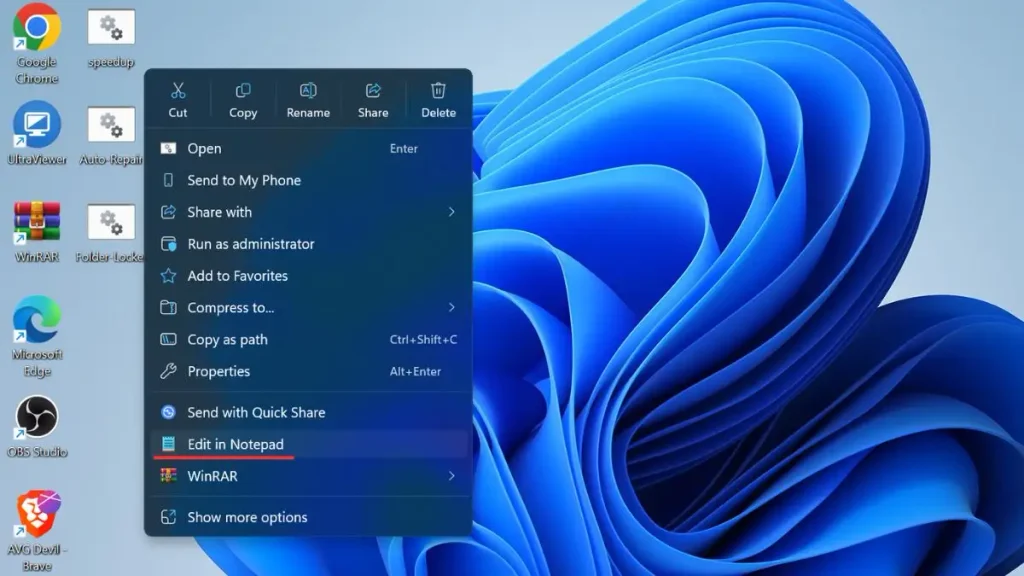
- Step 2: Create Your Private Folder: Now double-click on this BAT file. As soon as you click, a new folder named “Private” will automatically be created in the same location. This is your secret vault, and you can put all your personal photos, videos, and important documents inside this Private folder.
- Step 3: Lock It Like a Ninja: Once all your data is in that folder, double-click the
Folder-Locker.batfile again. A black Command Prompt window will appear on the screen asking: “Are you sure you want to lock the folder? (Y/N)”. You just need to type Y from your keyboard and press Enter. After that, your Private folder will be completely hidden and locked, and no one will be able to find it.
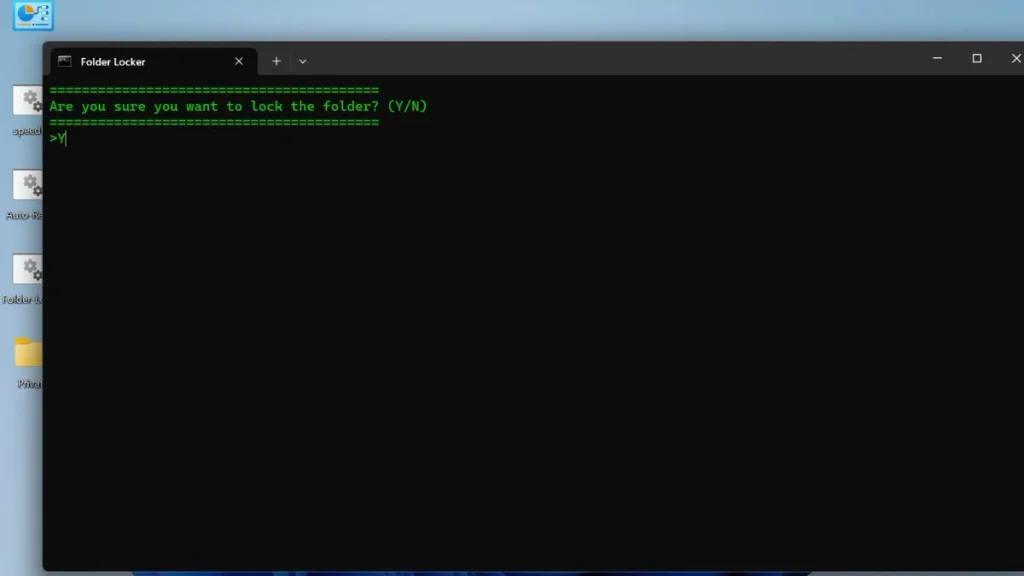
- Step 4: Unlock Your Folder: To see your data again, double-click the BAT file to open it. It will then ask you for your password. Enter your correct password and press Enter. Your private folder will return to the same location exactly as it was. Isn't that really easy?
Also Check This Tool: Best Free Windows 11 Debloat Script Batch File
Frequently Asked Questions (FAQs)
What happens if I forget my password?
There's absolutely no need to panic. If you forget your password, you can simply right-click the BAT file and go to ‘Edit’. There, in Notepad, you will see your password written inside the code, and you can easily change it from there.
No. This script applies system-level restrictions (+s attribute) to the folder. This means that even if someone goes into the normal Folder Options and turns on “Show Hidden Files,” the folder will still not be visible, making it doubly secure.
Will this delete my files if I move the BAT file?
Your files will be completely safe; they will not be deleted. However, for the script to work properly, the BAT file and the “Private” folder must always be in the same location, like in the same folder or on the desktop. Do not keep them in separate locations.
Is this tool safe for Windows 11?
Yes, it is completely safe. This script has been properly tested and this hide and lock folder works perfectly and safely on Windows 11, Windows 10, and even on Windows 7.
Conclusion
So friends, that was the smartest and most correct way to keep your personal data safe without any third-party apps. Now you can give your laptop to anyone without any fear, because they will never get your data, even if they try to check it.
What did you think of this ‘Ninja’ folder locker trick? Did you try it successfully? Be sure to let me know your thoughts in the comments section below!
If you want to see this entire process live in one minute, then be sure to check out my video here. In it, I've made a folder disappear and brought it back live:
For more advanced Windows tweaks, coding hacks, and tech troubleshooting, don't forget to follow and subscribe to me, @TechWaleJha, on Instagram, YouTube, and Facebook. Until we meet again with another amazing trick, take care and bye-bye.
Disclaimer: Friends, I have personally tested all the Batch (.bat) scripts provided in this article, and they are completely safe. However, since everyone's PC configuration is different, please use them at your own risk. Before running any system-level script, be sure to back up your important data. TechWaleJha, its author, or this website will not be held responsible for any unexpected data loss, system errors, or PC crashes. Please run the script exactly as per the steps provided and avoid making any unintended changes to the code.




