
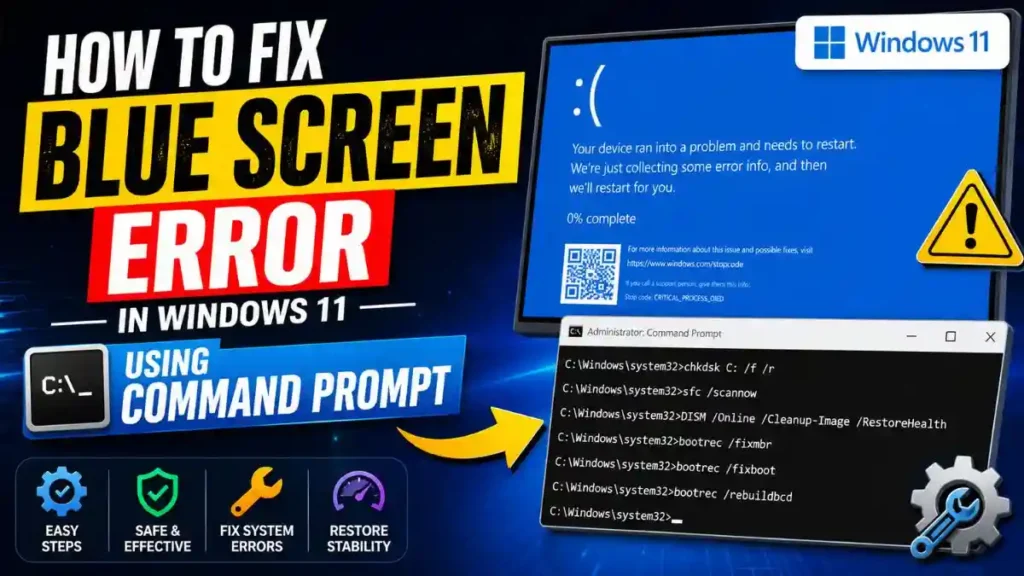
Friends, when you’re comfortably working on your computer on an important task or editing a video and suddenly the screen turns blue with a sad smiley face :(, it really makes your heart skip a beat. Then everyone thinks they’ll have to format the PC and lose all their hard-earned data from the system. If you’re also panicking and searching online for the correct way to fix blue screen error in Windows 11 using Command Prompt, here’s the fastest, 100% working solution below:
To remove the Blue Screen (BSOD) without formatting your PC, type “cmd” in Windows Search and open it by clicking “Run as administrator.” Now, on the black CMD screen, type sfc /scannow and press Enter. This built-in tool will automatically repair corrupted system files. If the error still isn’t fixed, run the DISM /Online /Cleanup-Image /RestoreHealth command for advanced repair, and once the process is complete, restart your PC.
In today’s in-depth guide, we will learn how to fix this blue screen problem at its root. Service center technicians charge you a lot of money for this same little trick, whereas this method of repairing a Windows 11 BSOD using CMD is completely free, safe, and very easy.
Also Read: 10 Cool CMD Tricks to Look Like a Hacker
Why Does the Blue Screen (BSOD) Appear?
In technical terms, it’s called the ‘Blue Screen of Death’ (BSOD). Why does such a critical error suddenly appear? In fact, when a new, faulty Windows 11 update installs in the background, or a sudden power outage corrupts the OS’s core files, the system crashes to prevent further damage and then displays this error code.
There’s no need to worry in this situation. By smartly using some simple Windows tools, we can safely complete this Windows 11 Blue Screen of Death fix cmd process, and the best part is that not a single one of your personal files will be deleted.
Also Read: How to Repair Windows 11 Using Command Prompt
Method 1: Fix Corrupted Files with the SFC Command
Windows has its own built-in virtual doctor called SFC (System File Checker). Its job is to perform a deep scan of the entire system, locate corrupt or missing files, and automatically replace them. If you’re searching for “fix corrupted files Windows 11 command prompt,” this is your first and most powerful tool.
How to Run It? (Step-by-Step Guide):
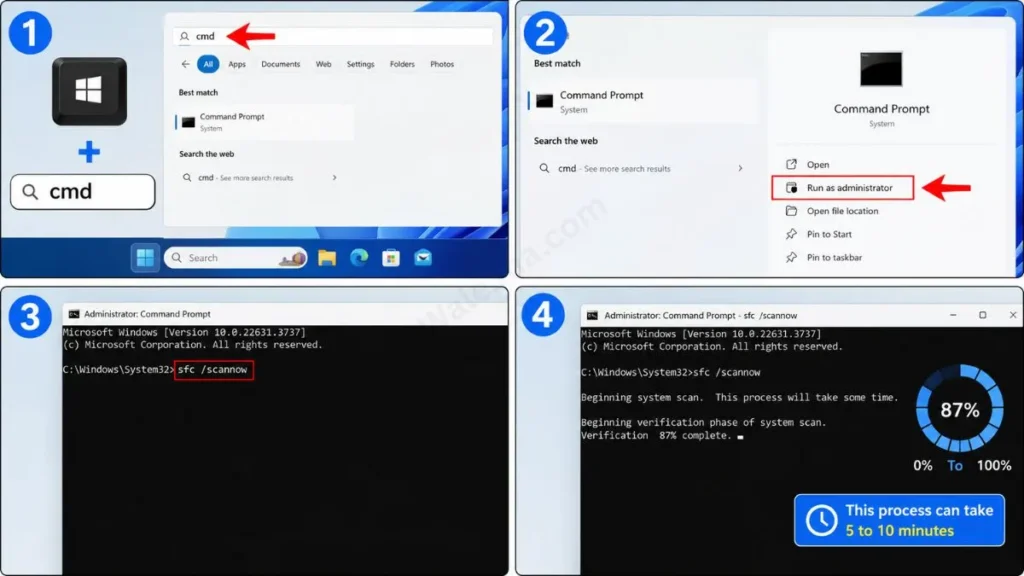
- First, press the Windows key on your keyboard and type cmd in the search bar.
- On the right side, click ‘Run as administrator’. Also, keep in mind that Admin mode is very important to fix this error, otherwise you will get an ‘access denied’ error.
- Now a black screen (Command Prompt) will open. Here, type exactly:
sfc /scannowand press Enter on your keyboard. - The scanning process will then proceed from 0% to 100%. This sfc scannow verification process in Windows 11 can take 5 to 10 minutes, so do not close the CMD window by mistake, or it could cause a system crash.
When the scan is 100% complete, the screen will display “Windows Resource Protection found corrupt files and successfully repaired them.” This simply means that the virus or corrupted file on your system has been fixed! Just restart your laptop or PC once, and your blue screen error will vanish forever.
Also Read: How to Make a Pendrive Bootable
Method 2: Repair Windows Image with DISM Tool (Advanced)
Sometimes the SFC scan reports that it has found corrupted files but can’t repair them. In such cases, there’s absolutely no need to back off, because Windows has its most advanced doctor on hand, called the DISM (Deployment Image Servicing and Management) tool.
If you want to know in-depth how it heals the OS at a background level, you should definitely read Microsoft Learn’s official DISM Reference Guide. It’s the most trusted resource for IT professionals that explains how to safely service the Windows image.
In fact, the DISM command to repair Windows 11 BSOD connects directly to Microsoft’s servers over the internet, downloads new and fresh Windows files, and automatically replaces the old, corrupted files.
How to Run This?
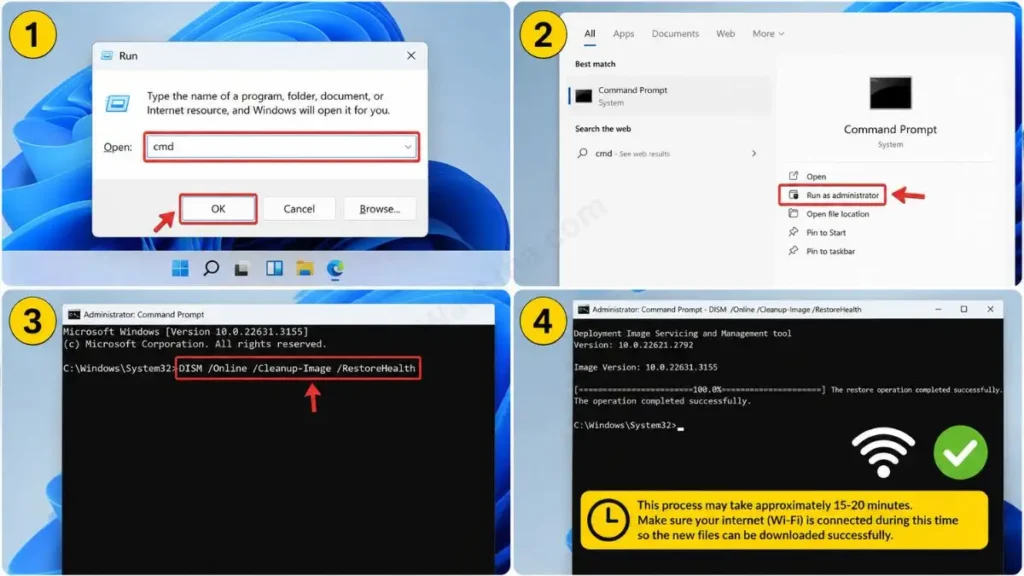
- Open CMD again in ‘Run as administrator’ mode.
- Then type this exact command there:
DISM /Online /Cleanup-Image /RestoreHealthand press Enter. - This process may take approximately 15-20 minutes. Make sure your internet (Wi-Fi) is connected during this time so the new files can be downloaded successfully.
SFC vs DISM (When to Use Each?)
| Feature | SFC (System File Checker) | DISM (Deployment Image Servicing) |
|---|---|---|
| What is my main job? | Find and repair missing or corrupt files within the system. | If the SFC image fails to work due to damage, repair the entire OS image. |
| Do you need the internet? | No, it works fine offline. | Yes, you need the Internet to download fresh files. |
| Process Time | 5-10 Minutes | 15-20 Minutes |
Also Read: How to Scan Windows PC for Corrupted Files
How to Open CMD When Your PC Won’t Start? (Boot Repair)
Friends, a major emergency arises when Windows 11 keeps crashing with a blue screen repeatedly, and your PC can’t even reach the home screen (desktop). In such a situation, when Windows is completely stuck, how will you open CMD? This can be frustrating, but there’s no need to worry. To do this, we’ll need to use the Windows 11 Advanced Startup Command Prompt environment, which is specifically designed for situations like this.
If your laptop won’t turn on at all, follow these life-saving steps:
- Force Restart Trick: Turn on your PC. As soon as the Windows logo or a brand logo like HP, Dell, Lenovo, or any other appears on the screen, press and hold your PC’s power button for 5–10 seconds until the PC force shuts down.
- WinRE Screen: Repeat this force shutdown process 2 to 3 times. On the third startup, Windows will detect that the OS isn’t loading and will automatically go to a blue screen saying “Preparing Automatic Repair.”
- Open CMD: Go to Advanced Options, then tap Troubleshoot, and then click on Command Prompt.
- Repair Boot Files: After opening CMD, it’s possible your master boot record (MBR) files are corrupted. To fix this, type
bootrec /fixmbrand press Enter. After that, run thebootrec fixboot windows 11command. This will fix the boot sequence. - Disk Check (Bonus Fix): If there are physical disk errors in the hard drive’s sectors, use the chkdsk command to repair Windows 11. In the same CMD, type:
chkdsk C: /f /rand press Enter. This will deep scan the entire drive and bypass hardware-level errors.
Also Read: How to Find Hidden Viruses Using CMD
Frequently Asked Questions
Will running CMD commands delete my personal data (photos, videos, documents)?
Absolutely not! This is one of the biggest misconceptions. Whether you run SFC or DISM, these commands only check and repair the core Windows files on the C: drive. They don’t touch your personal files at all, so fixing a blue screen error in Windows 11 using the Command Prompt is a 100% safe troubleshooting process.
What should you do if you get a “You must be an administrator” or “Access Denied” error when typing a command?
This error appears when you open CMD in the normal way. To fix it, close CMD first, type “cmd” again in Windows search, and on the right side select “Run as administrator.” After that, your Windows 11 blue screen of death fix cmd trick will work perfectly smoothly.
What should you do if the blue screen keeps appearing even after running SFC and DISM?
If the system still isn’t working properly after running the software commands, the problem could be with your physical hardware, such as a bad RAM stick or a faulty hard disk. In that case, have an expert check your laptop or try reinstalling Windows from a fresh USB drive (clean install).
Conclusion
Friends, there’s absolutely no need to panic when the blue screen suddenly appears. Windows has given us a very powerful built-in tool called the Command Prompt, which can fix 90% of software errors in minutes. I’m confident that by following this easy and detailed guide, you have successfully understood how to fix blue screen error in Windows 11 using Command Prompt, all without any data loss.
When I’m editing my technical video scripts or YouTube videos, my PC often crashes suddenly due to the heavy load. In such emergencies, these SFC and Bootrec commands are nothing short of a lifesaver for my workflow. Nowadays, everyone likes to see these advanced tricks visually in short vertical videos, so I always try to make sure every trick shown on screen is crystal clear and practical.
Which command fixed your blue screen error? Be sure to let me know in the comment box below. And yes, for more amazing tech tips and step-by-step troubleshooting guides, stay connected with your very own TechWaleJha platform. And if you can, bookmark this page, as it will come in handy during an emergency.
Disclaimer: This guide and the CMD (Command Prompt) tricks mentioned here are for educational purposes only and to help you with PC troubleshooting. Be very careful when typing commands and ensure their spelling is exact. The TechWaleJha platform or its author will not be held responsible for any boot failure, system error, or data loss resulting from an incorrect technical command. Before performing any advanced repair steps, be sure to back up your important data by entering safe mode.




