
Have you ever been playing an important game or working on an Excel sheet in the office when your PC suddenly crashes? Then a strange blue screen appears and the system automatically restarts. At such times, the biggest question is: where did the problem come from? When this happens, most people simply ignore it or start trying random solutions they find online. But if you want to pinpoint the exact problem, you need to know how to perform a deep scan of your system.
Every airplane has a “black box” that records all its history and errors. In the same way, Microsoft also continuously maintains a hidden Windows 11 system error history on your PC. Whenever a third-party app crashes, there’s a power failure, or even a minor glitch in the OS, Windows quietly saves its exact error code in the background.
In this guide, we’ll go into detail about how you can easily find error codes on Windows 11 safely and accurately. We won’t be using any expensive third-party software at all. Instead, we’ll use Windows’ built-in diagnostics to practically learn how to extract Windows crash logs. You can dive deep into the computer science behind these technical logging systems in Wikipedia’s guide on Event Viewer. Let’s start this tech investigation without wasting any more time and find out how to fix it.
Also Read: How to Get Help in Windows 11 Quickly
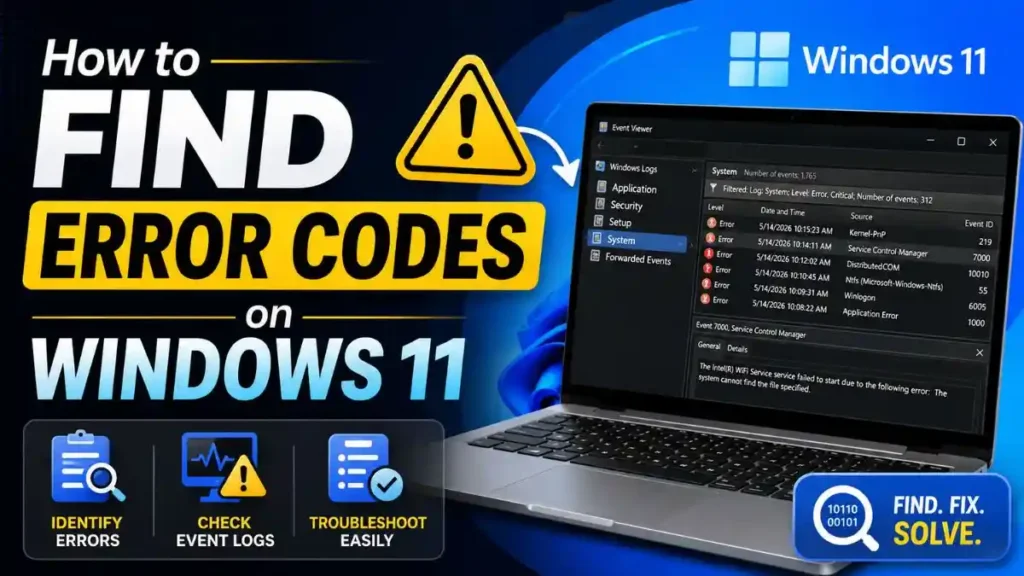
Quick Guide: How to Find Error Codes on Windows 11?
To quickly find Error Codes on Windows 11, use the built-in Event Viewer tool:
- To do this, first press the Windows key + R on your keyboard. The Run dialog box will open; type “
eventvwr” in it, and then press Enter. - Now, in the left panel, expand Windows Logs and then select System or Application.
- Then, on the right side, click on “Filter Current Log…”.
- Next, check the “Critical” and “Error” boxes, and then click OK.
The short list above gives you the most direct and fastest result. However, errors on a computer are broadly of two types: one that comes from hidden software, like the OS or an app, and the other that comes directly from hardware, like the Wi-Fi card, Bluetooth, or the GPU. Therefore, it is very important to choose the right tool based on the situation.
Let’s see through this clear comparison table when you should open the powerful Windows 11 Event Viewer tool, or when you should check the Device Manager hardware codes, depending on your problem:
| Main Type of Problem | Which is the best built-in tool? | What are you looking for here? |
|---|---|---|
| Random App Crash / PC Restart | Event Viewer | Open eventvwr and filter the System logs for Critical and Error events. |
| Bluetooth, Wi-Fi, ya Camera Not Working | Device Manager | See the yellow warning triangle next to the affected hardware devices. |
| Software Update Failed / Freezing | Event Viewer | Check the “Application” tab for warnings and specific error codes like 0x800… |
Keep in mind that using both of these tools is 100% safe, because they only show you historical data and reports; they don’t perform any changes or delete actions on your system themselves. So you can access your entire Windows 11 system error history without any worry.
Also Read: How to Download Windows 11 25H2 Update Right Now
Method 1: Using Event Viewer for Crash and System Errors
Whenever your PC experiences a major glitch or crash, the first thing you should do is use the Windows 11 Event Viewer tool. This tool is a very powerful and detailed diagnostics manager. But when you open it for the first time, you will see thousands of entries and codes. There’s no need to get scared seeing all this; we just need to extract the relevant data and the exact error.
Opening the Windows Logs
First, let’s access this diagnostic tool:
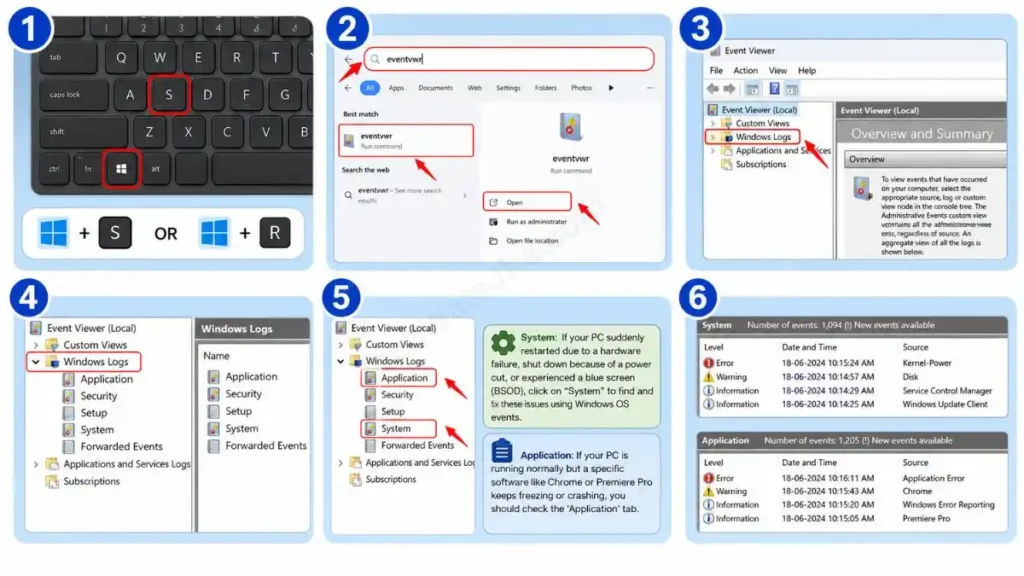
- To do this, press the shortcut key Windows key + S on your keyboard, or press Windows key + R to open the Run command.
- Then, carefully type
eventvwrin the Search bar and click Open. - A new window will open on the screen. In the left-side panel, you will see some main folders. Double-click on Windows Logs to expand it.
Inside this folder, you need to focus on two main categories:
- System: If your PC suddenly restarted due to a hardware failure, shut down because of a power cut, or experienced a blue screen (BSOD), click on “System” to find and fix these issues using Windows OS events.
- Application: If your PC is running normally but a specific software like Chrome or Premiere Pro keeps freezing or crashing, you should check the ‘Application’ tab.
How to Filter Critical and Error Logs
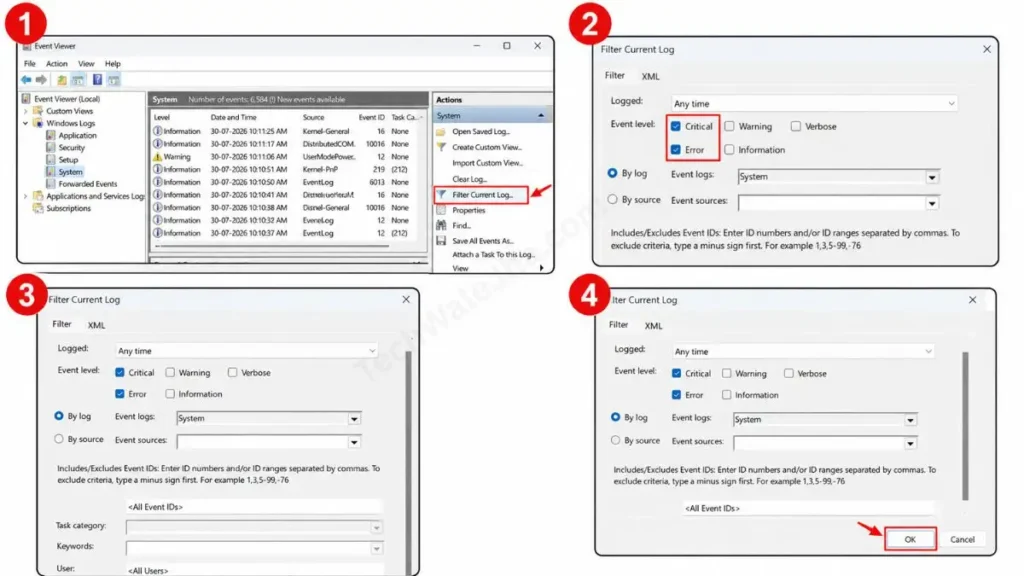
When you click on the System or Application folder, you will see thousands of “Information” logs on the screen. These are general system messages that have nothing to do with a crash. We need to get rid of this junk to find the files we need, for which we will use the filter current log eventvwr command.
- In the “Actions” panel on the right side, look carefully and click on “Filter Current Log…”.
- A new popup dialog box will open. There, look at the “Event level” section carefully.
- Check the boxes for “Critical” and “Error” and press OK below.
Now, your screen will only show the red entries that have practically damaged or crashed your PC. Double-click on any error entry. Under it, in the “General” tab, you will find the exact information you need to smoothly find error codes on Windows 11, such as Event ID 41, which is the code for a power failure. This is the best way to quickly and deeply analyze your Windows crash logs.
Also Read: Top 10 Hidden Features in Windows 11 You Must Try Today
Method 2: Checking Device Manager for Hardware Codes
Event Viewer is an excellent tool for OS crashes, but sometimes the PC doesn’t crash completely; instead, a specific part of the system stops working. For example, your Bluetooth might suddenly disappear from the system, your external mouse might stop working, or your Wi-Fi adapter might not show networks. For these exact hardware-level problems, we simply have to use the Device Manager hardware codes.
This method is most useful for those who think their PC’s drivers have become outdated or corrupted.
How to Spot Hardware Errors:
- To do this, first, right-click on the Start Button, which is the Windows icon in the bottom-center of your screen. Do not left-click it.
- Then, from the menu that opens, find and select Device Manager.
- A detailed list of all your PC’s connected internal and external devices, such as the keyboard, processors, network adapters, or display adapters, will now open.
In the full list, you need to look very carefully for one specific thing: is there a small Windows 11 yellow warning triangle, or a yellow exclamation mark, next to any device name? Because this triangle is proof that the communication between that specific hardware and Windows is not happening properly.
Right-click on the affected device, such as the Intel Wi-Fi 6 AX201 (note that your error may be different), and select Properties. A new small window will open. In the “General” tab, in the middle, you will see a small Windows 11 device status box. Inside this box, the system will have written the problem in very clear language and the exact Error Code, such as “Code 43: Windows has stopped this device because it has reported problems.”
Once you successfully find your relevant Error Code this way, half the problem is already solved, and you can easily update the driver by manually downloading it from the internet.
Also Read: Windows 11 Running Slow? 5 Tricks to Make PC a Rocket
Final Troubleshooting Tips (What to Do After Getting an Error Code?)
Once you successfully find error codes on Windows 11 with the help of these tools, the real hacking begins! You’re 80% of the way there. Now, to permanently fix that error, always follow these 3 ‘Golden Tips’:
- Google the Exact Code: Whatever error ID (like “Event ID 41 Kernel-Power”) or hardware code (like “Code 43”) you get, copy it as is and search it on Microsoft Support forums or Google. You will get the exact step-by-step fix.
- Driver Rollback or Update: If you see a yellow triangle next to a device in Device Manager, right-click it and select “Update Driver.” If the crash started after installing a new driver, select “Roll Back Driver.”
- Run System File Checker: If your Windows crash logs indicate that a system (.dll) file is repeatedly crashing, be sure to use the
sfc /scannowcommand in CMD to repair any corrupted files.
Also Read: Why Does My Laptop Keep Hanging? 5 Fast Ways to Fix It
Frequently Asked Questions
Can my personal files be deleted by using the Event Viewer?
Absolutely not! The Windows 11 Event Viewer tool is 100% safe. It just works like a “Log Book” or diary where Windows keeps a record of its past actions and crashes. Opening this tool or filtering logs in it will not delete any of your PC’s data, photos, or apps.
I opened the Event Viewer and there are hundreds of ‘Error’ and ‘Warning’ entries. Is my PC broken?
Don’t panic! This is completely normal. Even a healthy computer experiences minor network drops, update checks, or background app glitches in the background that Windows quietly records. As long as your PC isn’t actually crashing or freezing, it’s best to ignore these general warnings. You should only focus on Critical and those Errors that were recorded at the exact time the PC crashed.
How to permanently fix the ‘Yellow Warning Triangle’ next to hardware in Device Manager?
The biggest reason for the Windows 11 yellow warning triangle is outdated or corrupt drivers. To fix this, right-click on the device and click ‘Uninstall device’ (make sure your PC is connected to the internet). After that, simply restart your PC. Windows will automatically install the latest and freshest driver for that hardware as soon as it restarts, and the triangle will disappear for good.
Final Thoughts
Friends, a system crash is not something to be scared of rather, it’s the PC’s way of telling you what’s wrong with it. So the next time your computer suddenly shows a black screen or a blue screen of death (BSOD), instead of panicking, open eventvwr like an IT pro and accurately pinpoint the root cause of the problem.
I’m your friend, TechWaleJha, and I hope this deep-dive guide makes your PC maintenance even easier. If you have any questions related to this, you can ask me in the comments, and I’ll answer you there.
Disclaimer: All diagnostic methods mentioned in this article (Event Viewer and Device Manager) are built-in features of Windows 11. Their primary purpose is for educational and troubleshooting assistance. While viewing these logs is completely safe, exercise caution when updating, disabling, or uninstalling any driver in Device Manager. We will not be held liable for any incorrect driver installation, system crash, or hardware malfunction. Always be sure to back up your important data before making any major changes.




