
If you’re one of those who use a Windows PC or laptop and have been eagerly waiting for the latest Microsoft update, then you have good news, because Microsoft has finally released its most anticipated update. And if you want to boost your PC with the latest features, AI integrations, and better performance, so now the time has come to switch to the latest version of Windows 11, 25H2. Like every tech enthusiast, if you’re also thinking of download Windows 11 25H2 first, then this guide is perfect for you. With the new update, Microsoft has made the system UI even smoother and fixed background bugs, making your daily workflow even faster.
But there’s a very common problem with this. What often happens is that Microsoft releases its major updates in a phased rollout. This simply means that some people will get the Windows 11 version 25H2 update as an immediate notification in their settings, while others may have to wait weeks or even months for this update. Going into Settings and repeatedly clicking ‘Check for updates’ only to be disappointed can be quite frustrating. But did you know that you don’t have to wait a long time for this process? If you want, you can manually and completely safely upgrade your system to Windows 11 25H2, directly from the official Microsoft servers.
In this step-by-step tutorial, I’ll show you the three best and most official methods. We’ll take a deep dive into how to check for updates through the normal settings, what to do if it doesn’t appear there, how to smartly use Microsoft’s official Windows 11 Installation Assistant tool, and for advanced tech users, how to directly install the Windows 11 25H2 ISO file.
Whether you’re a beginner or tech-savvy, this process is going to be completely seamless. If you’d like, you can visit the Wikipedia article on Windows 11 to read about the full technical history and core features of the latest versions in detail. So, let’s get our computers switched over to the next-gen OS without any further delay and enjoy it.
Also Read: How to Install Windows 11 Without Microsoft Account
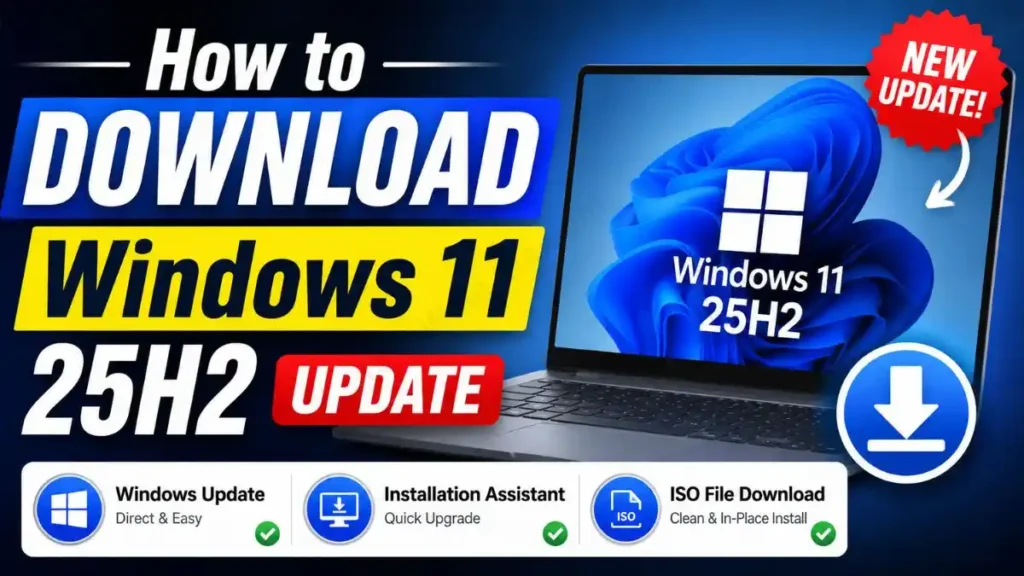
Quick Guide: How to Download Windows 11 25H2?
To officially download Windows 11 25H2, you can use the 3 straightforward methods provided by Microsoft, which are briefly outlined below:
- Windows Update: To do this, open Settings, go to Windows Update, and then click on ‘Check for updates’.
- Installation Assistant: Download the Windows 11 Installation Assistant tool from Microsoft’s official software page and run it.
- ISO File: Then download the official ISO file, mount it, and install an in-place upgrade to Windows 11 25H2 via Setup.exe.
The short list above gives you a quick overview of the available ways to upgrade to Windows 11 25H2. But before trying any method, it’s very important to ensure that your PC meets the strict hardware requirements for Windows 11, such as TPM 2.0 and Secure Boot. However, if your system is already running Windows 11 properly, then there’s no need to worry too much.
Let’s use this short comparison table to understand which update method will be the best and safest for your system and requirements, so you can safely complete your Windows 11 version 25H2 update without any crashes or errors:
| Upgrade Method | Who is it best for? | Data Loss Risk |
|---|---|---|
| Windows Update | Normal users whose PCs have already officially received the update. | Zero (All personal data and apps remain 100% safe). |
| Installation Assistant | For those who don’t want to wait for the update and want to force it. | Zero (Apps, settings, and files remain in the same place). |
| ISO File Method | Advanced users who want a clean install or a manual in-place upgrade. | There may be a risk if you don’t select “Keep personal files” during installation. |
If you’ve never formatted a PC or done deep technical troubleshooting, then my suggestion would be to try only the first two methods. But if you want a completely fresh start for your OS and to remove junk from the system, you can confidently use the advanced method of installing the Windows 11 25H2 ISO. In the next sections, we’ll provide a step-by-step textual breakdown of all three methods so that you don’t miss any minor steps during installation.
Also Read: How to Create a Windows 11 Bootable USB
Method 1: The Easiest Way (Via Windows Update)
If you don’t want to get into any technical hassle at all, the easiest and most recommended method is your computer’s default Windows Update feature. Whenever there’s a major release like the Windows 11 version 25H2 update, Microsoft automatically pushes this update to compatible PCs. This process doesn’t require you to download any third-party apps or separate software.
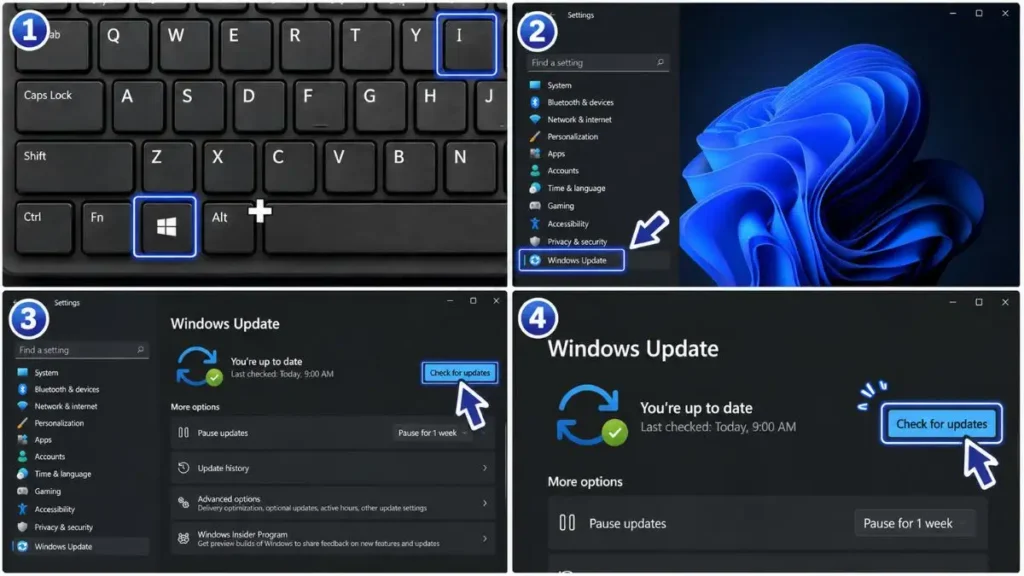
Steps to Check for the Update:
- Press Win + I on your keyboard at the same time to open PC Settings.
- In the left-side menu panel, click on Windows Update at the very bottom.
- Now, in the top right corner, click the blue Check for updates button.
If Microsoft’s servers have officially given your device the green light, you will see “Download Windows 11 25H2 feature update” on the screen. Just click on ‘Download and install’. After this, the system will download the file in the background, and after a simple restart, you will be on the new version.
Why isn’t the update showing up yet?
If the message “You’re up to date” still appears on the screen even after clicking ‘Check for updates’, then there’s absolutely no need to worry. As we mentioned earlier, Microsoft follows a “phased rollout” policy. They release updates in batches to prevent bugs. If you don’t want to wait any longer and want to upgrade your system to Windows 11 25H2 right away, then Method 2 will definitely solve your problem.
Also Read: How to Install Windows 11 Without TPM 2.0
Method 2: Force the Upgrade (Installation Assistant)
If the new version hasn’t appeared in Windows Update and you’re tired of waiting on the waiting list, you can get VIP entry directly! To do this, we’ll use an official Microsoft tool called the Windows 11 Installation Assistant. This tool is specifically designed for impatient users who want to fetch the update manually.
This process is 100% safe and doesn’t delete any of your files, so there’s absolutely no need to worry.
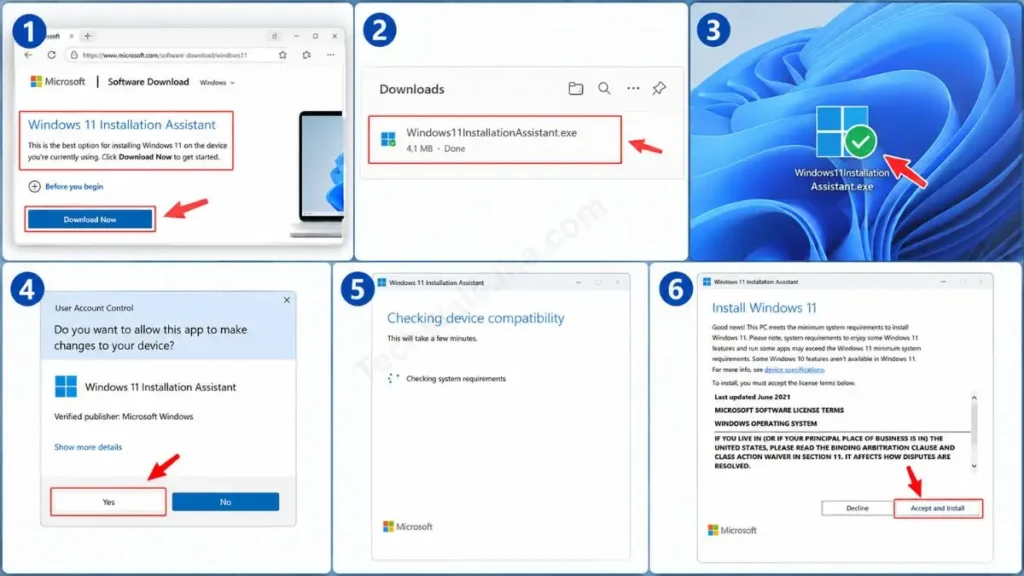
Steps to Use the Installation Assistant:
- First, go to the official Microsoft Software Download page (Windows 11) in your browser.
- There, the very first option on the page will be for the Windows 11 Installation Assistant.
- Right below it, click the Download Now button. A small .exe file will then download.
- Then, double-click the file to run it and grant administrator permission (Yes).
- Once the tool opens, it will perform a quick PC compatibility check. If your PC passes, click ‘Accept and Install’.
This tool works completely in the background. It will quietly download Windows 11 25H2 from Microsoft’s official servers and begin installing it in the background. When the process is 100% complete, it will prompt you to restart your PC. A quick restart, and there you go! Your PC will now be running on the new Windows 11 version 25H2 update.
But if your internet is slow, you want to upgrade multiple PCs, or you’re looking for a completely fresh installation, then you should go straight to the Windows 11 25H2 ISO installation method, which is our next and most advanced step.
Also Read: How to Activate Windows 11 (With & Without Product Key)
Method 3: Clean Install or In-Place Upgrade (Using ISO)
If you want to update multiple computers, or your internet is very slow or unstable and you’re looking for an offline solution, then the most reliable way to download Windows 11 25H2 is the ISO file. An ISO file is a type of digital DVD that contains the entire Windows system.
Downloading the Multi-Edition ISO
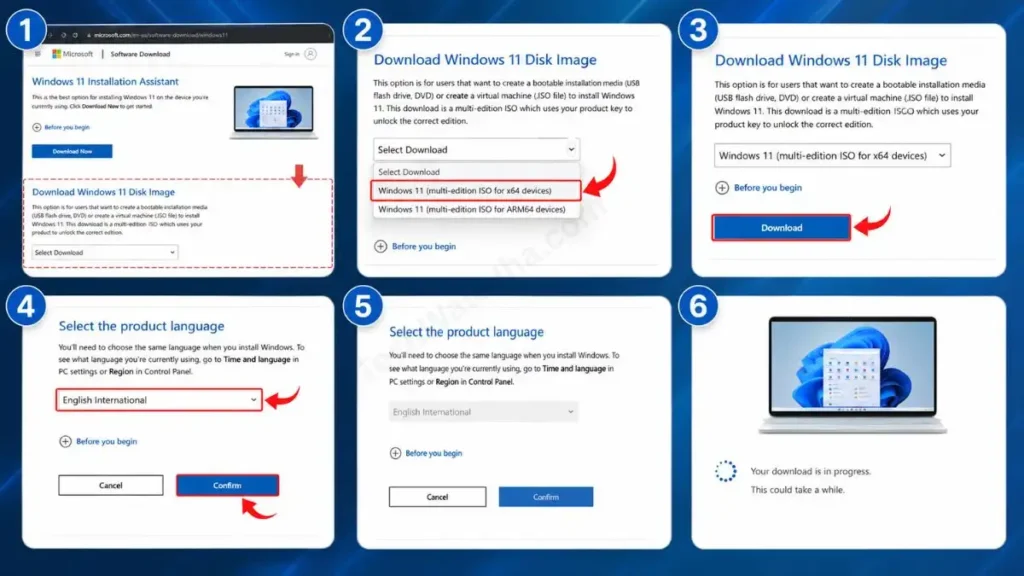
Without going to any third-party websites, you can get this official file directly from Microsoft by following the steps below:
- Go back to the same Microsoft Software Download page.
- Scroll down the page until you see the large section titled “Download Windows 11 Disk Image.”
- From the dropdown menu, select “Windows 11 (multi-edition ISO for x64 devices)” and then click the Download button.
- In the next step, choose your system language, such as English International, and confirm. This file can be between 5GB and 6GB, so the process may take some time, so please be patient.
Mounting and Running Setup.exe
Many people think that after downloading the ISO file, they have to make a bootable pendrive (USB). But if the PC is on and you just want to update, there’s no need for that. That’s why we will use the Windows 11 in-place upgrade technique:
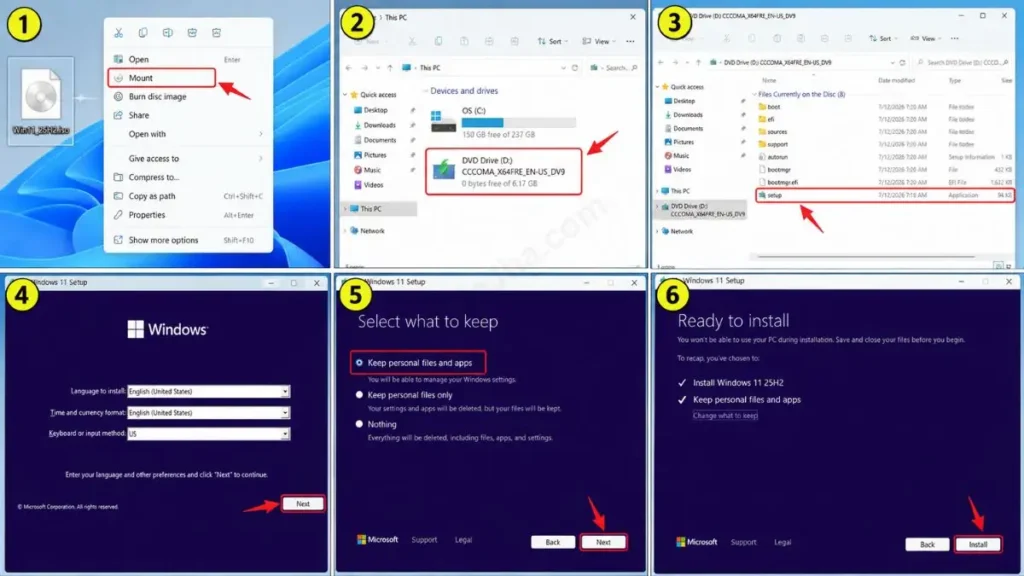
- Now, right-click on the downloaded ISO file and select ‘Mount’ from the menu. This will mount the file as a new virtual DVD drive on your PC.
- After that, open that drive and double-click the file named Setup.exe inside it.
- Then, the purple Windows 11 installation setup will open. You will then see the Next button on the screen and click on it.
- Most Important Step: Right before the installation, a screen will appear asking you what to keep. Always select “Keep personal files and apps.”
- Click Install. This way, you will safely install the Windows 11 25H2 ISO without losing a single song, photo, documents or app.
Sometimes, even after using the best and most official methods, you may still run into minor technical issues. Let’s see how to fix them right away.
Common Installation Error Codes
If you’re seeing an unusual error code like 0x80070070 or 0x800f081f while download Windows 11 25H2 or installing the update, don’t worry. Most of these issues are caused by these 3 reasons:
- C: Drive Full: You need at least 20-30GB of free space on your system drive for the update.
- Compatibility Issue (TPM 2.0): If the PC is old, the TPM or Secure Boot may not be enabled in the PC’s BIOS settings.
- Corrupted File: If the internet connection dropped during the download, the file could become corrupted.
Also Read: How to Reset Windows 11 Without Losing Data
Final Thoughts
The new update brings millions of improvements, new AI tools, and better security. Whether you update directly from your Settings app, choose the smart route with the Windows 11 Installation Assistant, or take a deep tech dive and use the ISO method, they all have one goal: to make your PC experience better and faster. Microsoft’s Windows Update 25H2 rollout is in full swing worldwide, so why be left behind? So, use the official and safe methods to upgrade your system to the new version today.
Have you successfully upgraded your PC to the new Windows 11 25H2 or not? And which method did you find the easiest: the normal Settings, the Installation Assistant, or the ISO file? If you encountered “This PC doesn’t meet requirements” or any other error code during the installation, please be sure to let me know in the comments below, and I will do my best to help you fix it! 👇
Disclaimer: The Windows 11 25H2 update methods (Windows Update, Installation Assistant, and ISO) described in this guide are based on official Microsoft sources and are generally safe. However, before starting any major OS upgrade, be sure to back up your important data, files, and apps to an external drive or the cloud. We are not liable for any errors, data loss, or system crashes resulting from system hardware compatibility, network issues, or power failures. Please apply these steps carefully and at your own risk.




