
Friends, setting up a new laptop or upgrading an old PC to a new OS is really exciting. But the most annoying thing happens when the “Activate Windows” watermark starts flashing in the top right corner of your screen. Has that ever happened to you?
If you are searching on Google, Bing, or any other search engine for a direct solution on how to activate Windows 11 quickly, then the simplest and quickest answer is to open your PC’s ‘Settings’, go to ‘System’, and click on ‘Activation’. Here, click on ‘Change product key’ and enter your 25-character ‘Windows 11 activation key’. If you don’t have a key, log in with your Microsoft account, and your ‘Windows 11 digital license’ will be automatically linked and activated.
Whether you have the original key or are looking for a way to activate Windows 11 without a product key, i.e., through a Digital License, in today’s guide, I will explain every step to you in a very easy way so that you can set up your Windows 11.
Why is it necessary to activate Windows 11? (Drawbacks)
Many people think that since the laptop is working normally without activation like opening a browser or playing movies. Why bother with the hassle of activating it? Although Microsoft lets you use the OS without activation, it has some solid drawbacks (disadvantages) that greatly worsen your daily experience, such as:
- Annoying Watermark: A “Activate Windows – Go to Settings to activate Windows” notice (watermark) will always be stuck in the bottom-right corner of your screen. Whether you’re watching a movie, giving a presentation, or playing a game, this watermark is always visible on the screen.
- Personalization Settings Blocked: This is the biggest problem. Until you activate Windows, you can’t change your system’s wallpaper, themes, accent colors, or taskbar settings. Your expensive laptop will be stuck with a very basic and boring default look.
- Constant Pop-up Reminders: You might be in the middle of an important task when a pop-up reminder to activate Windows suddenly appears on your screen, which can be very irritating.
That’s why activating it is the smartest thing to do to get the full enjoyment out of your new PC and unlock all its features.
Also Read: How to Factory Reset Windows 11 (2026 Step-by-Step Guide)
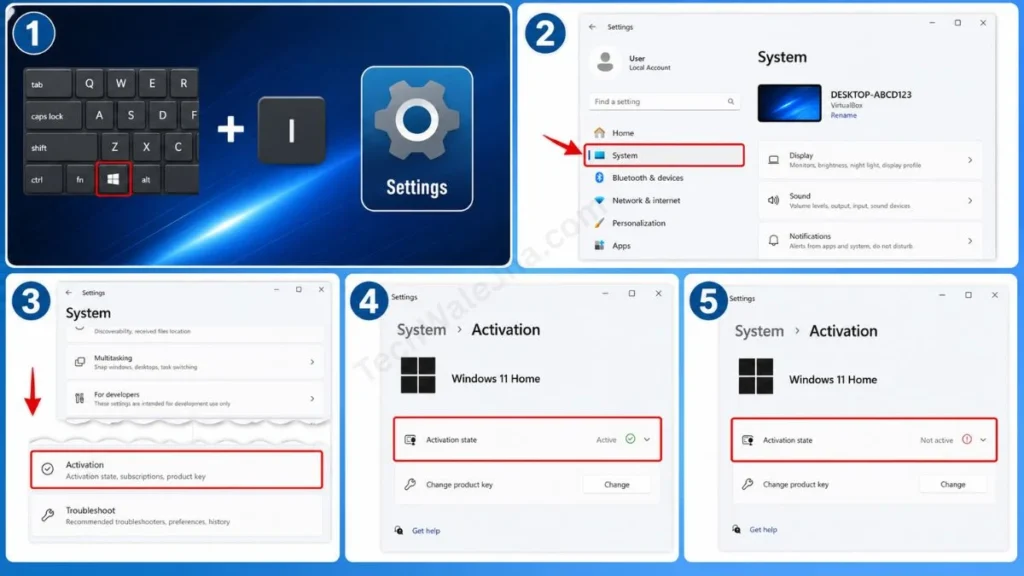
Step 1: How to Check Your Windows 11 Activation Status?
Sometimes, your laptop is already activated through a digital license, and you might not even know it. That’s why it’s very important to verify your Windows 11 activation status before proceeding.
- To do this, open ‘Settings’ by pressing the Windows Key + I on your keyboard.
- Then, in the left-side menu, click on ‘System’.
- Now, scroll down a bit and click on ‘Activation’.
Here, next to ‘Activation state’, you will see one of two things:
- Active: This means your Windows is already successfully activated and you don’t need to do anything.
- Not Active: This means you will need to properly follow the methods provided below.
Method 1: Activate Windows 11 Using a Product Key
If you have purchased a new laptop, or bought an original Windows DVD/License from a store or online, then you will have a 25-character key (e.g., XXXXX-XXXXX-XXXXX-XXXXX-XXXXX). If you’re wondering where to find your Windows 11 product key, it’s on a sticker on the bottom panel of your laptop, or in your email receipt.
If you want to activate your regular Windows or Windows 11 Pro, then follow the steps given below carefully:
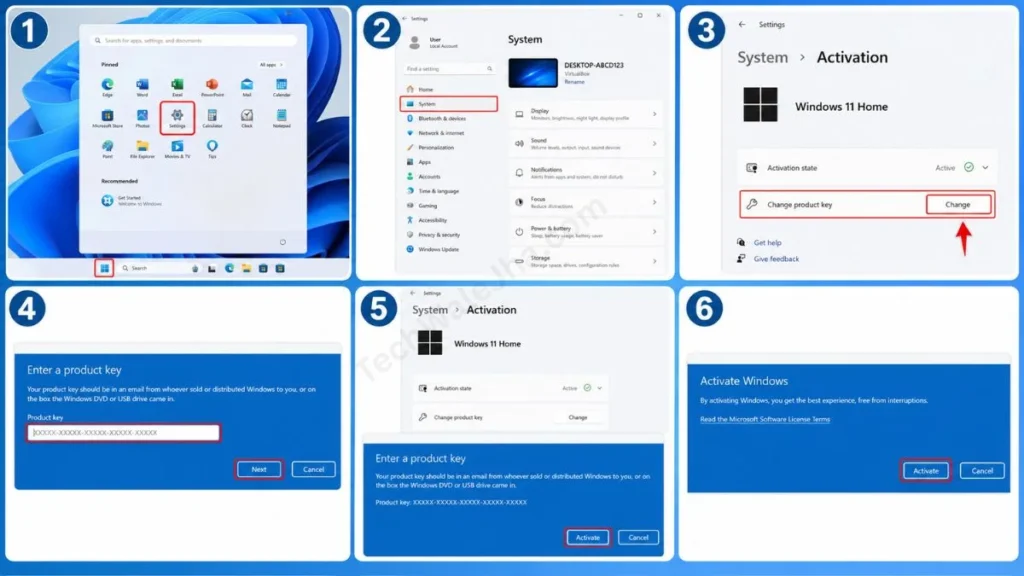
- For this, go back to ‘Settings’, then click on ‘System’ and go to the ‘Activation’ page.
- Here you will see the ‘Change product key’ option. Click the ‘Change’ button next to it.
- After that, a blue pop-up box will open. Carefully type your original 25-character key into it, then click ‘Next’ and press the ‘Activate’ button.
That’s it! In just a few seconds, Microsoft’s servers will verify the key, and your Windows will be activated.
Also Read: How to Free Up Disk Space in Windows 11 (2026 Guide)
Method 2: How to Activate with a Digital License (Without a Key)
Many users who have upgraded directly from their old activated Windows 10 to Windows 11 for free do not need a key. Their PC is activated through a ‘Digital License’. This license is tied to your PC’s hardware (motherboard) and your Microsoft account.
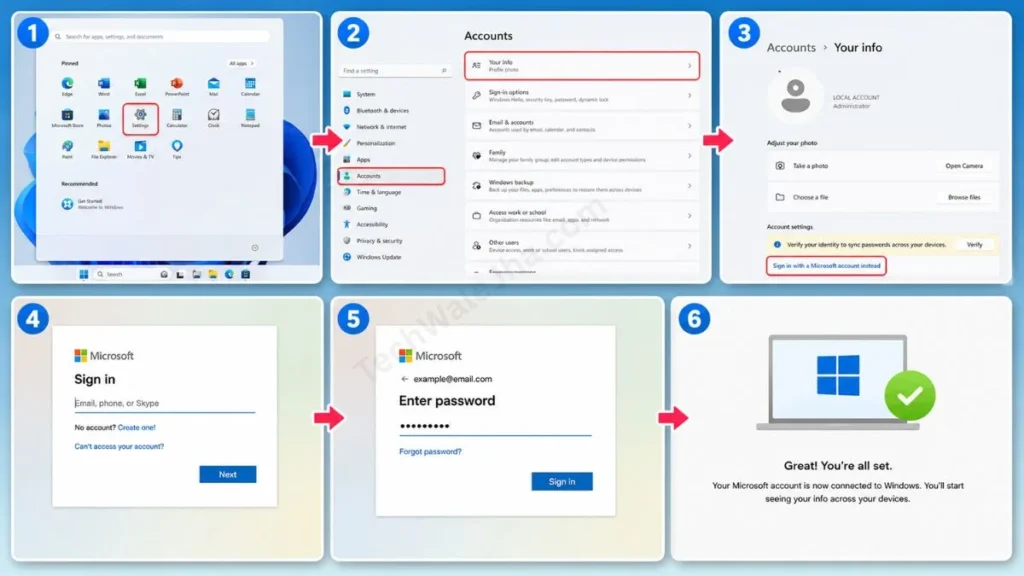
In this case, you just need to complete the step of linking your Microsoft account to Windows 11:
- To do that, go to ‘Settings’, then ‘Accounts’, and then ‘Your info’.
- Here you will see ‘Sign in with a Microsoft account instead,’ click on it.
- Now enter the same email ID and password you used in Windows 10.
- After that, as soon as you connect to the internet, the system will automatically fetch your digital license and activate Windows in the background.
Expert Tip: If you want to understand digital licenses and account linking in more depth, you can read Microsoft Support’s official Windows Activation guide. This official resource will provide you with a 100% accurate solution for all types of license errors.
Activation Troubleshooter: After a Hardware Change
Let’s say your laptop’s motherboard burned out and you had it replaced at a service center. When hardware is changed, your Windows digital license may stop working. In this case, to fix the Windows 11 activation error, click the ‘Troubleshoot’ button on the Activation page. Then select “I changed hardware on this device recently” and complete the process by carefully following the on-screen instructions step by step.
Also Read: How to Install Windows 11 Without TPM 2.0 (Easy Guide)
Frequently Asked Questions
Is it legal and safe to activate Windows using CMD (Command Prompt)?
There are many articles and videos on the internet that teach free CMD tricks to activate Windows 11 (like bypassing KMS servers). But be aware, this is illegal (piracy) and not safe at all. Connecting to such third-party servers carries a very high risk of malware and viruses on your PC. Therefore, always use an original license.
Can I run Windows 11 without activating it?
Yes, you can. Microsoft doesn’t stop you from using Windows at all, but you won’t be able to change the wallpaper and an “Activate Windows” watermark will always appear on the screen.
My laptop came with Windows 11 pre-installed, but it’s asking for activation after I formatted it. What should I do?
Don’t worry. Laptops with a pre-installed OS have their product key already built into the motherboard (BIOS). Just connect your laptop to the internet (Wi-Fi) and log in to your Microsoft account; it will activate automatically in the background in a few moments.
Conclusion
Friends, activating Windows 11 isn’t rocket science. If you have an original key or have legitimately upgraded from Windows 10, you just need to click on the options mentioned above, and the system will do the rest.
Always use official and safe methods so that your expensive laptop and important data stay safe from any viruses. We hope this guide has cleared up any confusion you had about activation. If you have any questions or would like to offer any suggestions, you can ask or let us know in the comments below.




