
Friends, when you first run Windows 11, its fresh, glassy design looks really great. But did you know that behind this beautiful UI are many secret tools that ordinary users aren’t even aware of? If you’re searching for tricks that can make the way you use your PC smarter, then you’ve come to the right place.
If you’re looking for direct answers and searching online for the top 10 hidden features in Windows 11, here’s a quick recap of the best productivity hacks. In Windows 11, you can use “Snap Layouts” to arrange four apps on the screen at once, ” Use Win + V to open the secret clipboard history, where everything you copy is saved, use Win + H to type with your voice, and with Aero Shake, you can shake the current window to instantly minimize all other background apps. All of these features are free and already built into Windows.
On your very own TechWaleJha platform, today I’m going to take you into the world of Windows 11 hidden features, after which you won’t be any less than a pro techie. After learning these secret Windows 11 tips and tricks, your hours of work will be done in minutes, and your friends will definitely ask, “Bro, how did you do that?” So let’s not waste any more time and practically explore these cool things to do on Windows 11.
Productivity-Boosting Features (Multitasking Like a Pro)
Nowadays, we all listen to music, use WhatsApp, and do our college or office work at the same time. This is called multitasking. But repeatedly switching between multiple tabs with the mouse gets very irritating. This is where Windows 11 productivity hacks come in, which are specially designed to save you time and effort.
Feature 1: Snap Layouts (Screen Split Magic)
- In Windows 10, you had to drag windows to the side to split the screen. But in Windows 11, this process has become much more advanced and smooth.
- How to Use: Go to the top-right corner of any open app, like Chrome or MS Word, where the ‘Maximize’ (box) button is, and place your mouse there and hold for just 1 second but don’t click.
- Result: After this, options for different screen grids (2, 3, or 4 screens) will open up. Just choose your preferred layout and the screen will automatically set up perfectly. Now you can watch a YouTube video on one side and comfortably type your Word document on the other.
Feature 2: Secret Clipboard History (Win + V)
In normal computer use, we can only copy one thing at a time with Ctrl + C. And if we accidentally copy something else, the first item is permanently deleted. But this secret shortcut is truly a lifesaver!
- How to Use It: Press the Windows key + V on your keyboard at the same time. The first time you press it, it will ask you to ‘Turn On’ this feature, you can enable it.
- Now, whatever you copy throughout the day, whether it’s a long text, important links, or a screenshot it will be saved in this ‘Clipboard History’ list. Whenever you need to paste something you copied earlier, just press Win + V and select your desired item from the list to paste it.
Also Read: How to Download Windows 11 25H2 Update Right Now
UI & Customization Secret Hacks
The new Windows 11 interface looks absolutely premium and a bit like macOS, especially its centered Start menu. But did you know that you can completely change its look to suit your preferences and needs? Let’s look at these customization tricks.
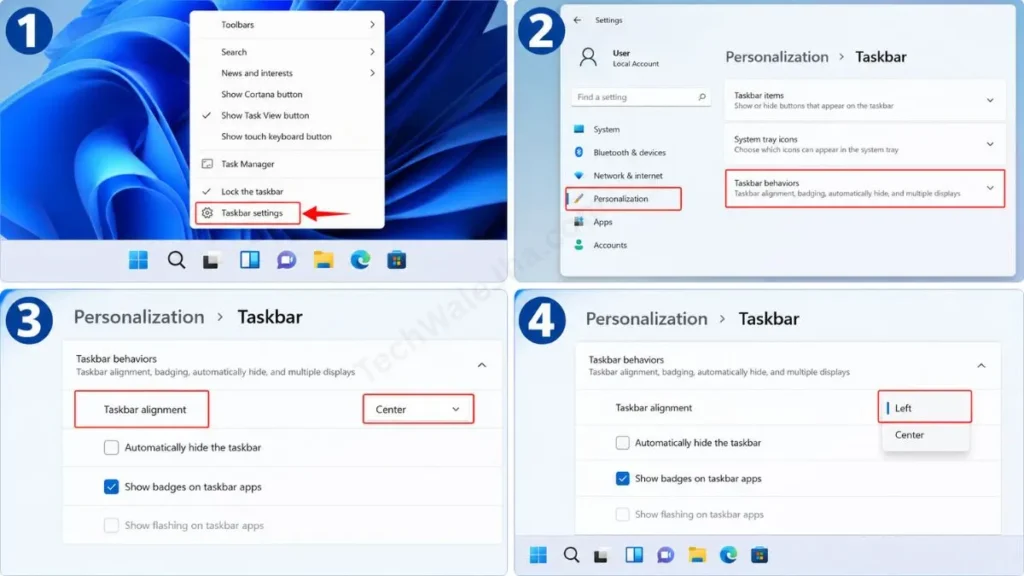
Feature 3: Bring the Taskbar Back to the Windows 10 Style
If you’ve been using Windows for years, the centered taskbar might feel a bit strange. You can easily customize the Windows 11 taskbar to move it back to the left.
To do this, right-click on the empty part of your taskbar and go to ‘Taskbar settings’. After that, click on ‘Taskbar behaviors’. There, change the ‘Taskbar alignment’ from ‘Center’ to ‘Left’. That’s it, your PC will start to feel like the familiar Windows 10 again.
Feature 4: Live Captions (A Game Changer)
This feature is a boon for those who have a hard time understanding English videos or who watch videos at a low volume. It is placed at the top of the list of best Windows 11 features for students.
- How to Use It: Press Win + Ctrl + L on your keyboard. This will open a window that generates real-time English text for any audio or video playing on your PC, whether it’s YouTube, a Zoom meeting, or a downloaded movie.
If you want to learn more about how Microsoft makes its operating system accessible to everyone, you should definitely check out the Official Guide to Microsoft Accessibility Features. This authority page teaches you how to use these hidden smart tools to make your daily PC experience more comfortable.
Also Read: 10 Cool CMD Tricks to Look Like a Hacker
Advanced Tools That Will Save You Time
Now let’s get to the Windows 11 hidden shortcuts that will double your work speed. If you want to become a power user, these tricks should definitely be a part of your daily routine. To understand them, be sure to take a look at this quick table:
Features 5 to 7: Voice Typing, Focus Sessions, and Shake to Minimize
| Name of Features | How to take a shortcut / access? | What is its real benefit? |
|---|---|---|
| 5. Voice Typing | Press Win + H | Don’t feel like typing long text? Just keep talking, and Windows will automatically type Hindi or English with great accuracy. |
| 6. Focus Sessions | Open the Clock app, then open Focus Sessions. | It blocks all notifications while you’re studying or working in the office so you can work easily without any distractions. |
| 7. Aero Shake | In Settings, go to System, then to Multitasking, and turn it ON. | Got a lot of windows open? Grab your main window from the top and shake it with the mouse. That’ll instantly minimize all your other apps! |
Feature 8 to 10: Secret Start Menu, Quick Settings, Aur Android Apps
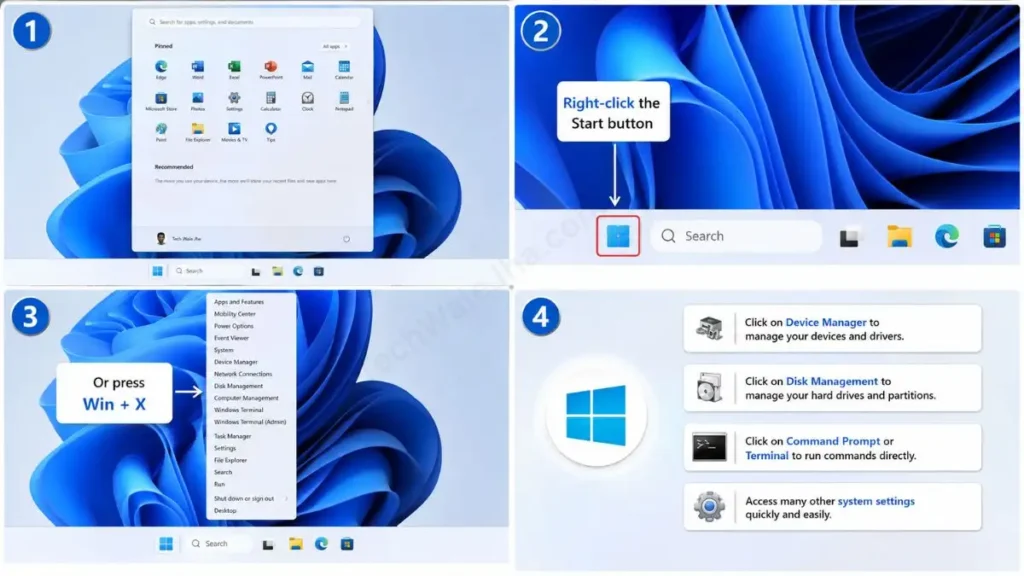
Feature 8: Secret Start Menu (Win + X)
In the normal Start menu, we only see apps. But if you need to open the Device Manager, Disk Management, or Command Prompt directly, right-click the Start button or press Win + X. This will open a secret menu that provides direct access to system settings.
Feature 9: Quick Settings Panel (Win + A)
Previously, we had to click multiple times to change Wi-Fi, Bluetooth, or brightness. Now, just press Win + A on your keyboard. A mobile-like quick control center will open in front of you where everything is available in one place.
Feature 10: Running Android Apps Directly
Now you don’t need a third-party emulator like BlueStacks to run Android games or apps on your PC. Windows 11 natively supports the Amazon Appstore for this. Just go to the Microsoft Store, download the Amazon Appstore, and enjoy mobile apps directly on a bigger screen!
Also Read: How to Scan Windows PC for Corrupted Files
Frequently Asked Questions
What is the best shortcut in Windows 11?
Well, there are many, but Win + V, which opens Clipboard History, and Win + Shift + S, which opens the Advanced Screenshot Tool, are the two most useful Windows 11 hidden shortcuts that save you hours of time daily.
Is it safe to update to Windows 11?
Yes, absolutely! It had some bugs in the early days, but now in 2026, Windows 11 has become fully stable and secure. You should always keep the system updated to take advantage of new security patches and these advanced productivity tools.
Will keeping all these features ON slow down my PC?
No. All these features, like Snap Layouts or Voice Typing, are built-in system tools and have very low background RAM usage. They do not have any negative impact on your PC’s speed.
Conclusion
Friends, Windows 11 is not just a new operating system. If its hidden tools are used properly, it becomes a complete productivity powerhouse. I truly hope this article has helped you learn something new about the top 10 hidden features in Windows 11.
Of these, ‘Snap Layouts’ and ‘Win + V’ are my personal favorites, which I use a lot during my daily script writing, content writing, and video editing. Besides, everyone these days likes to learn PC tips and these cool Windows shortcuts in the form of short vertical videos, so I always try to make sure every trick shown on screen is crystal clear and practical.
Which of these 10 features did you find the most interesting? Be sure to let me know in the comments below. And yes, for more amazing tech tips and step-by-step tutorials, stay tuned to my platform, TechWaleJha.com. See you in the next tech guide!




