
Were you working on something important when a strange error code suddenly popped up on your screen? Or is your Wi-Fi not connecting and the system keeps hanging? It’s perfectly normal to panic in such moments. But did you know you don’t have to go to a computer mechanic for every little problem or spend hours on YouTube searching “How to Get Help in Windows 11”?
Hello friends, I’m your very own TechWaleJha, and today I’m going to tell you how to get help in Windows 11 directly with your system’s built-in tools. Most users think that when a PC has a problem, third-party software is the only way out, but Microsoft has built many smart and hidden support tools right into Windows 11. Using these free tools, you can chat with a virtual agent, speak directly with Microsoft customer care, or even safely give control of your screen to a trusted expert friend.
If you want to gain a deep understanding of the system architecture of technology and customer support, you can read Wikipedia’s guide on Technical Support. Let’s find out how to make the best use of these smart options as soon as any emergency or error arises on your PC, so that your work never stops.
Also Read: How to Check Your Laptop Battery Health
Quick Guide: How to Get Help in Windows 11?
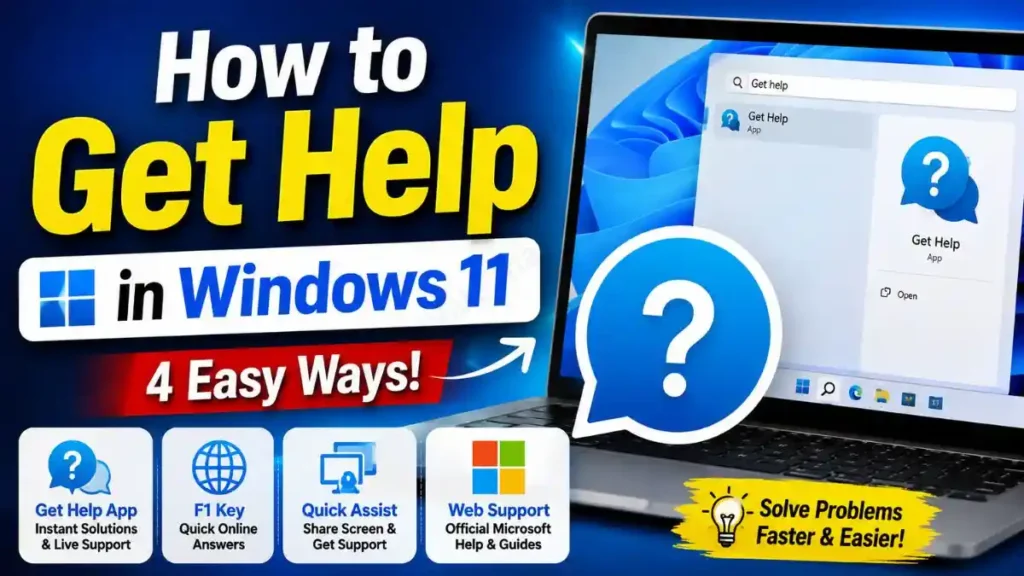
To quickly get help in Windows 11, you can use these 4 built-in Microsoft tools:
- Get Help App: Search for “Get Help” in the Start Menu, where you can troubleshoot or chat directly with live support.
- F1 Key: Press the Windows 11 F1 key shortcut on your desktop to get quick web answers.
- Quick Assist: Press Ctrl + Win + Q to securely share your screen with someone.
- Web Support: For in-depth solutions, visit the official Microsoft Support page.
This short list tells you instantly what the first step should be when a problem arises. But which tool is best for which problem? Sometimes we just need to fix a simple setting, and other times the problem is so advanced that we have to personally contact Microsoft Support for Windows 11.
| Support Option | Best For (When to Use?) | Speed & Response Time |
|---|---|---|
| Windows 11 Get Help app | To fix basic errors, chat with an AI bot, or speak with a human agent. | Instant (AI Chatbot) / 5-10 Mins (Live Agent) |
| F1 Key Shortcut | To quickly get web information about a specific open app or the current screen. | Instant (The browser tab opens immediately) |
| Quick Assist Windows 11 | When you can’t fix the problem yourself and want to hand over control of your PC to an IT expert friend. | Real-time (as soon as the friend enters the 6-digit code) |
| Official Web Support | To read in-depth articles and find detailed fixes for complex error codes (like 0x800…). | Manual search (Depends on your reading speed) |
If you learn to properly access all the built-in tools, you can solve any software issue in minutes.
Also Read: How to Lock PC Folder Without Any Software
Method 1: Use the Built-in ‘Get Help’ App & Settings
If you’re getting any errors on your computer, there’s absolutely no need to wander around third-party websites. Microsoft has already installed a dedicated and powerful application on your system to fix Windows 11 errors. This app is called “Get Help,” and it really is a lifesaver.
Chatting with the Virtual Agent
This app is nothing short of magic. It’s very simple to open and use:
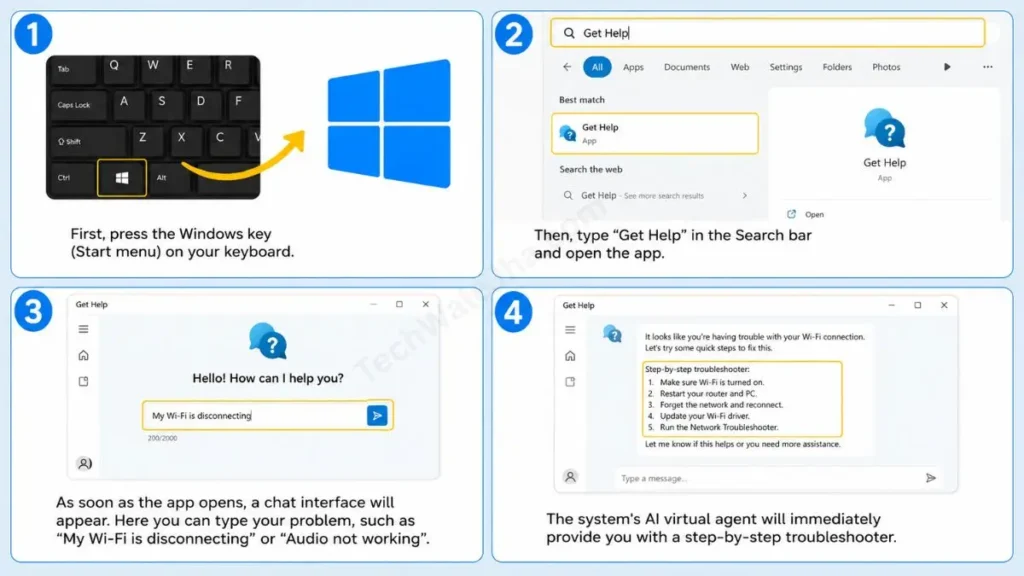
- First, press the Windows key (Start menu) on your keyboard.
- Then, type “Get Help” in the Search bar and open the app.
- As soon as the app opens, a chat interface will appear. Here you can type your problem, such as “My Wi-Fi is disconnecting” or “Audio not working”.
- The system’s AI virtual agent will immediately provide you with a step-by-step troubleshooter.
If your issue isn’t resolved by the AI bot’s tips, there is a “Contact Support” button below. By clicking on it, you can directly request a chat or call with a human agent. This is the fastest and most authentic way to contact Microsoft Support for Windows 11.
Finding Help Links in the Settings App
Many times, we are adjusting the display, sound, or network in the Settings app and don’t understand the meaning of something. In such a case, you don’t need to close the app.
- On whatever page of Settings (Windows + I) you are, scroll all the way to the bottom.
- There, you will find a small, direct link for “Help from the web” or “Get help.”
- Clicking this link will open the official troubleshooting article for that specific setting, such as Bluetooth or Updates.
This integration of the Windows 11 Get Help app with Settings saves you a lot of time and ensures you always get genuine Microsoft solutions.
Also Read: Why Does My Laptop Keep Hanging? 5 Fast Ways to Fix It
Method 2: Keyboard Shortcuts (The F1 Key Magic)
Keyboard shortcuts are the greatest tool for any tech-savvy user. TechWaleJha always tries to save your time! If you’re wondering how to get help in Windows 11 in under a second, then the ‘F1’ key on the top row of your keyboard is your best friend.
The F1 key has been considered the “Universal Help Key” since the old days (Windows 95), and it has been made even smarter in Windows 11.
How Does the F1 Key Work?
- On the Desktop: If you are on a normal desktop screen and you press the Windows 11 F1 key shortcut, the Microsoft Edge browser will automatically open. It will directly open the official search page on Bing for “how to get help in Windows,” where the top articles will be available.
- Context-Aware Help: This is the key’s smartest feature. If you are working in File Explorer (This PC) and press F1, the browser will specifically open tips and help for using File Explorer! In other words, the key finds help related to the app you are in.
Note for Laptop Users: If you’re using a laptop, pressing F1 alone may change the volume or brightness due to media keys. In such cases, you need to press Fn + F1 together on your keyboard so that the actual Help command runs.
Also Read: Windows 11 Running Slow? 5 Tricks to Make PC a Rocket
Method 3: Remote Help via Quick Assist (Ctrl + Win + Q)
To instantly get remote assistance in Windows 11, simply press the Ctrl + Windows Key + Q shortcut. This directly opens the built-in Quick Assist tool, where you can enter a 6-digit secure code to safely share your computer screen with a trusted IT helper.
Many times, no matter how hard we try, an error just doesn’t make sense. In those moments, you wish a tech-savvy friend or an IT expert could fix your PC for you from their own home. Previously, we had to download third-party apps like TeamViewer or AnyDesk for this. But now, with Windows 11, there’s no need for that hassle.
Microsoft has provided a fantastic built-in tool in the form of Quick Assist for Windows 11. It’s incredibly easy to use and 100% secure:
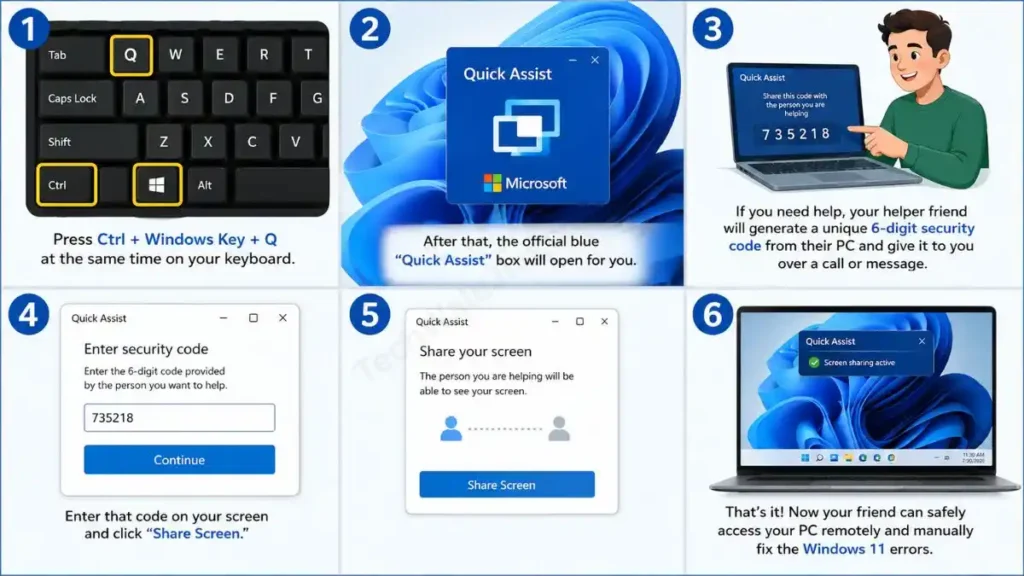
- Press Ctrl + Windows Key + Q at the same time on your keyboard.
- After that, the official blue “Quick Assist” box will open for you.
- If you need help, your helper friend will generate a unique 6-digit security code from their PC and give it to you over a call or message.
- Enter that code on your screen and click “Share Screen.”
- That’s it! Now your friend can safely access your PC remotely and manually fix the Windows 11 errors.
The best part about this remote assistance Windows 11 feature is that you have full control. You can end the session at any time by clicking the ‘Leave’ button at the top of the screen.
Also Read: Top 10 Hidden Features in Windows 11 You Must Try Today
If you are facing a deep technical error that even a chat agent or a friend doesn’t know about, then you should go to the internet’s largest and most authentic Windows 11 troubleshooting guide, i.e., the official Microsoft Web Support page.
Often, when updating Windows or installing new hardware, long error codes appear on the screen, such as Error code 0x800f0922 or another code.
- In such cases, instead of panicking, simply open the Microsoft Support Website (support.microsoft.com) in your browser.
- There, in the search bar at the top, type your exact error code.
- Microsoft’s web team will provide you with directly tested articles and fix-it tools for that specific issue. You can also browse the forums here, where real engineers and veteran users share solutions.
Also Read: 10 Cool CMD Tricks to Look Like a Hacker
Frequently Asked Questions
Is it free to talk to a live agent through the Windows 11 ‘Get Help’ app?
Yes, absolutely! It’s 100% free to speak with an AI virtual agent or a live human agent via chat or call through the Windows 11 built-in Get Help app and the Microsoft Support website. You don’t have to pay any extra technical fees for standard Windows troubleshooting and built-in software support.
If my PC won’t boot at all, how can I get help?
If your system can’t properly load the Windows desktop, then obviously the built-in apps won’t work. In such a critical case, go directly to the official Microsoft Support website (support.microsoft.com) from your smartphone or another PC’s web browser. There you can search for your boot error code or contact the support team directly.
What is the difference between Quick Assist and Remote Desktop (RDP)?
Quick Assist in Windows 11 is an instant, temporary, and secure screen-sharing tool specially designed for emergency troubleshooting, which requires a 6-digit code. On the other hand, Remote Desktop is an advanced feature that allows you to remotely access your PC from another network in the background, which requires proper setup and IP configuration.
Final Thoughts
So friends, now you know confidently how easy, fast, and secure it has become to get help in Windows 11. Whether you chat with a virtual agent in the Windows 11 Get Help app to save time, press the Windows 11 F1 key shortcut to instantly open web pages, or use Quick Assist Windows 11 with a trusted friend, the solution to practically every problem is right there on your system. And when a local tool doesn’t do the trick, don’t hesitate to contact Microsoft Support for Windows 11 for free and get help from their official engineers.
I’m your friend, TechWaleJha. Always remember, don’t be afraid of any error pop-up instead, master your PC by smartly using these Windows 11 support options. Keep this post in mind so you can take immediate action the next time an error occurs, and if possible, bookmark it.
Have you ever used the ‘Get Help’ app or Quick Assist to fix an error on your PC? If you’re still facing a specific error code in Windows 11 or having an issue like WiFi/Audio, be sure to comment your issue below, and I’ll help you right away! 👇
Disclaimer: All troubleshooting methods and support tools mentioned in this guide, such as Get Help, Quick Assist, and the F1 shortcut, are official, built-in features of Windows 11. While these are 100% safe and verified by Microsoft, please only give your 6-digit security code when using Quick Assist to a trusted friend or a verified IT professional. Do not give remote access to your PC to any internet scammer or unknown person, even by mistake. We will not be held liable for any system changes or data loss made remotely by another person.




