
To quickly check your laptop battery health, Windows users can run the powercfg batteryreport command in Administrator Command Prompt, which generates an HTML report. Mac users can go to System Settings, click on Battery, then select Battery Health to easily see their laptop’s maximum battery capacity percentage.
Does your laptop die just a few hours after charging? It’s really frustrating to be stuck on the charger all day. Hello friends, welcome to this new deep-dive guide from TechWaleJha! Today we’re going to talk about a hidden detail that every PC and Mac user should know.
We often think our battery is bad, but the truth is that every lithium-ion battery has a fixed lifespan. As you charge and discharge your laptop, its original power-holding capacity gradually decreases. In technical terms, this is called battery degradation. If you feel that your system’s battery life is dropping drastically, instead of making blind guesses, we should check the actual data.
In this article, we’ll go into detail about the automatically generated Windows battery report and the Mac battery health check. These tests will tell you exactly whether you need to buy a new battery or if a few software tweaks will suffice. So let’s learn how to run this diagnostic test without any external software.
Also Read: How to Improve CPU Health: 5 Tips to Keep PC Fast
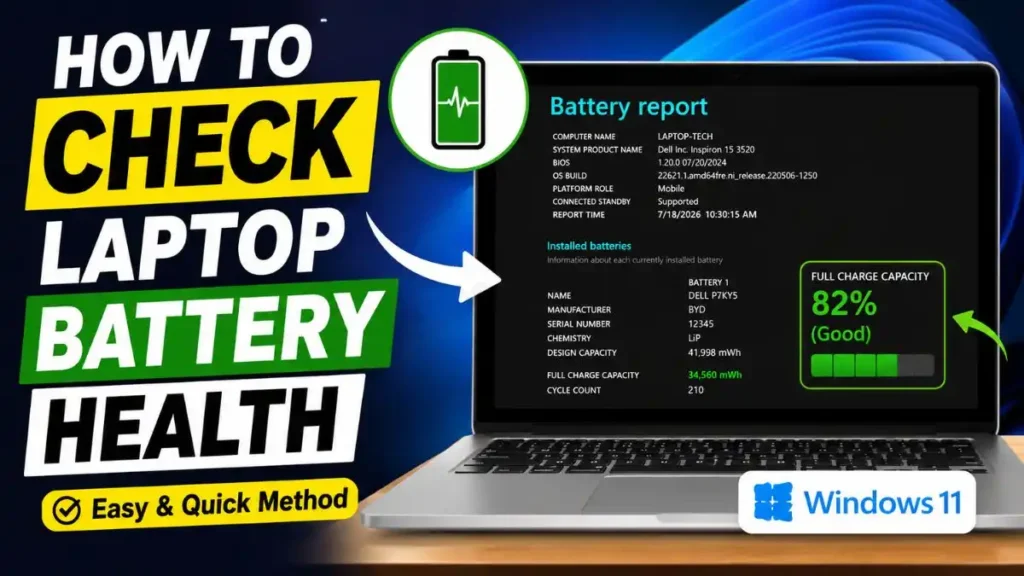
How to Check Laptop Battery Health on Windows
Windows OS has a very powerful built-in diagnostic tool. You don’t need to download any battery testing software from the market to check your laptop battery health. For this, we will directly use Command Prompt (CMD) to get a detailed Windows battery report.
Carefully follow the steps given below:
- Open CMD: First, open the Start menu on your keyboard and type cmd in the search bar.
- Grant Admin Rights: Right-click on the Command Prompt app and select “Run as administrator.” Or click “Yes” to allow system permissions.
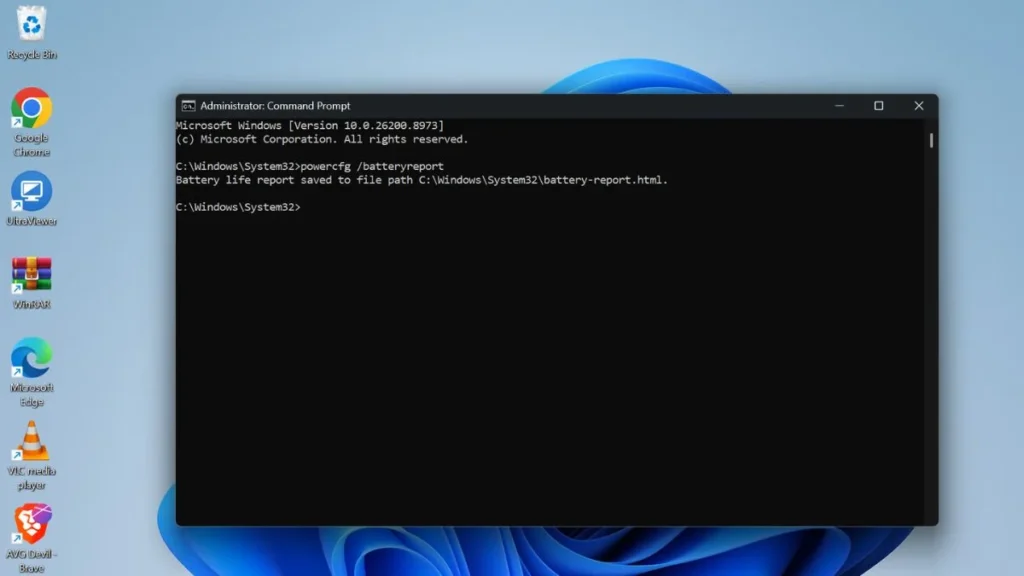
- Run the Command: Now, on the black screen, type this command exactly:
powercfg /batteryreport - As soon as you press Enter, a message will appear on the screen: “Battery life report saved to file path…”
- Locate the File: This file is usually saved in
C:\Windows\system32\battery-report.htmlor in your user folder. Go to that location in your File Explorer and double-click the .html file to open it in your web browser, like Chrome or Edge.
With this simple powercfg batteryreport command, you can practically get a complete report on your laptop! It gives you the most accurate data for Check your laptop battery health.
Also Read: How to Reset Any Application on Windows
Reading Your Windows Battery Report
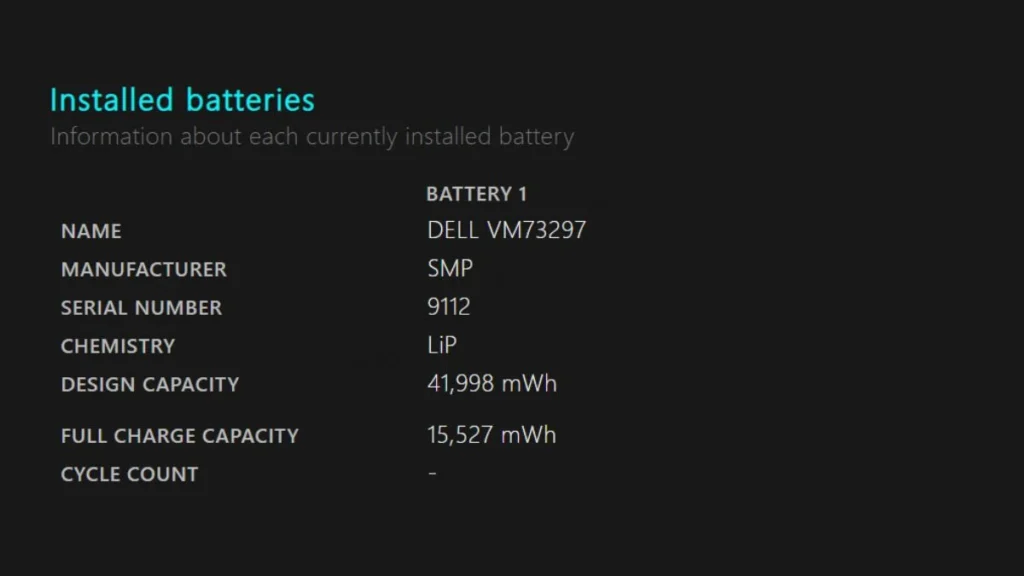
When you open that HTML file in your browser, you’ll see a lot of technical data at first. You simply need to scroll down to the “Installed Battery” section. There you’ll find the two main numbers for your laptop’s battery capacity, which we compare to determine its health.
Let’s use this table to understand what these two numbers actually mean:
| Battery Report Term | What is its real meaning? | Impact on Health |
|---|---|---|
| Design Capacity | This is the original capacity (mWh) that the company built into the battery when manufacturing the laptop. | This number always stays fixed. It shows your battery’s 100% health. |
| Full Charge Capacity | As of today, how much charge (mWh) can your battery hold at maximum? | As the laptop gets older, this number will decrease from the design capacity. |
How to Calculate Battery Health Percentage?
Let’s say your Design Capacity is 50,000 mWh, and your Full Charge Capacity is 40,000 mWh. This means your battery is still 80% healthy! You should only consider replacing the battery if your Full Charge Capacity has dropped below 50% of its original design. Next, we’ll also learn about the Mac battery health check, which works a bit differently.
Also Read: How to Repair a USB Flash Drive
How to Check Battery Health on Mac
After Windows, let’s talk about those friends who are in the Apple ecosystem. MacBooks are famous all over the world for their long battery life, but their batteries also degrade over time. Compared to Windows, running a Mac battery health check is quite easy because Apple has integrated this feature directly into the system settings. You don’t need to run any CMD commands for this.
To check your MacBook’s battery health percentage, follow the simple steps below:
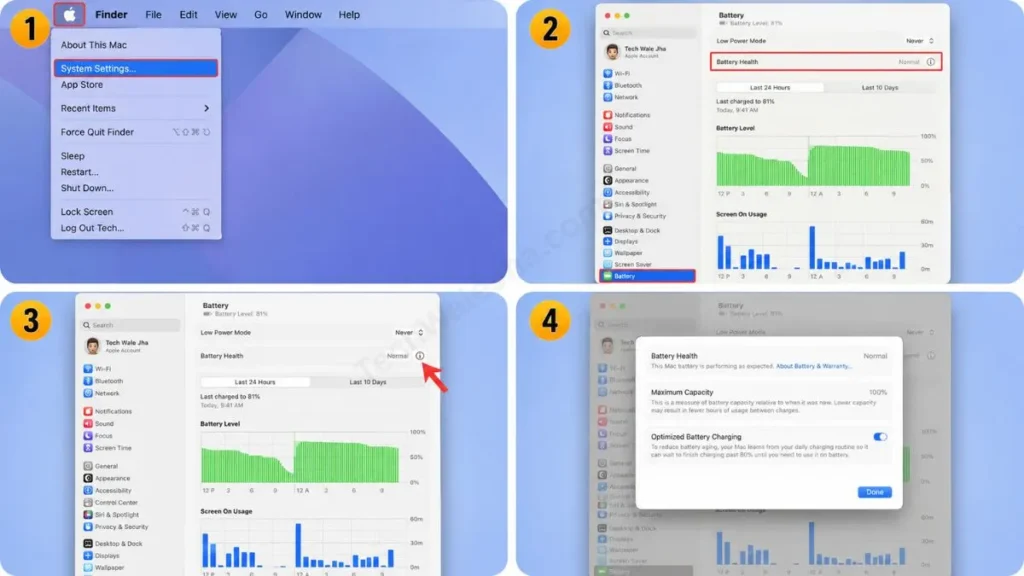
- Open the Apple Menu: Click on the Apple logo in the top-left corner of your screen.
- Go to System Settings: From the dropdown menu, select System Settings (or ‘System Preferences’ in older macOS versions).
- Choose the Battery Option: Scroll down the left sidebar and click on the Battery tab.
- View Health Details: Here, on the right side, you will see the ‘Battery Health’ or ‘Battery Health & Condition’ option. Click on the (i) icon next to it.
As soon as you click, a pop-up window will open showing you the “Maximum Capacity” percentage. This percentage works exactly the same way we explained in the Windows laptop battery capacity section (Design vs Full Charge capacity). Another important metric that Mac users should look at is the Mac’s battery cycle count. A cycle is completed when you’ve used 100% of your battery. According to Apple, most modern MacBooks are designed to retain 80% of their original capacity up to 1,000 cycles.
Advanced Method: BIOS/UEFI Diagnostics
Sometimes our operating system (Windows/Linux) is unable to read the battery correctly due to glitches. In such cases, there is another great method for power users, which is BIOS battery diagnostics. This is a deep hardware diagnostic test that assesses the battery at the system’s hardware level before the OS even loads.
To run this method, you’ll need to restart your laptop and repeatedly press a specific key on the boot screen. The BIOS/UEFI keys vary slightly between different brands. So, check your brand in the quick table below to understand correctly:
| Laptop Brand | BIOS / Boot Menu Key | Diagnostics Option Name |
|---|---|---|
| Dell | Press F12 (on the boot screen) | Diagnostics > Battery Information |
| HP | Press F2 or ESC | System Diagnostics > Component Tests |
| Lenovo | F2 or F10 (or Novo button) | Lenovo Diagnostics > Battery |
After entering the BIOS menu, simply look for the “Power” or “Diagnostics” tab. Here you’ll see the battery’s direct health status Excellent, Normal, Fair, or Poor and the exact voltage of the battery cells straight from the hardware level. This provides more detailed information than a Command Prompt battery test.
Also Read: How to Install Windows 11 Without Microsoft Account
Frequently Asked Questions
At what percentage should a laptop battery be replaced?
Normally, when your battery’s ‘Full Charge Capacity’ drops below 50% to 60% of its original ‘Design Capacity,’ it’s the right time to replace it. At this stage, the laptop starts to discharge quickly. If your battery is physically swollen or the laptop shuts down immediately after unplugging the charger, ignore that health percentage and get a new battery installed right away.
Does keeping a laptop plugged in all the time damage the battery?
Modern laptops have smart charging circuits that automatically cut off power when the battery is 100% charged, so the risk of overcharging is virtually nonexistent. However, continuously keeping the battery at 100% puts stress on its internal cells, causing them to degrade faster. If you always work with the laptop plugged in, turn on your laptop’s ‘Battery Conservation Mode,’ which locks the charge at 80%.
Can I get my battery health back to 100% with any software?
Absolutely not, and technically, it’s not even possible. A laptop battery is a chemical product, and its degradation is a natural process. Once the health of the battery cells has diminished, it cannot be restored to 100% by any software or command. However, you can try ‘Battery Calibration,’ which means charging the laptop to 100% and then draining it completely to 0%. This helps the OS read the battery’s actual capacity, but it doesn’t physically improve the battery’s health.
Conclusion & Battery Maintenance Tips
So, friends, now you can confidently and easily check your laptop battery health on any system. Whether it’s the powercfg batteryreport or Mac’s built-in checker, never make a decision to replace the battery without the actual data.
To extend your system’s life and maximize your laptop’s battery life, always remember this pro tip: Never let your laptop drain to 0%, and if you always keep it plugged in, go into your brand’s software settings (like MyASUS or Lenovo Vantage) and set the charge limit to 80%. This small habit can extend your battery’s life for years.
I’m your friend, TechWaleJha, and I hope this in-depth guide has been helpful. If you’re facing any errors while generating the report, be sure to share your laptop’s brand and Operating System (Windows, Mac, or Linux) in the comments below. I will personally reply to your questions and provide you with specific diagnostic steps. Thank you for reading this entire guide. Until next time, see you in another similar step-by-step guide.
Disclaimer: The battery diagnostic commands (such as powercfg /batteryreport) and BIOS/UEFI settings described in this guide are for educational and troubleshooting purposes only. Although these are built-in and completely safe methods, making unfamiliar changes to the BIOS or system settings can lead to system instability. Please apply these steps carefully and at your own risk. We will not be liable for any incorrect actions you take, system failures, or hardware issues.




