
Friends, if you’re also a little concerned about your privacy and sometimes leave your laptop or PC behind when you go somewhere, and you want to make sure no one can see the folders on your PC, and then you’re coming directly to the internet to search for “how to lock PC folder without any software,” then the fastest and 100% working solution for you is this.
To lock a folder without any third-party apps, open a new Text Document (Notepad) on your PC and paste a specific folder lock batch code into it. Replace ‘Your-Password-Here’ in the code with your secret password and save the file as ‘FolderLocker.bat’. Now, by double-clicking this .bat file, you can instantly hide and password-protect any personal folder.
On our TechWaleJha platform, we always strive to explain and teach complex technical tricks in the simplest way possible. So, in this guide, we’ll go through step-by-step how you can apply the Windows 11 password-protected folder technique to keep your important data completely secure.
Also Read: Top 10 Hidden Features in Windows 11 You Must Try Today
Why is it necessary to lock a folder on a PC?
We all do a lot of personal and important work on our computers. like office documents, personal files, or personal photos you don’t want anyone else to see, and we need to hide these exclusive files or photos from the eyes of others, such as family members or friends. In such cases, it becomes very important to keep your files secure and hidden using Windows.
Often, people download free third-party software from the internet to lock folders. But the truth is that most of these programs have annoying ads or carry the risk of viruses/malware, and they don’t even know that Windows already has these features built-in. Therefore, if you learn the genuine built-in method to create a locked folder in Windows 10 without any software, your data will be 100% safe, and your PC won’t slow down either.
Also Read: Why Does My Laptop Keep Hanging? 5 Fast Ways to Fix It
The Notepad Trick: How to Lock PC Folder Without Any Software
Now let’s get to our main tutorial. This trick is nothing short of magic, and in it we’ll smartly use Windows’ built-in Notepad and Command Prompt (CMD) system. If you’re wondering how it’s possible to hide a folder on your PC using CMD, just follow the steps given below exactly:
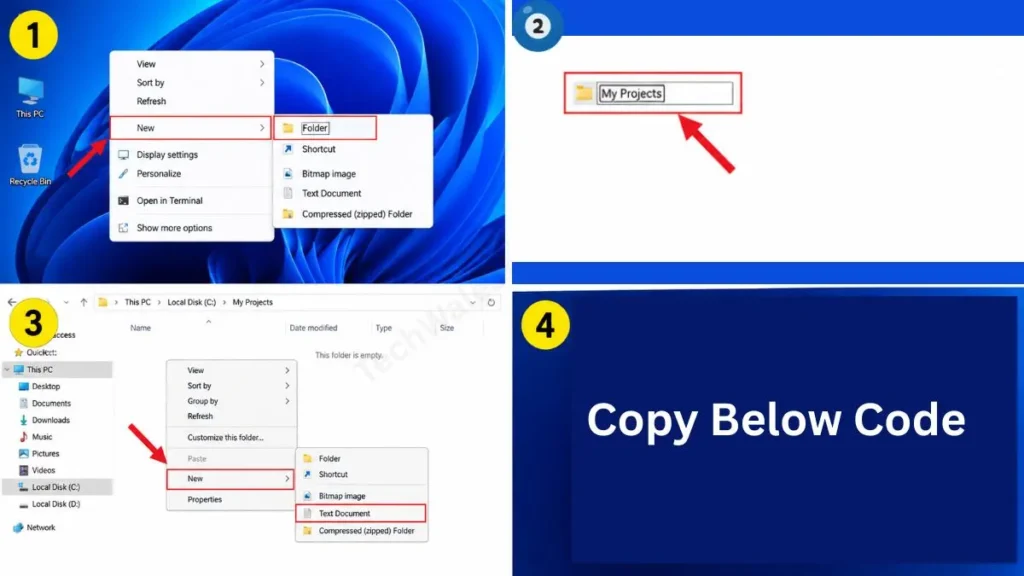
Step 1: Create a New Folder and Open Notepad
- First, right-click on an empty space on your Desktop or on any drive, like
C:orD:. - Then, click on New, then on Folder, and give this folder any name, such as “My Projects”.
- Now, double-click the folder to open it. Then, right-click on the empty space again, click New, and select Text Document. A Notepad file will open.
- Then, copy the secret code given below from here and paste it into your empty Notepad file:
cls
@ECHO OFF
title Folder Locker
if EXIST "Control Panel.{21EC2020-3AEA-1069-A2DD-08002B30309D}" goto UNLOCK
if NOT EXIST Private goto MDLOCKER
:CONFIRM
echo Are you sure you want to lock the folder(Y/N)
set/p "cho=>"
if %cho%==Y goto LOCK
if %cho%==y goto LOCK
if %cho%==n goto END
if %cho%==N goto END
echo Invalid choice.
goto CONFIRM
:LOCK
ren Private "Control Panel.{21EC2020-3AEA-1069-A2DD-08002B30309D}"
attrib +h +s "Control Panel.{21EC2020-3AEA-1069-A2DD-08002B30309D}"
echo Folder locked
goto End
:UNLOCK
echo Enter password to unlock folder
set/p "pass=>"
if NOT %pass%==Your-Password-Here goto FAIL
attrib -h -s "Control Panel.{21EC2020-3AEA-1069-A2DD-08002B30309D}"
ren "Control Panel.{21EC2020-3AEA-1069-A2DD-08002B30309D}" Private
echo Folder Unlocked successfully
goto End
:FAIL
echo Invalid password
goto end
:MDLOCKER
md Private
echo Private created successfully
goto End
:End
Use code with caution.
Step 2: Set Your Secret Password
After pasting the code, if you read this Notepad file carefully, you will see this sentence written on around the 23rd line:
if NOT %pass%==Your-Password-Here goto FAIL
You just need to remove the words “Your-Password-Here” from this line and replace them with your new password, without any spaces. Let’s say your password is “Tech123,” then the line will look something like this: if NOT %pass%==Tech123 goto FAIL. This process makes it completely clear how easy it is to lock a PC folder without any software, because the password is saved in your own system’s file, not on any online server.
Step 3: Save the File with a ‘.bat’ Extension (The Most Important Step)
This step is the most crucial part of this entire bat file code to lock folder trick. If you save it as a normal text file, this trick will not work at all.
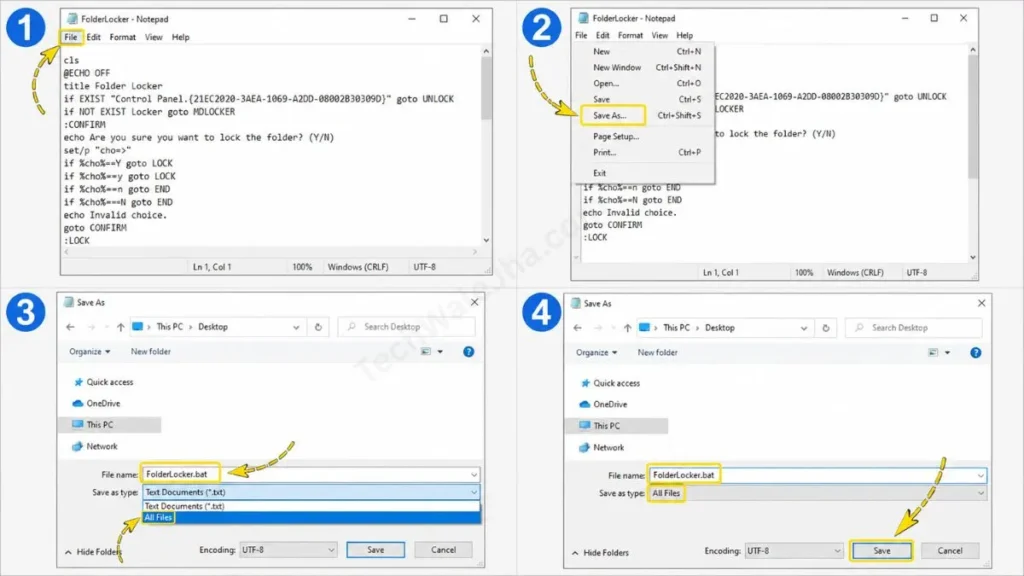
- After setting your password in Notepad, click ‘File’ in the top-left corner and select ‘Save As…’.
- Now, in the small window that opens, change the ‘Save as type’ option from “Text Documents (*.txt)” to “All Files”.
- Now, in the File name field, type: FolderLocker.bat. It is very important to add the .bat extension, so do not forget it.
- And then finally, click the ‘Save’ button. Now you can delete the old Notepad file.
This is a small Batch Script file. If you want to know practically how these scripts run commands in Windows, you should definitely check the official Windows Batch Scripting guide on Microsoft Docs. This is a trusted Microsoft resource that confirms this method of locking a folder using Notepad is 100% genuine and completely safe for your PC.
Also Read: Windows 11 Running Slow? 5 Tricks to Make PC a Rocket
How to Unlock and Hide a Folder?
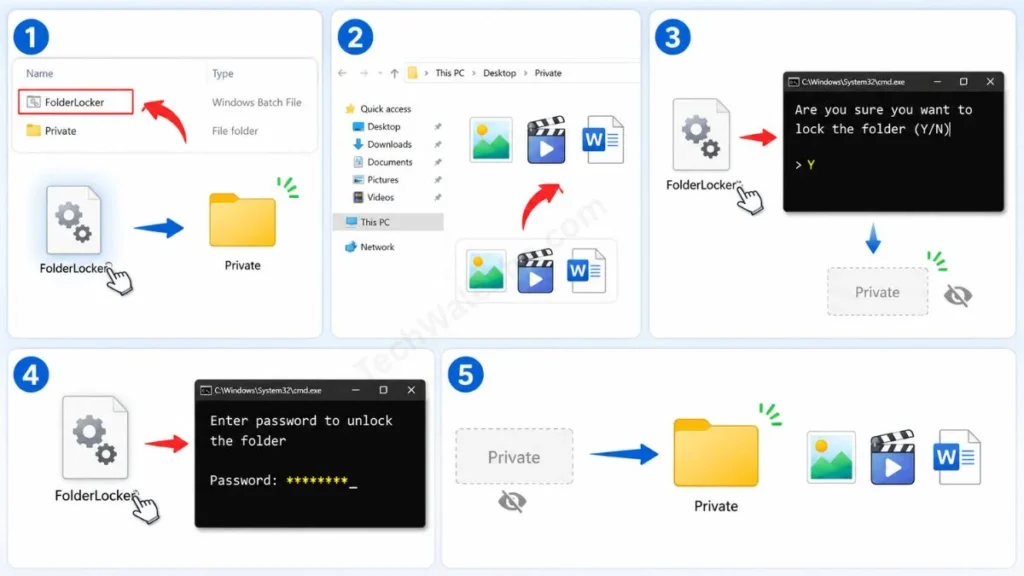
You will now see a file named ‘FolderLocker’ with a gear (settings) icon in that folder. Let’s see how to use this folder lock trick in Windows for daily life:
- Create the Locker: First, double-click on the ‘FolderLocker’ file. As soon as you do this, a new folder named “Private” will automatically be created there.
- Move Files: Now, move all your personal photos, videos, or important documents into this ‘Private’ folder.
- Lock/Hide the Folder: After you’ve put all your data in it, double-click the ‘FolderLocker’ file again. A black CMD screen will open asking, “Are you sure you want to lock the folder (Y/N)”. You need to press Y on your keyboard and then press Enter. Congratulations, your ‘Private’ folder will now be hidden.
- How to Unlock: Whenever you want to view your data, just double-click on the ‘FolderLocker’ file. The screen will prompt you for the password. Type your secret password and press Enter. Your hidden folder will immediately reappear.
Troubleshooting: What if you forget the password?
What will happen if you apply this PC trick to protect a folder with a password and then forget your password? In that case, there’s no need to worry, and your data won’t go anywhere.
| Problem | Exact Solution |
|---|---|
| Forgot password | Right-click on the “FolderLocker.bat” file and click ‘Edit’ or “Show more options” to open it. Then Notepad will open, where you can see your forgotten password or set a new one and save it again. |
| The .bat file has been deleted. | If the .bat file is accidentally deleted, open a new Notepad, paste the same code, and save it as a .bat again using the old password. The folder will return. |
Also Read: How to Download Windows 11 25H2 Update Right Now
Frequently Asked Questions
Does this trick work the same way on both Windows 10 and Windows 11?
Yes! This built-in batch scripting method is very old and reliable. So if you’re searching for how to lock folders in Windows 10 without software or looking for a password-protected folder in Windows 11, this exact same code works 100% smoothly on both OSes.
Is this trick safe from hackers?
To be honest, this trick is the best and fastest way to hide your private files from your friends, younger siblings, or family members. But if there’s an advanced, tech-savvy person (a hacker) who knows how to edit a .bat file, they can easily see this password. That’s why hardware encryption is always used for military-grade security.
What happens if I copy the FolderLocker file to another PC?
This code only works on the specific path (location) where it was created. To send it to another PC, you will first have to unlock the folder, then transfer the entire file to a flash drive.
Conclusion
Friends, I hope you have successfully learned how to lock PC folder without any software by following this detailed and easy tutorial. Now you don’t need to depend on any useless or untrusted software to keep your personal files and photos safe.
When it comes to productivity and data safety, learning these small, built-in Windows tricks is very helpful. I personally organize and lock all my raw tech projects and thumbnails on my PC this way. The biggest advantage of this trick is that your PC stays fast because no antivirus or locker app is running in the background.
If you’re getting any errors while copying and pasting the code or saving it with a .bat extension, let me know in the comment box below, and I’ll provide a solution right away. To easily learn more technical ninja tricks like these, stay connected with your own TechWaleJha.com platform. We’ll see you again with another interesting step-by-step guide soon.
Disclaimer: This guide and tricks are for educational purposes only. Please be careful when modifying system files, settings, or codes, and be sure to back up your important files. TechWaleJha.com or its author will not be held responsible for any technical errors or data loss. Follow all steps at your own risk.




