
Friends, when we buy a laptop, or even if we already have one, we get bored of seeing the same taskbar icon over and over and think, “I wish I could change this taskbar icon.” In that case, if you want to give your PC screen an aesthetic and pro look and you’re searching online for “how to change app icon on taskbar windows 11,” then you’ve come to the right place. Today, I’ll show you how you can give your laptop a fresh new look by changing your Taskbar’s app icons. It will not only look great, but your friends will be asking, “Dude, how did you do that?” For that, a quick guide is provided below.
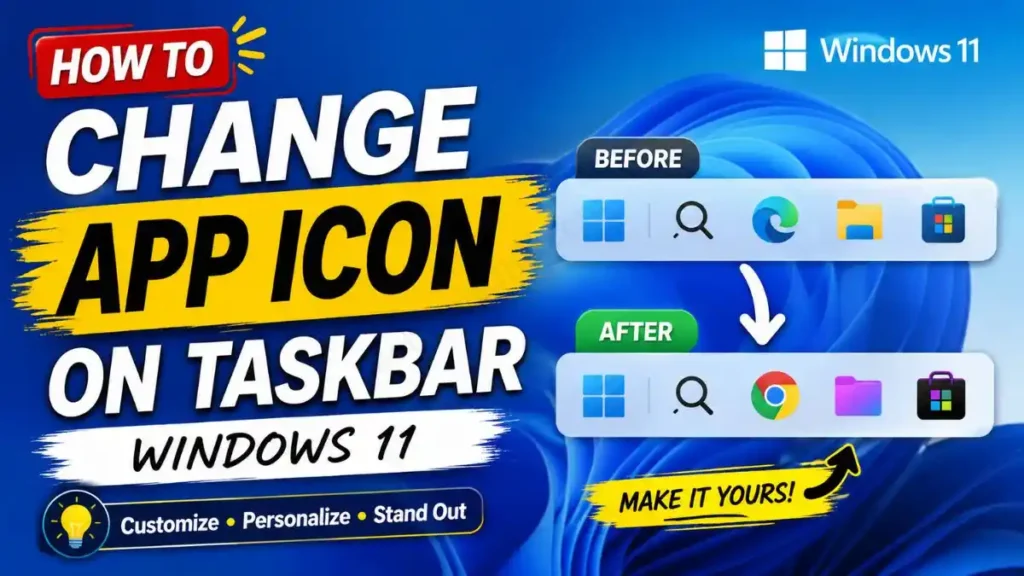
To change the taskbar icon in Windows 11, you first need to create a new ‘Shortcut’ for the app on your desktop. Then, Right-Click on that shortcut and select ‘Properties’. Now, go to the ‘Shortcut’ tab and click ‘Change Icon…‘ button. Then, browse to and select your desired downloaded .ico file and click ‘OK’. Finally, right-click on the shortcut with the new icon, click ‘Show more options’, and select ‘Pin to taskbar’.
On our TechWaleJha platform, we always strive to teach you OS customization and tech tricks as easily as possible through short vertical videos and in-depth guides. Windows 11’s interface is quite modern, but sometimes we want to make our setup a bit more unique and personal. So in this step-by-step tutorial, let’s see how to work this magic without any heavy software. Let’s get started without wasting any time.
Also Read: How to Reset File Explorer Windows 11 in PowerShell
Why Change the Boring Icons on the Taskbar?
We all spend hours working on our computers. Whether it’s opening video editing software, opening folders to write our scripts, writing an article, doing office-related work, or just using our browser every day, seeing the same old yellow folders and default app icons over and over makes our eyes bored, right?
In this case, if you learn the trick to customize taskbar icons in Windows 11, your workflow becomes visually very appealing and interesting. A custom taskbar not only matches your desktop’s aesthetic, like a dark mode or a neon theme, but when you show your PC to a friend, it looks like a premium, hacker-level setup. And if you’re wondering if applying this trick will slow down your system, the best part is that changing the Windows 11 taskbar icons doesn’t affect your system’s speed or performance at all.
Also Read: How to Boost Mic Audio on Windows 11 in 3 Easy Ways
Step 1: Where to Get New and Cool Icons (.ico format)?
The very first and most important rule of this process is that the Windows OS only accepts files in the .ico (Icon) format as a custom icon. If you try to apply a normal PNG or JPG photo directly, the system will give an error.
If you want to perfectly complete the process of setting a custom icon for the Windows 11 taskbar pin, you will need to safely download icons from the internet:
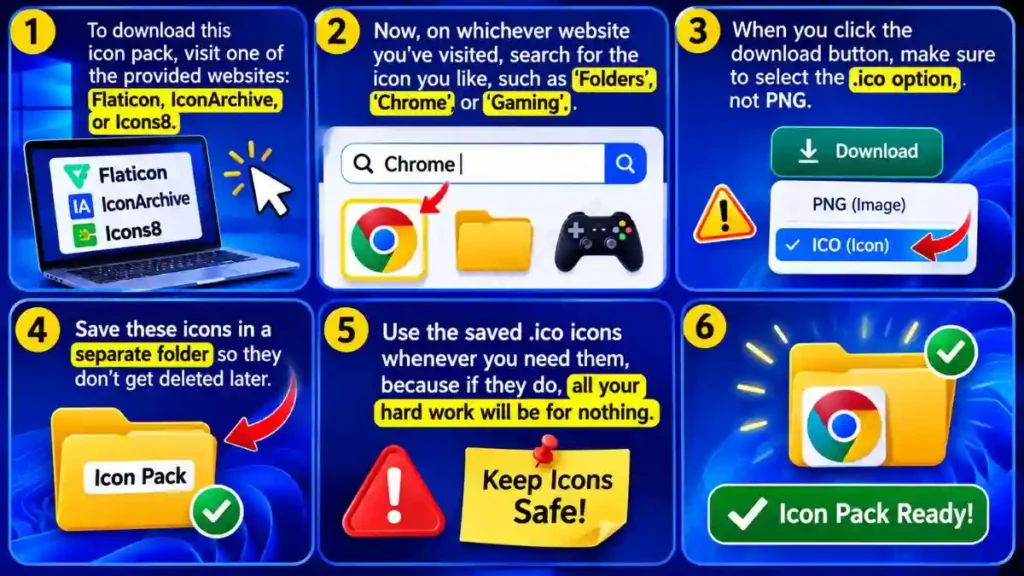
- To download this icon pack, visit one of the provided websites: Flaticon, IconArchive, or Icons8.
- Now, on whichever website you’ve visited, search for the icon you like, such as ‘Folders’, ‘Chrome’, or ‘Gaming’.
- Also, when you click the download button, make sure to select the .ico option, not PNG. Save these icons in a separate folder so they don’t get deleted later, because if they do, all your hard work will be for nothing.
.ico vs .png: Which format is right for Windows?
People often get confused about why they can’t use a regular photo when applying the trick to change the shortcut icon on the taskbar. So, use the table below to understand the difference between these two formats:
| Feature | .ico Format (Icon File) | .png Format (Image File) |
|---|---|---|
| System Support | Windows reads it directly as a system icon. | Windows only recognizes it as a photo, not an icon. |
| Scaling (Size) | It automatically scales itself according to the taskbar or desktop. | It may pixelate (blur) when zoomed in. |
| Background | Transparent background is fully supported. | Icon properties are not directly supported. |
Also Read: Complete Custom Resolution Utility Windows 11 Guide
Step 2: Create a Shortcut and Change the Icon
Now that you have your preferred .ico file downloaded, let’s see how the main practical step of “how to change app icon on taskbar Windows 11” works. We can’t directly change the original app’s icon, so we first need to create a ‘Shortcut’ for it on our system.
How to apply Step-by-Step Guide:
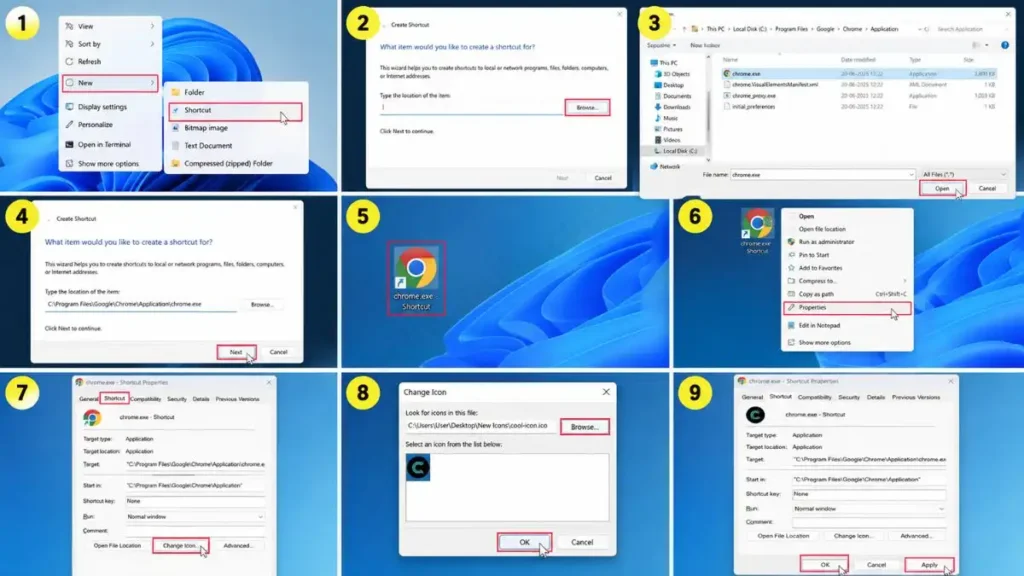
- For this, first, right-click on an empty space on your desktop. Then click on New and then click on Shortcut. Now, press the ‘Browse’ button to select the app, like Chrome or your video editor, whose icon you want to change. And then click ‘Next’ to create the shortcut.
- You should now see a shortcut for the app on your desktop. Right-click on it and click ‘Properties’ at the bottom.
- Once the Properties window opens, click on the ‘Shortcut’ tab at the top. Then, at the bottom, you will see a ‘Change Icon…’ button then click on it.
- Now, click the ‘Browse’ button and navigate to the folder where you saved your new .ico file. Select the cool icon, click ‘Open’, and then click ‘OK’ and ‘Apply’ in all the windows.
As soon as you click OK, you’ll see that the boring icon of the app on your desktop has been replaced with your brand-new, stylish icon. This trick takes Windows 11 taskbar customization to the next level of aesthetics.
Also Read: How to Fix 100% Disk Usage on Windows 10 SSD
Step 3: Safely Pin the New Icon to the Taskbar
You’ve changed your icon, but can you open the app directly? The answer is a big no! The old icon will still be visible on the taskbar. To make the new icon the star of the taskbar, we need to follow a small replacement step.
- Right-click on the old, boring icon on the taskbar and select ‘Unpin from taskbar’. Now that old icon will disappear from your taskbar.
- Now, right-click on the shortcut with the new custom icon on your desktop. In Windows 11, you might first have to click ‘Show more options’. Then, click on ‘Pin to taskbar’.
- Once that new icon is pinned to your taskbar, you can delete the shortcut on your desktop if you want, as the taskbar icon will continue to work perfectly. Keep in mind that deleting the shortcut is optional. Whether you choose to delete it or not is up to you.
If you want to manage pinning and unpinning on the taskbar more deeply, such as pinning multiple apps at once, you should definitely check out Microsoft Support’s Official Taskbar Pinning Guide. This official documentation teaches you safe ways to further optimize your taskbar and ensures you are flawlessly applying the Windows 11 pin-to-taskbar custom icon process.
Also Read: Windows Junk Files Cleaner BAT File Download Windows 10/11
Frequently Asked Questions
Why does my new taskbar icon revert to the old one when I restart my PC?
This is the most common mistake. When you download an .ico file from the internet, you should save it permanently by creating a folder named ‘My Custom Icons’ on a safe drive, like the D: drive, from your ‘Downloads’ folder. If you accidentally delete that .ico file or move it to another folder, Windows won’t find the image, and the old default icon will automatically return to the taskbar after a restart.
Can I also change the icon of a normal folder (in File Explorer) and place it on the taskbar?
Yes, you absolutely can! If you’re searching the internet for “how to change folder icon on taskbar,” the trick is exactly the same. Just create a shortcut for your desired folder, go to its Properties, select a new icon under ‘Change Icon,’ and pin it to the taskbar.
Where can I find the best transparent taskbar icons for Windows 11?
If you want transparent icons with a square-free aesthetic for your taskbar, you can look for macOS-style icon packs. There are thousands of free transparent .ico files available on DeviantArt and Flaticon that look great in both dark and light mode.
Conclusion
Friends, the Windows OS has always been known for its open and customizable nature. I’m sure that by following this easy and detailed tutorial, you have successfully learned how to change app icon on taskbar Windows 11. Now, you don’t have to put up with those boring default icons while doing your daily tasks.
When I organize resources for tech thumbnails or vertical reels for my platform, I personally color-code the icons of all my software and important folders. This way, I can instantly see which app is where at a glance, making my workflow much faster and more visually premium.
Which app’s icon did you change first on your taskbar? Be sure to let me know in the comments section below. And to easily learn more advanced Windows customization tips and step-by-step tech hacks, stay connected with your own TechWaleJha platform. Until then, take care and goodbye, and I’ll see you again in another detailed, step-by-step guide like this one on Windows 11.
Disclaimer: This guide is for educational and UI customization purposes only. When downloading icon files from third-party websites, always make sure you’re only downloading .ico extensions, not any .exe viruses. TechWaleJha.com or its author will not be held responsible for any system errors or issues with applying the icon. Proceed at your own risk.




