
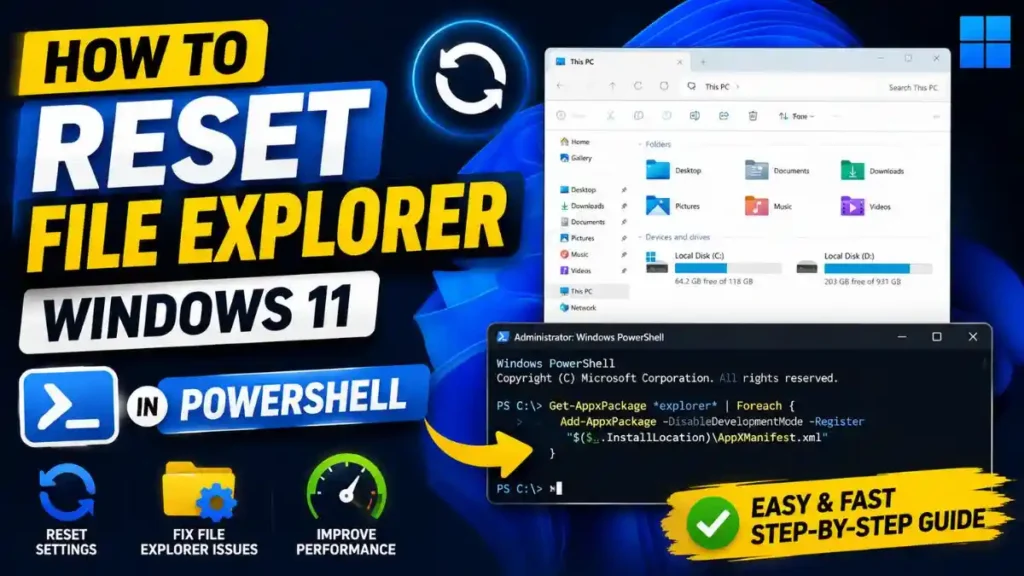
Has your Windows 11 taskbar suddenly disappeared, or has the screen completely frozen when you open a folder? In such cases, restarting your PC directly by pressing the power button can delete your unsaved work. If you’re frustrated and searching online for “how to reset file explorer windows 11 in powershell,” here’s an easy and instant solution:
To reset File Explorer in Windows 11 from PowerShell, first right-click the Start button and open ‘Windows Terminal (Admin)’ or PowerShell. Now, type the command Stop-Process -Name explorer -Force exactly as it is and press Enter. This command will kill the old, stuck explorer process and automatically reload the new and fresh taskbar and UI, all without restarting your PC.
Welcome to your own TechWaleJha platform. Today, in this step-by-step guide, we’ll see how when the taskbar gets stuck, the GUI (mouse/clicks) doesn’t work. In such a situation, this small PowerShell command to restart explorer.exe is nothing short of a life-saving magic trick.
Also Read: How to Fix 100% Disk Usage on Windows 10 SSD
Why Does File Explorer Glitch? (Quick Intro)
Friends, why does the screen freeze in Windows 11, even with such an advanced and expensive laptop? The thing is, when we use heavy software for video editing or open folders with thousands of raw photos and large scripts, File Explorer in the background starts loading their thumbnails. If even a small part of the memory (RAM) gets overloaded or crashes during this process, the entire File Explorer including your taskbar, desktop icons, and open folders are freezes.
In such a situation, if you’re looking for a fix for the Windows 11 File Explorer keeps crashing issue, regular users try to open the Task Manager. But the biggest problem is that when the UI is completely frozen, the Task Manager also doesn’t open properly. This is why smart and pro users always use the restart File Explorer via PowerShell command-line technique in Windows 11. The black or blue PowerShell terminal never freezes, and it takes fast action directly at the system’s core level.
Also Read: How to Maintain Your Windows System
Step 1: How to Open PowerShell in Administrator Mode?
To use this trick correctly, you must have administrator (Admin) access. If you run the command without admin rights, the system will tell you ‘Access Denied’. So let’s see how to safely open this frozen file explorer windows 11 command line environment:
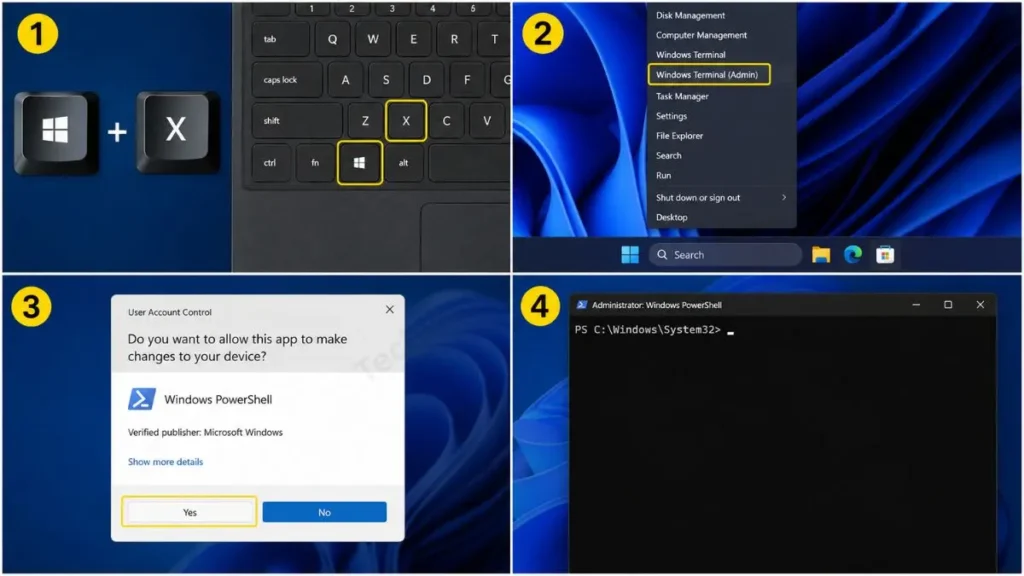
- Now, press the Windows key + X buttons together on your keyboard. A small, hidden power menu will then open in the taskbar area.
- Then, you will see ‘Windows Terminal (Admin)’ or ‘Windows PowerShell (Admin)’. Click on it.
- After that, a User Account Control (UAC) pop-up will appear on the screen asking, “Do you want to allow this app to make changes?”. Just select ‘Yes’.
- Now a dark screen will open in front of you where the first line will say PS C:\Windows\System32>. You have now successfully taken control of the system.
Bonus Tip: If the Win+X shortcut doesn’t work because the taskbar is completely frozen, open the Task Manager by pressing Ctrl + Shift + Esc on your keyboard. Go to ‘Run new task’ at the top, type powershell, check the box for “Create this task with administrative privileges,” and press ‘OK’. This backup step will safely get you to PowerShell in any situation.
Also Read: How to Improve CPU Health: 5 Tips to Keep PC Fast
Step 2: Restart Explorer with the Exact PowerShell Command
Friends, now a blue or black PowerShell screen has opened in front of you. Now you absolutely must not use the mouse here; you only need to use your keyboard. This command is so fast that as soon as it executes, your system will run like butter. Let’s see the magic of this Stop-Explorer.exe PowerShell command:
Execution Step:
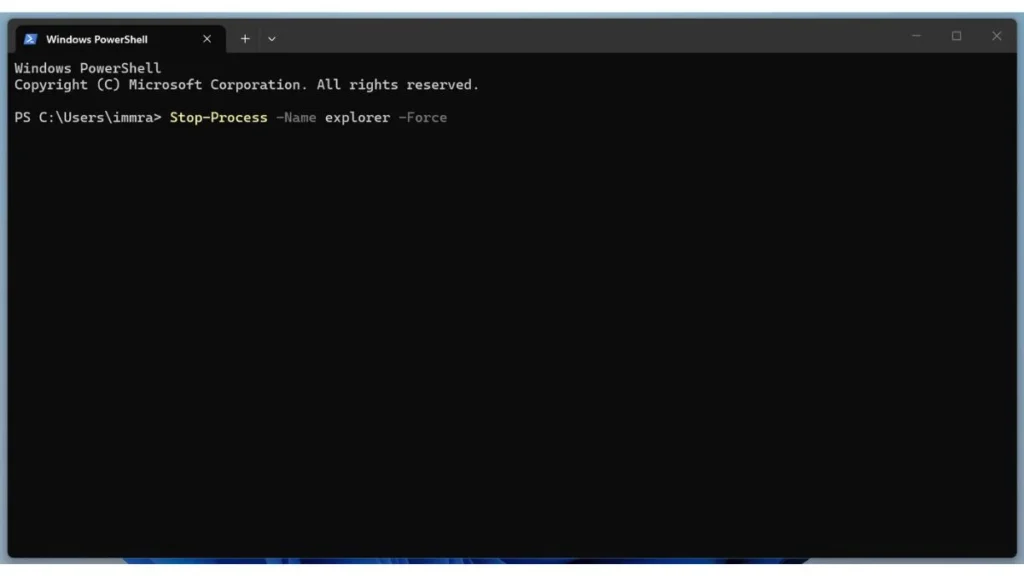
- In the PowerShell terminal, type this command exactly as it is and be sure not to make any spelling mistakes: Stop-Process -Name explorer -Force
- After typing, press Enter on your keyboard.
Now you might be wondering, “What happens next?”
As soon as you press Enter, for a second your taskbar, desktop wallpaper, and all open folders will suddenly disappear. But don’t panic because, this is completely normal! Windows 11 is very smart when you force stop a process, it automatically reloads it. The very next second, your taskbar will be back, and this time it will be completely fresh and lag-free.
If you want to learn advanced-level IT scripting, I strongly recommend that you read Microsoft Learn’s Official Stop-Process Documentation. This is a trusted Microsoft resource that explains in-depth how to safely kill/stop background processes in Windows from the command line.
Task Manager vs PowerShell (Which is Better?)
People often ask, “If we can do this with the normal GUI (Task Manager), then why use the command line?” The difference will become clear to you from the small table below:
| Feature | Task Manager (GUI) | PowerShell (Command Line) |
|---|---|---|
| Speed & Action | It takes 3–4 clicks. You have to open File Explorer. | You just type one command and the job is done instantly. |
| Freeze Condition | When the screen completely freezes, the Task Manager itself gets stuck. | PowerShell is a command-line environment for Windows 11 that never freezes, no matter the situation. |
| Professionalism | Basic user approach. | It gives a totally pro and hacker-like feel. |
Also Read: How to Reset Any Application on Windows (2026 Quick Guide)
Alternative Commands and Troubleshooting (If It Still Doesn’t Work)
Sometimes on certain systems, after running the PowerShell command, the taskbar doesn’t automatically reload. If you’ve waited 10 seconds and the screen is still blank, type start explorer.exe in the same PowerShell terminal and press Enter. This will immediately bring your taskbar back.
Alternatively, if for some reason PowerShell isn’t working properly, you can also use the classic alternative, the old CMD (Command Prompt). To do this, simply type: taskkill /f /im explorer.exe and then type start explorer.exe to launch a new process. This is your perfect backup plan that will work as a restart file explorer powershell windows 11 in any situation.
Also Read: How to Repair a USB Flash Drive (2026 Quick Guide)
Frequently Asked Questions
Will my data be deleted if I reset File Explorer with a PowerShell command?
Not at all. File Explorer is just a user interface. When you use the “how to reset file explorer windows 11 in powershell” trick, only the UI reloads. It won’t delete a single photo, video, or Word file on your hard drive. However, if you’re in the middle of a copy-paste process, that might get interrupted.
My File Explorer hangs 4-5 times a day, is this normal?
No, repeated freezing points to a Windows 11 file explorer keeps crashing fix. This is caused by corrupt update files or junk filling up the C-drive. In this case, open Command Prompt, run sfc /scannow, and keep your system updated.
Why is it necessary to use the ‘Force’ parameter?
If you don’t add -Force to the command, the system will first ask you, “Are you sure?”. When the computer is hanging, we need a fast result. Using Force immediately kills the process without asking any questions, which makes troubleshooting much faster.
Conclusion
Friends, when you’re short on time and have a lot of work, a sudden system hang can be incredibly frustrating. But I hope that after reading this technical guide, you now know how easy and powerful the “reset file explorer windows 11 in powershell” method is for fixing your system.
When I record tech tutorials or vertical videos for my platform, I always use shortcut keys and command lines because they speed up the workflow and prevent software crashes. If next time your or a friend’s laptop freezes, open PowerShell directly instead of the Task Manager and run this magic command to surprise them!
Is this your first time using PowerShell, or did you already know this command? Be sure to share your experience in the comment box below. To learn more advanced Windows troubleshooting tips and fast tech hacks like these, stay tuned to your very own TechWaleJha.com platform.
Disclaimer: This guide and PowerShell commands are for educational purposes and to help you with PC troubleshooting. Please pay close attention to spelling and spacing when typing the commands. The TechWaleJha platform or its author will not be held responsible for any system errors or unsaved data loss resulting from tampering with any incorrect technical command or system setting. Always save your important work.




