
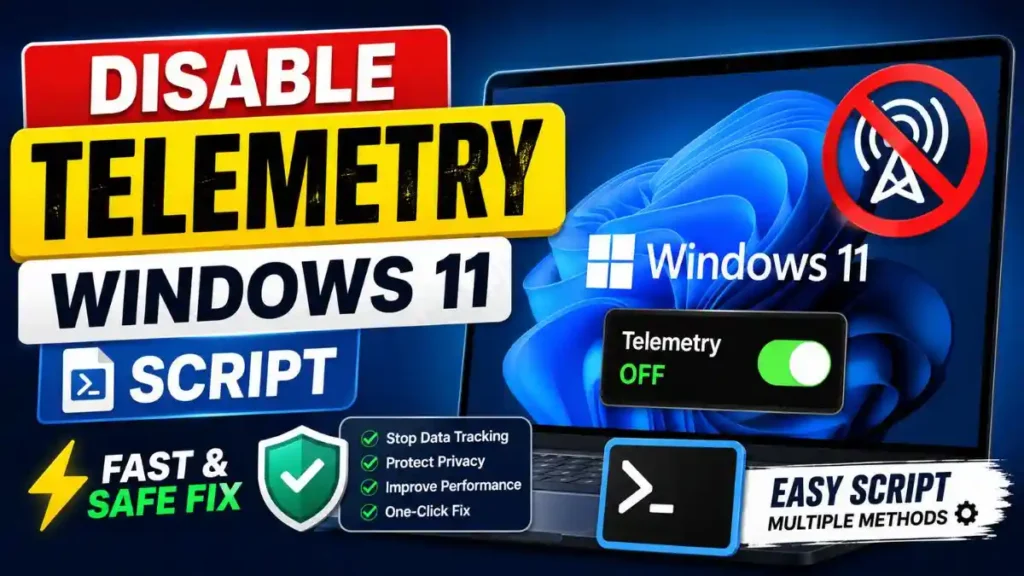
Windows 10 and 11 by default send your system data, app usage, and keystrokes to Microsoft in the background, a practice known as ‘Telemetry’. A stop Windows background tracking script completely secures your online privacy by disabling these hidden services with a single click.
Friends, online privacy has become the biggest concern these days. When we set up a new laptop or computer, in our rush to click “Next, Next,” we agree to all of Microsoft’s data collection policies. What happens as a result? Your PC quietly collects your personal information in the background. To eliminate this problem at its root, we use a Disable Telemetry Windows 11 Script.
Also Check: Windows Junk Files Cleaner BAT File Download Windows 10/11
What Exactly is Windows Telemetry?
Microsoft calls this tracking the “Customer Experience Improvement Program.” They say this data is collected to improve the system. But do you know what is actually being collected in the background? No, right?
- Your app usage history, such as which apps you run for how long.
- System diagnostics and error reports.
- Internet browsing habits and search data.
- Sometimes, keystrokes you type are also collected through Cortana and typing features.
If you don’t want your personal files and habits to go to an external server, you should disable this immediately. To understand this entire data collection mechanism technically, you can also read the Telemetry guide on Wikipedia. Finding a working script to stop Windows background tracking can be a bit tricky, but at Tech Wale Jha, we’ve brought you a 100% safe solution!
Also Read: Fix Windows Update Errors in 1 Click | Reset Script
Benefits of Using a Windows 10 Privacy Fix BAT File
Using a Windows 10 privacy fix BAT file stops your personal data from leaking. By disabling these unnecessary diagnostic services, your CPU load decreases, you save internet bandwidth, and your PC’s overall battery life and speed also improve.
If you’re thinking, “Hey, what difference does it make if Microsoft is taking my data?”, then hold on a second! Besides data leaks, there are many other disadvantages of background tracking that slow down your PC’s performance. Here are the top 3 practical benefits of running this disable telemetry Windows 11 script:
Keep Your Personal Privacy Safe
The first and biggest benefit is your digital freedom. After running the script, your PC’s data, internet usage, and file information will be limited to your system only. The connection with Microsoft’s diagnostic servers will be cut. This means your PC will become a truly “Personal” Computer.
Save Internet Data and Bandwidth
Many people complain, “My 1.5GB of daily mobile hotspot data disappears as soon as I connect my laptop!” This happens because the PC keeps uploading heavy diagnostic logs and usage data in the background. Using this Windows 10 privacy fix BAT will stop background uploads, saving you a significant amount of internet data and bandwidth.
Boost PC Speed and Battery Life
When unnecessary scheduled tasks, indexing, and data collection services run continuously, they consume your hard drive (or SSD), RAM, and CPU. Applying this disable telemetry Windows 11 script will stop all these useless background services.
Performance Improvement at a Glance:
| PC Component | Telemetry ON (Before Script) | Telemetry OFF (After Script) |
|---|---|---|
| CPU Usage | Background spikes keep coming. | It stays stable and idle. |
| Internet Speed | Uploading wastes my bandwidth. | You get full speed for browsing or gaming. |
| Battery Life | Background processing drains the battery. | The laptop’s battery backup improves. |
Therefore, by using the right script, you can make your system more secure and blazing fast.
Also Read: How to Find Error Codes on Windows 11 Quickly 2026
How to Use the Disable Telemetry Windows 11 Script
This Windows 11 telemetry disabling script we’ve created, which also works 100% perfectly on Windows 10, is child’s play to use. If you’ve been searching online for a safe, working solution, your wait is over. You don’t have to manually tweak any complex registry settings—just follow the simple steps below:
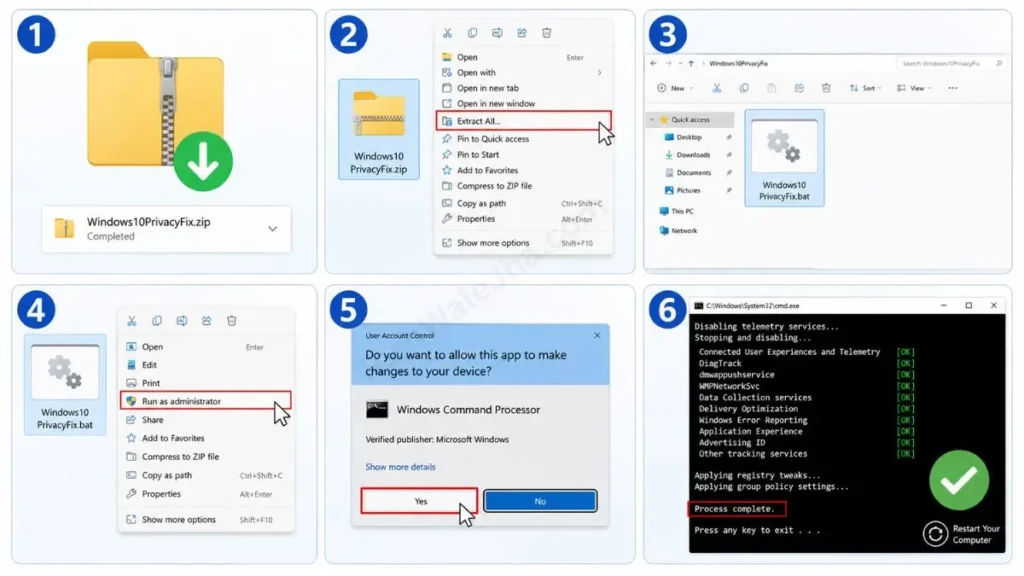
Step 1: Download and Extract the ZIP File
First, download the script’s ZIP file to your PC from the download link provided at the end of this article. After the download is complete, right-click on the ZIP file and select ‘Extract All’ (unzip) to extract the contents.
Step 2: Run the Script as Administrator
After extraction, inside that new folder, you will see our Windows 10 privacy fix BAT file. Right-click on this .bat file and select “Run as administrator” from the menu.
(Pro Tip: This step is the most important because without admin rights, the script will not be able to stop the background OS services for Windows background tracking).
Step 3: Wait for CMD and Restart Your PC
After giving admin permission, a black screen (Command Prompt) will open. The script will automatically start disabling the background tracking services one by one. In a few seconds, “Process complete” will appear. After that, close the black window and restart your computer.
And that’s it. Your Windows PC is now more private and secure than ever.
Is This Telemetry Disable Script Safe to Use?
Yes, this script is completely safe. Because before it runs, it automatically creates a System Restore Point. Still, it’s a smart and necessary habit to back up your important data before applying any major system tweak to your PC.
Whenever we tinker with system files or the registry, it’s natural to be a little afraid, wondering, “What if my PC gets bricked?”. But don’t worry, friends. We have coded this Windows 11 telemetry disable script very carefully and logically to ensure that none of your Windows’ essential core functions are broken.
Automatic System Restore Point Creation
The best thing about this Windows 10 privacy fix BAT file is that as soon as you run it, it creates an automatic System Restore Point on your PC just before the background commands are executed. If for any reason you feel that a specific app of yours isn’t working correctly, you can practically restore your system to its exact previous state in 2 minutes.
Disclaimer: This script to stop Windows background tracking is purely designed to disable extra system telemetry and unnecessary diagnostic services. This is 100% safe, but every computer’s software environment is different. Therefore, before making any tweaks to the system, be sure to back up your important documents, files, and photos. Please use this script at your own discretion and risk.
Script Safety Checklist:
| Safety Feature | What does this script do? |
|---|---|
| Restore Point Create Karna | Yes, it automatically creates itself before it runs. |
| Personal Files Delete Karna | No, your personal data is completely safe. |
| Core OS Break Karna | No, only the extra tracking services are discontinued. |
| Undo Karna Possible Hai? | Yes, you can easily revert using System Restore. |
Also Read: How to Fix Blue Screen Error in Windows 11 Using Command Prompt
Frequently Asked Questions
Will this script break Windows Updates?
No, not at all! This stop Windows background tracking script only blocks diagnostic data and Microsoft’s telemetry servers. Your regular Windows Security patches, driver updates, and feature updates will continue to arrive normally as before. It will not affect the system’s core functionality.
Does this work perfectly on Windows 11?
Yes! The core registry structure of Windows 10 and Windows 11 is almost the same. That’s why our disable telemetry Windows 11 script works flawlessly on both operating systems. You can safely run it on any version without any errors.
Can I undo these privacy changes later?
You definitely can. As we mentioned earlier, this Windows 10 privacy fix creates a restore point before the BAT runs. If you ever change your mind and want to revert to the default settings, just open System Restore, select the old date, and in two minutes your PC will be back to how it was.
Final Words
Friends, in the digital world, it’s our own responsibility to keep our privacy safe. When you optimize your system according to your needs, not only does it save your data, but it also significantly improves your PC’s speed and battery life.
I hope you have successfully disabled all the hidden telemetry on your system permanently by using this simple and powerful script to stop Windows background tracking.
Download Script Here: Download Disable Telemetry Script ZIP
Download Script Here: Download Disable Telemetry Script ZIP
I’m your friend, TechWaleJha! If you liked this trick or ran into any errors while running the script, be sure to let me know in the comments below. I read and reply to every comment.
Stay safe, stay secure, and keep your PC lag-free. Until then, take care and bye-bye.




