
Friends, buying a brand-new shiny touchscreen laptop feels so cool, right? And scrolling directly on the screen with your fingers, pinching photos to zoom, and swiping windows it all gives you a totally futuristic feel. But reality hits hard when the laptop gets a bit old, or a small crack appears on the screen by mistake. That’s when the real headache begins! The screen starts clicking on its own, the mouse pointer starts moving all over the place, and your important work gets completely disrupted. It’s like the PC has been haunted by a ghost!
If your screen is also showing these kinds of strange behaviors, or you simply want to turn off this extra feature to save your battery, and you’ve been constantly searching the internet for “how to disable touch screen on Windows 11,” then you’ve come to the right place. As a tech enthusiast and PC troubleshooter, I understand this hardware irritation very well. I get the most queries about this topic on my PC build and troubleshooting videos.
So in today’s deep-dive guide, I’m going to show you a very easy and 100% safe method that will get rid of this problem for good in just a few seconds. To do this, we won’t be using any strange third-party software, but will instead use Windows’ own core settings to temporarily or permanently disable this feature.
So let’s get your laptop back under your full control without wasting any time, and without any unnecessary clicks.
Also Read: Enable New Search Bar in Windows 11: The Ultimate 1-Click Fix
Why You Might Want to Turn Off Your Touch Screen
Before we dive into the step-by-step instructions, let’s discuss some technical and practical reasons why people disable such a premium feature. There are several solid, everyday-use and hardware-related reasons behind a typical laptop touch-screen disabling process:
- The “Ghost Touch” Problem (The Main Cause): When a little pressure is applied to the laptop screen, the hinge loosens, or there’s some internal damage, the screen’s sensors think someone is tapping it. In tech language, this is called “Ghost Touch.” If you’re looking for a cheap, quick fix for ghost touch on Windows 11 without replacing the screen or spending thousands of rupees, disabling touch at the software level is the only solid solution. To understand the working of these capacitive sensors in more detail, you can read Wikipedia’s guide on Touchscreen technology, which explains how false inputs are generated when the hardware is damaged.
- Massive Battery Saving: Very few people know that the touchscreen in Windows 11 is always active in the background, meaning it’s always on so that it can instantly wait for your next input. Because of this continuous background sensing process, your battery drains quite quickly. In such a case, if you’re traveling and don’t have a charger, you can significantly extend your battery life by turning off the touchscreen.
- Accidental Touches While Typing: If you type long articles, scripts, or code, your finger often accidentally touches the screen while typing quickly, moving the cursor elsewhere. To avoid this focus-breaking disturbance, many heavy typists choose the option to permanently turn off the touchscreen in Windows 11.
- Screen Cleaning Mode: When cleaning your laptop screen, random apps often open. In this case, you can turn off the touch function and comfortably wipe your screen with a microfiber cloth without accidentally deleting or clicking anything.
So, friends, now that we’ve understood the practical reasons behind this, let’s see how to practically apply it within the system.
Also Read: 4 Secret Ways to Change Brightness in Windows 11 (100% Working)
Step-by-Step: How to Disable Touch Screen on Windows 11
In Windows 11, there is no direct on or off button to disable the touch screen in the normal Settings app, like there is for Wi-Fi or Bluetooth. To turn off this feature, we need to get a little technical and use our PC’s “Engine Room,” the Device Manager.
Whether you’re searching a forum for “disable touch screen hp laptop” or looking for steps to “turn off touch screen lenovo,” this method works exactly the same on 100% of all laptop brands.
So, for quick action, follow these direct, step-by-step instructions exactly as they are provided:
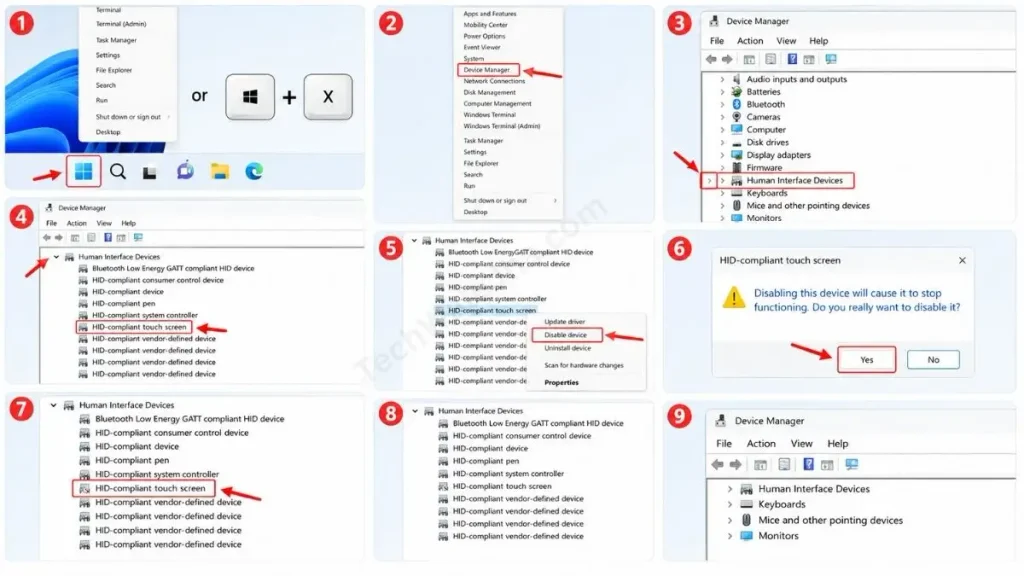
- Now, right-click the ‘Start’ (Windows) icon in the middle of your taskbar, or for a super-fast shortcut, press the Windows Key + X together on your keyboard. A black hidden menu will open from it, click on the Device Manager option.
- A list of all your PC’s hardware components will now open. Scroll down this list alphabetically and find the category named Human Interface Devices (HID). Click the small arrow (>) icon right next to it to expand the list.
- Then, look carefully through this long list. You will find “HID-compliant touch screen” written there. This is the main driver software that fully controls your touch panel.
- Then hover your mouse over this option and right-click. A small pop-up menu will open and there, simply click on Disable device or just ‘Disable’.
- Windows will present a warning box that says, “Disabling this device will cause it to stop functioning. Do you really want to disable it?”. This warning often scares people, and they click “No,” but you shouldn’t be afraid at all. Just click “Yes” with confidence.
After this, your touchscreen function is completely disabled. Now tap your screen with your finger it will behave just like a normal non-touch monitor. This Windows 11 Device Manager touch screen method is the safest and fastest because it doesn’t require restarting your PC at all.
Also Read: How to Enable TPM 2.0 in BIOS for Windows 11 (Fast Fix)
What If “HID-compliant touch screen” is Missing?
Many times when I make tutorials, a lot of people tell me in the comments, “Bro, I checked the list for Human Interface Devices, but I don’t see any touch screen option there!”
If you’re also facing the problem of the HID-compliant touch screen being missing, it means that either a previous Windows update has hidden the driver in the background, or the screen’s ribbon cable has become slightly loose due to physical damage. Here’s a solid pro-tip to bring it back:
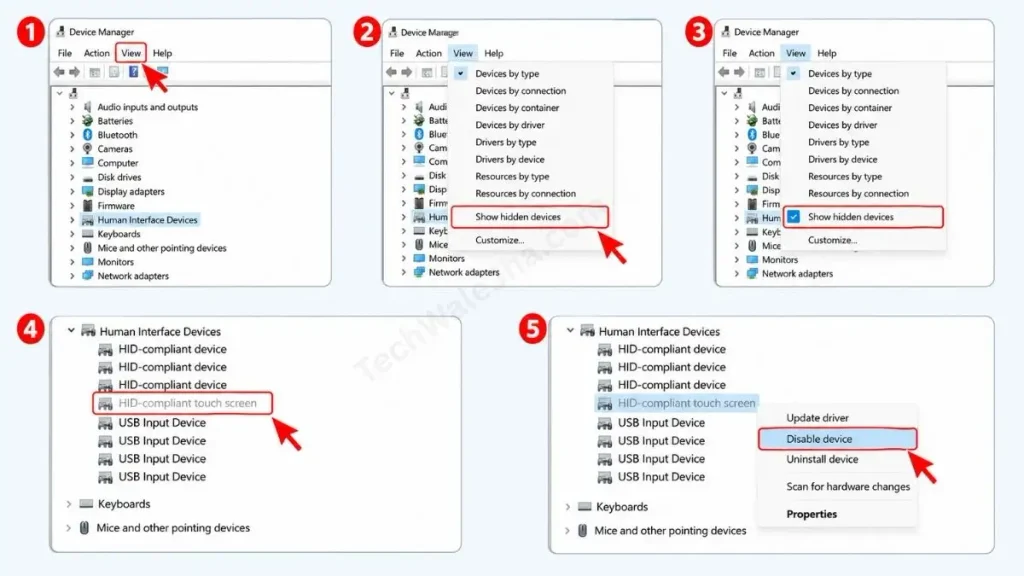
- To bring it back, look at the top menu bar in your Device Manager, you’ll see an option for the View tab, click on it.
- A small drop-down menu will open, in it, check (tick) the ‘Show hidden devices’ option.
- Now, carefully check your ‘Human Interface Devices’ list again. You will see ‘HID-compliant touch screen’ there in a light faded gray color. After that, you can easily right-click on it and disable it!
- If that driver still doesn’t appear in the list after enabling ‘Show hidden devices’, then unfortunately, your laptop’s touch panel is completely dead at the hardware level.
Also Read: How to Enter Safe Mode in Windows 11 (3 Fast Methods)
How to Enable the Touchscreen Again
Many people are afraid that if they disable something in Device Manager, their laptop might get permanently damaged. But don’t worry. The process mentioned above is completely temporary and 100% reversible, so it won’t damage your laptop at all.
If you turned off the touch screen to save your battery and now you feel like you need to draw on or swipe the screen again, you can turn it back on by following the same steps in the Windows 11 touch screen enable process. Let’s take a quick recap of how to enable it:
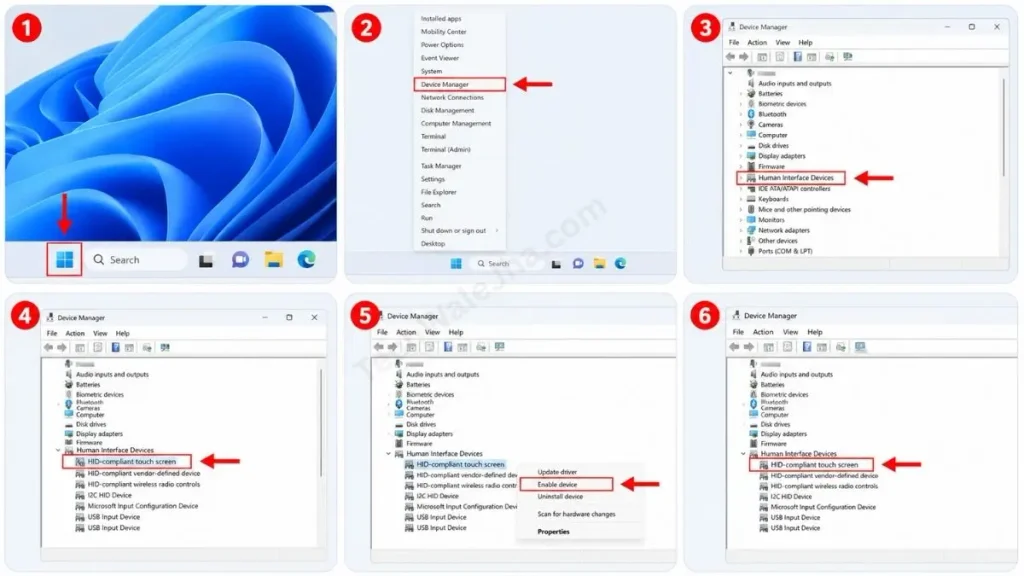
- Now, press Windows Key + X to open Device Manager again.
- Then, expand Human Interface Devices in the list.
- There, find your HID-compliant touch screen driver again. But pay attention this time, there will be a small black or gray down-arrow icon on the driver, which means it is currently disabled.
- Then, right-click on this driver and click “Enable device” from the menu.
- The screen will blink once (refresh), and after that, your touch screen will be back to working 100%.
You don’t need to get into any complex Windows 11 touch screen settings for this. It works instantly, just like a toggle button.
Also Read: How to Change File Type in Windows 11 (Fast Fix)
Frequently Asked Questions
If I disable the touch screen, will my laptop’s touchpad (mouse) stop working?
Absolutely not! Your laptop’s display screen and your touchpad are two completely separate pieces of hardware, and their drivers are also separate in Device Manager. Disabling the touch screen has absolutely no effect on your physical keyboard and trackpad, and they will continue to work as normal.
Is there a keyboard shortcut to turn off the touchscreen in Windows 11?
Officially, Windows 11 doesn’t have a direct keyboard shortcut like there is for Wi-Fi, Bluetooth, or Brightness. Therefore, you have to disable it manually from the Device Manager. However, some rare gaming laptops, like the Asus ROG series, provide a toggle switch for this in their companion app, such as Armoury Crate.
Why is my laptop screen clicking things by itself?
This is called the “Ghost Touch” problem. It’s not a software issue, but a hardware fault. When dirt accumulates near the screen’s sensors, or the panel experiences internal pressure from a dropped laptop, the screen registers incorrect inputs. In such cases, immediately disabling your touchscreen is the only instant fix until you get the hardware repaired.
Conclusion: Take Control of Your Hardware!
Friends, I hope that after reading this practical, step-by-step guide, you now understand how to disable touch screen on Windows 11. Now, your PC experience won’t be ruined by ghost touches or accidental taps, and you’ll be able to continue your work comfortably.
Stay tuned to my blog, TechWaleJha, for more practical, in-depth tech guides on Windows 11 troubleshooting, hidden features, and PC optimization. We solve complex PC problems with just a few clicks. If you’re having any trouble finding your driver in Device Manager, leave a comment below, and I’ll be sure to help.
Disclaimer: This guide is for educational and informational purposes only. Device Manager is an advanced system tool. Please disable only the specified HID-compliant touch screen driver. Tampering with any other System Driver or Display Adapter in the list without proper knowledge may cause your screen to go blank or your PC to hang. TechWaleJha or its author will not be held responsible for any system errors or hardware misconfigurations. Please follow all steps at your own discretion and risk.




