
Imagine you wake up in the morning as usual, turn on your PC, and see that a new Windows update came and installed itself automatically overnight. Then you normally go to open Settings to change your Wi-Fi password, connect your Bluetooth earphones, or adjust the display brightness, but Settings won’t open at all. After that, you click the Windows icon and press the gear icon, or you try the Windows key + I shortcut on your keyboard, but the Settings app either won’t open at all or shows a blue splash on the screen and crashes the very next second.
If you’re stuck in the same predicament and have been endlessly searching online for “can’t open Settings Windows 11 after update,” then friends, take a deep breath and relax. This is a very common bug that thousands of users have been facing after recent updates like 25H2 or its latest security patches. Without the Settings app, the entire PC can feel out of control, but the solution is quite simple.
In this step-by-step tech guide from your very own TechWaleJha, we’ll find a permanent and 100% working solution to this problem. Today, we’ll use some easy system commands and built-in tools to fix this Windows 11 Settings app crashing issue. And the most important thing is, not a single one of your photos, videos, games, or personal data will be deleted during this entire troubleshooting process.
We’ll cover everything from basic CMD tricks to the advanced reset settings app Windows 11 PowerShell method, so that if one method fails, another will surely work. So, let’s get started without any further delay.
Why Did the Recent Windows Update Break the Settings App?
Now, before we jump straight to the codes and solutions, let’s first understand the technical logic behind this to see why this problem is occurring. Microsoft pushes updates to make our systems faster and more secure, so why did the new update break a perfectly working PC?
In fact, the new and modern Settings app in Windows 11 isn’t like the old Control Panel in Windows 7. It’s called “ImmersiveControlPanel” in the system language, and it works as a UWP (Universal Windows Platform) package. When your PC was updating last week, the OS tried to replace (overwrite) these core system files with the new version.
Often during this installation process if:
- Your internet connection fluctuated even for a second,
- Or there was a power outage or restart in the middle of the update,
- Or if the developers left a bug in Microsoft’s official Windows 11 update package…
…then in such cases, the Settings app’s registry files become corrupted in an incomplete state. The result is that Windows thinks the Settings app is present, but it can’t open because of mismatched background files. This is the reason why people are asking the “fix settings app won’t open in Windows 11” query the most on forums these days.
But there’s no need to panic. Because this isn’t a hardware failure but just a minor software conflict, which we can easily fix using Windows’ own command tools. So, let’s roll up our sleeves and see how our first Windows 11 settings not opening cmd method can bring this app back to life.
How to Fix Can’t Open Settings Windows 11 After Update? 3 Easy Method
Alright friends, now let’s move on to the technical solutions that actually work. Follow these steps exactly as I’ve described so your work gets done easily.
Method 1: Run an SFC Scan Using Command Prompt
Whenever Windows’ core files get corrupted due to an incomplete update, the OS has its own built-in doctor called the System File Checker (SFC). If you’re looking for how to fix Windows 11 settings not opening via CMD, this should be your safest and first step.
The SFC scan checks every file on your system and automatically replaces any corrupt files from Microsoft’s cache. This process is the System File Checker, one of the most basic and powerful tools in Windows 11.
Step-by-Step SFC Commands:
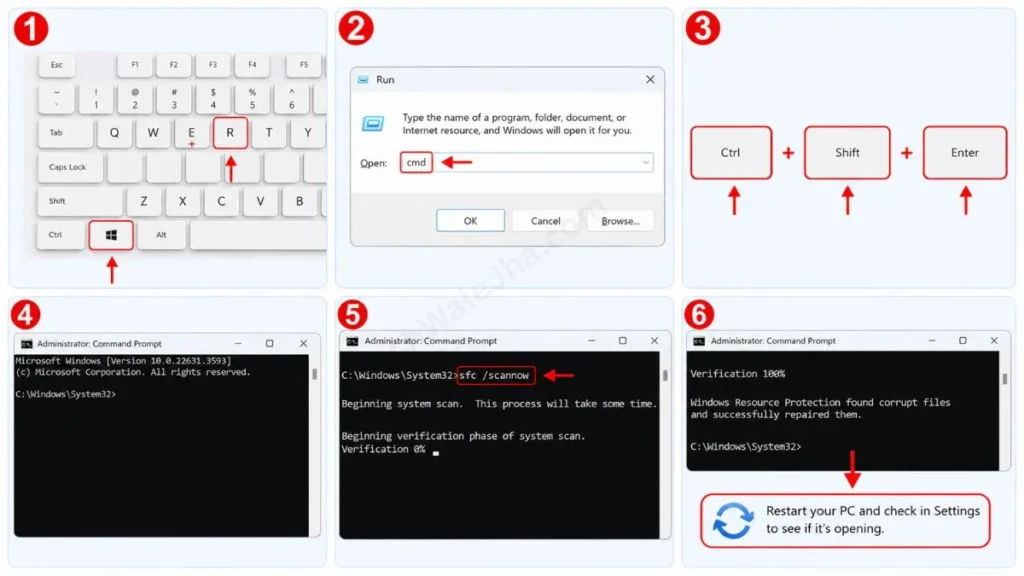
Since the Settings app isn’t opening, we will need to open the Command Prompt using a shortcut:
- To do that, press the Windows Key + R together on your keyboard.
- When the Run box opens, type cmd. Now, instead of just pressing Enter, press Ctrl + Shift + Enter on your keyboard. This will open the Command Prompt in Administrator mode, which is very important for permissions.
- After that, type this command exactly as it is in the black window and press Enter:
sfc /scannow - As soon as you enter it, the process will begin (Verification 0% to 100%). It may take 5 to 10 minutes, so please be patient and wait.
- Once the process is complete, if you see the message “Windows Resource Protection found corrupt files and successfully repaired them,” that means you’re all set. Just restart your PC and check in Settings to see if it’s opening.
Method 2: Re-register the Settings App via PowerShell
If you have followed the step-by-step process of Method 1 and it didn’t work and the settings didn’t open, then it means that your ImmersiveControlPanel (Settings) is completely broken and it is very important to re-register it with the system. This is where our “Master Fix” method comes in. For this, we will run an advanced reset settings app Windows 11 PowerShell command, which will force the app to reinstall automatically.
If people ask you how to reinstall the Settings app in Windows 11 without any software, this is the best method:
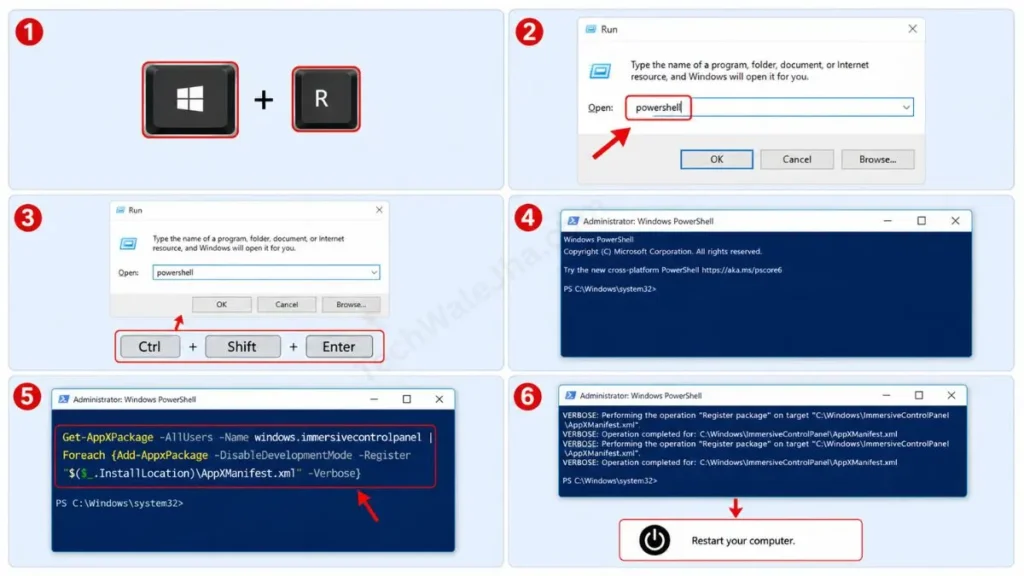
- Now, press the Windows Key + R on your keyboard again, but this time type “powershell” in the Run box and open it in Admin mode by pressing Ctrl + Shift + Enter. After that, you will see a window with a blue background.
- Now, copy the entire code block below from here and paste it into the PowerShell window, then press Enter:
Get-AppXPackage -AllUsers -Name windows.immersivecontrolpanel | Foreach {Add-AppxPackage -DisableDevelopmentMode -Register "$($_.InstallLocation)\AppXManifest.xml" -Verbose}
- As soon as the command runs, you will see some processing on your screen. If some lines appear in red, do not be alarmed by this, just ignore it and let the process finish.
- Once the text stops appearing, close the blue window and restart your computer.
This command essentially un-hooks the Settings app in the background and correctly re-links it, which permanently solves the “can’t open settings windows 11 after update” issue in 99% of cases.
Method 3: Create a New Local Administrator Account
If the issue with the Windows 11 start menu and settings not working persists even after running the PowerShell script, it means the update has not corrupted the Settings app, but rather your current ‘User Profile’. In this situation, your OS is unable to load UWP apps under that profile, and you get the impression that the Settings app has become corrupted.
The easiest bypass for this is to create a new User Account. But wait… But to create a new account, you have to go into the Settings app, which isn’t opening at all! Funny problem, isn’t it? Well, don’t worry, we’re going to use CMD (Command Prompt) to create a new admin account from the background. For that, carefully follow the steps given below:
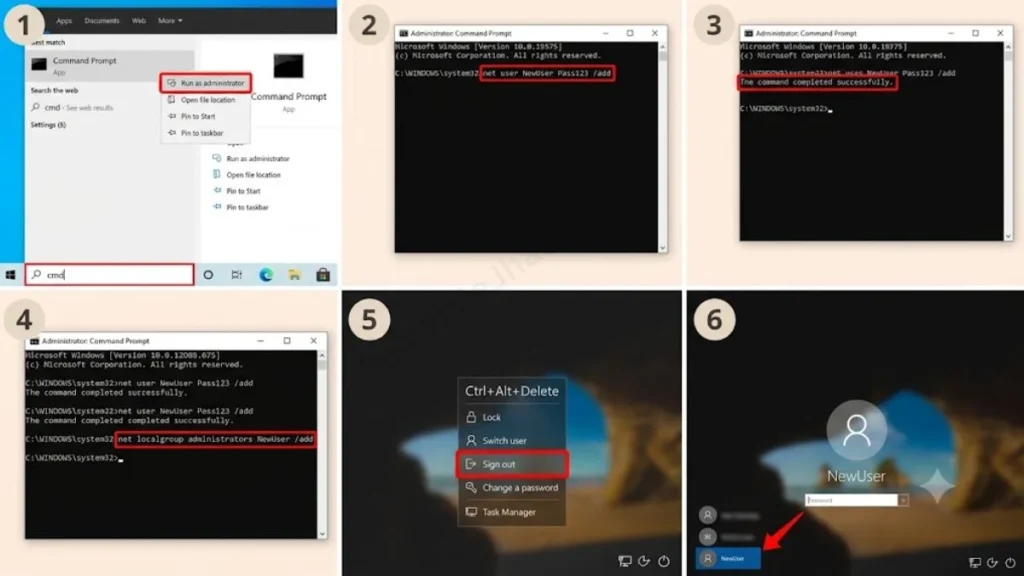
- Now type cmd in your taskbar search, then right-click on it and select Run as administrator.
- Now a black window will open then type this command in it:
net user NewUser Pass123 /add, then press Enter. One important thing to remember: you can replace “NewUser” with any name you want, and “Pass123” with your password. - After creating a new account, it’s very important to grant it administrator privileges, so in the same CMD window type the following command and press Enter:
net localgroup administrators NewUser /add - After that, close the CMD. Then press Ctrl + Alt + Delete on your keyboard and click Sign out. Now on the login screen, you will see your new account. Enter the new password you set in the CMD to log in.
- As soon as the new desktop is set up, you’ll see your Settings app running like brand-new butter! Then you can copy all the data from your old account (C:\Users) and move it into this new profile.
Frequently Asked Questions
Will running these CMD or PowerShell commands delete my personal data?
Absolutely not. The SFC scan or AppXPackage PowerShell reset only fixes the OS’s core files and registry, and your photos, videos, downloaded games, or any personal files remain completely safe.
What is the keyboard shortcut to quickly open the Settings app?
The default shortcut to open Settings in Windows is Windows Key + I. If this shortcut isn’t working, it simply means your app is corrupted, and you should definitely run the PowerShell method mentioned above.
If none of these methods work, what is the last resort?
If the Settings app is still crashing even after creating a new user account, you will need to reset Windows. Since you can’t open Settings, press and hold the Shift key on the login screen and click the Power icon, then select Restart. This will open ‘Advanced Startup,’ where you can select the “Keep my files” option to safely reset your PC.
Conclusion: No Need to Format Your PC!
Friends, Windows updates sometimes bring strange problems that can be very frustrating for a normal user. But if you have a little command-line knowledge, then there’s absolutely no need to go to an IT mechanic or do a full format on your PC. This is because an SFC scan and a PowerShell reset solve this issue almost every time.
I hope this technical guide has completely solved your problem. At our brand, TechWaleJha, we always strive to provide you with straightforward and working solutions. If your Settings app has come back to life, be sure to let us know in the comments below. And to get solutions to more problems like these latest tech guides, Windows tips and tricks, or Windows troubleshooting, stay connected with us. Also, be sure to bookmark this page, because problems never come with a warning.
Disclaimer: This guide and the CMD or PowerShell commands mentioned herein are for educational purposes only. Although these methods are completely safe and tested, you should still back up your important files before running any system commands. TechWaleJha.com or its author will not be held responsible for any data loss, system errors, or OS crashes. Please apply these steps at your own risk and with extreme caution.




