
Friends, has it ever happened to you that you’re playing a fast-paced FPS game like Valorant, CS2, or Apex Legends, and your aim lands just a little bit ahead of or behind the target? Or have you ever been doing heavy data entry in Excel or video editing, and your cursor didn’t stop exactly where you wanted it to? If after all this you feel that your mouse isn’t moving as accurately as you’d like, it’s not the fault of your expensive gaming mouse. The fault lies with a default hidden setting in Windows 11.
In gaming forums and tech communities these days, the most frequently asked question is exactly how to turn off mouse acceleration Windows 11. Microsoft, by default, ships your new PC with a feature enabled that they call “Enhance Pointer Precision.” It sounds and looks like a very helpful and fancy feature, but for a gamer or pro user it’s nothing short of a nightmare. In today’s in-depth tech guide, TechWaleJha will show you how to permanently remove this annoying feature and disable mouse acceleration in Windows 11 so you can get perfect raw tracking and pinpoint accuracy. So, let’s get started without any further delay.
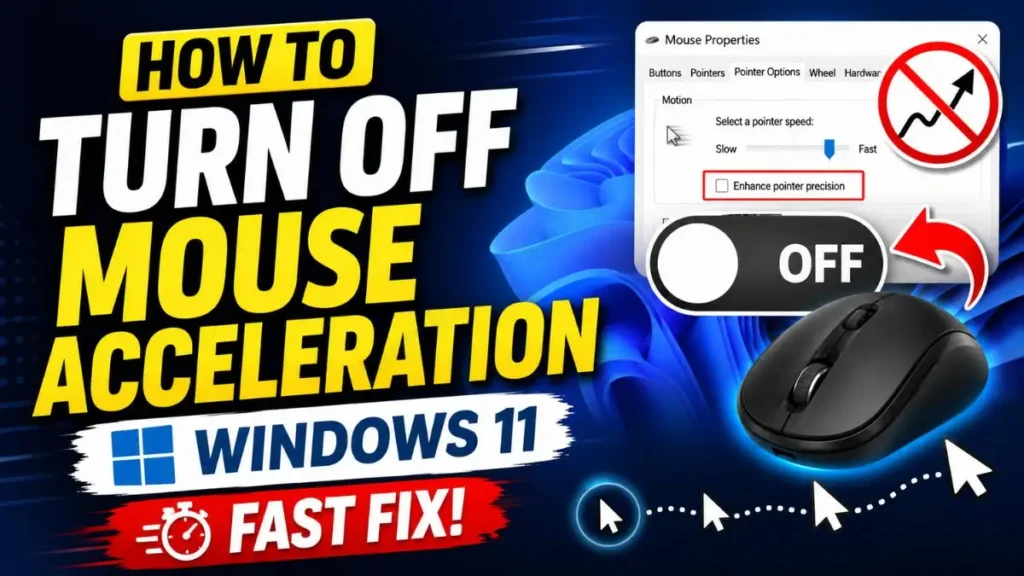
What is Mouse Acceleration (Enhance Pointer Precision)?
So, what exactly is mouse acceleration, and why do gamers have such a problem with it? In simple terms, Mouse Acceleration is a software trick that detects the speed of your hand. Its job is to increase or decrease the distance of the cursor on the screen based on the speed of your physical mouse movement.
Let’s understand this with a simple example. Suppose you move your mouse on the mouse pad exactly 2 inches:
- If you move those 2 inches very slowly, the cursor will only move a little bit forward on the screen.
- But if you move that same 2 inches very quickly (a flick), the Windows software will multiply that speed and fling the cursor to the other corner of the screen.
This causes unpredictable movements. If you want to deeply understand the math and calculations behind this technology, you can refer to PCGamingWiki’s guide on Mouse Acceleration. But as a PC user, you only need to know one thing: this feature ruins your muscle memory.
We should always keep the Windows 11 mouse settings for gaming completely natural. That’s why every pro player disables “Enhance Pointer Precision” in Windows 11 and uses raw input mouse control instead. Why is that? Let’s see what the real difference is between the two:
| Feature | How it Works | Consistency (Accuracy) | Best Used For |
|---|---|---|---|
| Mouse Acceleration On | Distance depends on how fast you move your hand. | Very Low (Unpredictable) | Laptop Trackpads, Office Work |
| Raw Input (Acceleration Off) | 1 inch on mouse pad = fixed pixels on screen, always. | 100% Consistent | FPS Gaming, Graphic Design |
When the cursor goes wherever your hand goes, only then will your headshots connect! Right?
Also Read: Can’t Open Settings Windows 11 After Update? Fixed!
Step-by-Step: How to Turn Off Mouse Acceleration in Windows 11
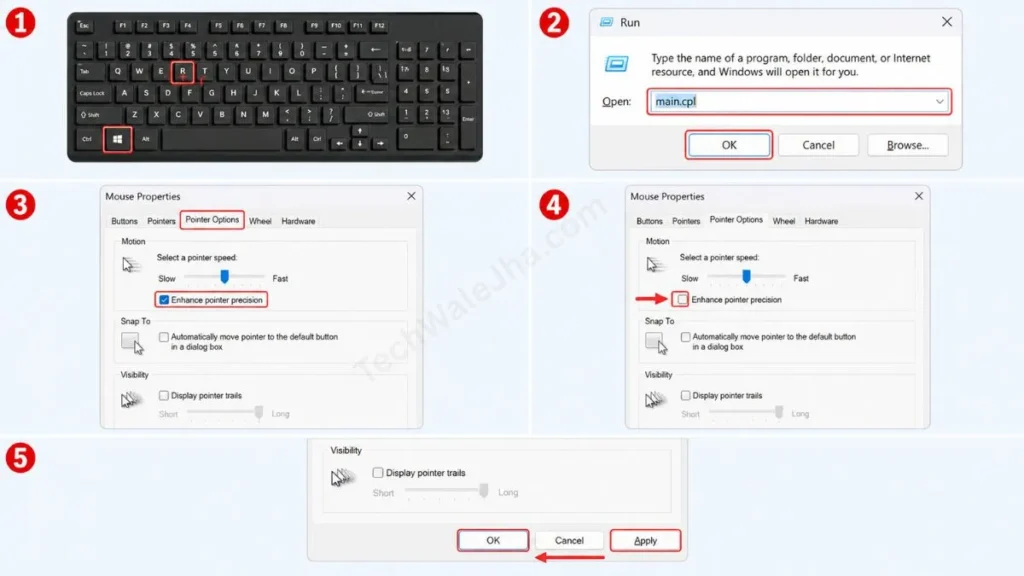
If you’re searching for the fastest way to execute “how to turn off mouse acceleration windows 11,” you don’t need to wade through the new Windows Settings app at all. For this, we’ll go straight to the old, trusted “Mouse Properties” menu, where fixing mouse acceleration in Windows 11 is just a click away. To use this quick solution, follow the direct steps given below carefully:
The Classic Control Panel Method (Most Reliable)
- Now, press the Windows Key + R together on your keyboard. This will open a small ‘Run’ box below.
- Then, type
main.cplin the Run box and press Enter. This shortcut will directly open the old ‘Mouse Properties’ window for you. - Then, click on the Pointer Options tab.
- Here, right below the ‘Motion’ section, you will see a checkbox labeled “Enhance pointer precision”. Uncheck this box.
- After that, click ‘Apply’ and then press ‘OK’.
You have now successfully applied a powerful Windows 11 gaming mouse tweak. Your OS has stopped mixing your mouse signals, and you are now on the best configuration for pointer options in Windows 11.
Also Read: How to Fix Can’t Remove Bluetooth Device Windows 11
Why Gamers HATE Mouse Acceleration (Muscle Memory)
Now that you’ve turned it off, the question of technical logic arises. After all, why do pro-gamers around the world hate this setting so much?
In fact, competitive gaming, especially FPS games like Valorant, CS2, or Call of Duty, relies entirely on “Muscle Memory.” Muscle memory means your brain can calculate, without thinking, how much to move the mouse to get the in-game crosshair onto an enemy’s head.
When “Enhance pointer precision” ON, Windows calculates your fast and slow movements differently. If an enemy suddenly comes from behind and you quickly turn the mouse (flick shot), the acceleration will cause your crosshair to fly way past the enemy’s head. And your aim will always be inconsistent.
This is why when people ask if it’s necessary to turn off mouse acceleration for Valorant, every pro-gamer’s answer is ‘YES’. Because as soon as you turn off acceleration, you get 100% raw input from the mouse in Windows 11, meaning it goes directly from the hardware to the screen without any OS delay or filtering. Once your muscle memory is set with this raw input, you’ll notice for yourself how much more your headshots are connecting than before.
Also Read: How to Fix Laptop Battery Draining While Shut Down in Windows 11
Frequently Asked Questions
Should I turn off enhance pointer precision for daily use?
If you are using your laptop’s built-in trackpad, it is better to keep it ON because the trackpad has limited space. But if you are using a proper external physical mouse (USB or Wireless), you should turn it OFF, whether you are playing games or doing normal office work. Raw input always feels more accurate.
Does Windows 11 have mouse acceleration enabled by default?
Yes, absolutely. As soon as you install the new Windows 11 or buy a new PC, Microsoft turns on “Enhance pointer precision” by default. That’s why every new gamer has to disable it manually first.
How do I adjust my mouse tracking speed in Windows 11 without acceleration?
If your cursor feels too slow after disabling acceleration, go to that same old menu in main.cpl (the Pointer Options tab). There, under ‘Motion’, there is a slider with 11 lines. Set it exactly to the center (the 6th line). To increase the speed, don’t move the slider further; instead, if your hardware mouse has a physical DPI button, use that.
Do games have their own mouse acceleration?
Yes, many games like CS:GO or CS2 have their own mouse acceleration option in the in-game settings. For a perfect aim, you should keep it ‘Off’ in both Windows and in-game, and turn on “Raw Input.”
Conclusion: Aim Like a Pro!
Friends, the difference between a pro gamer and a noob isn’t just expensive hardware but also a proper understanding and optimization of the system. I fully hope that after reading this guide you’ll have a clear idea of how to turn off mouse acceleration Windows 11 and why it’s so important to disable it.
When you play a game for the first time after applying this setting, the first 1-2 hours might feel a bit strange. But trust me, once your muscle memory adapts, your friends will think you’ve installed an aim-bot.
Disclaimer: This guide and the PC settings described herein are for educational and informational purposes only. Although changing mouse settings is completely safe, any modifications to your system are made at your own risk. TechWaleJha.com and its author will not be held responsible for any hardware or software issues or any drop in your game rank. So try everything at your own risk.




