
Friends, if you’re also stuck with an old Bluetooth headphone, speaker, or mouse on your PC that just won’t remove, there’s no need to worry. You might be searching for how to fix the “Can’t remove Bluetooth device Windows 11” problem.
This has happened to me many times as well, especially when I’m making unboxing and review videos of new tech gadgets and mobile hardware for the TechWaleJha channel. I have to connect and disconnect different Bluetooth devices from my PC every day, and sometimes one of them gets stuck in Windows so badly that it won’t go away even after clicking “Remove Device.”
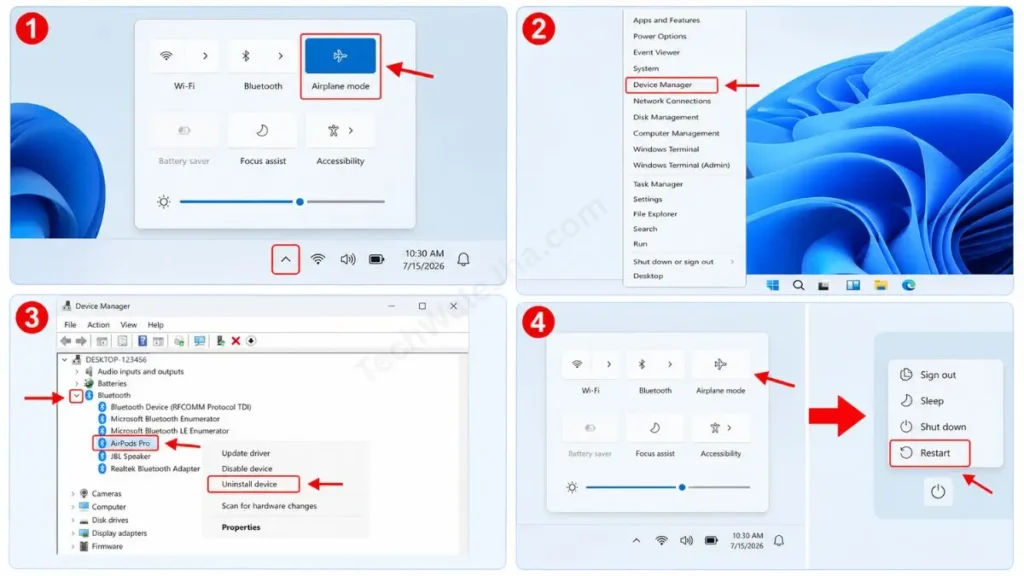
If you’re facing a similar issue, first turn on Airplane Mode in Windows 11 to completely cut off the Bluetooth connection. After that, right-click the Start button and open Device Manager. Here, expand the Bluetooth section, right-click on the device you want to remove, and select “Uninstall device.” That’s it. Now, restart your PC. After restarting, the stuck Bluetooth device should be removed from the system. If it still isn’t, the advanced fix for it is provided below be sure to try it.
So, let’s get started and see step-by-step in this guide how to permanently remove this stubborn Bluetooth device without unnecessarily fiddling with Windows settings or damaging the system.
Also Check: How to Clear Windows Update Cache in 3 Simple Steps
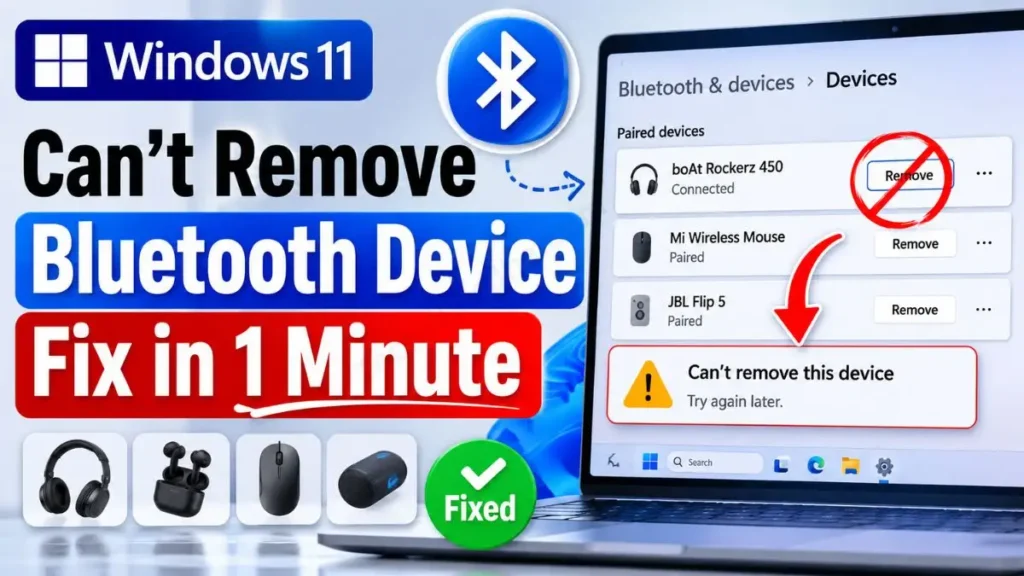
Why Does “Remove Failed” Happen for a Bluetooth Device?
In simple terms, when you try to remove a gadget from the Bluetooth list and get a red “Bluetooth device removal failed” error on your Windows 11 screen, it means the communication (link) between the OS and that device has become corrupted.
This mostly happens when you switch off your TWS earbuds or mouse without properly disconnecting them, or when a new Windows update in the background interrupts the Bluetooth driver. In such cases, the system gets confused, and your gadget gets stuck in an endless loop of “Removing” on Windows 11.
In technical terms, these devices are called “Ghost Devices” because they aren’t physically present with your laptop, but the system holds their cache and keeps them. If you’re worried about how to safely delete a ghost Bluetooth device, don’t be. We’ll easily solve this hardware glitch with an advanced trick in Device Manager.
Also Check: How to Fix Laptop Battery Draining While Shut Down in Windows 11
Method 1: Airplane Mode and Device Manager Trick (Fastest Fix)
If you keep getting a spinning loading wheel and an error when trying from the normal Settings app, then we need to use Windows 11’s core admin tool (Device Manager) to force-remove this gadget from the Windows 11 Bluetooth device process. But before that, it’s very important to disable the radio network.
How to Fix This? (Step-by-Step Guide):
- To fix this, first click on the bottom-right corner of the screen where the Wi-Fi or Battery icon is and put your PC or Laptop into ‘Airplane mode’. This will completely block Bluetooth radio signals, which will break the current ghost connection.
- Then press the Windows key + X on your keyboard and select Device Manager from the list. This is Windows’ main hardware control center.
- Now, click the small arrow next to Bluetooth at the top to expand the list. Right-click on the device that is causing the issue, such as “AirPods” or “JBL Speaker,” and select “Uninstall device.”
- After the uninstall is complete, turn off Airplane mode and be sure to restart your laptop to clear the old Bluetooth cache from the RAM.
After restarting, you will notice that the “can’t remove bluetooth device windows 11” problem has disappeared for good.
Which method is best: the Settings app or Device Manager?
Many new PC users spend hours just using the basic Settings app. From this short table, understand why using Device Manager is faster and more necessary:
| Comparison Feature | Windows 11 Settings App (Normal) | Device Manager (Admin Tool) |
|---|---|---|
| Power & Control | It only provides a basic user interface (UI) and fails on persistent hardware errors. | It’s the OS’s core tool that directly cuts hardware access at the driver level. |
| Ghost Device Handling | I can’t delete my offline or hidden devices, and it shows “Remove failed.” | You can easily force-remove hidden and corrupt connections (ghost devices) from Bluetooth devices on Windows 11. |
| Time Saving | It keeps getting stuck in a “Bluetooth device removal failed” loop on Windows 11. | With a single click, it instantly cleans the hardware registry without asking for unnecessary permissions. |
Also Check: Windows 11 Complete Guide: Install, Setup & Optimize Fast
Method 2: Remove Hidden Devices and Restart Services
If your gadget still won’t delete even after turning on Airplane mode, it means the Windows system service is still holding onto that device in the background. To completely eliminate the “Bluetooth Support Service failed to remove” error, we need to give the Bluetooth Support Service a quick restart.
If you want to learn how to thoroughly fix these kinds of connection drops and pairing failures, you should definitely check out Microsoft Support’s Official Bluetooth Troubleshooting Guide. This trusted documentation was written directly by the OS developers and is the most reliable way to safely fix hardware glitches.
Restart Service and Hidden Device Trick:
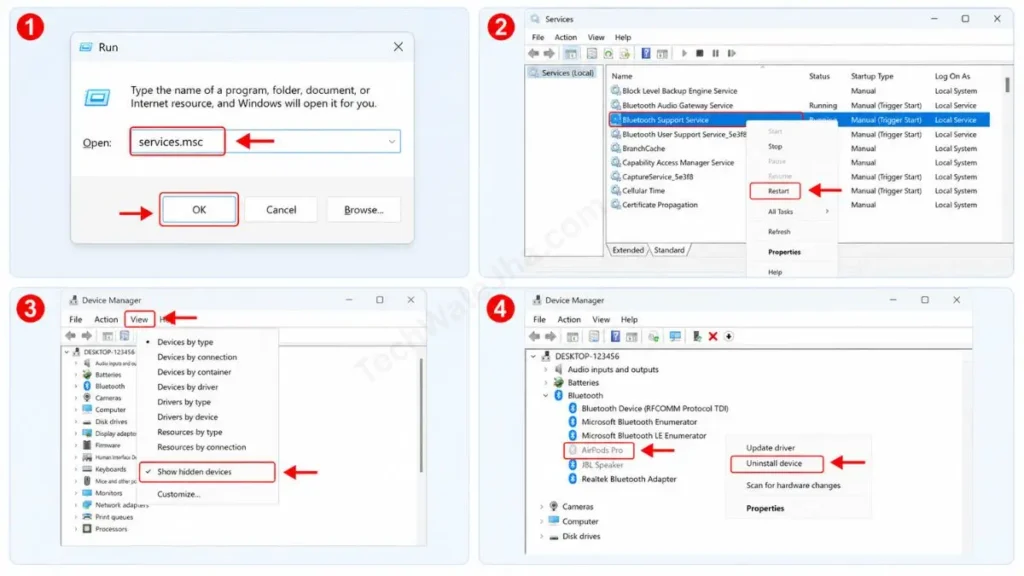
- Now, press the Windows key + R on your keyboard. A dialog box will open then type
services.mscand then press Enter. - After that, in the list that opens, find ‘Bluetooth Support Service’. Right-click on it and click Restart. This will refresh the entire Bluetooth background process.
- Now, reopen the Device Manager. Then, click the View tab at the top and check the box for “Show hidden devices.”
- You will now see the stubborn device in a light gray color. Simply right-click on it to complete the process of uninstalling the Bluetooth device.
Also Check: How to Enable Ultimate Performance Power Plan in Windows 11
Method 3: Force Delete Using the Registry Editor (Advanced)
If you’ve implemented both of the above methods and still failed which is a rare occurrence then there’s one ultimate, most powerful tool left: the Windows Registry Editor. With this process, we’ll directly erase every trace of that gadget from the system’s core so the OS can manually execute a perfect Windows 11 clear Bluetooth cache command.
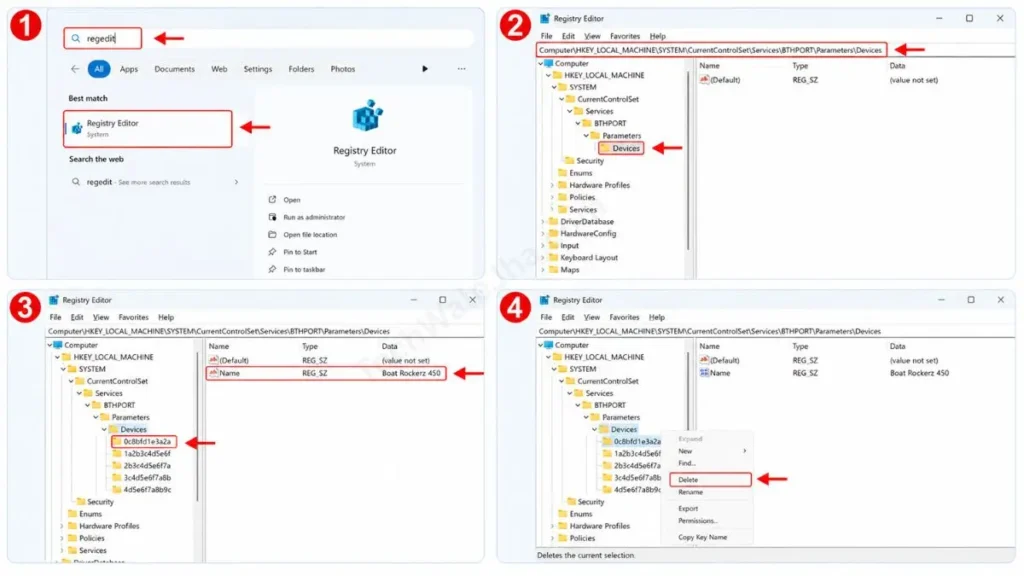
- To do this, open the Registry Editor by typing “regedit” in the Windows search bar.
- Now, from the left-side menu, navigate to this exact path:
HKEY_LOCAL_MACHINE\SYSTEM\CurrentControlSet\Services\BTHPORT\Parameters\Devices - Inside the ‘Devices’ folder, you will see some folders with 12-digit numbers, like 0c8bfd…. Each folder represents a Bluetooth device.
- Click on each folder one by one and check its name (Name) on the right side. As soon as you find the stubborn device that’s causing the error, right-click on that 12-digit folder and delete it. This is the exact method to remove a Bluetooth device from the Windows 11 registry. Afterward, don’t forget to restart your PC. If you don’t, the change won’t take effect.
Also Check: How to Remove Microsoft Edge from Windows 11 (Quick Fix)
Frequently Asked Questions
The screen says “bluetooth device connected but can’t remove,” what should I do?
This is the most common glitch. It happens when Windows thinks the device is still active. To bypass this problem, immediately put your PC in Airplane mode, just like in Method 1. As soon as the connection is broken, you will be able to remove it easily.
If I delete the Bluetooth device from the Registry Editor, will my other earbuds also be removed?
Not at all. Every Bluetooth gadget has a unique 12-digit MAC address (folder). If you carefully delete only the folder for that specific stubborn device, all your other paired devices will remain completely safe.
Conclusion
Friends, the Bluetooth system in Windows 11 is very modern, but sometimes drivers and the cache get mixed up, which causes devices to get stuck on the screen. I’m confident that by using these 3 advanced tricks, you have successfully solved the issue of how to safely force-delete a Bluetooth device when you get the the error of can’t remove Bluetooth device Windows 11.
The combination of Device Manager and Airplane mode works in about 90% of cases. But if you have to apply the technical registry trick, always be careful to delete only the exact folder that is causing the problem.
Which exact method (Device Manager or Registry Editor) did you ultimately use to successfully remove your Bluetooth device? Be sure to let us know in the comments.
Disclaimer: This guide and the CMD (Command Prompt) and Registry tricks mentioned in it are for educational and system customization purposes only. Exercise extreme caution when modifying system files. We are not responsible for any system errors that may occur due to any incorrect technical steps. Always be sure to create a backup before making any changes to the Registry.




