
Whenever we get a new Windows 11 laptop or do a fresh setup on our PC, the one thing that frustrates us the most is Microsoft Edge. Whether you use Google Chrome, run Brave, or are a die-hard Firefox fan, but Microsoft still keeps pushing Edge as your default browser. This isn’t just about annoyance. It’s about Edge continuously running its processes in the background, constantly consuming your precious RAM and CPU power for no reason, which can even slow down your computer.
If you’re constantly searching online for how to permanently remove Microsoft Edge from Windows 11, then you’ve come to the right place. Usually, when a normal user goes into Settings and into Apps to try and delete this Edge browser, the ‘Uninstall’ button is nowhere to be found. or we start searching for it, but you should know that you can’t remove it from your system by the direct method.
But as a PC user, you should have full control over your hardware! Right? In today’s in-depth guide from TechWaleJha, I’ll show you a completely safe and proven method. We’ll tinker with the system settings and see how to uninstall Microsoft Edge on Windows 11 manually and using force methods, so your computer always stays clean and fast. So, let’s get started without wasting any more time.
Why Won’t Windows Let You Uninstall Edge Normally?
At a time like this, the biggest question on our minds is, why won’t Microsoft let its own users delete Edge? If you go into the Control Panel, all the other heavy software and games can be easily uninstalled with a single click, so what’s so special about Edge?
In fact, according to Microsoft, Edge is no longer just a normal web browser, but has become a ‘Core OS Component’ of Windows 11. In this scenario, the company states that many essential system features depend on the Edge web engine (WebView2) to run smoothly. Such as:
- Widgets Panel: The widgets you see in the bottom taskbar like news, weather, or others are all loaded through a Edge web engine.
- Start Menu Web Search: When you type and search anything in the Start menu and internet results appear, Edge processes them in the background.
- Default PDF Engine: If you don’t have a third-party PDF reader, then Windows opens PDF files in Edge by default.
You can also read in detail about Microsoft and their aggressive browser-pushing tactics in the controversy section of Wikipedia. However, the truth is that as a smart user, we have no need for these annoying widgets or Bing web results. The background tracking processes constantly running due to these useless features further fuel the demand to completely remove Microsoft Edge from Windows 11.
But there’s no need to worry, as it’s entirely possible to bypass this restriction. We’ll use simple commands to break this “Core Component” restriction and debloat our system.
Method 1: Force Uninstall via Command Prompt (CMD)
If you’re genuinely looking for how to remove Microsoft Edge from Windows 11 without any third-party junk (software), then Command Prompt (CMD) is the best and fastest method. In this method, we will go into the system’s hidden directory and trigger a force uninstall of Edge using a cmd command.
This method is 100% working, so you can try it without any worries. To do this, just carefully follow the step-by-step instructions given below:
Step-by-Step CMD Instructions:
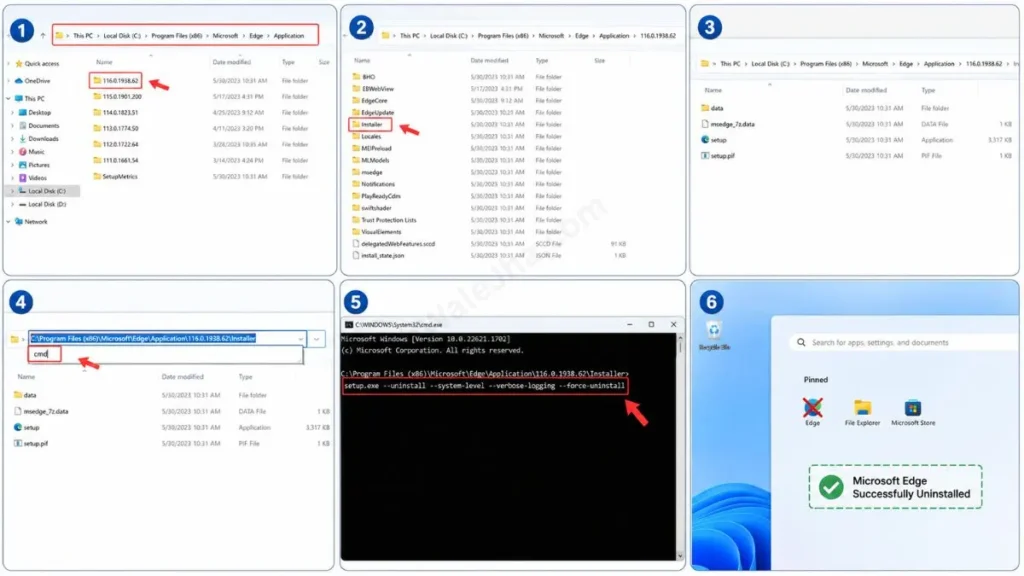
- Open ‘File Explorer’ on your computer and navigate to this path:
C:\Program Files (x86)\Microsoft\Edge\Application - There you will find a folder named with just numbers, such as 116.0.1938.62 or whatever your current Edge version is. Double-click on that folder.
- Now, inside that folder with the numbers, you will find a folder named “Installer”. Open it.
- After that, click on the topmost Address Bar where the folder path is written. Delete whatever is written there and simply type
cmdand press Enter. This will open a black Command Prompt window at that exact location. - Now in this CMD window, copy-paste the exact code given below and press Enter:
setup.exe --uninstall --system-level --verbose-logging --force-uninstall- As soon as you press Enter, you may see a confirmation prompt. Click “Yes” to confirm. Then just wait a moment, and within a few seconds Edge will be completely removed from your system and its icon will disappear from your desktop.
CMD Method vs Third-Party Uninstaller (Which One Is Safe?)
Often people watch YouTube videos and download any random “Edge Remover Tools” from the internet, and then when something goes wrong, they start regretting it. So, from the table below, understand why it’s important to use the built-in command line:
| Features | CMD Trick (Inbuilt Method) | Third-Party Uninstallers |
|---|---|---|
| Security & Safety | It’s 100% safe. There’s no risk of any virus or malware. | Downloading tools from random websites can hack your system or introduce a virus into it. |
| System Stability | It only deletes specific files on the Edge. The OS remains completely stable. | Often, they even delete essential system files (registry), causing the PC to crash. |
| Performance | Zero background RAM usage. Task completed immediately. | My tool also requires a background process to run, which places a heavy load on your system. |
Method 2: Prevent Edge From Coming Back With Registry Editor (Advanced)
So you’ve removed Edge from your system, but Microsoft doesn’t give up that easily. As soon as you install a new Windows Update on your PC, Microsoft will secretly reinstall the Edge browser, and you won’t even know it. If you want to apply a perfect registry tweak to remove Microsoft Edge from Windows 11 so it never comes back, we need to set a small rule in the Windows Registry.
Since we’re modifying the OS’s deep registry files, you should definitely check Microsoft Support’s Official Registry Backup Guide to avoid any mistakes. This trusted guide will teach you how to create a registry backup so your PC remains 100% safe.
How to Permanently Block Edge?
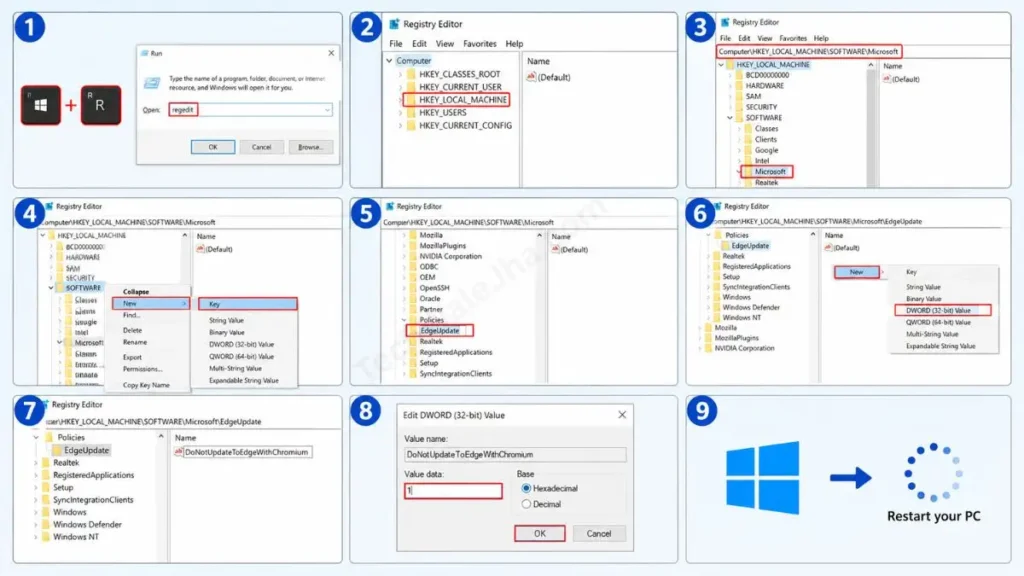
- To do this, first press the Windows key + R on your keyboard. Then, a dialog box will open and type
regeditin it and press Enter to open the Registry Editor. - Then, from the left-side menu, navigate to this path:
HKEY_LOCAL_MACHINE\SOFTWARE\Microsoft - Now, right-click on the ‘Microsoft’ folder, then select New and then Key. Name this new folder exactly EdgeUpdate, without any spaces, because if you add a space, it will not work.
- Now, click on this new EdgeUpdate folder. Then, on the empty space on the right side, right-click, go to New, and select DWORD (32-bit) Value.
- Name this new file: DoNotUpdateToEdgeWithChromium
- Now, double-click on this file and change its ‘Value data’ from 0 to 1. Then, click ‘OK’ and restart your PC.
Congratulations! You have now not only completed the process of deleting the Edge browser from Windows 11, but you have also permanently blocked it from returning in future updates.
Crucial Steps to Take After Removing Edge
Congratulations! You have successfully removed Edge from your system. But wait, the job isn’t done yet. If you don’t follow the next steps immediately, you’ll get a Windows error whenever you click a link because there’s no default browser left.
After removing Edge, you need to take these essential steps:
- Install an Alternative First: Before or immediately after deleting Edge, make sure you have Google Chrome, Mozilla Firefox, or Brave Browser already installed on your PC. If Edge is gone and no browser remains on the system, you’ll need to use the Microsoft Store to download a new one.
- Update Windows 11 Default Browser Settings:
- To do this, first go to your PC’s Settings, then tap on Apps, and then go to Default apps. Then search for your new browser, like Chrome or whichever one you want to use.
- Then, click the “Set default” button at the top. This will make all your web links, PDF files, and HTML documents open in your preferred browser by default.
- Clean Up the Leftovers: You have already uninstalled Edge from the system, but you will also need to manually delete its leftover folders to free up some more space. To do this, go to the Program Files (x86)\Microsoft folder on your C-Drive and manually delete the leftover “Edge” or “EdgeCore” folders.
Frequently Asked Questions
Is it safe to forcibly remove Microsoft Edge?
Yes, it’s completely safe. Although Microsoft calls it a ‘Core Component,’ in reality, if you don’t use Widgets or Windows’ default web search, removing Edge won’t affect the OS’s core functionality. Your PC will continue to run just fine, so there’s nothing to worry about.
Will Windows 11 Updates automatically reinstall Microsoft Edge?
This is a very valid point. Whenever a major Windows 11 feature update, like 23H2, 24H2, or any other latest one, is released, Microsoft quietly reinstalls Edge. If this happens, you will have to run the CMD method mentioned above again.
How can I just disable the Edge background process instead of uninstalling it?
If you want to keep Edge but are also bothered by its background data drain, open Edge. Then go to Settings, and then to System and performance. Here, turn both the “Startup boost” and “Continue running background extensions and apps when Microsoft Edge is closed” options off (disable).
Will removing Edge cause my Windows 11 laptop to crash?
No, not at all. Microsoft Edge is a deeply integrated app, but it doesn’t control basic OS functions like File Explorer or Settings. If you use the trick we mentioned to uninstall Edge via PowerShell or CMD correctly, the system will remain completely stable and fast.
If I need Edge later, can I get it back?
Yes! If you ever want to restore Edge in the future, first go to the Registry Editor and delete the DoNotUpdateToEdgeWithChromium file. Then go to Microsoft’s official website and manually download the Edge installer.
Why aren’t the links in my Windows 11 Widgets panel opening?
This is a side effect. The links in the Windows 11 Widgets panel and the direct web results in Windows Search only open in the Edge browser. When you force uninstall Edge, the news links in the widgets stop working. If you don’t use widgets, it’s not a big problem.
Conclusion
Friends, once you buy your new Windows 11 laptop, it becomes your legal property, and you should have the full right to decide what should and shouldn’t run on it. Right? I hope that after reading this detailed technical guide, you’ve successfully understood how to completely remove Microsoft Edge from Windows 11 without crashing your PC.
If you also prefer a clean and lag-free PC setup like TechWaleJha, then this CMD force-uninstall trick will be very useful to you. Now you can peacefully edit your technical guides, videos, or do your office work on your favorite browser Chrome or the ad-free Brave, without any forced pop-ups.
Which new browser will you be using after removing Edge? Chrome, Firefox, or Brave? Be sure to let us know in the comments section. Also, stay tuned with us to easily learn more pro-level Windows troubleshooting guides and exclusive tech hacks. Until then, take care and bye-bye.
Disclaimer: This guide and the CMD (Command Prompt) and Registry tricks described herein are for educational and system customization purposes only. Exercise extreme caution when modifying system files and copy-paste the commands provided in this guide exactly. TechWaleJha platform or its author will not be held responsible for any system errors, OS crashes, or data loss resulting from any incorrect technical steps. Always create a backup before making any changes to the registry and follow all steps at your own risk.




