
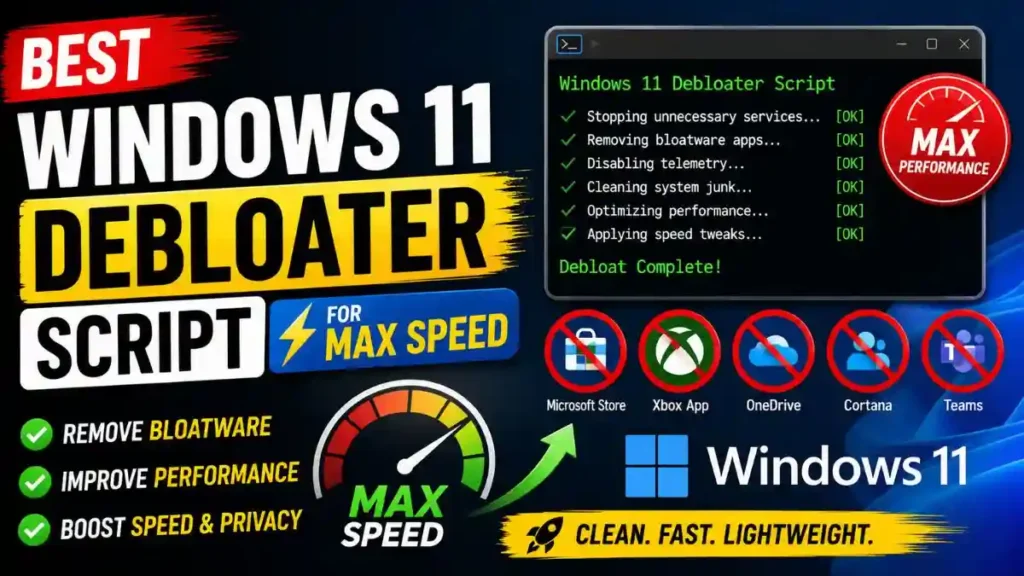
If you’ve recently bought a new laptop or upgraded your system to Windows 11, you’ve probably noticed that even though your PC hardware is new, it sometimes lags or feels very slow. This happens because so many useless apps and services are running in the background that you’ll probably never need in your life. In such a case, it’s inevitable for the system’s speed to slow down. If you’re also tired of background apps and useless pre-installed software and are looking for a safe and working Windows 11 debloater script, then in this in-depth tech guide by TechWaleJha, we will find a permanent solution to this problem that will make your computer run as fast as butter.
Although Windows 11’s interface looks quite sleek and modern, it comes pre-loaded with a lot of “junk” (unwanted pre-installed apps). When you turn on your system, these useless apps automatically start consuming RAM and CPU power. In this article, we’ll look at how you can safely use the Windows 11 debloater script to eliminate this problem for good and unlock a speed for your system that you’ve never experienced before. So, let’s get into it without further delay.
Why is Windows 11 Slow? (Bloatware Problem)
After all, why does a new, expensive PC feel a bit slow right from the start? In fact, when you first set up your Windows 11, Microsoft and laptop companies like HP, Dell, ASUS, or any other brand install a lot of ‘bloatware,’ i.e., unnecessary promotional apps, on your laptop or PC. These include TikTok, Spotify, Candy Crush, trial versions of McAfee antivirus, and some background telemetry (data tracking) services.
All these useless apps run in the background 24/7 without your permission, constantly wasting your PC’s precious RAM and CPU power. In this case, if you’re a heavy user, removing bloatware on Windows 11 becomes the most essential step to make your system faster.
A trusted Windows 11 bloatware removal tool helps you remove all these hidden background tracking services and useless pre-installed apps from the OS’s core (registry). This frees up your processor, reduces RAM usage, and makes the system boot like butter. This is the main reason why IT experts and hardcore gamers always use the best Windows 11 debloat utility as soon as they get a new system, so they can get the full 100% speed from their hardware.
Step 1: Run the Safest Windows 11 Debloater Script (Main Method)
If you manually go into Settings and delete each app one by one, it will take you all day. Some stubborn system apps like Cortana or Edge simply can’t be uninstalled through normal methods. That’s why we’ll be using the most trusted and open-source Windows 11 debloater script on the internet. Here, we are using the christitus Windows 11 debloater utility, which is 100% safe and the top choice of IT experts.
Steps to Run the Script:
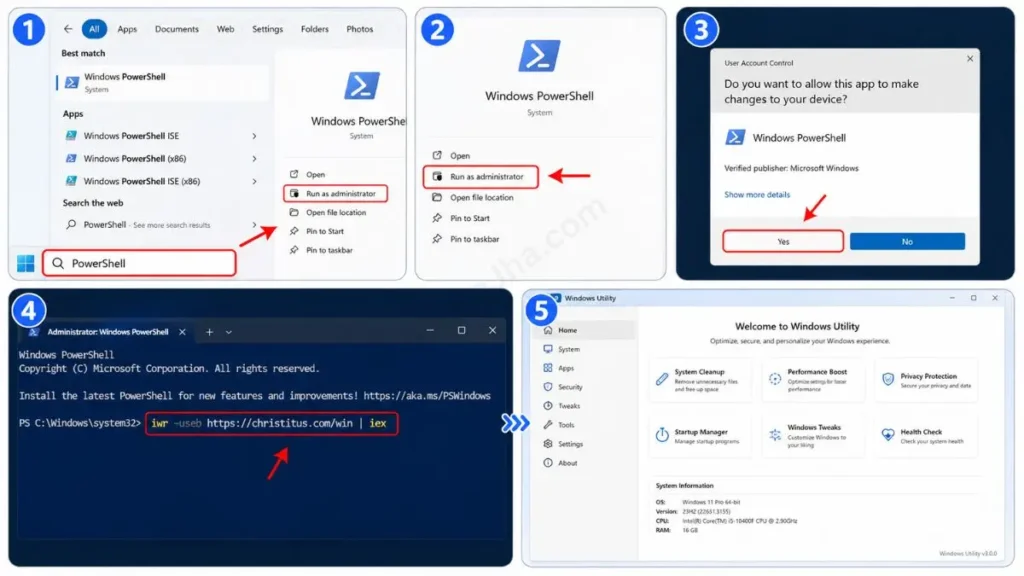
- Now, go to your Windows search bar and type “PowerShell.”
- Then, be sure to click the ‘Run as administrator’ option on the right. This is because the script won’t work at all without admin rights.
- After this, a blue screen (Terminal) will open. There, copy and paste this exact command:
iwr -useb https://christitus.com/win | iex - Then press Enter. In just a few seconds, you will see files load in the background and a new Graphical User Interface (GUI) tool called ‘Windows Utility’ will open in front of you. This is a perfect Windows 11 speed-up script that gives you click-by-click options.
PowerShell Script vs Manual Uninstall (Which is Better?)
New users often wonder why they should use a third-party tool when they can delete apps themselves. So, let’s look at the table below to understand why it’s necessary to use a script:
| Feature | PowerShell Debloat Script | Manual Uninstall (Settings) |
|---|---|---|
| Speed & Time | It cleans over 50 junk apps at once with just one click. | It takes hours to find and remove each app one by one, which wastes your time. |
| Deep Cleaning | It completely removes Registry files and hidden tracking (telemetry). | It only deletes the app on the surface, and the background process keeps running. |
| Safety | It’s open source, so if you make a mistake, there’s an undo (revert) option. | There’s no direct way to remove stubborn system apps. |
Step 2: Essential Tweaks (What to Remove and What to Keep Safe?)
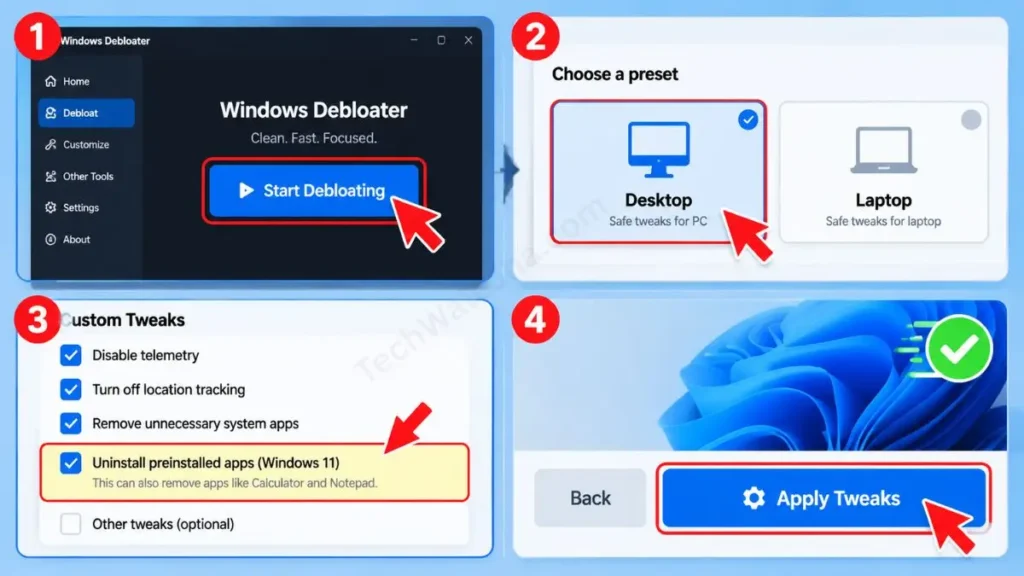
Once the utility tool opens, you need to click on the ‘Tweaks’ tab in the top menu. You will see a lot of options here, but we only need to make safe adjustments to keep the system stable. If your main goal is to optimize Windows 11 for gaming, the presets provided here will make your job much easier.
What to Set?
- Choose Presets: If you’re using a PC, click on ‘Desktop’ above, and for a laptop, click on ‘Laptop’. This will automatically tick the safe options that won’t harm your system if removed, such as disabling telemetry and turning off location tracking.
- Custom Tweaks: You can also manually choose what to remove. If you want to clear out all the junk at once, you can check the “Uninstall preinstalled apps” option, which is for Windows 11. But be aware, this can also remove things like Calculator and Notepad, which you’ll have to download again from the MS Store later.
If you’re running PowerShell scripts for the first time and want to gain a deep understanding of the system’s security and script execution policies, you should definitely read Microsoft Learn’s Official PowerShell Execution Guide. This is Microsoft’s trusted documentation that teaches developers and power users how to effectively and securely use background scripts to safely debloat Windows 11.
Frequently Asked Questions
Will debloating stop my Windows updates?
No, absolutely not! If you use the trusted Windows 11 debloater script mentioned above, like the Chris Titus Tech utility, it doesn’t block important security updates by default. Its job is only to stop background tracking and unnecessary feature updates so that your PC runs smoothly.
Will running the script delete my personal files like Photos, Videos, or Games?
Don’t worry, your personal data is 100% safe. This Windows 11 bloatware removal tool only cleans hidden unwanted system apps (bloatware) and registry junk from within the OS (C: Drive). It has no effect on any personal photos, videos, or game files stored on your D-Drive or Desktop.
What if an important app like the Microsoft Store or Calculator is accidentally deleted? How do I get it back?
The best part about this tool is that it’s reversible. If you accidentally ticked ‘Uninstall All MS Store Apps’ and your important app was removed, you can open the GUI tool again by running the same script in PowerShell. There you’ll find a direct button labeled “Undo Tweaks” or “Install MS Store” that will restore everything to its normal state.
Conclusion
Friends, whether you’re a hardcore gamer, a video editor, or just a normal PC user, freeing up your new laptop’s RAM and CPU is extremely important. I hope you’ve successfully learned how to safely debloat Windows 11 without any premium software by following this detailed and easy guide.
I have personally run this script on my new editing setups, and it doubles the system’s boot speed and completely eliminates lag. This is an ultimate Windows 11 speed-up script that truly works like magic.
After running the script, how many GB of free RAM did you get in your Task Manager? Be sure to share your experience with me in the comments section below. To easily learn more advanced Windows optimization tips and technical PC hacks, stay connected with your own TechWaleJha platform. Until then, take care and bye-bye.
Disclaimer: This guide and the PowerShell scripts it contains are for educational and system optimization purposes only. Although we’ve provided the safest, open-source scripts available on the internet, please exercise caution when making changes at the system and registry levels. The TechWaleJha platform or its author will not be held responsible for any system errors or OS instability resulting from ticking the wrong options. Always apply tweaks only after reading carefully.




