
Have you ever felt that when you weren’t in the room, someone secretly turned on your laptop or PC? If you feel the same way, once you turn on this setting you don’t need to worry at all, because these days our computer stores our entire digital life, whether it’s personal photos and chats or even confidential bank details. In such a situation, it’s completely normal to be worried about someone snooping through your files or a privacy breach. Many times, people ask in concern, “How do I know if someone logged into my PC without telling me?” In such cases, people think that maybe they will have to install expensive spy software or a hidden camera for this.
But the truth is that for such situations you don’t need any third-party app. Whether you’re a Windows user or a Mac user, your operating system already has smart built-in features that quietly record every single activity in the background, and no one but you even knows about it. As soon as someone turns on a PC, opens a file, or goes online, the system leaves a digital footprint of their activity.
In this step-by-step guide, we’ll show you an easy, practical way to quickly check if someone used your computer. We’ll track the digital clues that a regular user usually forgets to delete. So let’s awaken our inner detective and uncover the truth without any technical degree.
How to Check If Someone Used Your Computer?
If you’re in a hurry and want to quickly check whether someone has used your computer, carefully follow the steps given below:
- Windows: Open Event Viewer to check for Windows Event ID 4624 for system wake time and successful logins. Then press Win + R, and type “recent” to check for recent files in Windows 11.
- Mac: Click the Apple logo in the top left and select “Recent Items”.
The list above is a quick and direct way to view your system history. If you want to know the exact time and minute the PC was turned on, you’ll need to carefully analyze the Windows Event Viewer sign-in logs. These log files work just like a building’s security register, which records the entry of everyone who comes and goes.
Let’s see which methods we will use to gather proof next:
| Tracking Method | What is he looking for? | Who is it for? |
|---|---|---|
| System Event Logs | Exact PC power-on time and login success | Windows |
| Recent Files / Items | Recently opened photos, documents, and folders | Windows & Mac |
| Web Browser History | Websites and searches visited secretly | All Computers |
| Screen Time | How much time was spent on each app? | Mac |
There’s a whole science behind digital logs. If you want to read more in detail about the technical workings of the Event Viewer and its history, you can check it out on Wikipedia. Now let’s practically apply the first method on a Windows system and see.
Also Read: How to Lock a Folder in Windows 11
Track Windows Activity: Smart Use of Event Viewer (For Windows Users)
If you’re a Windows user, you have a very powerful built-in tool called Event Viewer. This tool records every single activity happening in the background, big or small. If you want to know the exact time and date of “how to tell if someone logged into your PC,” this tool will give you 100% accurate information.
Windows Logs and Event ID 4624 (Sign-in Events)
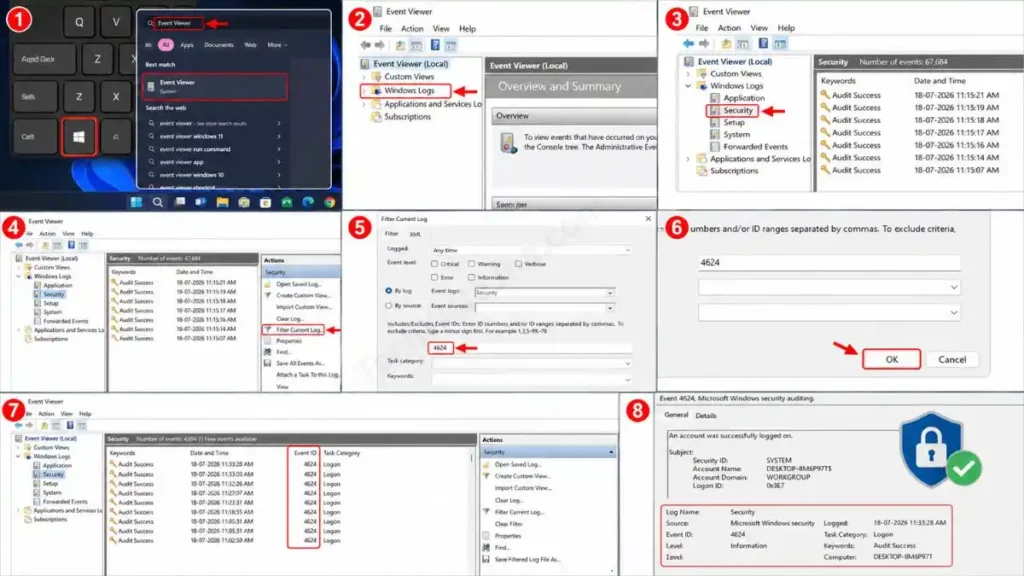
Whenever a user successfully logs in to a PC by entering their password, Windows saves an entry for it. To check this, we will use the Windows Event Viewer sign-in logs.
- Go to your keyboard and press the Windows Key, then type “Event Viewer” and open it.
- In the left-side panel, double-click on Windows Logs and then click on Security.
- Now, on the right side of the screen, click the “Filter Current Log…” option.
- A box will open; in the “” field, type 4624 and click OK.
- In technical terms, Windows Event ID 4624 means ‘Successful Logon’. Now, carefully look at the date and time in the list in the middle. If you weren’t at home at that time and it shows a successful login, then you should understand that someone has accessed your account.
How to Check System Wake Times?
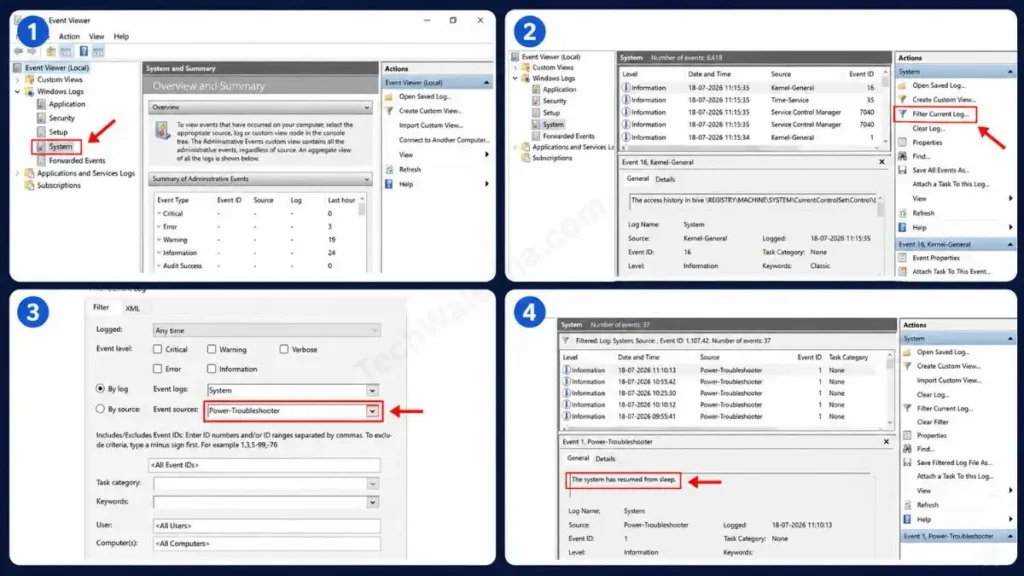
Often, snoopers will leave a PC on without entering a password to see if the screen is locked. This action will definitely wake the system. To check this again:
- In the same Event Viewer, click on System under Windows Logs.
- Then, from the right side, select Filter Current Log again.
- This time, from the ‘Event sources’ drop-down menu, select Power-Troubleshooter and click OK.
- This filter will tell you when your computer woke up from sleep mode. This is the most solid proof to check if someone physically used your computer.
Also Read: How to Reduce RAM Usage in Windows 11
Find The Proof: Check Recent Files and Browser History
The Event Viewer method above might seem a bit technical. But if you want a completely simple way to “check if someone used your computer,” Windows always keeps a record (history) of any files or websites they opened.
View Recent Files in File Explorer and via the Run Command
Windows 11 automatically creates a quick-access shortcut to recently opened files so you can easily open them again. To quickly check recent files, you can follow the Windows 11 process. Here are some shortcuts provided below:
- Shortcut 1 (Quick Check): Open File Explorer by pressing the Windows Key + E on your keyboard. On the Home screen, scroll down to see the full list of Recent files.
- Shortcut 2 (Deep Check): Press Windows Key + R to open the Run dialog box. Type “recent” and hit Enter.
As soon as you do this, a hidden folder will open containing a record of every file, photo, folder, or video opened in the past few days, along with the date and time. If there’s a file in the list that you didn’t open, then you can be sure someone has been snooping.
Checking Your Web Browser History
If someone has checked their personal email or visited a website from your PC, the easiest proof is hidden in your browser. To do this:
- Open your web browser, such as Google Chrome, Microsoft Edge, or Firefox.
- Then, press Ctrl + H on your keyboard at the same time. This will directly open your History page.
Here, verify the search dates and times. Check if any unknown websites were visited that you didn’t open. Also, if the intruder used Incognito mode or Private browsing, that history will not be shown here.
Also Read: How to Free Up Disk Space in Windows PC
For Apple Users: How to Track Activity on a Mac?
If you use an Apple MacBook or iMac and want to find out if someone accessed your laptop, macOS also has some very simple and advanced methods to extract the history.
Using Recent Items and Screen Time
Just like Windows, Mac also keeps a complete record of recently opened files and apps. Checking this is very easy:
- The easiest way is to click the Apple icon in the top-left corner of the screen.
- From the drop-down menu, hover over Recent Items.
- Here you can easily see the recently opened apps on your Mac, and you’ll also find a list of documents and servers. If there’s an app or file in this list that you didn’t use, then someone has definitely used your Mac.
- Another great built-in feature is Screen Time. From the Apple menu, go to System Settings, then select Screen Time. This feature shows exactly like a smartphone, detailing which day, what time, and for how long each app was open.
Tracing Wake Events with Finder (/var/log)
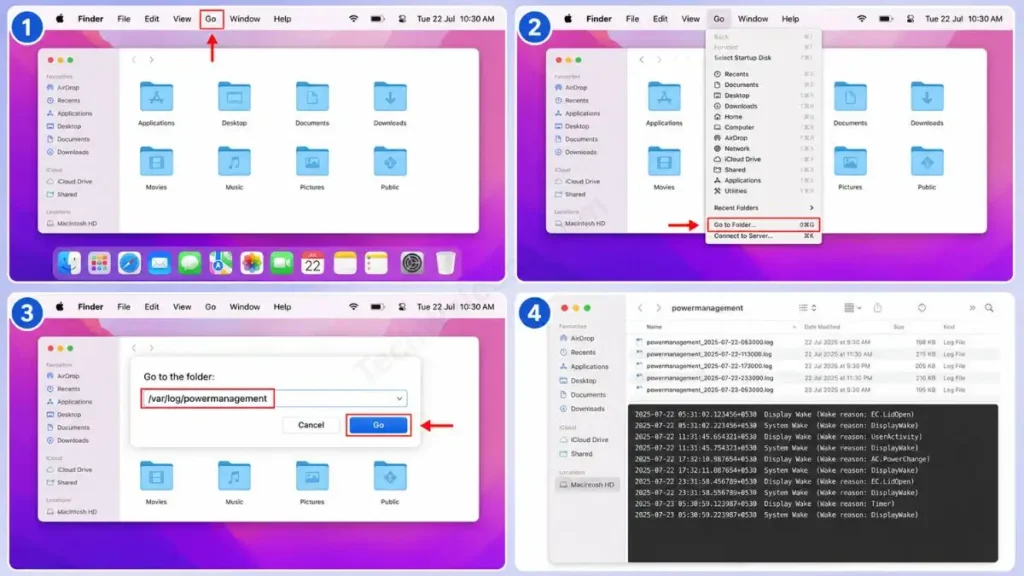
If you want to track computer usage history in more detail and know the exact time the Mac’s screen was turned on, we’ll use background logs for this:
- Open Finder on your Mac.
- In the menu bar at the top, click Go and select Go to Folder… or use the shortcut Shift + Command + G.
- In the box, type the exact location: /var/log/powermanagement and press Enter.
- Open the log files that appear here. In them, you will see Mac activity logs with wake events such as ‘Display Wake’ or ‘System Wake’ along with the date and time. This works just like the Windows Event Viewer and provides solid proof.
Also Read: How to Optimize Windows 11 for Gaming
Frequently Asked Questions
Can someone clear (delete) my Windows Event Logs?
Yes, but to clear the Windows Event Logs you need the Administrator’s password or permission. And if someone tries to be clever and clears the logs, Windows automatically creates a new log (Event ID 1102 – Audit log was cleared), which itself is proof that someone tampered with your Windows Event Viewer sign-in logs.
What if the snooper used Incognito or Private Browsing?
If the intruder used the browser’s private mode, the history will not be saved in the browser. However, files (Recent Items) and the system startup time (Event ID 4624) will still be properly recorded.
What is the best way to prevent this snooping in the future?
The best and free way is to change your habits. Whenever you get up from your seat, even for just 2 minutes, be sure to lock your PC. Instantly lock the screen by pressing Windows Key + L in Windows and Control + Command + Q in Mac.
Final Thoughts
Maintaining your digital privacy is as important these days as locking your front door. Now you know exactly how to check if someone used your computer, and without having to download any software.
Whether you caught them by checking the Recent files or took it to the pro level by tracking wake times with Event ID 4624, these system logs never lie. Always remember that technology records your history; you just need to know how to read it. Always keep a strong password on your computer, set a short autolock timer, and don’t let anyone access your system without your permission.
Have you used these methods to catch a snooper secretly running on your PC? And which trick worked best for you Event Viewer logs or the Recent Files shortcut? Be sure to share your experience in the comments below, and if you’re running into any errors while checking the logs, definitely ask us! 👇
Disclaimer: The methods described in this guide for computer tracking, log checking, and history viewing are for educational and personal security purposes only. Exercise caution when accessing system files (such as Windows Event Viewer or Mac logs). Please do not track anyone else’s system without permission. We are not liable for any actions you take, data loss, or technical issues that may arise.




