
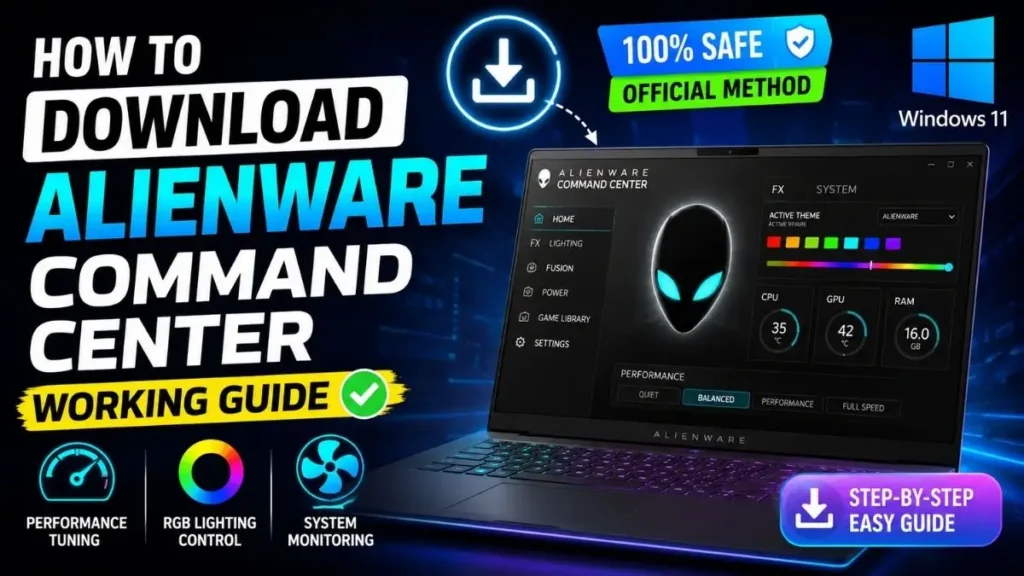
Friends, if you’re a hardcore gamer and have recently bought a premium laptop or desktop from Dell’s G-Series or Alienware, then Alienware Command Center can be a great help in properly controlling the RGB lights, keyboard lighting, and cooling fans while gaming. And if you’re actively searching online for how to safely and officially download Alienware Command Center for Windows 11, then I’ll walk you through a simple step-by-step process.
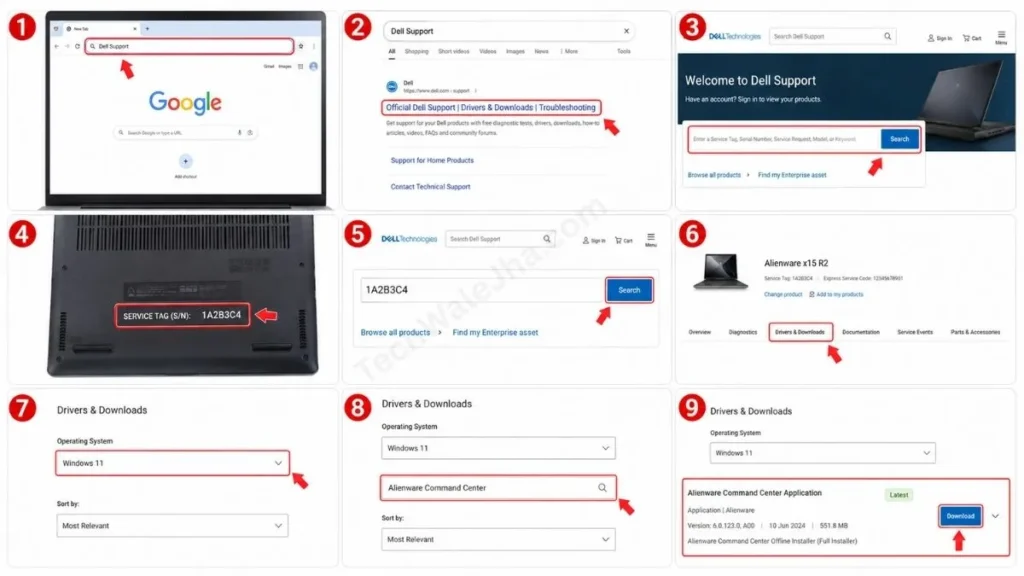
To download it, first, go to the official Dell Support website. Here, you need to enter your laptop or desktop’s Service Tag, which is usually found on the back panel or bottom of the device. After entering the Service Tag, go to the Drivers & Downloads section and select Windows 11 for your operating system. Now, search for AWCC or Alienware Command Center in the search box. Download the latest compatible version or Full Installer available and complete the installation.
This process is especially useful when you’ve factory reset your PC or done a fresh install of Windows and Alienware Command Center has disappeared from the system. In such cases, you don’t know where to get the correct, updated version, because installing the wrong one causes the keyboard lights and fans to not work properly. In today’s deep-dive guide, we’ll practically show you how to successfully install Alienware Command Center on Windows 11 without any system errors, so your gaming setup is always perfectly ready. So let’s get started without wasting any time.
Also Read: Top 10 Hidden Features in Windows 11 You Must Try Today
Why is Alienware Command Center (AWCC) Important?
Many new users commonly ask, “Will games run without this software?” Look, games will run without it, but you won’t be able to use 100% of your expensive gaming hardware’s potential. That’s because AWCC is an all-in-one control hub that turns your system from an ordinary machine into an ultimate gaming beast.
Let’s look at the main benefits of installing this software in simple terms:
- AlienFX Lighting: If you want to customize the RGB lights on your laptop keyboard, Alienware mouse, or monitor to match your mood and gameplay such as breathing effects, solid colors, or a rainbow wave, this feature is only available through this software.
- Thermal & Power Management: When playing heavy titles, your system heats up very quickly. With this software, you can instantly set the fan speed to ‘Quiet,’ ‘Performance,‘ or ‘Full Speed’ mode, which helps prevent the processor from thermal throttling.
- Auto-Tuning Profiles: This tool scans and lists all the games on your PC in one place. This allows you to automatically activate different RGB profiles and cooling modes as soon as each specific game launches.
If you’ve ever tried to grab this tool from some random third-party website, your PC probably threw up a warning or error. That’s why IT experts always recommend you take the official Alienware Command Center download process seriously. A clean AWCC Windows 11 setup from the right source saves you from having to deal with any Alienware Command Center not installing fixes later on. That’s why it’s crucial to keep this tool updated for system stability and peak gaming performance.
Also Read: How to Repair Windows 11 Using Command Prompt (Guide)
Step-by-Step: How to Download Alienware Command Center for Windows 11
Let’s get straight to the main process. If you want to properly and securely download AWCC for Windows 11, follow these easy steps below:
- First, open your browser, Chrome or Edge, go to the search bar, type ‘Dell Support’, and open their official website.
- After that, look at the bottom panel of your laptop, where you will find a 7-digit alphanumeric Service Tag, or you can also check it from the system info. Then, enter this service tag into the website’s search bar and press the Search button.
- Now, on the new page after the system model is detected, click on the ‘Drivers & Downloads’ tab.
- Here, go to the Operating System drop-down menu and carefully select ‘Windows 11’.
- Then, type “Alienware Command Center” into the search box below.
- Now you will see ‘Alienware Command Center Application’ in the list. Always choose the latest version and make sure it is the Alienware Command Center offline installer (Full Installer) so that an error won’t occur if the internet connection is lost during installation. Now click the ‘Download’ button.
This is the most secure and official Dell Alienware software download process, which even expert IT technicians follow.
AWCC Minimum System Requirements
Will your PC support the latest AWCC build? Below is a basic list of requirements for Alienware Command Center supported systems. Please read it carefully and install the appropriate version after confirming your system meets the requirements:
| Hardware & Software | Minimum Requirement |
|---|---|
| Operating System | Windows 11 (version 21H2 or newer) |
| RAM | 8 GB (16 GB is necessary for heavy gaming) |
| Storage Space | At least 1.5 GB of free space (on Local Disk C:) |
| System Compatibility | Dell G-Series (G3, G5, G15, etc.) and all Alienware models |
Also Read: 10 Cool CMD Tricks to Look Like a Hacker
Microsoft Store vs Dell Website (Where’s the Best Place to Download?)
Many new users take a shortcut and try to download AWCC directly from the Microsoft Store app. Later they ask why their cooling modes or RGB lights aren’t working. It’s because the MS Store version is a UWP (Universal Windows Platform) app, which often can’t communicate at a deep hardware level and ends up crashing.
On the other hand, when you use your Service Tag as described above, the installer is configured strictly according to your motherboard’s sensors. If you want to deeply understand how the correct drivers work for system stability, you should definitely visit Dell’s Official Drivers & Downloads Portal. This trusted page automatically scans and provides the perfect setup (Full Installer) for your specific hardware, which makes the chance of installation failure zero.
Installation Errors & Their Easy Fixes (Troubleshooting)
If you are getting an “Installation Interrupted” or a stuck loading error while installing the Alienware Command Center after completing the download process, then there is absolutely no need to panic. To fix this issue, follow these 3 quick steps:
- Delete the Old Cache: If a corrupt version of AWCC is already installed, immediately uninstall it from the Control Panel. After that, press Windows + R, type
%appdata%into the command, and permanently delete the ‘Alienware’ folder you find there. - Run as Administrator: Always right-click the Setup (.exe file) and select ‘Run as Administrator’ to get permission to overwrite system core files.
- Temporarily Pause Antivirus: Disable Windows Defender for a short time, as over-sensitive antivirus software often blocks AWCC’s background hardware services.
Also Read: How to Scan Windows PC for Corrupted Files
Frequently Asked Questions
Can I install Alienware Command Center on a normal (non-Dell) PC or a custom build?
You can’t do that because AWCC is designed (locked) to work only with the specific sensors on Dell and Alienware motherboards. If you install it on an HP, Asus, or your custom PC, the software will open with a “No supported hardware detected” error.
My AWCC is taking a long time to open and is stuck on the loading screen (spinning circle), what should I do?
This is a very common glitch in Windows 11. To fix it, press Ctrl + Shift + Esc to open the Task Manager. Then, in the Processes tab, find ‘AWCC.exe’, right-click on it, and click the ‘End Task’ option. Now, open the software again from the Start Menu by selecting ‘Run as Administrator’, and it will load immediately.
After updating, my keyboard lights aren’t turning on. How do I fix Alienware RGB customization on Windows 11?
Sometimes, an old RGB profile gets corrupted with a new update. To fix this, open the software, go to the ‘AlienFX’ tab at the top, and create a new (fresh) ‘Theme’ from there. If the lights still don’t turn on after this, be sure to download and install your latest ‘BIOS Update’ from the Dell website.
Does Alienware Command Center work on Windows 11?
Yes, it absolutely works! Dell has fully updated and optimized its Alienware Command Center (AWCC) for Windows 11. If you have a Dell G-Series or Alienware laptop or desktop with Windows 11 (version 21H2 or newer) installed, it will run smoothly. Just make sure to download the latest version from Dell’s official website by entering your ‘Service Tag’ instead of the Microsoft Store to avoid any compatibility issues later on.
Why can’t I download Alienware Command Center?
If you are unable to download or install AWCC, there could be some common technical glitches behind it, such as:
1. Microsoft Store Error: If you are downloading it from the MS Store, the download often gets pending or stuck. Therefore, always download the “Full Installer” (Offline setup) from Dell’s site.
2. Old Corrupted Cache: If your PC has a previously crashed version of AWCC, the new setup will fail. Therefore, before downloading the new software, press Windows + R, type %appdata% in Run, and delete the old ‘Alienware’ folder.
3. Antivirus Block: Sometimes Windows Defender blocks its hardware files. So, temporarily disable (pause) your antivirus while downloading and installing it.
Is there an alternative to Alienware Command Center?
To be honest, there’s no exact official replacement for AWCC on Dell or Alienware motherboards to control both fan speed and RGB together, since Dell locks down its hardware. But if AWCC isn’t working at all, you can use these popular alternatives for different tasks:
1. For RGB Lighting: SignalRGB or OpenRGB are the best free tools. These open-source software programs let you customize your keyboard and mouse lights without slowing down your system.
2. For Thermals and Fan Control: MSI Afterburner is the most trusted tool on the internet for GPU cooling, FPS monitoring, and overclocking. Similarly, you can use HWiNFO or Core Temp to check CPU temperature.
Conclusion
Friends, whether you’re playing heavy titles like Cyberpunk 2077 or customizing the look of your PC, AWCC is a very powerful and important tool. I hope you’ve smoothly learned how to officially download Alienware Command Center for Windows 11 without any glitches by following this technical guide.
Always remember, downloading such hardware-controlling apps from random third-party sites can cause system crashes, so always use Dell’s official site. What do you like most about your Alienware setup, the crazy RGB lighting or the excellent cooling system? Be sure to let us know in the comments below.
Stay tuned to your very own TechWaleJha platform to easily learn more pro-level PC software troubleshooting and gaming tips.
Disclaimer: This guide is for educational and tech-troubleshooting purposes only. Always use the official Dell website when installing Alienware Command Center or any system software. By following these steps, the TechWaleJha platform or its author will not be held responsible for any system crashes, hardware issues such as RGB or fan malfunctions, or data loss. Before performing any software update or BIOS change, be sure to back up your essential files and apply all steps at your own risk.




