Nowadays, AI tools like ChatGPT, Gemini, Claude, Grok, and Microsoft Copilot have become an essential part of our daily lives. Whether you need to write a professional blog post, fix a complex coding error, or understand a difficult scientific topic in simple language, AI is helping us everywhere. But, there’s a big problem. Have you ever noticed that sometimes AI gives very boring, generic, or long-winded answers that are not useful for your work? If your answer is yes, then.
This happens because most people only use very simple and vague instructions with AI, like “Write an article” or “Explain this to me.” They think the AI will automatically read their minds.
But just imagine if you didn’t have to keep writing long, detailed instructions over and over and could get exactly the sharp result you want with just a single shortcut keyword? That’s where the best AI prompt commands come in.
The real secret to getting the best, most precise, and professional results from your AI tool lies in these commands. When you guide the AI properly with these short commands, your AI transforms from a regular question-answering chatbot into a highly advanced personal assistant. If you also want to make your daily digital tasks faster and more accurate, then you should definitely know about these useful AI prompts for ChatGPT and other modern tools.
In this detailed guide, I will practically show you how to use AI commands and make them a permanent part of your workflow, so you can get your hours of work done in minutes without any extra effort. So, let’s get started without any further delay.
Also Check This Top 100 Gemini Video Prompt Copy Paste for Viral Reels & Shorts
What Are AI Prompt Commands?
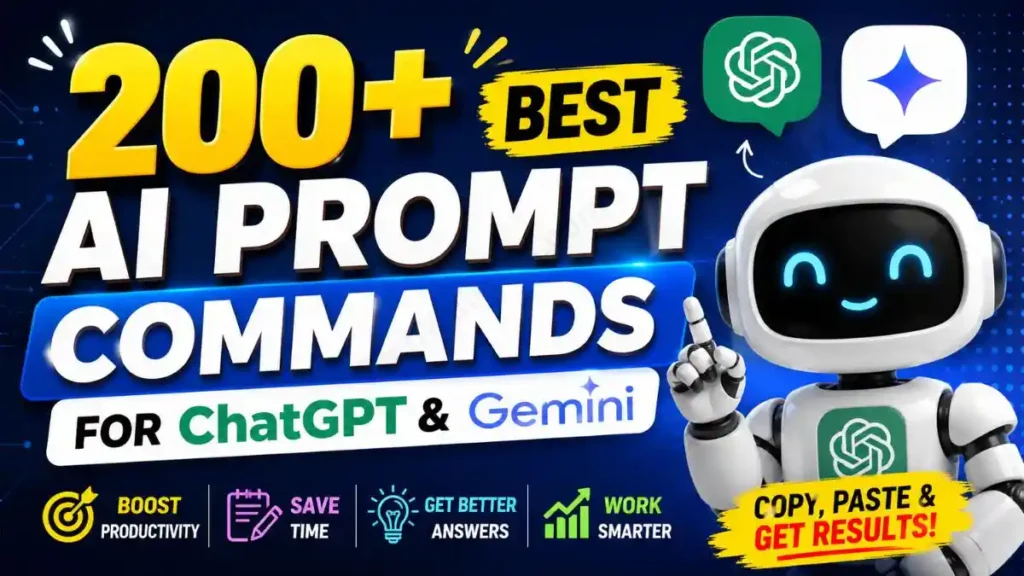
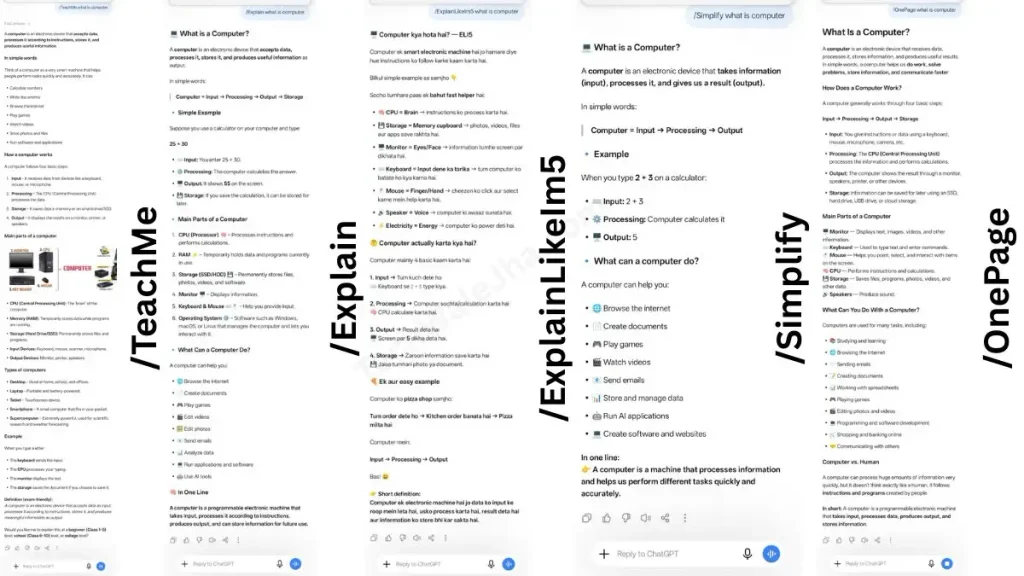
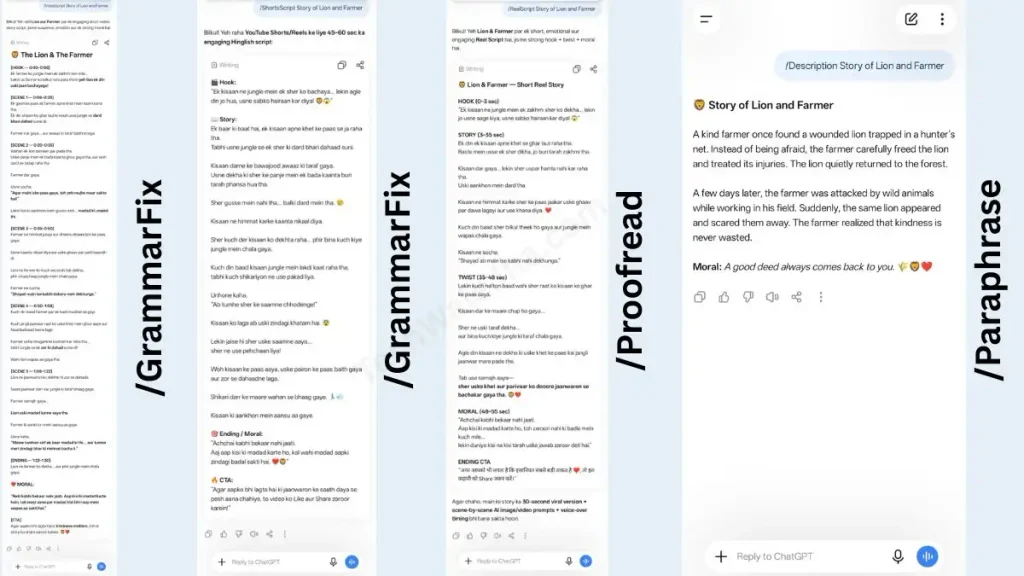
AI prompt commands are short, predefined keywords (like /TeachMe or /Summarize) that tell the AI exactly what task to perform. Instead of writing long instructions, these AI prompt shortcuts help you get faster, perfectly formatted, and accurate responses from tools like ChatGPT or Gemini.
In simple terms, you can think of these commands as ‘keyboard shortcuts’ for your AI models. When you use these ChatGPT prompt commands instead of writing a long sentence, the AI model immediately understands what format and tone you want for the output.
Let’s understand this with a daily-life example:
If you need to understand the Windows Registry in simple language for your exam, a normal user would ask the AI something like this:
“Please explain the Windows Registry in simple language with examples so I can understand it easily.”
But a smart user who knows AI prompt shortcuts will waste no time and just type:
/TeachMe Windows Registry
The biggest difference between these two methods is the time saved and the accuracy. Let’s look at a quick comparison of some other popular commands:
| Normal Prompt (Time Consuming) | Smart AI Command (Fast & Precise) | What will the output format be? |
|---|---|---|
| “Summarize this article into important points.” | /Summarize | Short, easy-to-read bullet points. |
| “Create a one-page report on this topic.” | /OnePage | Quick one-page explanation. |
| “Make quick notes for my interview.” | /Revise | To-the-point revision notes. |
Also Check This Best Baby Krishna Prompt Boys: 3D AI Photo Editing
Who Can Benefit From These AI Shortcuts?
It’s a huge myth that using AI efficiently is only for coders or tech experts. But the truth is, AI prompt shortcuts are completely universal and can be used by anyone. No matter what field you work in, these shortcuts can 10x your productivity.
If you fall into any of these categories, these commands will work like a “Superpower” for you:
- 📚 Students & Teachers: To simplify complex topics (/TeachMe), create quick revision notes before exams (/Revise), or plan assignments.
- ✍️ Content Creators & YouTubers: To write viral video scripts, generate catchy titles, or structure your ideas.
- 💻 Developers & Programmers: To find errors in code, debug long code, or understand complex logic step-by-step.
- 📈 SEO Experts & Digital Marketers: To write optimized meta descriptions for blogs, extract keywords, or generate ad copy.
- 🏢 Business Owners & Freelancers: To draft professional emails, create client proposals, or plan social media content.
- 📝 Job Seekers: To make resumes ATS-friendly, write cover letters, and practice for interviews.
In short, anyone who opens ChatGPT or Gemini on their phone or laptop should know these useful AI prompts for ChatGPT. These commands make the AI learning curve much shorter and easier for beginners.
Popular Categories: 200+ Best AI Prompt Commands (The Ultimate List)
If you really want to get the full benefit of AI commands, you need to choose the right category based on your needs. We’ve divided all these AI prompt shortcuts into different fields for you. Whether you need to write a YouTube script or fix an error, these commands fit everywhere.
Learning & Explaining
- /TeachMe
- /Explain
- /ExplainLikeIm5
- /Simplify
- /OnePage
- /Revise
- /Summarize
- /DeepDive
- /StepByStep
- /QuickGuide
- /CrashCourse
- /CheatSheet
- /Examples
- /Analogies
- /Visualize
- /QuizMe
- /TestMe
- /Flashcards
- /KeyPoints
- /CommonMistakes
Writing
- /Rewrite
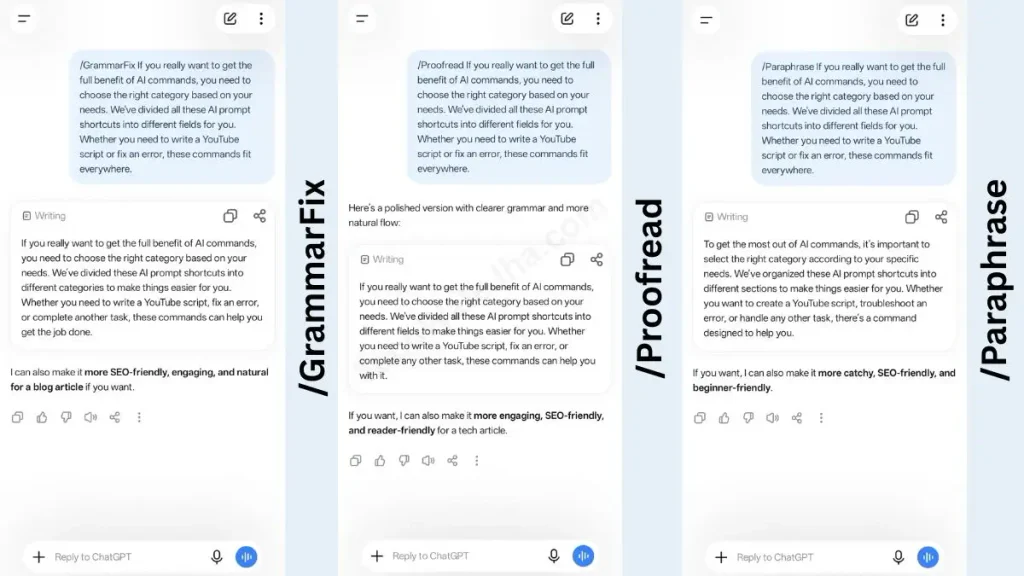
- /Paraphrase
- /Proofread
- /GrammarFix
- /Shorten
- /Expand
- /Professional
- /Friendly
- /Formal
- /Casual
- /Polish
- /MakeEngaging
- /ImproveFlow
- /Humanize
- /SEOOptimize
- /Headline
- /Hook
- /CTA
- /StoryMode
- /Script
Also Check This: How to Create a Realistic AI Bullet-Time Video Effect in 2026
YouTube & Content Creation
- /VideoScript
- /ShortsScript
- /ReelScript
- /ThumbnailText
- /TitleIdeas
- /Description
- /Tags
- /Hashtags
- /ViralHooks
- /ContentPlan
- /SeriesIdeas
- /TrendingTopics
- /RetentionHooks
- /BRollIdeas
- /VoiceOver
- /SceneByScene
- /Storyboard
- /Caption
- /CommunityPost
- /ChannelAudit
Coding
- /Debug
- /FixCode
- /OptimizeCode
- /ExplainCode
- /Refactor
- /GenerateCode
- /ConvertCode
- /AddComments
- /FindBug
- /BestPractices
- /CreateAPI
- /WriteRegex
- /SQLQuery
- /PythonScript
- /JavaScript
- /HTML
- /CSS
- /React
- /NodeJS
- /GitHelp
SEO & Marketing
- /SEO
- /KeywordResearch
- /MetaTitle
- /MetaDescription
- /BlogOutline
- /ContentCluster
- /InternalLinks
- /ExternalLinks
- /Schema
- /CompetitorAnalysis
- /AdCopy
- /FacebookPost
- /InstagramCaption
- /LinkedInPost
- /TwitterPost
- /PinterestPin
- /EmailCampaign
- /LandingPage
- /SalesCopy
- /ProductDescription
Business
- /BusinessPlan
- /SWOT
- /MarketResearch
- /CompetitorCompare
- /PricingStrategy
- /PitchDeck
- /ElevatorPitch
- /Proposal
- /Invoice
- /MeetingNotes
- /ActionItems
- /Roadmap
- /KPIs
- /OKRs
- /RiskAnalysis
- /InvestmentIdeas
- /CustomerPersona
- /BusinessModel
- /RevenueIdeas
- /GrowthPlan
Students
- /HomeworkHelp
- /Assignment
- /Notes
- /ExamPrep
- /FormulaSheet
- /MCQs
- /PracticeQuestions
- /ImportantQuestions
- /MemoryTricks
- /StudyPlan
- /TimeTable
- /ResearchPaper
- /Citation
- /Essay
- /Speech
- /Presentation
- /CaseStudy
- /ProjectIdeas
- /LabReport
- /RevisionPlan
AI Productivity
- /Brainstorm
- /IdeaGenerator
- /DecisionMaker
- /ProsCons
- /PriorityList
- /ActionPlan
- /Checklist
- /AutomationIdeas
- /PromptImprove
- /PromptGenerator
- /Roleplay
- /Simulate
- /ThinkDifferent
- /ChallengeMyIdea
- /Critique
- /SecondOpinion
- /Compare
- /Recommend
- /NextSteps
- /Workflow
Tech
- /WindowsHelp
- /LinuxHelp
- /MacHelp
- /AndroidHelp
- /iPhoneHelp
- /PCBuild
- /GadgetCompare
- /AppRecommendation
- /WebsiteIdeas
- /BrowserTips
- /CyberSecurity
- /PrivacyCheck
- /BackupGuide
- /DataRecovery
- /WiFiFix
- /BluetoothFix
- /SystemOptimize
- /ErrorFix
- /Troubleshoot
- /TechNews
Creative
- /ImagePrompt
- /LogoIdeas
- /BrandName
- /ColorPalette
- /UIIdeas
- /UXReview
- /PosterText
- /Flyer
- /Resume
- /CoverLetter
- /Bio
- /Slogan
- /Tagline
- /Poem
- /Shayari
- /Jokes
- /Story
- /Fiction
- /Character
- /Dialogue
Finance
- /BudgetPlan
- /ExpenseTracker
- /InvestmentGuide
- /StockAnalysis
- /CryptoExplain
- /TaxBasics
- /SavingsPlan
- /EMICalculator
- /LoanCompare
- /RetirementPlan
Career
- /ResumeReview
- /InterviewPrep
- /CommonQuestions
- /CareerAdvice
- /SkillRoadmap
- /LearningPath
- /PortfolioIdeas
- /JobSearch
- /SalaryNegotiation
- /NetworkingMessage
Bonus (Power Commands)
- /ActAs
- /ThinkStepByStep
- /ThinkLikeExpert
- /ELI5
- /TLDR
- /OneSentence
- /ThreeOptions
- /BestOption
- /DoAndDont
- /Templates
- /FirstDraft
- /FinalVersion
- /QuestionFirst
- /FactCheck
- /ResearchMode
- /ProsAndCons
- /ChecklistMode
- /TableFormat
- /Markdown
- /JSONOutput
Frequently Asked Questions
Do these commands only work on ChatGPT?
Absolutely not! All of these best prompts for Gemini AI, Claude, Microsoft Copilot, and Perplexity AI work just as well. AI models are based on natural language processing, so these universal keywords are understood everywhere.
Do I need to know coding to use these commands?
Not at all. While they are related to the basics of AI prompt engineering, you don’t need any technical knowledge to use them. They are simply text shortcuts.
Can I write SEO-optimized articles using these commands?
Yes, absolutely. With prompt commands for creators and SEO experts, you can automatically embed keywords, have headings created, and generate high-quality, ranking content.
Final Thoughts
The truth is, mastering AI isn’t just about asking it questions; it’s about asking the right questions in the right way. When you make these 200+ AI prompt shortcuts a part of your daily workflow, you unlock the full power of any standard AI tool.
Whether you need to write your content faster, study for exams smarter, improve your written script, or debug long code, these small keywords will take your efficiency to the next level. Once you get used to these ChatGPT prompt commands, you’ll forget about writing long sentences the old-fashioned way.
Bookmark this page in your browser so you can use these shortcuts directly whenever you work with AI. The world of AI is changing very quickly, so be smart and save your time.