
Friends, as premium and smooth as Windows 11 looks, it’s an equally resource-heavy OS on the inside. Often, you haven’t even opened any heavy game or software on your laptop, yet when you check Task Manager, the memory usage shows as 80–90% full. This lag and system hanging can really drive anyone crazy.
If you’re looking for a quick, 100% working solution online on how to reduce RAM usage in Windows 11, the most direct and easiest answer is to open the Task Manager (Ctrl+Shift+Esc) on your PC to immediately free up memory, and ‘Memory’ column, and ‘End Task’ the most memory-intensive apps. After that, go to the ‘Startup apps’ section and disable any third-party apps that silently occupy RAM in the background as soon as the PC boots up.
In this detailed guide, I will teach you how to speed up your laptop in a completely safe and natural way, without any risky third-party software like PC cleaners. Let’s practically see how to permanently solve the problem of high RAM usage in Windows 11.
Why is RAM Usage High in Windows 11? (Real Reasons)
One thing to keep in mind is that before changing any settings, it’s very important for you to understand why such an advanced OS consumes so much memory, even when idle. If you constantly have to manually clear the RAM cache on your Windows 11 system, it’s often due to common system errors and built-in features that you should carefully fix:
- Unnecessary Background Apps: Windows 11 comes with many pre-installed apps like Teams, Widgets, and Microsoft Edge that run continuously in the background. If you don’t properly follow the process of stopping background apps in Windows 11, they will keep reserving your RAM unnecessarily.
- Heavy Animations and Visual Effects: Windows 11’s new shadows, smooth transitions, and transparent menus (Mica effect) look very attractive, but they continuously use a large portion of your hardware memory (RAM).
- Memory Leaks: Sometimes, outdated drivers or poorly coded software will use RAM but fail to release that space once their job is done. This is what we technically call a memory leak. Later in this article, we will also discuss how to practically fix memory leaks in Windows 11.
Also Read: How to Make Windows 11 Faster (Top 7 Easy Tricks)
Method 1: Close Heavy Background Apps Using Task Manager
Whenever you feel that your PC has suddenly become slow or the mouse is moving sluggishly, there’s no need to panic. To do this, you should first check your system’s memory usage in the Task Manager. The Task Manager tells you exactly which app is secretly eating up your RAM or holding it in the background.
This is the most instant and effective way to free up your RAM without restarting your PC. Let’s see how to safely close these heavy apps, for this:
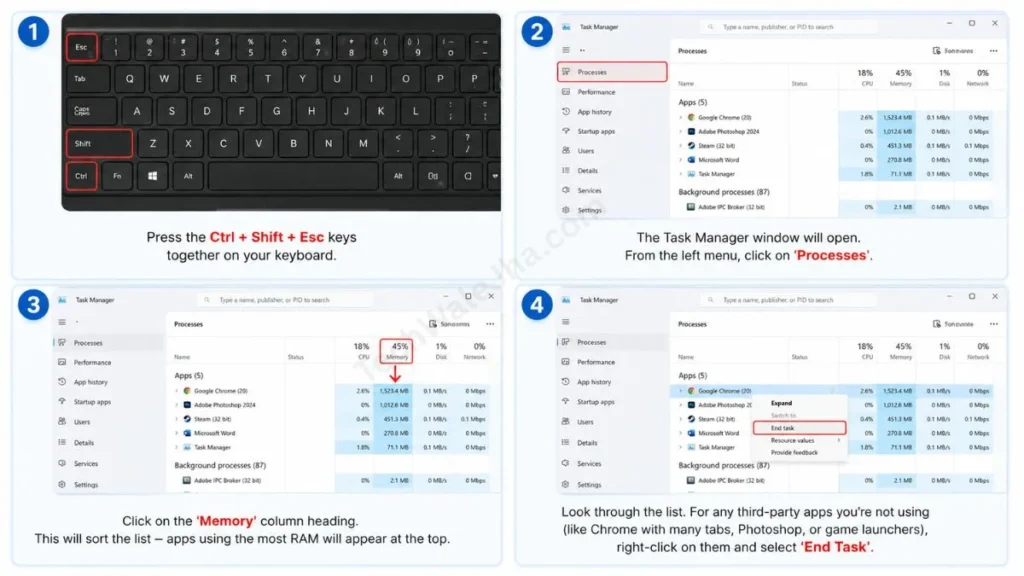
- Press the Ctrl + Shift + Esc keys on your laptop keyboard at the same time. This will open the Task Manager window on your screen.
- Then, go to the menu on the left side and click on ‘Processes’.
- Now, click on the ‘Memory’ column heading. This will sort the list, and the apps using the most RAM will appear at the very top.
- Carefully look at the list. For any third-party apps you aren’t currently using, such as Google Chrome with 20 open tabs, Photoshop, or a background game launcher, right-click on them and select ‘End Task’.
Tech Wale Jha Pro Tip: Friends, be sure to take a small precaution when using “End Task.” Never end the “System,” “Windows Explorer,” or any antivirus process, or your Windows might crash and you’ll have to restart your PC. With this simple trick, you can instantly fix the high RAM usage problem in Windows 11.
Also Read: How to Check if Your PC Supports Windows 11 (Easy Guide)
Method 2: Disable Startup Apps (Instant RAM Free)
Many people complain, “Bro, I just turned on my PC, and yet the RAM is showing 70% full. Why is that?” The biggest reason is your ‘Startup Apps’.
When you turn on your laptop, some apps like Spotify, Discord, Skype, or uTorrent automatically start along with Windows. Whether you use them or not, they keep running in the background and block your valuable RAM. Disabling these automatic apps is the very first and most important step for Windows 11 RAM optimization.
You can follow the easy steps below to disable these Startup apps and keep your RAM free for good:
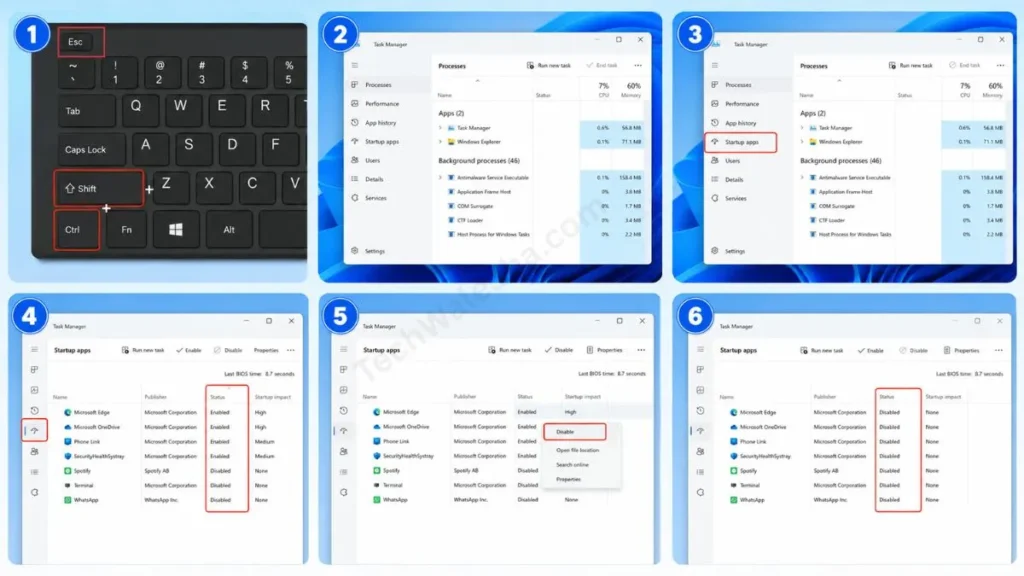
- Press Ctrl + Shift + Esc again to open your Task Manager.
- Then, in the menu on the left side, click the speedometer-like icon named Startup apps.
- Here you will see a complete list of all the apps that activate as soon as the PC boots. Then, check their ‘Status’ column.
- Right-click on any non-essential apps that are showing as ‘Enabled’ and click Disable.
This single step will also speed up your PC’s boot time and will keep 1GB to 2GB of your RAM free in the background without any effort. This will prevent your laptop from lagging while multitasking.
Also Read: How to Reset Windows 11 Without Losing Data
Method 3: How to Disable the SysMain (Superfetch) Service?
If you have applied the Task Manager tricks but your background RAM usage is still not decreasing, the biggest culprit could be the Windows ‘SysMain’ service, formerly known as Superfetch.
This service learns your PC usage patterns and preloads the apps you use daily into RAM. If you have a small amount of RAM, like 4GB or 8GB, this service can become a nightmare for you. Disabling SysMain permanently in Windows 11 can be a very solid trick.
Here are the steps to safely disable it; follow them carefully:
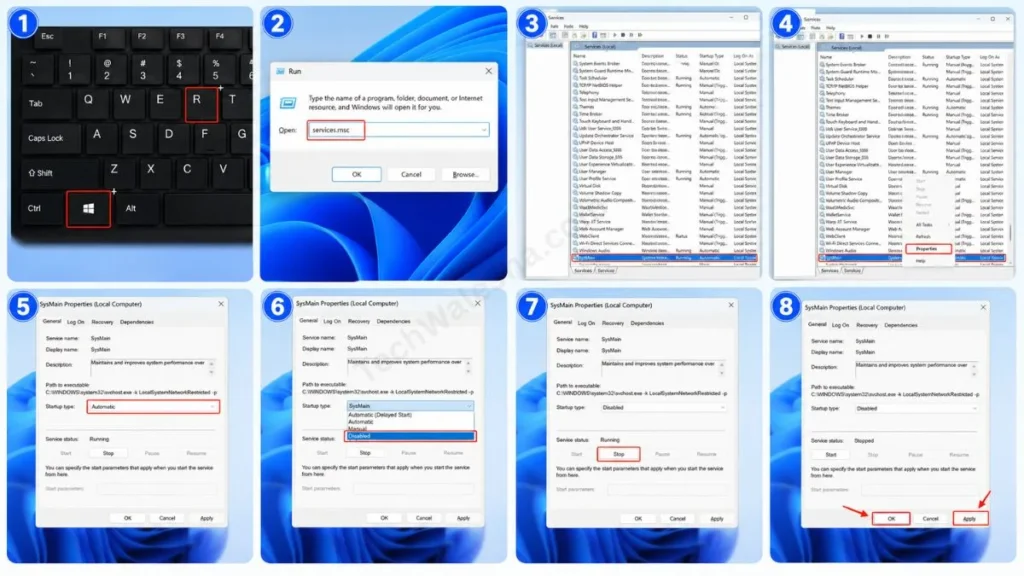
- Press the Windows Key + R on your keyboard. This will open the Run dialog box.
- Type services.msc in the box and press Enter. After that, a new Services window will open and a long list will appear before you.
- Scroll down a bit in the list and find the service named SysMain.
- Then, right-click on SysMain and select Properties.
- Next, click on the ‘Startup type’ drop-down menu and set it to Disabled.
- Right below that, click the Stop button, then press ‘Apply’ and ‘OK’.
Expert Tech Tip: If you want to learn about Windows’ built-in services in a bit more technical depth, you can go straight to Microsoft Support’s official documentation. This official guide will tell you how modifying these background services affects system performance.
Adjust Visual Effects (Bonus Tip for Low-End PCs)
If your laptop is old and you want an ultimate Windows 11 lagging fix, then turn off the fancy animations in Windows 11. To do this, run sysdm.cpl and go to the ‘Advanced’ tab. There, under Performance settings, select “Adjust for best performance.” This will remove transparency and shadows, but it will reduce the RAM load by about 500MB.
Table Comparison: 8GB vs 16GB RAM in Windows 11
Often, software tricks don’t work because you’ve already hit your hardware limits. If you’re planning whether you should upgrade your RAM, here’s a quick table that will completely clear up your doubts:
| Feature & Usage | 8GB RAM (Minimum Standard) | 16GB RAM (Ideal & Recommended) |
|---|---|---|
| Normal Office Work | It’s perfectly fine for Word, Excel, and basic browsing. | It will run very smoothly, without any lag. |
| Multitasking (Chrome) | After 5–7 Chrome tabs, the system starts to lag and freeze. | Keep over 20 tabs open at once, and your PC won’t hang at all. |
| Gaming Performance | FPS will drop in new heavy games. Not recommended. | Best choice! If you want to optimize Windows 11 for gaming, you need 16 GB for that. |
| Video Editing | 1080p video rendering will be very slow and may cause the app to crash. | 4K video editing and Adobe Premiere Pro will run smoothly. |
Also Read: How to Activate Windows 11 (With & Without Product Key)
Frequently Asked Questions
Why is my PC using 40-50% RAM even when it’s idle, is it a virus?
No, this is completely normal and it’s not a virus! Windows 11 has a habit of thinking “free RAM is wasted RAM.” It typically uses unused memory as a cache so the system can respond quickly. When you open a heavy game, Windows automatically clears that cache to free up space for the game.
Should I install “RAM Cleaner” apps to free up RAM?
Bro, don’t do that at all because in 2026, using any third-party RAM cleaner app like CCleaner or Razer Cortex is like shooting yourself in the foot. These cleaners, in their attempt to make your RAM look clean, keep using memory in the background and force-close essential Windows processes, which makes the system unstable. So always use the natural method of the Task Manager (Method 1).
What is a memory leak and how do you fix it?
A memory leak is an error that occurs when a program forgets to release the RAM it has used back to the system. The easiest fix for this is to restart your PC. Additionally, always keep your Windows and graphics drivers updated to the latest versions.
Conclusion
Friends, I’m sure that after applying these practical and easy steps, your RAM will always have some breathing room, and you’ll never have to search again for how to reduce RAM usage in Windows 11.
Disabling startup apps and stopping unnecessary background processes is the most genuine and permanent solution. If you want the best speed from your PC, stay away from third-party cleaners and make a budget to upgrade your RAM to 16GB. If you’ve seen an improvement in your laptop’s speed after applying these tricks, be sure to let us know in the comments. If you have any other feedback, feel free to share that as well.




