
Friends, imagine you’ve spent hours downloading your favorite game or editing software, and as soon as you double-click that file, an annoying pop-up appears on the screen. Then you don’t know what to do, so you get really frustrated and start aggressively searching online for “how to fix application error 0xc00007b on Windows 11.” If you want a solution to quickly fix your system, here it is:
To fix this error, first download and install the latest Visual C++ Redistributable (both x86 and x64) from Microsoft’s website. If the app still doesn’t work, run the DirectX web installer and right-click the app icon to select “Run as administrator.” Finally, restart your PC and the error will be resolved. If this still doesn’t work for you, a detailed step-by-step guide is provided below.
On our TechWaleJha platform, we make PC troubleshooting so easy that any beginner can fix their own laptop without a mechanic. If you want a perfect fix for the 0xc00007b error on Windows 11, let’s see how to fix it from the root cause.
Also Read: How to Fix Windows Update Error 0x800f081f Offline Installer
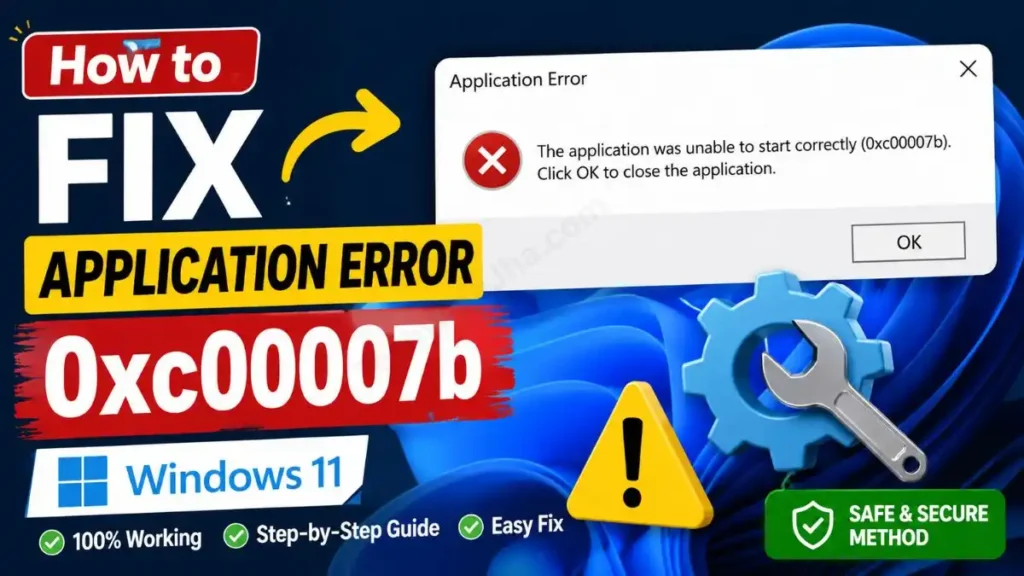
Why Does This Error 0xc00007b Occur?
In simple terms, this isn’t a physical hardware issue but a “architecture mismatch” problem with the files. When you run a 32-bit (x86) app on a newer 64-bit app on a 64-bit (x64) Windows 11 environment, and the necessary .dll files to run the app are not found in the system, the OS suddenly crashes. And then you get the warning message “the application was unable to start correctly 0xc00007b”.
In most cases, this error is caused by missing Visual C++ libraries, outdated DirectX files, or an incomplete Windows update. So don’t worry about this there’s absolutely no need to format your PC. We can easily fix this at the software level.
Also Read: How to Boost Mic Audio on Windows 11 in 3 Easy Ways
Method 1: Install Visual C++ Redistributable
The main cause of this error is missing or corrupted Visual C++ packages on your system. Since most heavy games and software rely on these packages, if you want to practically fix 0xc00007b visual c++ redistributable windows 11, you will need to manually install the fresh packages on your system.
Downloading these system files from a random third-party site on the internet can be very dangerous for your system, as it could introduce viruses or malware. Therefore, the safest and most trusted method is to go directly to Microsoft’s Official Visual C++ Download Page. This is a high-authority resource where Microsoft updates its latest, virus-free software libraries every year for PC users and developers so their apps can run smoothly without crashing.
How to install it?
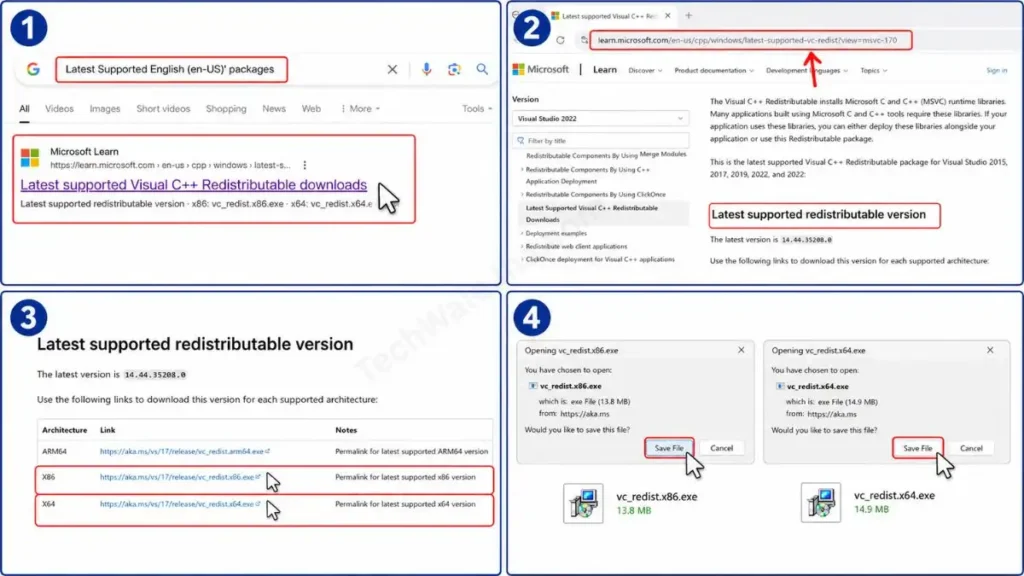
First, go to your browser and search for “Latest Supported English (en-US)’ packages,” or you can directly click on the link provided above.
You need to scroll down a bit and under “Latest supported redistributable version,” you will see the .exe file. From there, you need to download both the x86 and x64 files. But this is where new users often make a mistake. Let’s find out what that mistake is and how to avoid it.
32-bit (x86) vs 64-bit (x64) – Which One to Install?
New Windows 11 users often just download the 64-bit file thinking that’s all there is to it, but the error remains just the same. In such a situation, find out which version to download from the table below:
| Architecture Type | Download on Windows 11? | Why is it necessary? |
|---|---|---|
| x64 (64-bit) | Yes | Windows 11 is a 64-bit OS itself, so core apps will never run without it. |
| x86 (32-bit) | Yes | Most important! Even today, many famous games are built on 32-bit engines. That’s why it’s very important to install both! |
| ARM64 | No | This only applies to new laptops with Snapdragon processors, such as the Surface Pro. |
Download both files, vc_redist.x86.exe and vc_redist.x64.exe, then double-click them and install them. If they’re already installed on your PC, you’ll see a “Repair” option then click on it. After this process, be sure to restart your computer.
If the app still throws the same old error after fixing Visual C++, we’ll move on to the next step, where we’ll see how to apply the advanced trick of reinstalling DirectX for the 0xc00007b error.
Also Read: How to Fix Blue Screen Error in Windows 11 Using Command Prompt
Method 2: Update DirectX and Repair .NET Framework
If you’re specifically looking to fix application error 0xc00007b for heavy PC games like GTA 5 or Valorant, understand that your system isn’t properly reading their graphics libraries. That’s why these games require the latest DirectX environment and framework to run.
How to Update DirectX?
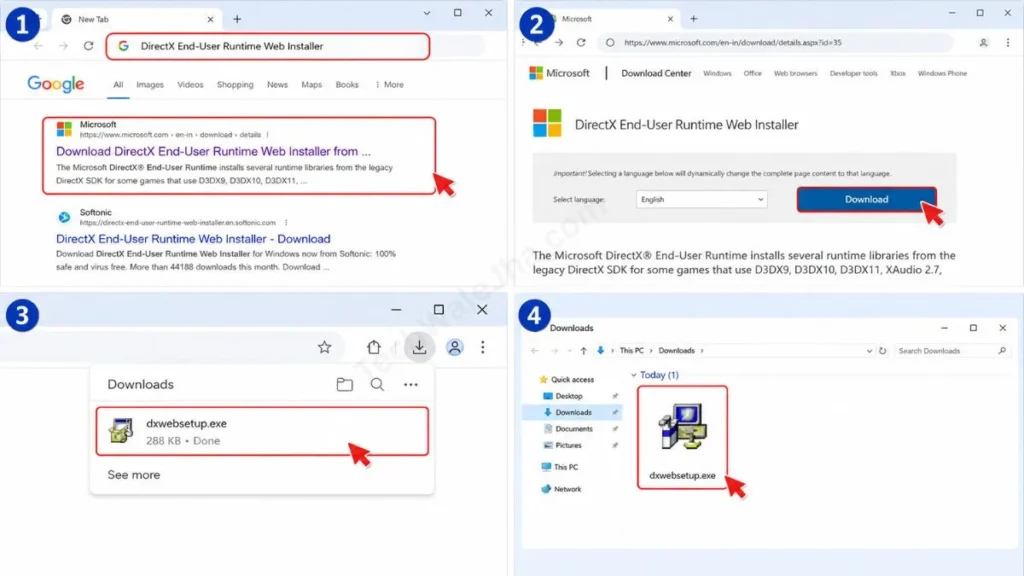
- In your browser, search for “DirectX End-User Runtime Web Installer” and click the first link to open Microsoft’s official site.
- Here you will see a download option then click on it to download, then double-click the file to run it. This smart tool will automatically scan your system and fetch and install any missing graphics files from the internet.
How to Repair the .NET Framework?
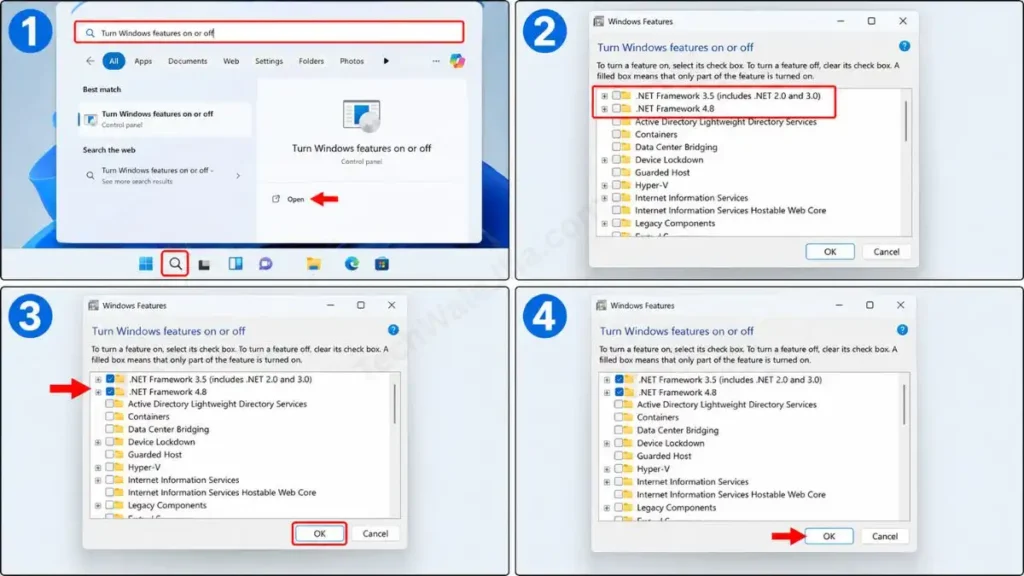
- To fix this, type ‘Turn Windows features on or off’ in your Windows 11 search bar and open it.
- Then, at the top of the list, you will see .NET Framework 3.5 (includes .NET 2.0 and 3.0) and .NET Framework 4.8.
- If they are not checked, check both of them and click ‘OK’. After this, Windows will automatically repair it by downloading the safe files from the internet and running them in the background.
Also Read: How to Find Error Codes on Windows 11 Quickly
Method 3: ‘Run as Administrator’ and the CHKDSK Command (Advanced Trick)
Sometimes a game or application doesn’t have the basic permission to access the deep system files on the C: Drive. In such cases, a quick fix is very helpful. To do this, right-click on the app’s shortcut and select ‘Run as administrator’.
But if the app is still crashing after this, it means the files on the hard drive’s sectors are severely corrupted. To get rid of them, we’ll need to use an advanced CMD tool so we can effectively repair the corrupted system files causing 0xc00007b.
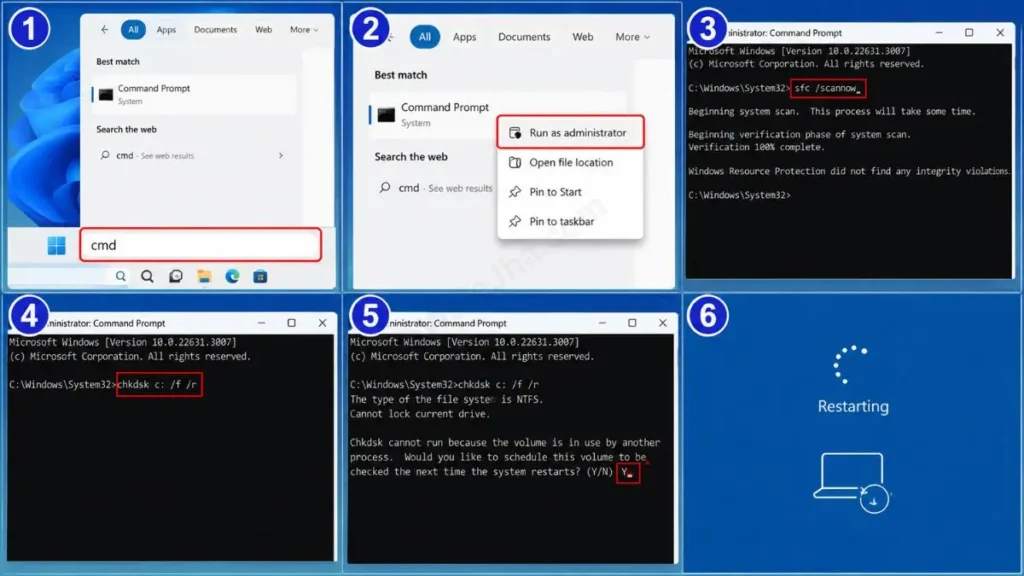
CMD Command Trick:
- To do this, go to Windows Search, type “cmd” there, and right-click on it to select “Run as administrator.”
- After this, a black screen will open. Here, type the exact command:
sfc /scannowand press Enter. After this, the verification process will scan for and automatically fix corrupt system DLLs. - Immediately after this, we will use the chkdsk command to fix 0xc00007b and repair hard disk-level errors. To do this, type:
chkdsk c: /f /rand press Enter. - After that, if it asks “Would you like to schedule this volume…”, press ‘Y’ on your keyboard to confirm and then restart your PC. A deep disk check will run during the restart, and all the corrupted files will be automatically fixed.
Also Read: How to Repair Windows 11 Using Command Prompt
Frequently Asked Questions
On YouTube, people say to manually download .dll files from the internet. Is it safe to download missing DLLs for error 0xc00007b?
Absolutely not. That’s the biggest mistake. Directly downloading files like xinput1_3.dll, msvcp140.dll, or d3dx9.dll from any third-party (random) website and copying them to your C drive can be extremely dangerous. These files can contain dangerous viruses and ransomware, and instead of fixing your PC, they can make it even worse. That’s why you should always use Microsoft’s official method—the Visual C++ installer.
Will completely uninstalling and reinstalling the game or software fix the error?
Yes, it might. If the files were corrupted for some reason during the download or installation, a fresh installation could be the best solution for the Windows 11 0xc00007b error. But before reinstalling, be sure to temporarily disable your antivirus (Windows Defender) so it doesn’t mistake the game’s essential files for a virus and delete them.
Is this error a sign that my laptop’s hardware (RAM or Hard Disk) is failing?
Not at all. It’s completely a software-level glitch caused by a system architecture mismatch (32-bit vs. 64-bit). There’s absolutely no need to worry. Your laptop’s hardware is perfectly safe and healthy.
Conclusion
Friends, there’s absolutely no need to panic when you see an error code on your screen. Windows 11 is a very modern OS, and 99% of its errors can be fixed from home with a little software troubleshooting. I’m confident that by following these 3 easy and practical methods, you have successfully learned how to fix application error 0xc00007b on Windows 11, all without having to show your expensive PC to a technician.
Installing the Visual C++ redistributable packages for both architectures (x86 and x64) is the ultimate fix for this error. Which specific method fixed this application error for you? Be sure to share your experience in the comments section below so it can help other users as well.
For more amazing advanced PC troubleshooting tips and easy-to-learn step-by-step tech hacks, stay connected with your own TechWaleJha platform. Until then, take care and bye-bye. See you in the next step-by-step guide.
Disclaimer: This guide and the CMD (Command Prompt) tricks described herein are for educational and PC troubleshooting purposes only. Exercise full caution when typing system commands and always avoid downloading random DLL files from unauthorized third-party websites. The TechWaleJha platform or its author will not be held responsible for any system failure or data loss resulting from incorrect technical steps. Therefore, always back up your important data and keep it in a safe place.




