
Friends, have you ever tried repeatedly pressing F-keys like F2 or F10 on your HP laptop when it’s turning on, only to have your PC ignore you and go straight to the Windows lock screen? These days, new laptops with NVMe SSDs boot so fast that you don’t even get a one- or two-second window to press the BIOS key. This small issue can be really frustrating, especially when you need to change a setting urgently.
If you’re scratching your head in this situation and constantly searching online for “how to enter bios in HP laptop,” then relax. Because in this post from your tech guide, TechWaleJha, I’m going to give you the exact shortcut keys and a “fail-proof” Windows trick that will get you directly to the BIOS screen, whether you’re running an old HP Pavilion or the latest HP Victus or Omen.
Without further delay, let’s see how these system settings open and what their actual function is.
Also Read: How Long Does it Take to Upgrade to Windows 11? (Time Guide)
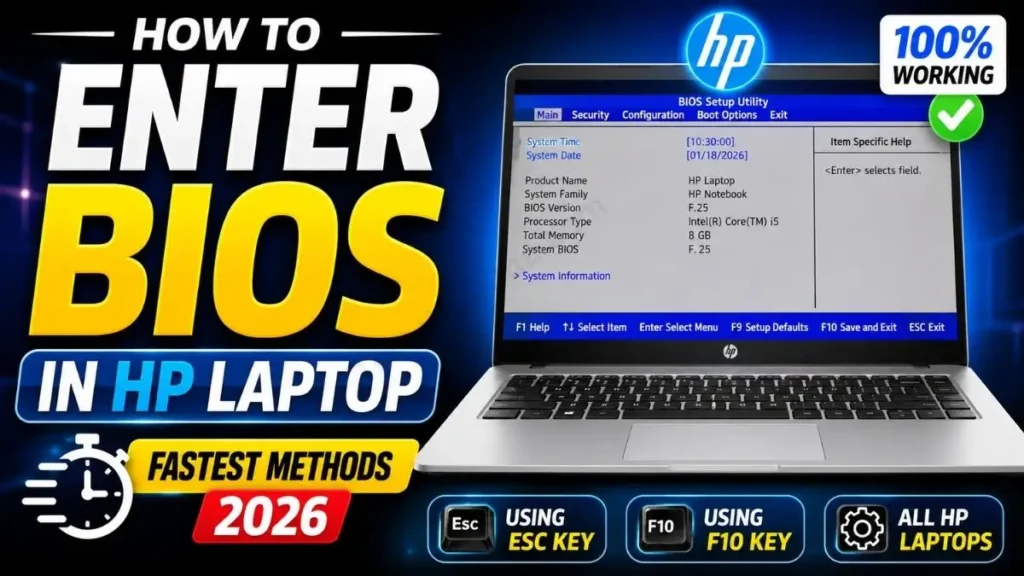
What is BIOS (UEFI) and Why Do You Need It?
Now, before we get to the straightforward method, like a smart PC user, we should understand a bit of the technical logic. The full form of BIOS is Basic Input or Output System. And in today’s modern laptops, it is also called UEFI (Unified Extensible Firmware Interface).
As Wikipedia’s official guide on BIOS explains in detail, the BIOS is the very first and main software on your motherboard. When you press the power button on a laptop, the BIOS is the first thing that wakes up and checks if your RAM, hard drive, keyboard, and battery are properly connected before Windows loads.
Generally, a normal user doesn’t need to open the BIOS, but there are some specific situations where you have to go in there whether you want to or not:
- To Change Boot Order: If you want to install a new Windows or Linux from a USB flash drive, you need to tell the BIOS to boot from the USB instead of the hard drive first.
- Enable Virtualization (VT-x): If you want to use Android emulators (like BlueStacks) or run VirtualBox, it’s very important to enable virtualization in this HP BIOS setup utility.
- Hardware Diagnostics: If there’s an issue with the laptop’s RAM or hard drive, built-in tests can be run through the BIOS.
- Advanced Overclocking: For gaming laptops like the HP Omen, the BIOS is essential for controlling fan speeds and setting XMP profiles.
Also Read: How to Fix Blue Screen Error in Windows 11 Using Command Prompt
How to Enter BIOS in HP Laptop – 2 Fastest Working Method
Alright friends, let’s now move straight to the two practical methods that will boot your laptop directly into the system settings.
Method 1: The Quick Keyboard Shortcut (Fastest Way)
If you’re searching online for “how to enter BIOS in HP laptop,” the quickest and fastest way is by using keyboard shortcuts. On HP laptops, the default BIOS key is usually F10.
If you want a quick fix for your laptop, carefully follow the steps given below, as timing is the most important part:
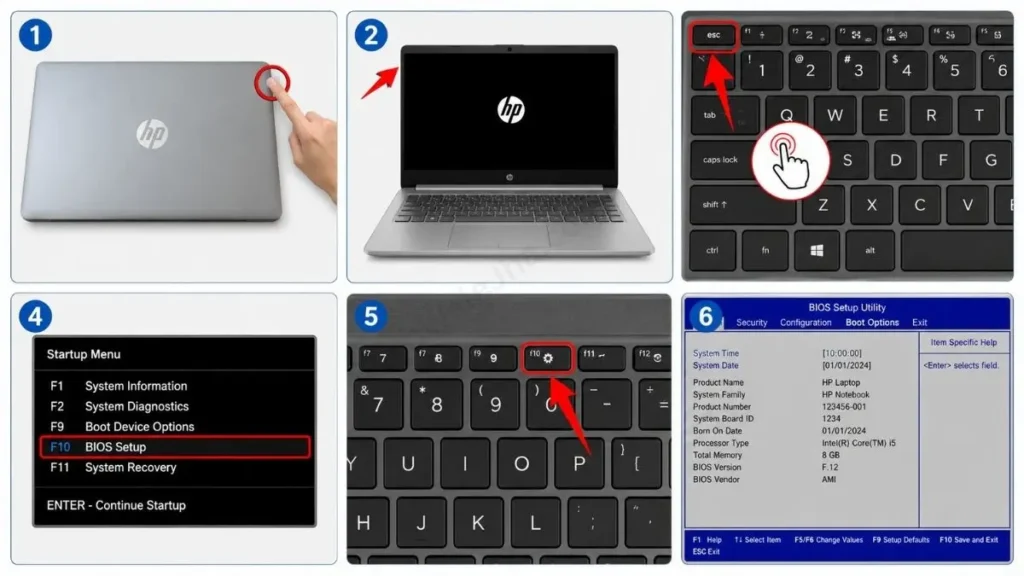
- Now completely shut down your HP laptop. Make sure to shut it down properly, not restart it.
- Press the Power button once to turn on the laptop.
- As soon as the screen lights up, start tapping the ESC (Escape) key on your keyboard every second. Do not hold it down; just keep tapping it repeatedly.
- After a moment, a black “Startup Menu” will appear on the screen.
- In this menu, you will see various options. Then, to open the BIOS, press F10 on your keyboard.
Pro Tip: On some HP models, you don’t need to press ESC. Simply pressing F10 repeatedly as soon as the laptop turns on will also open the HP BIOS Setup Utility directly.
However, if your laptop is so fast that it doesn’t register these keys and goes straight to the Windows login screen, then you will need to try Method 2.
Method 2: Enter BIOS via Windows 11/10 Settings (Fail-Proof)
In modern laptops, the Windows ‘Fast Startup’ feature is so aggressive that it bypasses keyboard signals. In such cases, the most foolproof way to enter the BIOS on a Windows 11 HP or open the BIOS on a Windows 10 HP is to use Windows’ built-in settings.
This method might seem a bit long, but it works 100% of the time:
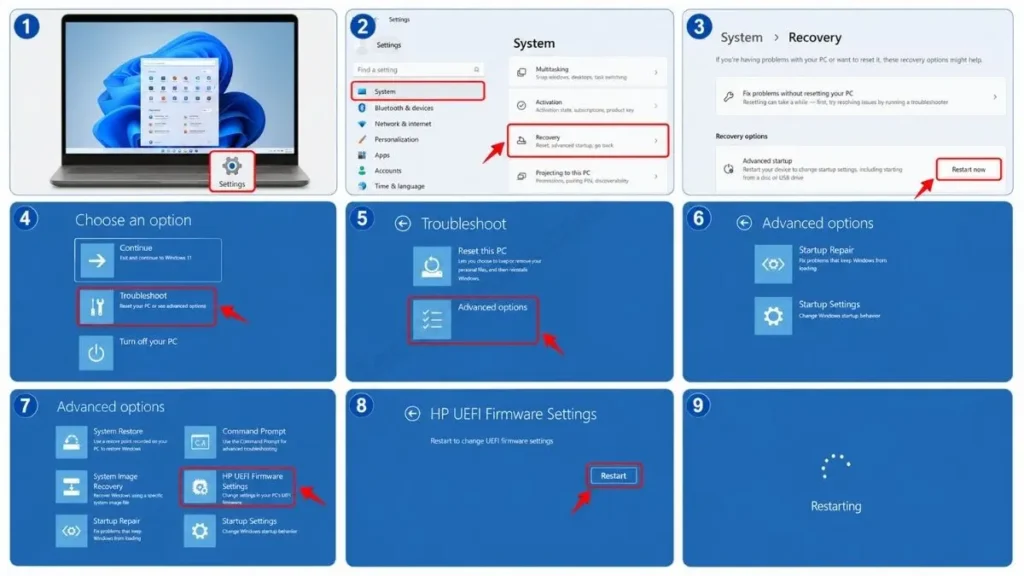
- To do this, open Windows Settings on your laptop, or you can use the Windows Key + I shortcut.
- Go to Recovery Options:
- For Windows 11 users, go to the System tab, scroll down, and click on Recovery.
- For Windows 10 users, go to Update & Security and select Recovery from the left menu.
- Now, you will see an “Advanced startup” option here. Click the Restart now button next to it. And yes, make sure to save all your important work before doing this.
- After that, the laptop will restart and a blue screen will appear. Then, click on Troubleshoot.
- Next, click on Advanced options.
- Here you will see the HP UEFI Firmware Settings option. Click on it and then press the Restart button.
As soon as your HP laptop restarts, it will boot directly into the BIOS or UEFI screen without you having to repeatedly press any F-keys. You have now successfully accessed the BIOS.
Also Read: Can’t Open Settings Windows 11 After Update? Fixed!
Important HP BIOS or Boot Keys You Must Know
If you’re working on an older model like the HP Pavilion with Access BIOS or a newer Omen laptop, this quick reference table will be very useful to you. All these HP laptop BIOS shortcut keys must be pressed as soon as you turn on the laptop, before the logo appears:
| Keyboard Key | What it Does (Function) | When to Use It? |
|---|---|---|
| ESC | Startup Menu | When you’re confused about which key to press, it opens a main menu. |
| F1 | System Information | This key is used to check the laptop’s serial number, CPU, and RAM details. |
| F2 | Hardware Diagnostics | If the hard drive, battery, or RAM seems to be faulty, you can use this key to run a test. |
| F9 | Boot Device Options | This is the most important HP boot menu key. When you install Windows from a USB drive, this key lets you select the USB directly. |
| F10 | BIOS Setup Utility | The system’s main BIOS or UEFI is used to open it. |
| F11 | System Recovery | If Windows is corrupted but you need to open HP’s built-in recovery tool, this key is essential. |
Also Read: How to Turn Off Smart App Control Windows 11 (Quick Fix)
Frequently Asked Questions
If you look at it, the BIOS is a sensitive area, so people have a lot of doubts in their minds. Here are clear answers to some of the most frequently asked questions. You can check these out once maybe you’ll find a solution to some of the problems running through your mind:
What should I do if the F10 key doesn’t work to access the BIOS?
If F10 isn’t working, there could be two main reasons for it. First, your ‘Fast Startup’ is on. You can use the method mentioned above for this. The second reason could be that “Action Keys Mode” is enabled on your laptop. In that case, F10 won’t work on its own; you’ll need to press Fn + F10 together on the keyboard.
How do I reset my HP BIOS to default settings?
If you have accidentally changed a setting and your laptop is not booting properly, there’s no need to worry. First, press the F10 key to open the BIOS, then press F9 on your keyboard for “Setup Defaults” and select “Yes.” After that, press F10 to Save and Exit. After this, everything will return to normal.
How can I do a BIOS password reset if I forgot my administrator password?
Forgetting the BIOS password is a serious issue. On older laptops, you could reset the BIOS password by removing the round ‘CMOS battery’ from the motherboard for 5 minutes. But on newer laptops, the security is so tight that you have to contact HP Customer Support with your bill. They will send you a custom SMC.bin file that unlocks the password.
Conclusion: Be Careful with BIOS Settings!
Friends, I hope that after reading this article, your search for “how to enter BIOS in HP laptop” has come to an end. Whether it’s the shortcut keys or the advanced Windows settings, you are now in complete control of your PC.
Just one small piece of advice: whenever you change anything in the BIOS, be sure to research the setting thoroughly on Google first. Changing settings without thinking can even prevent Windows from booting.
Keep upgrading your tech knowledge and stay tuned to TechWaleJha for more problem-solving guides. For video tutorials, you can also check out our YouTube Shorts and Reels.
Disclaimer: This guide is for educational and informational purposes only. Modifying BIOS/UEFI settings is an advanced process. Changing the wrong settings can cause your laptop to get stuck in a boot loop or corrupt Windows. Please do not change any settings you are not familiar with. TechWaleJha or its author will not be held responsible for any hardware or software damage. You are making these modifications at your own risk.




