
Hello friends, I’m your very own TechWaleJha! Do you also get completely confused while hunting for tiny settings on your computer? There’s a secret trick hidden in the Windows operating system that techies call “God Mode” or the Windows Master Control Panel. If you want full control over every function of your PC, this trick is going to come in really handy.
Today I’m going to give you a direct script for a Windows hidden settings folder where everything will be ready-made for you. You won’t have to go through that very long process. With just one click, your God mode will be ready on your screen. Let’s find out where to download it from and how to set it up. So, without further delay, let’s get started.
Also Check: Disable Telemetry Windows 11 Script (Fast & Safe Fix)
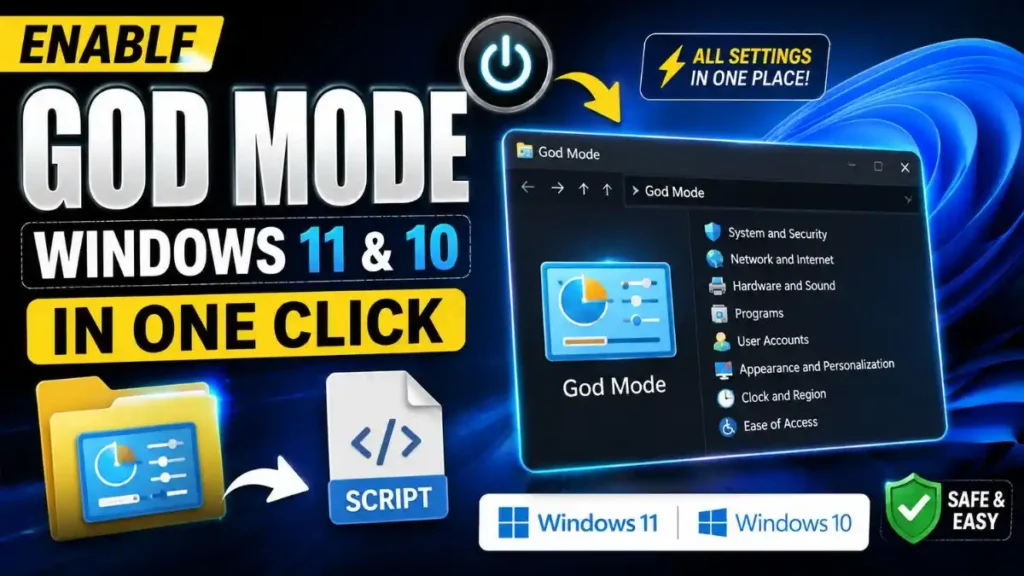
Why You Should Enable God Mode Windows 11
A major problem has arisen after the new Windows updates. Microsoft has left half the settings in the old ‘Control Panel’ and shifted the other half to the new ‘Settings App’. In this situation, people waste a lot of time searching for a specific item. That’s why you should definitely enable God Mode Windows 11. Here are some of its benefits:
| Feature | Normal Windows Use | God Mode (Master Folder) |
|---|---|---|
| Settings Navigation | You have to search through different apps. | Everything in a single scrollable list. |
| Time Saving | A lot of time is wasted. | The tool opens in one second. |
| Admin Control | Limited options are available. | Easily unlock Windows advanced settings |
| User Experience | Confusing and frustrating | Professional and tech-expert feel |
Inside this folder, you’ll find over 200+ settings like Network, User Accounts, Disk Partition, and Power Options all in one place. Once you enable it, you won’t need to keep using the Windows search bar again an again.
Also Check: Fix Windows Update Errors in 1 Click | Reset Script
How to Enable God Mode in Windows 11 and 10 (1-Click Method)
You will find many articles on the internet where you are asked to copy a long code and create a new folder. But friends, on new laptops where OneDrive desktop backup is enabled, the manual code doesn’t work and then it gives an error.
So, to make your job extremely easy, we have created a special God Mode shortcut creator script. It works 100% correctly even on new systems with OneDrive enabled.
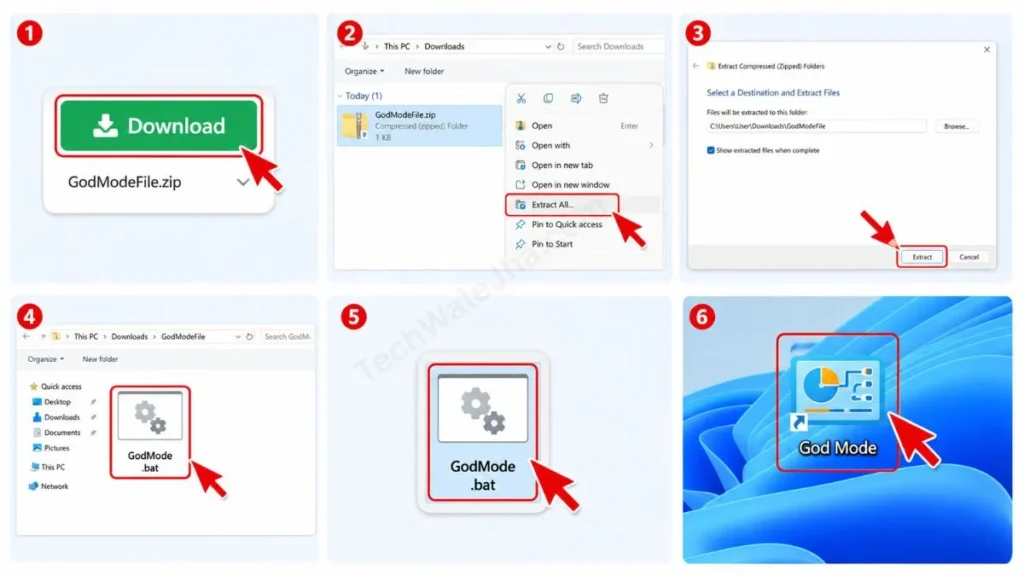
Step 1: Download the God Mode Shortcut Creator
You don’t need to get tangled up in any complex coding.
- First, click the download button below.
- And download our small, virus-free GodModeFile.zip file to your PC.
Step 2: Extract and Run the Script
After the download is complete, just follow these simple steps:
- Right-click on your downloaded ZIP file. From the menu, select “Extract All” or “Unzip” to extract the actual file.
- Open the extracted folder. There you will find a script to run. Then, just double-click on that script.
- As soon as you double-click, a Windows 10 or 11 God Mode shortcut folder will automatically be created on your Desktop within a second.
That's it! Now open this new folder and explore all the settings in a list format. If you want, you can rename this new folder on your Desktop from ‘God Mode’ to ‘My Settings’ or anything else; it's up to you.
Also Check: Best Free Windows 11 Debloat Script Batch File
Is the hidden Settings folder in Windows safe?
Friends, whenever we download a script from the internet and run it on our system, it's natural to worry, “What if my computer gets a virus or my OS gets corrupted?” I assure you that the God Mode shortcut creator I'm providing is completely safe, secure, and virus-free.
This script does not make any internal changes to your system's registry or core OS files. It practically just creates an advanced folder shortcut that lists the pre-existing, built-in Windows tools in one place. So you can create this Windows hidden settings folder on your PC without any worries.
If you want to dive into the technical details of the Control Panel, you can read Wikipedia's Control Panel guide to see how Windows manages its tools internally.
Important Disclaimer for Advanced Settings
Although creating a God Mode folder and exploring its features is 100% safe, you will find very powerful admin tools inside it. Therefore, be sure to keep a few things in mind:
- Don't Tweak Unknown Options: If you don't have proper knowledge about a setting like Disk Partition, Network Adapters, or Registry tweaks, then don't touch it at all.
- System Restore Point: It's always a smart practice to create a Restore Point before changing any major system settings.
- Use Responsibly: This trick practically gives you the superpower to unlock Windows advanced settings. And as we all know, “With great power comes great responsibility!”
Also Check: Best Windows 11 Debloater Script for Max Speed (2026)
Final Words From Tech Wale Jha
I'm sure that with the help of this simple trick and script, you have successfully enabled God Mode for Windows 11 or Windows 10. Now, the hassle of repeatedly switching between the Control Panel and the new Settings app is gone for good.
If you liked this trick and it made your work easier in minutes, then be sure to let me know in the comments below which setting you found most useful in this folder!
I'm your friend, TechWaleJha. Stay tuned for more tech tips, short guides, and scripts. Stay safe, stay secure, and keep controlling your PC like a pro.
Disclaimer: Friends, I have personally tested all the Batch (.bat) scripts provided in this article, and they are completely safe. However, since everyone's PC configuration is different, please use them at your own risk. Before running any system-level script, be sure to back up your important data. TechWaleJha, its author, or this website will not be held responsible for any unexpected data loss, system errors, or PC crashes. Please run the script exactly as per the steps provided and avoid making any unintended changes to the code.




