
When you’re working on an urgent report, or watching your favorite movie, and the PC screen suddenly freezes… it’s natural to get angry. And if you’re frustrated and searching the internet for “why does my laptop keep hanging,” you can use these methods.
If you want to know the 5 fastest solutions to stop your laptop from hanging, here they are:
- 1. Use Task Manager (Ctrl+Shift+Esc) to ‘End task’ on background apps that are using up RAM.
- 2. Clean Temp files and junk from the C-Drive (System Storage).
- 3. Clean the laptop’s vents to prevent overheating (thermal throttling).
- 4. Update Windows and graphics drivers to the latest version.
- 5. Replace your old, slow Hard Disk Drive (HDD) with a super-fast SSD.
On our TechWaleJha platform, we always strive to give you a super-easy solution to your laptop hanging problem. If you go to a service center for this, they’ll charge you a hefty fee for the same work. So let’s fix this laptop slow and freezing problem from the root today, without paying a mechanic a dime.
Also Read: Windows 11 Running Slow? 5 Tricks to Make PC a Rocket
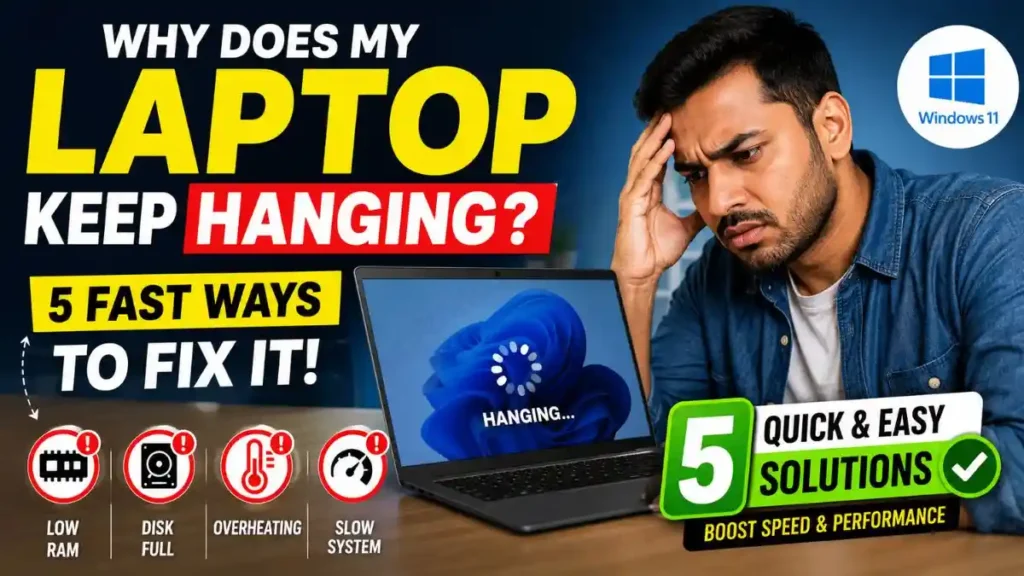
Why Does a Laptop Keep Hanging? (The Real Cause)
Before treating a problem, it’s very important to know its root cause. After all, why do these expensive laptops suddenly freeze? In fact, when users keep asking, “why does my laptop keep hanging,” there are three main technical reasons behind it:
- RAM Becoming Fully Occupied: When you open 10-15 tabs in the Chrome browser, MS Word, and Spotify all at once, the laptop’s “brain” (RAM) becomes completely full. This prevents the system from processing more data, causing the screen to freeze.
- Using an Old Hard Disk (HDD): If your laptop is 3-4 years old and has an old-generation HDD, Windows takes a long time to read or write files, causing apps to open only after a long delay.
- Overheating (Heat and Dust): Laptops are very compact and have limited airflow. When dust gets trapped in the fan, the processor automatically halves its speed—a process called thermal throttling—to prevent it from overheating.
If you’re doing in-depth research on how to permanently stop your laptop from hanging, the practical steps below can give your system a new lease on life.
Also Read: Top 10 Hidden Features in Windows 11 You Must Try Today
Fix 1: Use Task Manager to Close Unnecessary Background Apps
You’ve probably noticed that your laptop tends to hang most when opening apps. As soon as you click on a new program, the cursor starts spinning. The main reason for this is useless software running in the background, like Skype, Cortana, or a third-party antivirus, that’s consuming all your memory without your permission. Forcing these apps to close and clearing your RAM is the first and most effective fix.
How to Fix This? (Step-by-Step):
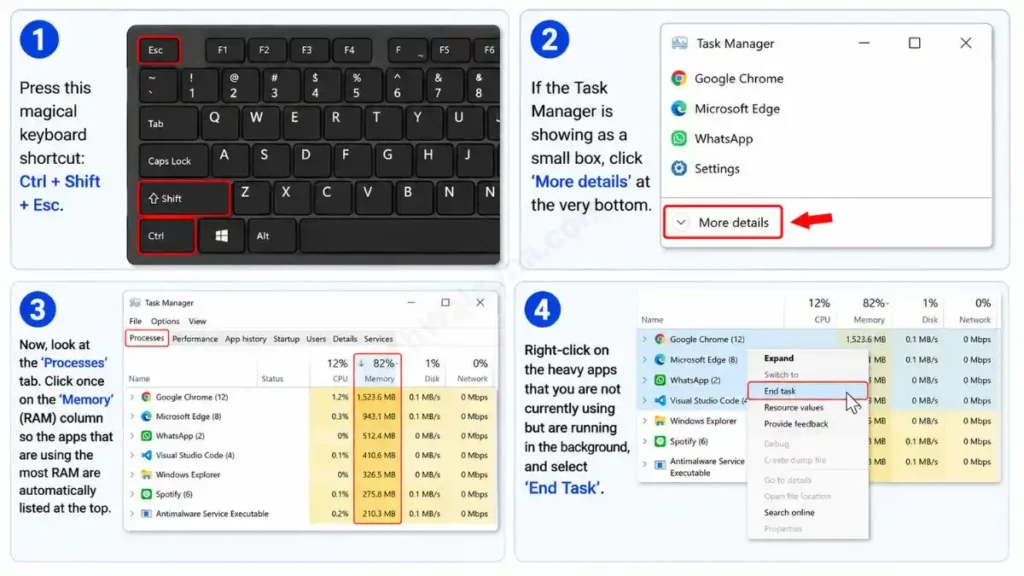
- First, press this magical keyboard shortcut: Ctrl + Shift + Esc. This will open your Task Manager.
- If the Task Manager is showing as a small box, click ‘More details’ at the very bottom.
- Now, look at the ‘Processes’ tab. Click once on the ‘Memory’ (RAM) column so the apps that are using the most RAM are automatically listed at the top.
- Right-click on the heavy apps that you are not currently using but are running in the background, and select ‘End Task’.
As soon as you do this, your laptop will suddenly feel incredibly light and start breathing freely. If you’ve been looking for the best fix for laptop freezing in Windows 11 on your PC, you’ll notice a night-and-day difference in your PC’s speed right from the very first step.
Also Read: How to Download Windows 11 25H2 Update Right Now
Fix 2: Immediately Clear the C-Drive (Storage)
Friends, just imagine if your room were completely filled with stuff, could you move around in it properly? Absolutely not! The exact same thing happens with our laptop’s C-Drive, where Windows is installed. If your C-Drive is completely full, the OS (Operating System) doesn’t have any space to ‘breathe’ and save temporary files (virtual memory). In such cases, when people ask, “why does my laptop keep hanging?”, the most basic reason is that its storage is full.
To clean it, you don’t need to download any third-party cleaning app from the internet, because Windows’s built-in tool is the best software for cleaning your laptop.
How to Fix This? (Temp Files Delete Trick):
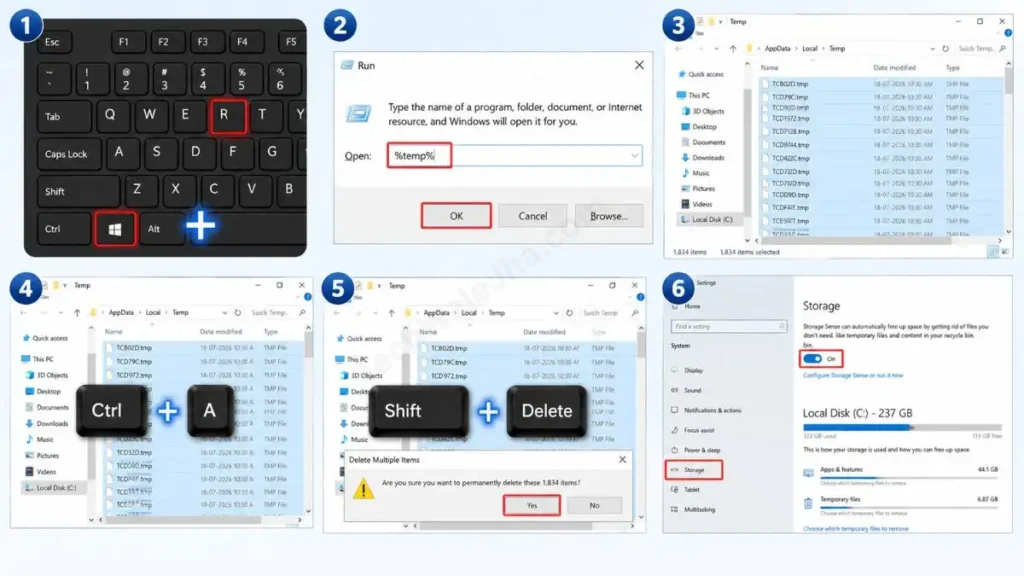
- Now, press the Windows + R keys on your keyboard at the same time.
- Then, in the ‘Run’ box, type %temp% and press Enter.
- Now a folder will open with thousands of temporary files. Then, press Ctrl + A on your keyboard to select all of them, and press Shift + Delete to permanently delete them. If any files cannot be deleted, you can ‘Skip’ them.
- Additionally, go to Settings, then tap on System, and then go to Storage to turn on ‘Storage Sense’. This will automatically keep your C-Drive clean in the background, and you won’t have to search for a fix for high disk usage again.
Software Lag vs. Hardware Lag (How to Tell the Difference?)
Sometimes we keep looking for software errors when the problem is actually with the hardware. Use the simple table below to diagnose for yourself what’s really causing your laptop to lag:
| Symptoms | Types of Problems | What is its exact solution? |
|---|---|---|
| The app opens 10 seconds after clicking. | Software Lag | Disable background apps, free up the C: drive, or reset the PC. |
| The screen suddenly freezes as soon as Chrome opens. | RAM / Software Issue | Use the Task Manager to kill unnecessary processes, clear the RAM, and apply it to your Windows laptop. |
| The laptop’s fan is making a very loud noise and the bottom is hot. | Hardware Lag (Overheating) | Place my laptop on the table. Have the fan’s dust cleaned. |
Also Read: How to Repair Windows 11 Using Command Prompt
Fix 3 & 4: Prevent Laptop Overheating and Check for Updates
Do you use your laptop on a bed or pillow? If so, know that you’re unknowingly choking your expensive PC. Laptops have small vents on the bottom where cool air enters. Placing it on a bed blocks these vents. and then the System when it gets very hot (overheats), the processor deliberately halves its speed so that it doesn’t burn out. This is called ‘Thermal Throttling’ and this is the biggest solution to the laptop hanging problem. Always use the laptop on a flat, hard surface like a wooden table.
Always Check for Updates:
On the other hand, your laptop’s hardware and the Windows software communicate with each other through ‘Drivers’. If Windows 11 is outdated or the graphics driver is outdated, there is a language mismatch between the two, which causes the laptop to lag.
To do this, just press Windows + I to open Settings and click on “Windows Update” to check for updates. If you want to learn the practical, technical details of what Microsoft engineers recommend, you should definitely read Microsoft Support’s Official PC Performance Guide. It explains how to keep hardware, drivers, and the OS in perfect sync.
Fix 5: The Ultimate Solution – Switch from HDD to SSD
Friends, if you’ve tried all the software tricks mentioned above and are still repeatedly asking, “Why does my laptop keep hanging?”, then understand that the problem isn’t with Windows, but with your physical hardware. If your laptop is 3 to 5 years old, it probably has an old mechanical Hard Disk Drive (HDD) with a small spinning disk inside. Today’s heavy, modern software like Windows 11 and Chrome runs very slowly on this old disk.
The single most powerful and permanent solution to the laptop hanging problem is to remove your HDD and install a new SSD (Solid State Drive). An SSD has no moving parts; it works directly with advanced flash memory. A small SSD upgrade for an old laptop can turn your 5-year-old, groaning PC into a 10-times faster rocket. After this hardware upgrade, you won’t have to wait even a second for apps to open.
Also Read: 10 Cool CMD Tricks to Look Like a Hacker
Frequently Asked Questions
Does deleting Temp files solve the hanging problem?
Yes, absolutely. If your C: drive is more than 90% full, deleting Temp files is the quickest and most effective way to stop your laptop from hanging. This cleanup gives the Windows OS free space to process background tasks.
My PC is new, yet it still hangs. Which is the best cleaning app?
Most third-party cleaner apps on the market run in the background and automatically consume your RAM. That’s why the best software to clean your laptop is actually Windows’ own built-in “Storage Sense” and “Disk Cleanup” tools. There’s absolutely no need to install any other useless software.
Will 8GB of RAM be enough in 2026, or do I need 16GB?
If you’re only using a PC for Chrome browsing, MS Office, and watching movies, 8 GB of RAM is perfectly fine. But if you’re doing video editing or have 4–5 heavy apps open at once, 16 GB of RAM has become essential these days, otherwise the laptop will keep slowing down and freezing.
Conclusion
Friends, a laptop that keeps hanging can ruin anyone’s mood, but that doesn’t mean you need to fill out a form and buy a new one. I’m confident that the 5 practical steps mentioned in this guide will put an end to your “why does my laptop keep hanging” question for good.
Whether it’s closing background apps, installing new updates, or upgrading to an SSD, all these tricks directly impact your PC’s overall speed. Besides, everyone nowadays likes to visually see and understand these PC optimization tips and hardware upgrades in the form of Facebook Reels or short vertical videos. That’s why I always try to explain every technical solution in a very practical and simple language in the article and video script.
Which app, like Chrome or Word, takes the most lag on your laptop when you open it? Be sure to let us know in the comments below. And for more amazing step-by-step tech guides like this, stay connected with your own TechWaleJha.com platform and be sure to bookmark it.
Disclaimer: This guide and the PC troubleshooting tricks mentioned in it are for educational purposes only. When cleaning the Task Manager and Storage, be careful not to accidentally delete any important system files. Always have any hardware upgrades (like installing an SSD) done by an authorized service center or an expert technician. TechWaleJha.com and its author will not be held responsible for any data loss or hardware damage.




