
Hello friends, I’m your very own TechWaleJha! and welcome to this detailed guide. Sometimes we need to change a game’s save data, an app’s cache, or a system setting, but those files don’t show up in File Explorer. This happens because Windows hides certain files by default for safety reasons.
If you’re also wondering how to show hidden files in Windows 11, then there’s absolutely no need to worry. Microsoft has kept the process quite simple. Just press the Windows Key + E on your keyboard to open File Explorer. After that, click on View at the top, then hover your mouse over Show and click on Hidden items. That’s it, as soon as you do this, the hidden files and folders will start to appear.
However, keep one more thing in mind: do not delete or modify without understanding the files that Windows has hidden for system safety.
Also Check: How to Turn Off Mouse Acceleration Windows 11 (Fast Fix)
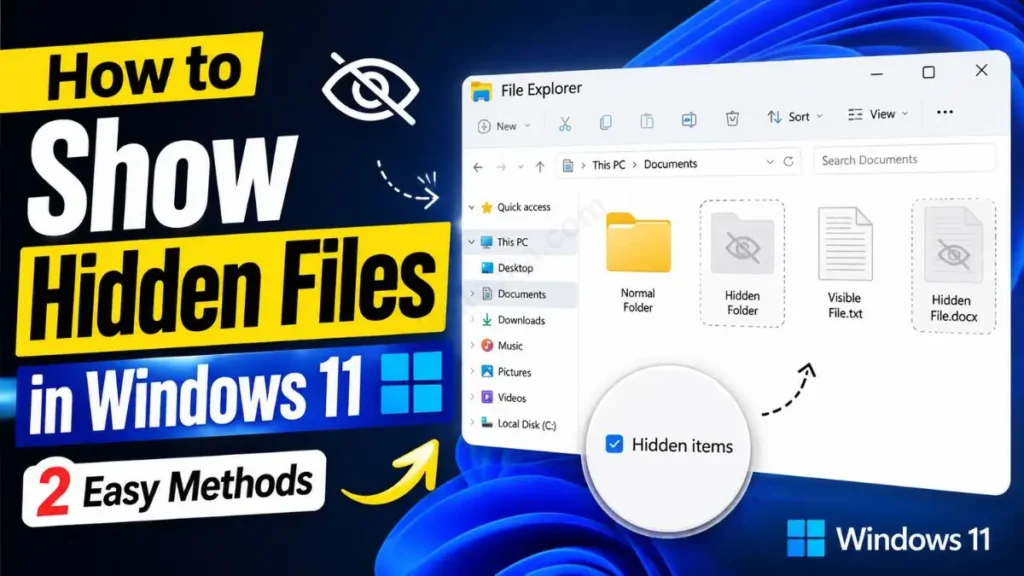
Step-by-Step Quick Toggle Guide
The new File Explorer interface is very clean. Using it to unhide files is just a 2-click process:
- First, press the Windows Key + E on your keyboard at the same time. This shortcut will open your File Explorer.
- Now, look at the very top of the screen there you will see the View option. Click on it.
- A drop-down menu will open. Then, move your mouse over the Show option.
- Here, you will find the ‘Hidden items’ option at the very bottom. Just click on it to check the box.
As soon as you click it, all the hidden files and folders on your system will appear as lightly transparent (faded) icons. This is the best and fastest way to show hidden files in Windows 11.
Also Check: How to Fix Can’t Remove Bluetooth Device Windows 11
Advanced Folder Options: View Hidden Folders Windows 11
If you’re like me and a veteran Windows 7 or Windows 10 user, you might not be used to the new UI. Or maybe you need to unhide some deeply hidden files that don’t show up with the normal quick toggle. For tech-savvy users like that, “Advanced Folder Options” always works best.
If you want to know the technical background of how this feature hides OS files, you can read Wikipedia’s Hidden File Guide. Let’s see how to open this advanced menu in the new OS.
Using the “See More” (Three Dots) Menu
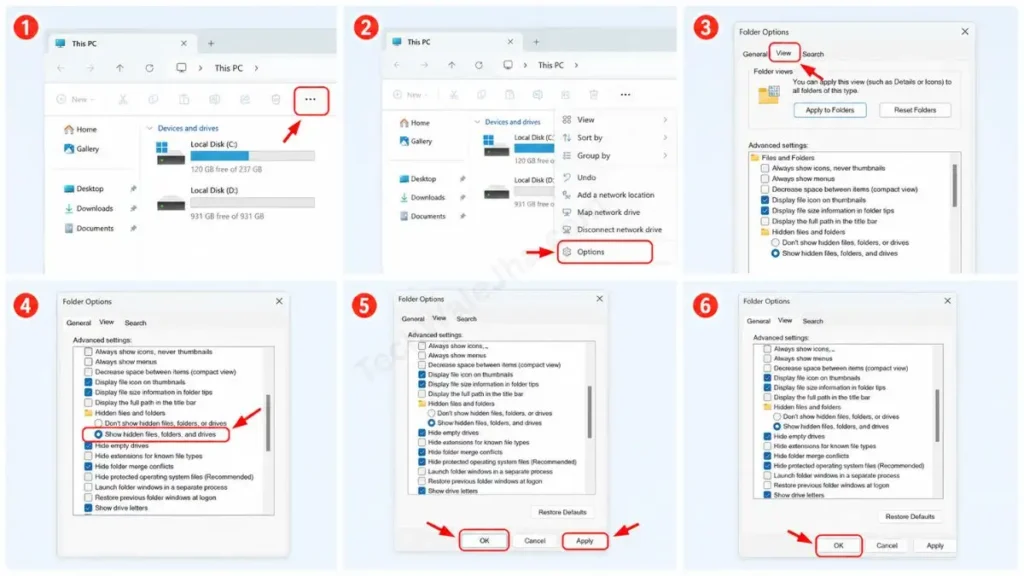
This traditional method of unhiding folders in Windows 11 is very detail-oriented. To do this, follow the steps given below:
- Now, open your File Explorer.
- Then, on the top menu bar, you will see the Three Dots (…) icon, also known as the ‘See more’ icon. Click on it.
- Then, in the menu, click on Options at the very bottom. This will open the classic ‘Folder Options’ box.
- Now, click on the View tab.
- Then, in the ‘Advanced settings’ list, scroll down a bit and click (select) the circle for ‘Show hidden files, folders, and drives’.
- After that, click Apply and then OK.
Quick Toggle vs Advanced Method:
| Feature | Quick Toggle Method | Advanced Folder Options |
|---|---|---|
| Speed | It takes 2 seconds | It’s a bit of a long process. |
| Use Case | For normal files and folders | For accessing deep system files |
| File Extensions | It has to be turned on separately. | Everything is controlled from a single menu. |
Both methods are perfect in their own right, and you can easily view hidden folders Windows 11 using either one.
Also Check: How to Fix Laptop Battery Draining While Shut Down in Windows 11
How to See Protected System Files in Windows 11
There’s a big technical difference between normal hidden files and “Protected Operating System files.” Windows hides its core files (like system boot logs or pagefile.sys) even from the normal “Hidden items” toggle so that no user accidentally deletes them and corrupts the OS. But if you’re working on advanced system troubleshooting, you may need to access these super-hidden files.
Unhide Critical OS Files Safely
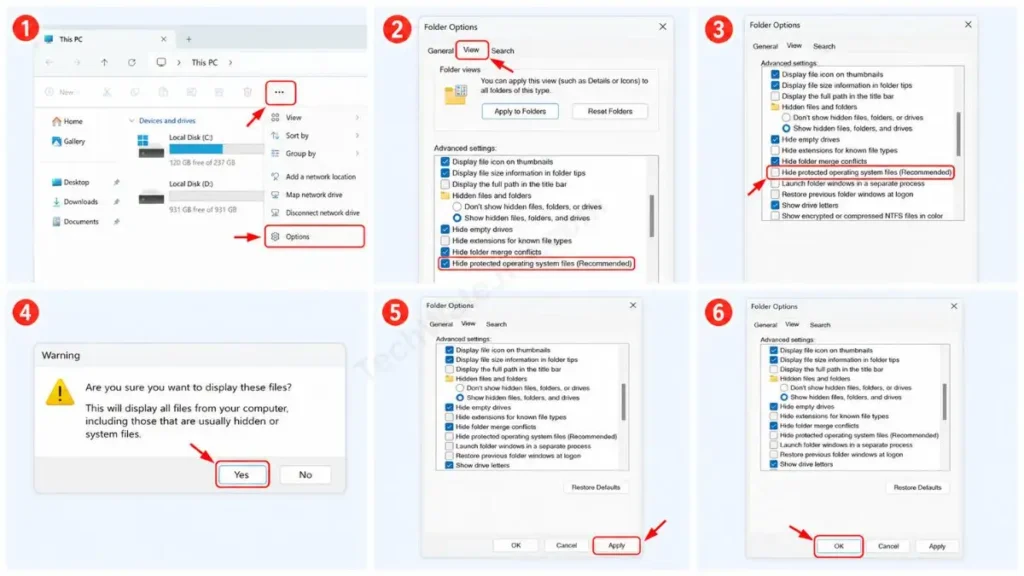
If you want to see these deeply hidden system files, you will have to go through a warning prompt. To do that, carefully follow the steps given below:
- Open the ‘Advanced Folder Options’ menu mentioned above, then tap the three dots to go to Options.
- Then, click the View tab.
- Then, scroll down a bit in the list. There you will see “Hide protected operating system files (Recommended)”.
- Click the box to untick (uncheck) it.
- As soon as you untick it, a warning pop-up will appear on the screen asking, “Are you sure you want to display these files?”. Accept it and click Yes.
- Then, finally, click Apply and OK.
Important Warning: After viewing these files, when your troubleshooting is complete, be sure to turn it back ON (hide) for security. Deleting or renaming any unknown OS file could prevent your computer from booting!
Also Check: How to Enable Ultimate Performance Power Plan in Windows 11
Frequently Asked Questions (FAQs)
How do I manually hide one of my personal folders?
To hide any folder, right-click on it and go to ‘Properties’. There, in the ‘Attributes’ section, check the box for ‘Hidden’ and click OK. This will make your folder disappear immediately.
Is the option to show file extensions in File Explorer also found here?
Yes, you’ll find it right there. Just like you ticked ‘Hidden items’ (View > Show), right above that, you’ll see the option for File name extensions. Ticking it will make the format, like .jpg, .pdf, .mp4, or any other, appear next to each file.
Yes, often, shortcut malware or USB viruses hide your real data and create fake shortcuts in its place. In such cases, you can use these methods to see your hidden data again.
Conclusion
Friends, I hope this guide has helped you understand step-by-step how to show hidden files in Windows 11. Microsoft has made this process much smoother and faster with new updates and the modern File Explorer UI, especially by using the Quick Toggle method.
If you need help with any other Windows settings or have a tech question about your laptop, be sure to let me know in the comments below, and I will do my best to help you.
Disclaimer: This information is provided for educational and troubleshooting purposes only. Unhiding and tampering with Windows’ “Protected operating system files” can be risky. Deleting or modifying any unknown system file can corrupt your OS. TechWaleJha and its author are not responsible for any data loss or system failure. Please always make changes to system files at your own risk and with caution.




