
Think about it… you use your laptop at home, at the office, sometimes you connect at a café, and sometimes on friends’ Wi-Fi. Over time, so many Wi-Fi networks get saved in Windows that at some point you can’t even remember which password goes with which network. Has this ever happened to you?
And then one day a friend or family member says, “Bro, tell me the Wi-Fi password!” Then you start thinking, “The password is saved on the laptop… but how do I find it?”
Then the cycle of going through Windows Settings or the Control Panel begins. You manually check each network, then go into the settings, and reveal the password… and if you have multiple saved Wi-Fi networks, this process can be quite long and frustrating. You’ve probably faced this situation yourself at some point.
But now imagine if you could find a quick and automated way to see all your saved Wi-Fi passwords at once in Windows 11? How would you feel?
To solve this very problem, we’re going to show you a fantastic trick that lets you identify the passwords for all your saved Wi-Fi networks on your PC in seconds, without having to manually check each one.
And the most interesting part is that this method for view saved WiFi passwords Windows 11 is simple, automated, and thoroughly tested, allowing you to easily access your saved network information right on your own PC.
Also Check: Enable God Mode Windows 11 & 10 in One Click Folder Script
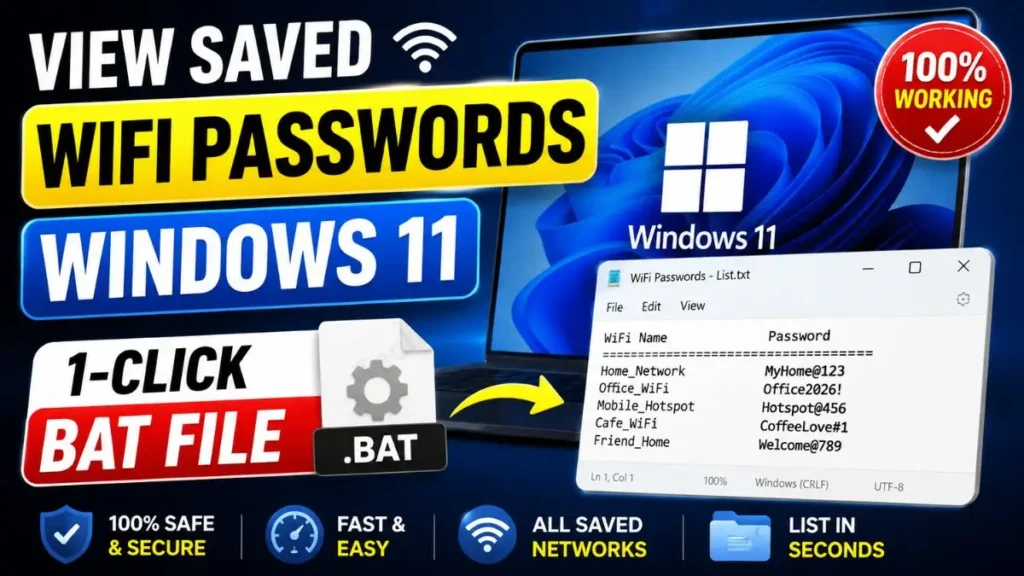
Why use a script to extract all WiFi passwords?
You might be wondering why I would need this script? You absolutely will! Because in tech work, what could be better than getting something done with a single click instead of doing everything manually? It saves you time and effort. Here are some major benefits of using this Extract All WiFi Passwords Script:
Save Time and Avoid Complex Settings
If you want to see the password for a Wi-Fi network, you normally have to go through a lot of settings in Windows. And the problem with this method is that it often only shows the password for the network you’re currently connected to.
But our CMD WiFi Password Viewer tool makes this task very easy. Just double-click the tool, and you can see the passwords for all the saved Wi-Fi networks on your PC in one place.
If you also want to understand how Wi-Fi and wireless networks technically work, you can read more about Wi-Fi networking on Wikipedia here.
Create an Offline Backup (TXT File)
The best thing about this script is that it saves all your passwords in a text (.txt) file on your desktop. You can back up this file forever to any secure folder or to Google Drive.
Manual Settings vs. 1-Click Script Comparison:
| Feature | Manual Windows Method | TechWaleJha BAT Script |
|---|---|---|
| Speed | It takes 2 to 5 minutes | It only takes one second |
| Passwords Shown | Only active (connected) Wi-Fi | All Wi-Fi in the system history |
| Effort Required | You have to click a lot of times | One-click (Double-click) |
| Offline Backup | You have to copy and paste | An automatic TXT file is created |
Also Check: Disable Telemetry Windows 11 Script (Fast & Safe Fix)
Step-by-Step: CMD WiFi Password Viewer One Click
This tool is very easy to use. If you don’t want to keep opening the Command Prompt and typing long commands, this one-click method will be really useful for you. Let’s see how to use it step by step.
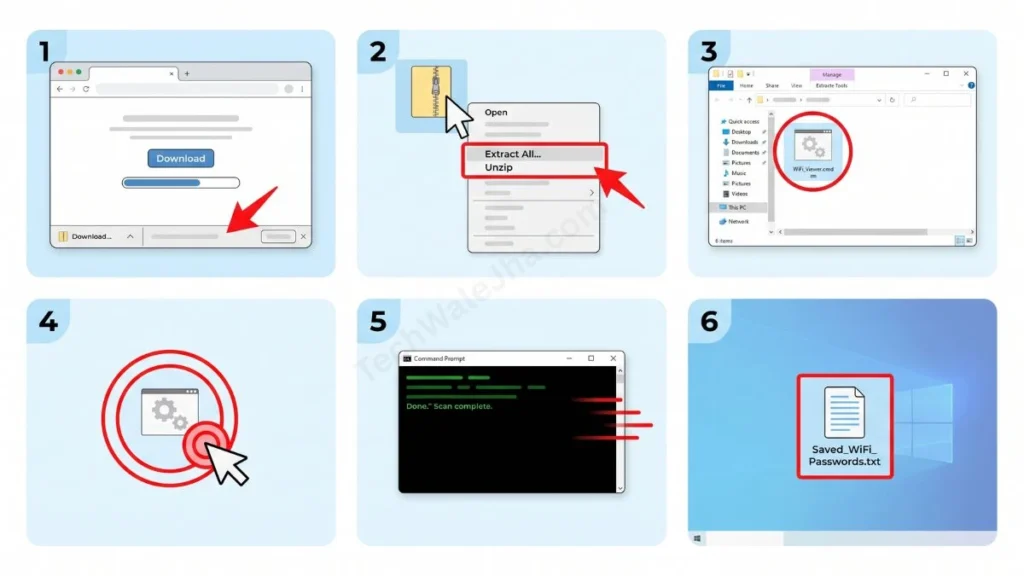
Step 1: Download and Extract the ZIP
- First, download our special TechWaleJha script file from the download link below.
- After the file downloads, right-click on it and select “Extract All” or “Unzip” to extract it. This will extract the actual script.
Step 2: Run the Script
- Inside the extracted folder, you will find a small .bat (Batch) file. This is our main cmd WiFi password viewer one-click tool.
- Then, just double-click this file. If for some reason you get a permission error, right-click on the file and be sure to select ‘Run as administrator’. This will make the file run smoothly.
- A black CMD screen will appear, scan your system in the background, and will automatically close within 2 seconds or prompt you to press any key to continue.
Step 3: Read Your Saved Passwords
- Now, just open your computer's Desktop.
- There you will see a new Notepad file named “Saved_WiFi_Passwords.txt”.
- As soon as you open this file, you will see your PC's entire Wi-Fi history in a list. Now you can easily view saved WiFi passwords Windows 11 and also share them with your friends.
Also Check: Best Free Windows 11 Debloat Script Batch File
Is This WiFi Password Viewer Script Safe?
When downloading any .bat or script file from the Internet, it's very important to run a safety check. But you don't need to worry at all, because the script we've provided is clean, safe, and virus-free. It won't make any unwanted changes to your system files.
Not a Hacking Tool
Many times, people think that such scripts are for hacking an unknown or neighbor's Wi-Fi. But I want to make one thing clear: this is not a hacking tool that will hack someone else's password for you if it's not saved on your PC.
This extract all WiFi passwords script only displays the passwords for networks you have legitimately connected to on your laptop in the past. Its sole purpose is to safely recover your forgotten personal passwords. Always use it for your own personal use and recovery.
Also Check: Fix Windows Update Errors in 1 Click | Reset Script
Final Words From TechWaleJha
I hope you have successfully recovered all your forgotten Wi-Fi passwords with the help of this simple and powerful script. Now you won't have to waste your time in the long settings to give your password to anyone.
If this 1-click trick was helpful, be sure to share this article with your friends. And let us know in the comments below how many Wi-Fi networks are saved on your PC.
Disclaimer: Friends, I have personally tested all the Batch (.bat) scripts provided in this article, and they are completely safe. However, since everyone's PC configuration is different, please use them at your own risk. Before running any system-level script, be sure to back up your important data. TechWaleJha, its author, or this website will not be held responsible for any unexpected data loss, system errors, or PC crashes. Please run the script exactly as per the steps provided and avoid making any unintended changes to the code.




