
Disclaimer: This is a sponsored article in partnership with Lazesoft. However, this Lazesoft Recovery Suite review and the step-by-step tutorials are based on our actual hands-on testing and personal experience.
You don’t always need an expensive technician to fix Windows boot issues. If your PC keeps showing the Blue Screen of Death (BSOD) or boot failures, a free rescue toolkit can help you repair your OS, recover Windows data for free, and even instantly reset passwords.
We’ve all, at some point in our lives, faced that panic-inducing moment. You wake up in the morning, turn on your PC, and instead of your familiar desktop, a Blue Screen of Death (BSOD) or a “Boot Failure” message suddenly appears on the screen. At times like that, you don’t know what to do, right?
It gets even worse when you accidentally permanently delete a very important folder, or get locked out of your own computer because you forgot your local password. So in a situation like this, you don’t need to worry at all. In this detailed, step-by-step guide, I’m going to tell you about a software that will solve all these problems in a flash. So, let’s get to know about this software without any further delay.
Why You Need an All-in-One Rescue Toolkit
Often, when these problems occur, people either call an expensive computer technician to fix them, get tangled up in complex command lines and end up corrupting their data, or waste their precious time on YouTube, but still don’t find a solution. But friends, what if you had a ‘digital first-aid kit’ that could solve all these emergencies completely free? Sounds good, right?
Today in this guide, Tech Wale Jha is going to talk about just such a life-saving utility. If you want to aggressively fix Windows boot issues, you should always keep the toolkit mentioned below ready on a USB drive.
What is Lazesoft Recovery Suite Home Edition?
Lazesoft Recovery Suite Home Edition is a powerful, free system utility software designed for non-commercial use. This free software greatly helps home users completely fix Windows boot issues, perform free Windows data recovery, reset forgotten passwords, and clone hard drives, all without the need for a paid license key.
To put it simply, Lazesoft Recovery Suite Home Edition is an all-in-one rescue and repair software. There are many tools on the market that seem free at first, but when it’s time for the actual recovery, they hide the best features behind a heavy paywall.
But that’s not the case with Lazesoft, because its Home Edition is specifically designed for personal and non-commercial use, where you can use premium-level features completely free of any hidden charges. In this Lazesoft Recovery Suite review, we will explore its core functions in depth.
Key Free Features Included in Home Edition
Let’s see what this little software can do for you:
- Windows Recovery: If your PC is stuck in a boot loop, Lazesoft’s ‘One-Click Fix’ feature automatically repairs your boot files and registry. This is because it includes powerful features like Check Disk, SFC Repair, and DISM repair.
- Data Recovery: Accidentally formatted your hard drive? There’s no need to worry, because this software offers unlimited free Windows data recovery for home users, and Professional version users can recover up to 1 TB for free.
- Password Recovery: If you’ve forgotten your PC password, there’s no need to format your OS. With this software, you can safely unlock your PC and reset your forgotten Windows password, completely free of charge.
- Disk Imaging and Cloning: Are you upgrading your PC to a new, faster SSD? You can easily clone your bootable Windows system disk without any hassle.
Quick Feature Comparison:
| Problem / Emergency | Lazesoft’s Free Feature | Do you need a license key? |
|---|---|---|
| PC won’t boot | Windows Recovery (One-Click Fix) | No (Completely Free) |
| Files have been deleted | Unlimited Data Recovery | No (Free for Home Users) |
| Forgot password | Password Recovery Module | No (100% Free) |
| I want to upgrade to an SSD | Disk Imaging & Cloning | No (Completely Free) |
Important Note for Free Users: Lazesoft Recovery Suite Home Edition gives you many premium features for free, but please keep one small limitation in mind: the “Fix Missing File Crash” feature is not included in this free version. Also, if you’re using the Professional version, you can perform data recovery and disk cloning for free only on drives up to 1 TB (terabyte). Home users have no data limit for data recovery and OS cloning.
So what are you waiting for? You can officially download the software from here: Download Lazesoft Recovery Suite Home Edition.
How to Create a Lazesoft Bootable USB
To create a Lazesoft bootable USB, download the Home Edition on a working PC and then open the Media Builder. After that, insert an empty 8GB flash drive, select the “USB Flash” option, and click Start. The tool will download the WinPE files and create your rescue drive.
Friends, the real magic of this toolkit shows when your computer is completely dead and Windows won’t load. For such a situation, we need to create a rescue drive. Here, I will show you how you can easily create a Lazesoft bootable USB using a working computer. It will act like a digital key that will unlock the door to your broken PC.
Step 1: Download and Install the Software
First, you will need a working Windows computer. You can use a friend’s or family member’s PC for this.
- Download the setup file from the official Lazesoft website or from the link provided above.
- Install it on your system like a normal software and open it.
Step 2: Launch the Media Builder
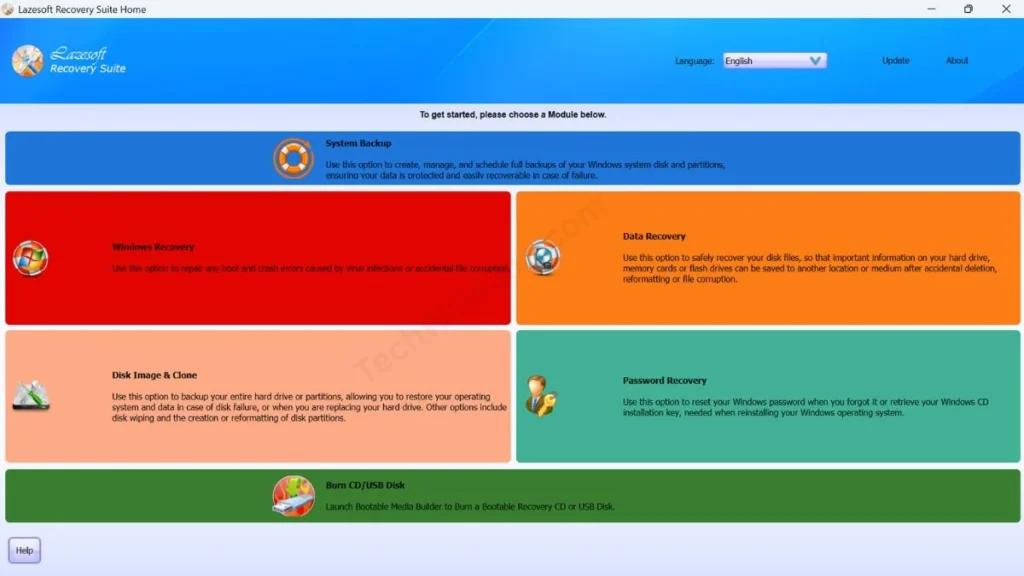
Lazesoft’s home screen is very clean and user-friendly.
- As soon as you open the software, you will see many options.
- Click on the “Burn CD/USB Disk” option.
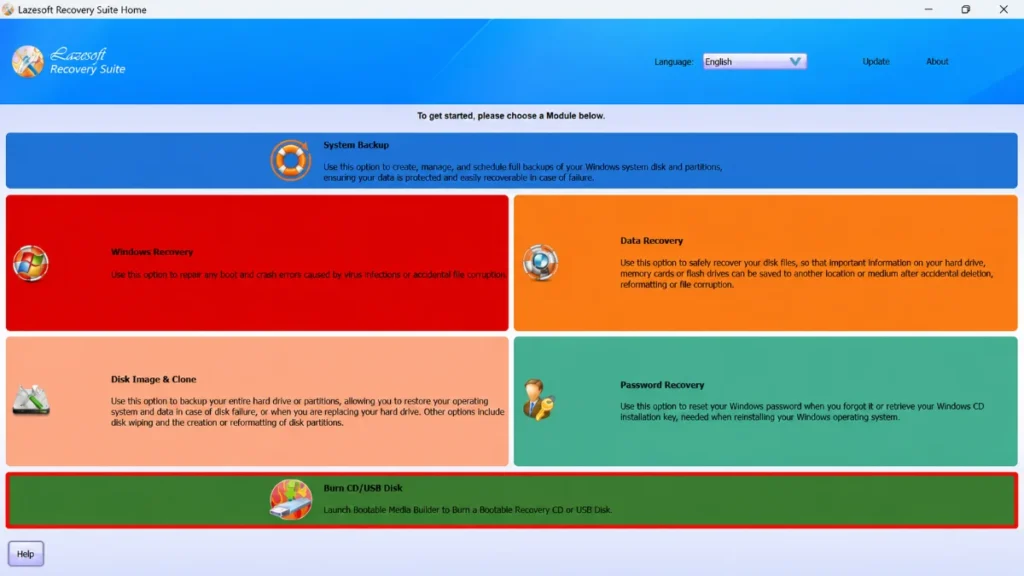
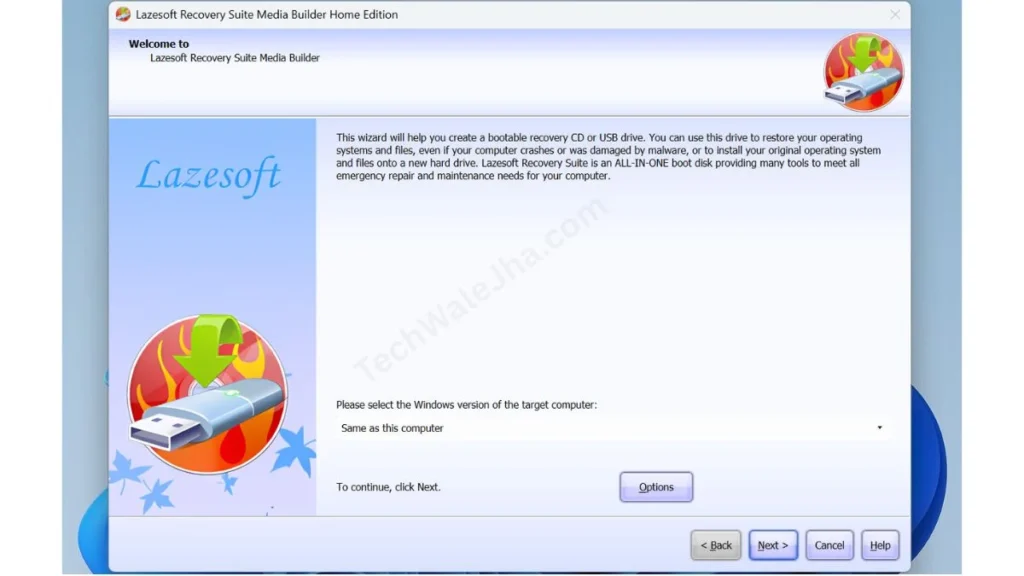
- This will launch the Lazesoft Media Builder tool, which will automatically detect which recovery files are best for your system.
Step 3: Select and Format Your USB Drive
Now, insert a blank USB flash drive into your working PC. I would personally recommend using a pendrive of at least 4GB or 8GB.
- Then, on the screen, choose the “USB Flash” option.
- Select your pendrive’s drive letter, such as E: or F:.
- Then click the Start button.
⚠️ Warning: As soon as this process starts, your USB drive will be completely formatted. Therefore, make sure you do not have any important data, such as photos, videos, or documents, on the pendrive.
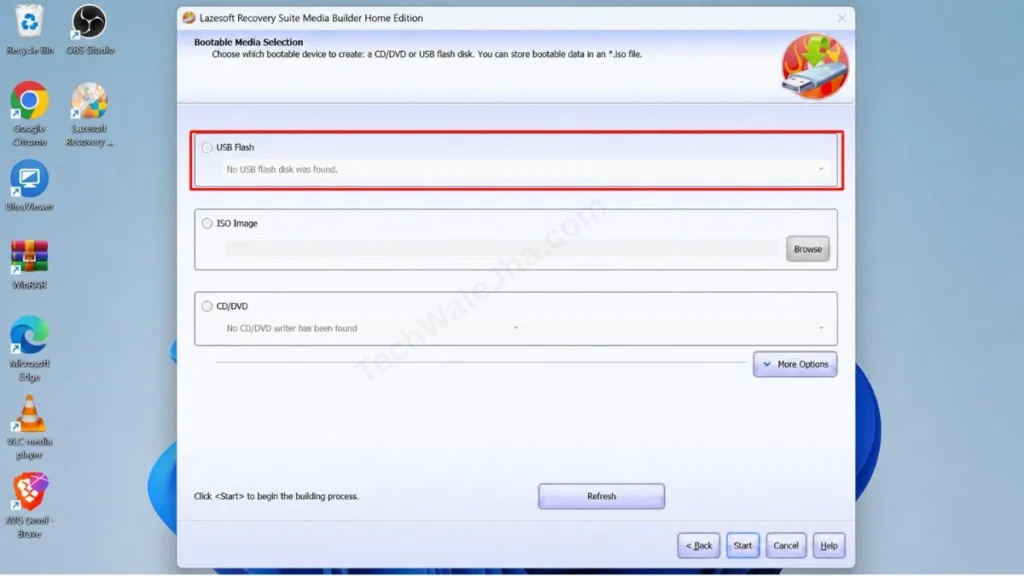
After that, in just a few minutes, Lazesoft will download the required WinPE (Windows Preinstallation Environment) files from the Internet and convert your ordinary USB flash drive into a powerful bootable rescue drive. When upgrading to new storage, this bootable drive is also very useful in Lazesoft’s disk cloning tutorial methods.
How to Fix Windows Boot Issues & Recover Data
To fix Windows boot issues, insert your Lazesoft USB into the broken PC and enter the Boot Menu by pressing F8, F10, or F12.
Boot from the USB, which will load the Rescue Environment. Here you can run One-Click Fix, recover data, or reset your passwords.
Now that your “magic pendrive” is ready, it’s time to fix your broken PC. Insert the USB drive you created into your broken PC and turn on the computer.
As soon as the PC turns on, immediately keep pressing your motherboard’s Boot Menu key, which is usually F8, F10, F12, or Esc. When the menu appears, select your USB drive. In just a few seconds, you will be in the Lazesoft rescue environment, from where you can fully access your PC’s hard drive and easily repair it.
Fixing Boot Loops and Crashes (One-Click Fix)
If your PC is restarting repeatedly or showing a blue screen, then this is the perfect Windows PC boot loop fix.
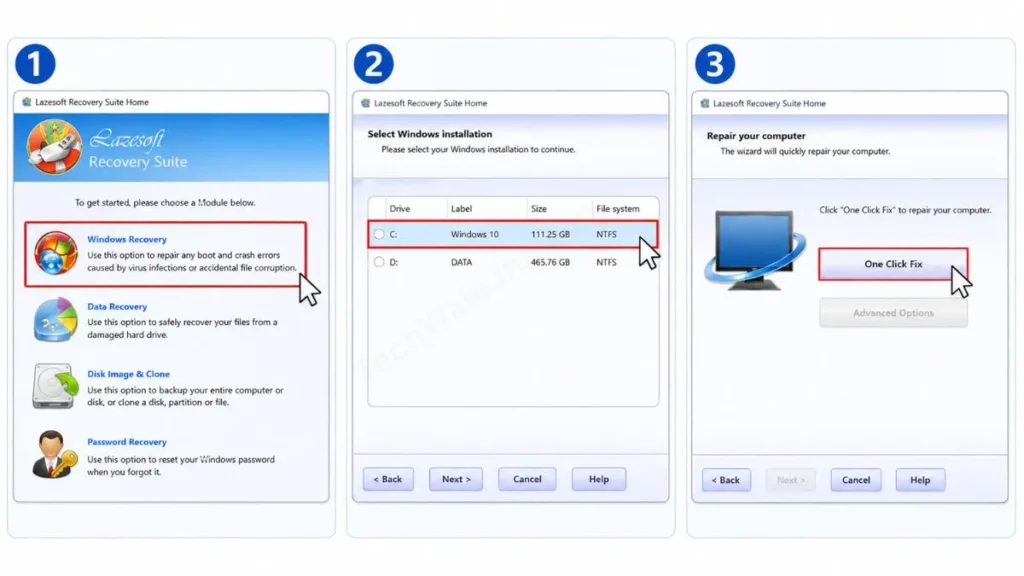
- To do this, click on Windows Recovery in the Lazesoft menu.
- Then, select your Windows installation drive.
- Click on One-Click Fix. This tool will automatically scan for and fix corrupt boot files like BCD or MBR and registry errors. You don’t need to type any CMD commands for this.
Advanced Method: Run SFC Fix
We highly recommend trying the One-Click Fix first. However, if your computer is still stuck in a boot loop, you can use this software’s built-in SFC Fix tool.
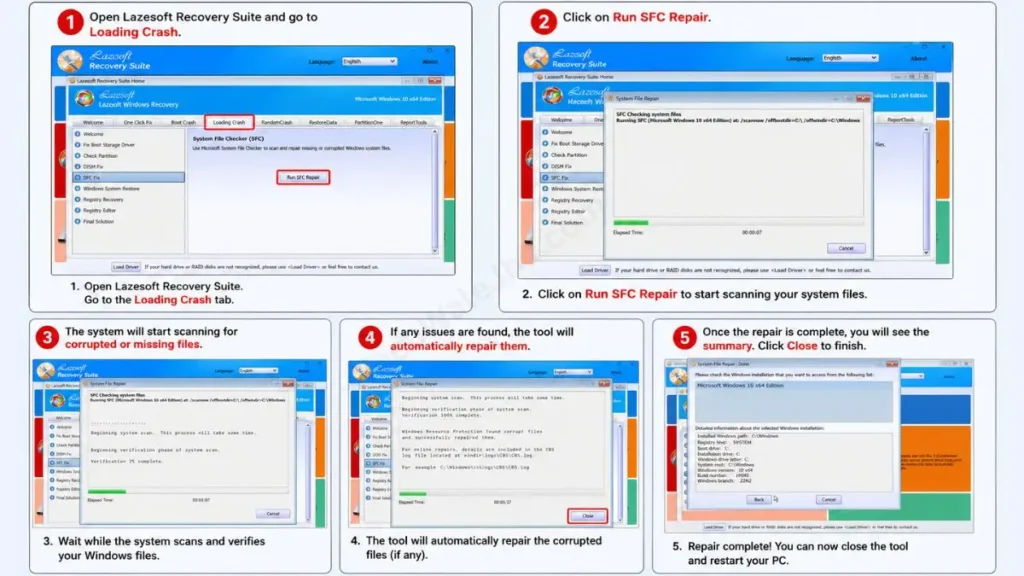
- To do this, simply navigate: first go to Windows Recovery, then to Loading Crash, and tap on SFC Fix.
- This powerful tool deeply checks your offline Windows installation to easily find any missing or corrupted system files, and then automatically attempts to repair them.
Recovering Accidentally Deleted Files
Was your important project deleted before a system crash? Or did you accidentally format a drive?
- If this has happened to you, go to the Data Recovery module from the Home screen. Then, select your hard drive and run a deep scan. Once the scan is complete, you can easily recover deleted files on Windows 10 or 11. And be sure to save your recovered data to a safe external drive.
Resetting Forgotten Windows Passwords
If you are locked out of your own account at the boot screen, then for that:
- Click on the Password Recovery option.
- Then, select your local Windows username.
- Then, press the Reset or Unlock button. This will immediately blank (clear) your password. Then, restart the PC and log in directly to the desktop without a password.
Pro tip for Microsoft accounts:
Lazesoft Recovery Suite Home Edition easily resets local user passwords for free. But if your PC is logged in with an online Microsoft account (formerly Windows Live ID), the free version can’t directly convert the Microsoft account into a local account.
But, there’s absolutely no need to worry because there’s a brilliant free workaround! Instead of selecting your Microsoft account in the Password Recovery Wizard, select the built-in Administrator account and unlock it. After that, restart your PC, and you can now sign in to this Administrator account with a blank password.
Once logged in, you can go to Windows Settings to manage existing accounts or create a brand-new local user account, so you can regain full access to your computer.
Recovery Actions Summary:
| Problem You Are Facing | Lazesoft Tab to Use | Action Required |
|---|---|---|
| Blue Screen / Boot Loop | Windows Recovery | Click ‘One-Click Fix’ |
| Deleted Documents / Photos | Data Recovery | Scan drive & Save to External USB |
| Forgot Local Password | Password Recovery | Select Username & Click Reset |
Frequently Asked Questions
Is Lazesoft Home Edition completely free?
Yes, absolutely! If you are running this software at home for your personal or non-commercial use, then it is a 100% free Windows repair toolkit. You don’t need to purchase a license key to use the best features.
Can it recover data from a formatted drive?
Yes. Whether you have mistakenly formatted a drive, emptied the recycle bin, or files have been lost due to a virus attack, its Data Recovery module runs a deep scan to find and extract those files. The best part is that there is no data recovery limit set for Home users.
Does this tool work on Windows 11?
Absolutely. Lazesoft Recovery Suite is fully compatible with the latest Windows 10 and Windows 11 systems. Its Media Builder specifically downloads the latest WinPE (Windows Preinstallation Environment) files, so there are no errors when booting on modern laptops and desktops.
Final Verdict: Is Lazesoft Worth It?
Keeping Lazesoft Recovery Suite Home Edition on a bootable USB is like having a digital first-aid kit in your drawer. It’s highly reliable, lightweight, and effectively resolves almost every major Windows disaster scenario for free.
Friends, computer emergencies never come with a warning. Because even a small Windows update crash can bring all your important work to a halt. In such critical moments, having a reliable and free Windows repair toolkit is essential for all of us.
I have personally tested this software, and after this Lazesoft Recovery Suite review, I can confidently say that every PC user should always have a bootable USB of it ready. Because it saves you both time and money.
Secure Your PC and Download Today
Don’t wait for your PC to crash. Get a blank USB drive today, set up this lifesaver tool, and keep it in your drawer. Because down the road, this little USB drive could become your biggest PC savior.
👉 Download Lazesoft Recovery Suite Home Edition Here
I’m your friend, TechWaleJha. And I really hope this tutorial was a big help and that you’ll now be able to handle any PC disaster with confidence. Am I right?
Have you ever lost your data when your PC crashed? Or are you currently stuck in a boot loop? Share your experience in the comments below, and I will personally reply to every comment.




