
Friends, as modern and smooth as Windows 11 looks, the sudden errors that pop up sometimes can be just as scary. Imagine you’re in the middle of an important task or playing your favorite game, and suddenly your PC freezes or the screen turns blue. In such situations, everyone thinks they’ll have to format the Windows installation and that all the important data on the hard disk will be permanently deleted. Has this ever happened to you? Be sure to let us know in the comments.
If this happens and you also get nervous and start searching online for how to repair Windows 11 using command prompt without losing any of your personal data, then here is the fastest and 100% working solution. To repair Windows 11 without formatting your PC, go to Windows search and type ‘cmd’, then open it by clicking ‘Run as administrator’. When the black screen opens, type the command sfc /scannow and press Enter. This built-in tool will automatically find the corrupted files on your system and fix them on its own. If the error is severe, run the DISM /Online /Cleanup-Image /RestoreHealth command, which will automatically repair your PC by downloading fresh files from the internet.
On our Tech Wale Jha platform, our constant effort is to explain even the most difficult tech problems in the simplest way possible. Service centers charge you a lot of money for these small Windows 11 CMD repair tricks. Today, we’ll learn how to practically use the power of the fix corrupted files Windows 11 CMD so you can become your own computer’s doctor and fix it yourself.
Also Read: 10 Cool CMD Tricks to Look Like a Hacker
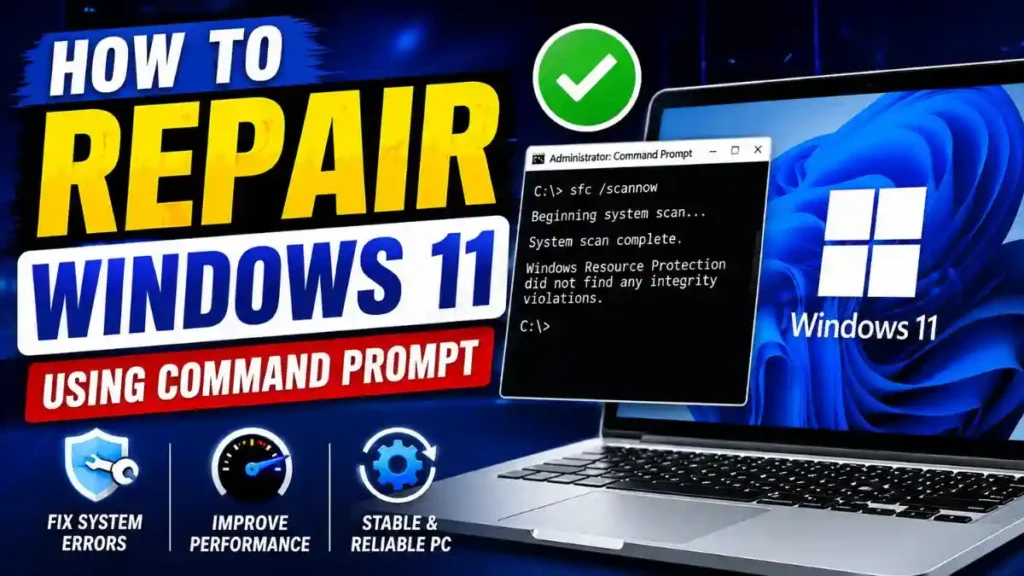
When Should You Repair Windows 11 From CMD? (Main Symptoms)
Now the question is, when will we need these commands? Friends, we don’t need to run these advanced tools for every minor system lag or internet problem. However, when the Windows “Core System” is damaged, normal troubleshooting doesn’t work.
If your laptop or PC is showing any of the 4 symptoms listed below, then it’s time to use the command prompt system repair:
- Blue Screen of Death (BSOD) Error: This is the most terrifying error. If your PC suddenly restarts while you’re working and a blue screen appears with a sad smiley 🙁 and strange error codes written at the bottom, it means a critical Windows file has become corrupted.
- Sudden App Crashes: You’re comfortably using Microsoft Word, Google Chrome, or some editing software, and the app suddenly, without any warning, automatically closes (crashes).
- Windows Update Failing Repeatedly: When you try to update Windows 11, it installs properly up to 90% or 95%, but then suddenly gives an error and starts “Undoing changes.” The reason for this is a corrupted registry or broken update files.
- System Freezes & Slow Booting: Even with an SSD, if your system is taking 5-10 minutes to start up, or the screen completely freezes when you open the Start menu.
If you are facing any of these errors, the solution to all these problems is the same: to find and repair the damaged Windows files. And for this, there is absolutely no need to download any cheap third-party software from the internet. In the next section, we will see how to fix this step-by-step using the sfc scannow Windows 11 command.
Also Read: How to Find Hidden Viruses Using CMD
How to Repair Windows 11 Using Command Prompt (CMD)
You can use whichever of these three methods you find suitable and that meets your requirements. Let’s see what those three methods are:
Method 1: Fix PC with the SFC (System File Checker) Command
Friends, whenever there’s an issue in Windows, the very first and most powerful tool we use is SFC (System File Checker). This tool goes into every corner of your PC and deeply checks for any missing or damaged essential system files. And if it finds any corrupt files, it automatically fixes them on its own.
Let’s see how to run sfc scannow Windows 11 correctly:
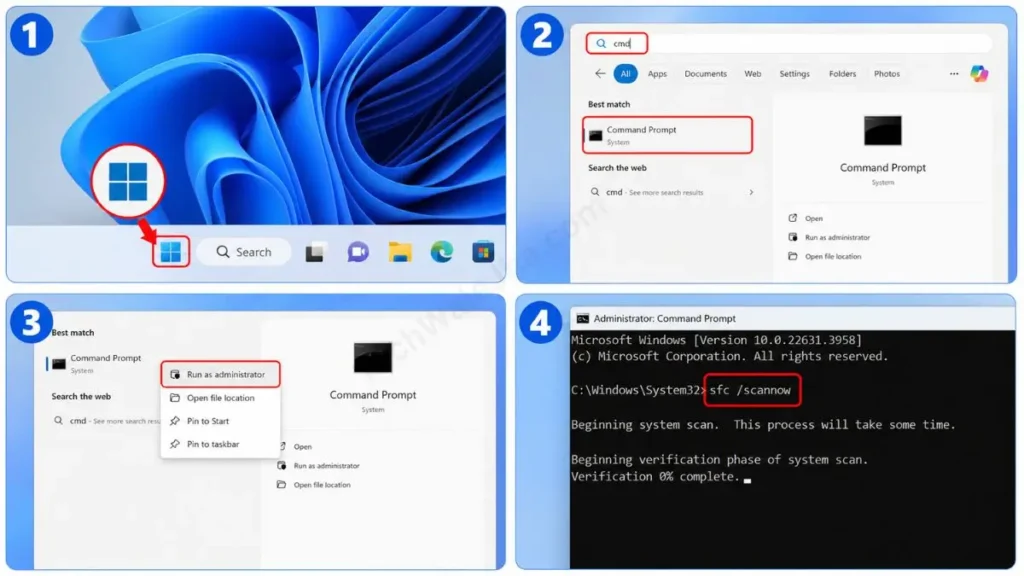
- Open CMD (Admin Mode): First, click the Windows search icon at the bottom of your screen and then type cmd.
- Run as Administrator: Now you will see ‘Command Prompt’ there, right-click on it and open it by selecting “Run as administrator”. Also, keep in mind, if you open it normally, this command will not work properly and you will get an access denied error.
- Type the Command: After the black screen appears, type this command exactly as shown:
sfc /scannowand press Enter. - Wait: The scanning process will start at 0%. It can take 5 to 15 minutes, so do not close the CMD window by mistake until it reaches 100%.
When the scan is 100% complete, it will tell you that it has successfully repaired the corrupted files. If you see the message “Windows Resource Protection found corrupt files and successfully repaired them,” then your PC is now completely healthy! Just be sure to restart your laptop after this.
Method 2: Fix Corrupted Windows Image with the DISM Tool (Advanced)
Sometimes the SFC scan reports that it has found corrupted files but is unable to repair them. In such cases, we have to turn to Windows’ most advanced doctor, the DISM (Deployment Image Servicing and Management) tool.
If you want to know in-depth how this tool operates in the background, you can read Microsoft’s official DISM Reference Guide. It is a highly authoritative document that teaches how Microsoft’s IT engineers service the system image and how this tool is used to heal the OS.
Generally, the DISM command Windows 11 works in three separate steps. Run these commands one by one in an administrator’s CMD:
| DISM Command (Type and press Enter) | What exactly is its job? | Time Taken |
|---|---|---|
DISM /Online /Cleanup-Image /CheckHealth | It only quickly checks whether the Windows image has any direct damage. It does not repair the files. | Kuch Seconds |
DISM /Online /Cleanup-Image /ScanHealth | It performs a deep scan of my PC and accurately identifies problems. It takes a little time to do this. | 5-10 Minutes |
DISM /Online /Cleanup-Image /RestoreHealth | Most Important Command: It downloads official, fresh files from the Internet and completely repairs your system. | 15-20 Minutes |
Please note: When running the third command (RestoreHealth), keep your Internet connection on, because it downloads new and correct files from the Windows Update servers so that the system can be properly repaired.
Method 3: How to Fix Hard Drive Errors with CHKDSK?
If you keep getting a Blue Screen even after repeatedly running the Windows 11 CMD tools, the problem might not be with Windows but with your hard disk (SSD/HDD). Bad sectors on the storage drive can cause the PC to crash unexpectedly. To fix this, we will run the check disk command.
To do this, press the Windows Key again, type CMD in Search, and open it as an administrator. Then type this command: chkdsk C: /f /r and press Enter.
Since your Windows C: drive is running, the system cannot scan it immediately. After this, the CMD screen will ask you, “Would you like to schedule this volume to be checked the next time the system restarts?” You just need to press Y on your keyboard and press Enter.
Now, as soon as you restart your PC, disk repair will begin on a black screen before Windows loads. This chkdsk command to repair Windows 11 will automatically identify and bypass or fix errors on your physical drive.
Also Read: How to Create a Windows 11 Bootable USB
How to open CMD if your PC won’t start? (Boot Repair)
Friends, a major problem arises when your laptop gets completely stuck, meaning the Windows logo appears and the system won’t advance, or you keep getting a Blue Screen. In such a situation, when you can’t even reach the home screen, how will you open CMD? If you face such an emergency, you’ll need to use the Windows 11 Advanced Startup CMD environment.
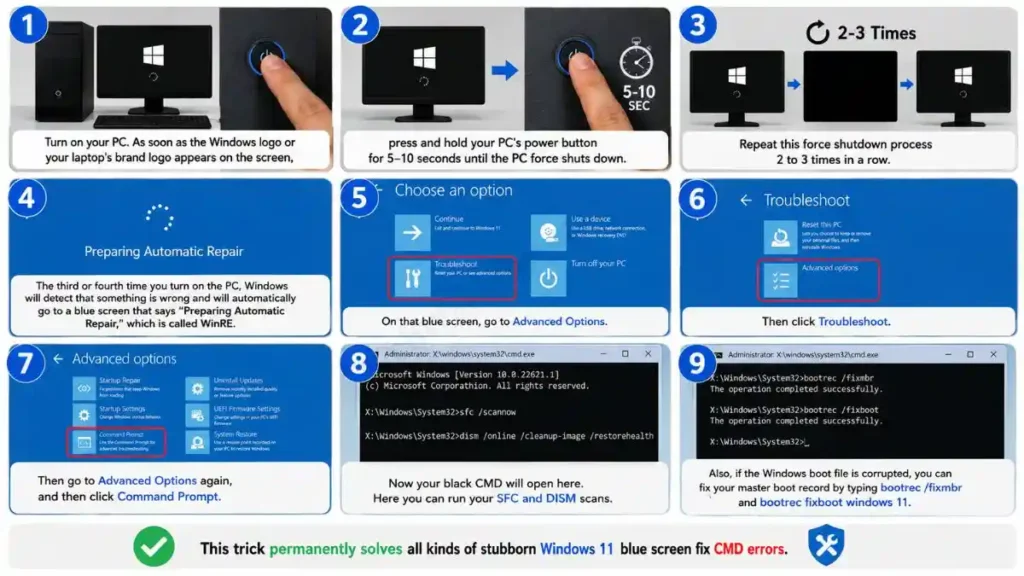
If your PC isn’t starting up at all, follow these life-saving steps carefully and step-by-step:
- Force Restart Trick: Turn on your PC. As soon as the Windows logo or your laptop’s brand logo appears on the screen, press and hold your PC’s power button for 5–10 seconds until the PC force shuts down.
- Repeat: Repeat this force shutdown process 2 to 3 times in a row.
- Automatic Repair Screen: The third or fourth time you turn on the PC, Windows will detect that something is wrong and will automatically go to a blue screen that says “Preparing Automatic Repair,” which is called WinRE.
- Open CMD: On that blue screen, go to Advanced Options, then click Troubleshoot, then go to Advanced Options again, and then click Command Prompt.
- Run Bootrec Commands: Now your black CMD will open here. Here you can run your SFC and DISM scans. Also, if the Windows boot file is corrupted, you can fix your master boot record by typing bootrec /fixmbr and bootrec fixboot windows 11. This trick permanently solves all kinds of stubborn Windows 11 blue screen fix CMD errors.
Frequently Asked Questions
Will my personal data (photos, videos, documents) be deleted by this CMD process?
Absolutely not! That’s the biggest misconception. Whether you run SFC or DISM, these commands only check and repair the core Windows files on the system C: drive. They don’t touch your personal files at all, so system repair from the command prompt is a 100% safe process.
What should I do if I get the “You must be an administrator running a console session” error when running the SFC command?
This error appears when you open CMD directly. To fix this, close CMD first, type ‘cmd’ again in the Windows search, and right-click on it to select “Run as administrator.” This error will not appear now.
I’m a regular user, will I accidentally damage my laptop?
As long as you type the commands mentioned in the guide with the exact same spelling, your laptop will not be damaged. These are built-in commands that are specifically designed to heal the system.
Conclusion
Friends, I hope this easy and detailed tutorial has eased your fears a bit and you now understand how to repair Windows 11 using Command Prompt, all without having to call a technician.
Errors like system lag, crashes, or the blue screen may seem dangerous, but the truth is that 90% of these are software problems that can be fixed in seconds with just an sfc scannow command. If you’ve fixed your corrupt Windows 11 with the help of this guide, be sure to forward this article to your friends whose PCs are still acting up. For any other technical help or solutions to error codes, leave a comment below on our TechWaleJha.com platform. We’ll get back to you soon!
Disclaimer: This guide and the CMD (Command Prompt) tricks mentioned in it are for educational purposes and to help you with PC troubleshooting. Please be very careful when typing commands. TechWaleJha.com or its author will not be held responsible for any system errors or data loss resulting from an incorrect technical command. Before performing any advanced repair steps, be sure to back up your important data to an external drive.




