
Friends, whenever we see a hacker in a Hollywood movie, green codes are rapidly scrolling on a black background on their screen. We usually think that to do that kind of hacking you need some very heavy software or years of coding knowledge. But did you know that your ordinary Windows PC already has a hidden power that can give you exactly that Hollywood feel?
If you’re going online to search for cool cmd tricks so you can show off in front of your friends, the best and fastest way is to open CMD, i.e., Command Prompt, on your Windows PC. Then type “color 0a” on the black screen and press Enter, which will instantly turn your screen green like a hacker’s. Immediately after that, type the “dir /s” command and press Enter. Now millions of files will automatically load in a matrix-style on your screen, making you look like a real pro hacker.
Today on your very own TechWaleJha platform, I’m going to teach you not just this green screen but also the top 10 cmd tricks to make you look like a hacker, which will truly amaze your friends. And that too without any extra software or risk. Today, we’ll dive into the secret world of Windows command prompt hacks where you’ll become the true boss of your PC.
Also Read: How to Find Hidden Viruses Using CMD
What Exactly is CMD (Command Prompt)?
Before we jump into these crazy tricks and commands, let’s get a little basic understanding of what this CMD thing is and why tech experts consider it so powerful.
In everyday life, we use our mouse to operate the computer. For example, double-clicking on a folder or right-clicking to ‘Copy’ and ‘Paste’. In technical terms, this is called a GUI (Graphical User Interface), which is easy to use visually. But many years ago, before mice existed, people would give instructions to the computer by typing only with the keyboard. And CMD (Command Prompt) is that same old, classic text-based interface that is still hidden inside every Windows laptop today.
This interface communicates directly with the computer’s brain (kernel). So, a task that takes 10 mouse clicks can be done in a fraction of a second just by typing a single line using the best cmd commands for Windows 11. A true IT pro or system administrator always relies more on the keyboard and these secret cmd commands because they are super fast.
How to Open CMD?
Learn to open it before applying any tricks:
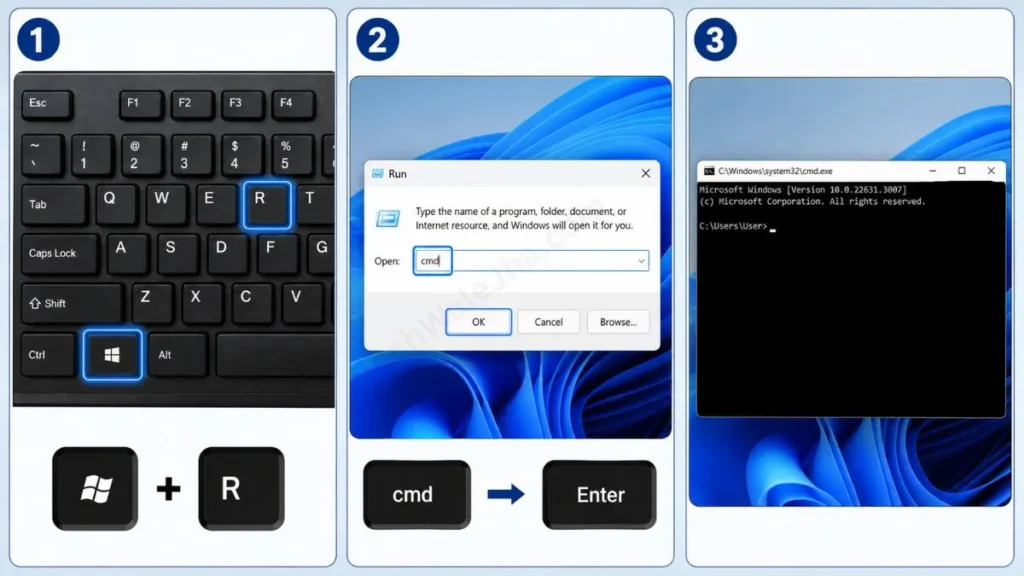
- Press the Windows + R keys together on your keyboard.
- A small ‘Run’ box will open then type cmd and press Enter.
- After that, a black screen will open. This is your Command Prompt!
If you also want to take your computer skills to the next level and show off your swag among your friends, then there’s no need to be afraid. All these tricks are 100% safe, and trying them won’t cause any damage to your computer.
Also Read: How to Recover Deleted Files for Free
Trick 1-3: Hacker Vibe (Color, Title & Matrix)
The default black and white CMD screen might seem a bit boring. But with a few simple commands, we can turn it into a full-on Hollywood-style hacking screen. Here are the most popular cool CMD tricks that will instantly give you a hacker vibe:
Trick 1: Set Hacker Colors
- First, we’ll change this boring white text to the classic hacker green color. To do that, type the following in your CMD:
color 0a - Then, as soon as you press Enter, your screen will be completely transformed into a hacker-style color cmd. The ‘0’ here means a black background and ‘a’ means light green text. If you want to explore more colors, just type help color and the full list will appear.
Trick 2: Change the CMD Window Title
- Have you noticed that when you open CMD, it says something like “
C:\Windows\system32\cmd.exe” in the title bar at the top? Change it to your own name to make your system look super private! To do this, type: title TechWaleJha Hacker System - Then, as soon as you press Enter, the window’s title will change and your screen will look completely customized.
Trick 3: The Matrix Effect (Hollywood Style)
- To show your friends that you’re extracting data from a very large server, you can use this awesome cmd matrix effect. To do this, just type:
dir /s or tree. - Then, as soon as you press Enter, thousands of files from your laptop will start scrolling rapidly across the screen, which will amaze any normal user. To stop this fast-moving matrix screen, just press Ctrl + C and it will stop.
Also Read: How to Repair a USB Flash Drive
Trick 4-6: Network & Wi-Fi Secrets (Be a Pro!)
It’s not just for show-off but CMD is truly a very powerful network tool. If you want to look a bit more pro in networking and pull out the deep details of the internet, these command prompt tips and tricks will be very useful to you.
Trick 4: Find Your IP Address
- Often while playing games or setting up a network, we need our IP address. Instead of going into the long settings in the Control Panel, just type this directly in CMD:
ipconfig - Then, as soon as you press Enter, a list will appear showing your current local IP, like 192.168.x.x, right next to ‘IPv4 Address’.
Trick 5: Find the Server IP of Any Website
- If you want to know what the IP address of Google, Facebook, or any other large website is, or if that website is currently up and running, then use the ping command. To do this, type: ping google.com
- This command sends small data packets to the website’s server. This will give you the website’s exact IP address and also show how fast (in ms) your internet connection is responding.
Trick 6: View Saved Wi-Fi Passwords on Your PC
- This is probably the most useful and mind-blowing trick. If your laptop is connected to a Wi-Fi network but you’ve forgotten the password to share it with someone else, you can now use the ‘check wifi password cmd trick’ without any software. To do this, open your CMD in ‘Run as Administrator’ mode and then type: netsh wlan show profile name=”YourWiFisName” key=clear
- (Note: Replace “YourWifiName” with the actual name of your Wi-Fi network as it appears on your system). As soon as you press Enter, you will find the actual Wi-Fi password written right next to ‘Key Content’ in the ‘Security settings’ section.
Trick 7-9: System’s Birth-Chart and File Hiding
If you want to take your computer tricks to the next level, these advanced commands will truly amaze your friends. These command prompt hacks are the most powerful tools hidden within Windows:
Trick 7: Get Your PC’s Complete ‘Birth Chart’
- Often when we buy a new or second-hand laptop, we want to know all its hardware and software details, such as the original Windows installation date, BIOS version, or RAM architecture. To do this, type:
systeminfo - Then, as soon as you press Enter, your PC’s complete bio-data will appear before you in a long list. A pro user always uses this trick.
Trick 8: Super Secret File Hiding (The Pro Way)
- Normal users right-click any private folder and set it to “Hidden,” which anyone can easily see by clicking “Show hidden files.” But if you really want to create an invisible folder, then use this hacker method of hiding files using cmd. To do that, type:
attrib +h +s +r D:\MySecretFolder(Enter the exact path to your folder) - This magical command doesn’t just make the folder ‘hidden’; it makes it a “System File.” After that, no matter how hard anyone tries, the folder won’t be visible to anyone. To make it normal again, just replace the + with a -, retype the same command, and your file will become visible.
Trick 9: Generate a Secret Battery Health Report
- If you feel that your laptop’s battery is no longer providing the same backup as before, you can generate a direct system report with this trick. To do that, type: powercfg /batteryreport
- This command will immediately generate an HTML file in your C: Drive. Then open this generated file in your browser, and you’ll get the full details of your battery’s design capacity, real-time health, and cycle count.
Expert Tech Tip: If you really want to master these commands and think like a proper developer, you should definitely read Microsoft’s official Command-Line Reference Guide at least once. It’s Microsoft’s most trusted and detailed authority resource, where every hidden Windows command is included with a complete dictionary of details.
Also Read: How to Maintain Your Windows System
Trick 10: Star Wars in CMD! (Ultimate Easter Egg)
This is considered the most legendary trick among computer geeks and hackers. Have you ever thought that you could watch a whole movie on that black CMD screen? Yes, and that too without an internet browser.
Using this secret cmd commands trick, you can run the entire ASCII (text) version of the movie Star Wars Episode IV on your CMD screen:
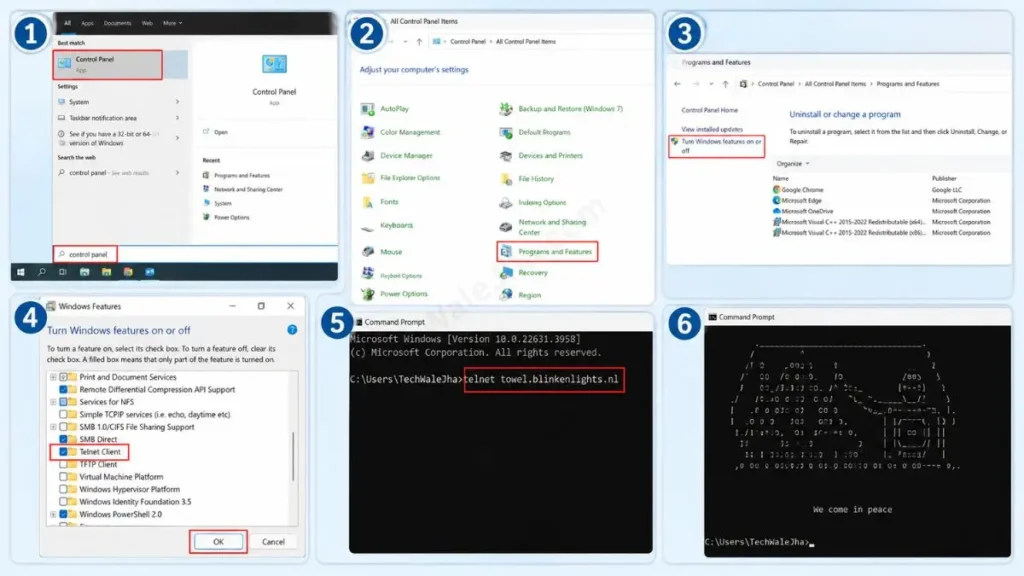
- To do this, first go to your Control Panel, then to ‘Programs and Features,’ and click on ‘Turn Windows features on or off.’
- After that, find ‘Telnet Client’ in the list, check it, and press OK. This will activate Telnet.
- Now, open your CMD and type this command:
telnet towel.blinkenlights.nl - Then press Enter and grab your popcorn! The Star Wars movie made of text characters, letters, and symbols will start on your screen. This is truly the internet’s coolest Easter egg.
Frequently Asked Questions
Will using these CMD tricks harm my PC or Windows?
Absolutely not! The tricks we’ve discussed in this article—like changing colors, creating a matrix effect, or checking your IP—are 100% safe and won’t have any negative impact on your PC’s data or performance. However, when you use attrib or any deep system command, it’s very important to type the command correctly.
What is the difference between Command Prompt (CMD) and PowerShell in Windows?
Both are text-based interfaces, but CMD is somewhat older and more basic. On the other hand, PowerShell is a modern, advanced, and more powerful version of Windows specifically designed for IT admins and network engineers. For regular users, CMD’s tricks and commands are easier and more user-friendly.
How do I copy and paste any code or text inside CMD?
In older Windows versions, Ctrl + C or Ctrl + V didn’t work in CMD, so you had to right-click the title bar and choose “Edit” then “Paste.” But in Windows 10 and Windows 11, you can now copy and paste directly into CMD using the same shortcut keys as in other regular apps.
Conclusion
Friends, Command Prompt may look boring and a little intimidating, but if you know its cool CMD tricks, you can become the real boss of your laptop among your friends.
The top 10 cool CMD tricks we’ve learned today—whether it’s a Hollywood-style hacking matrix effect, finding someone’s IP address, or secretly viewing an old Wi-Fi password saved on your PC—will be a huge help in real-life situations. If you’ve upgraded your skills even a bit with this article and truly feel that hacker-command-line vibe, then be sure to try Trick 10 (Star Wars) at least once.
Which of these commands did you find the best? Be sure to let us know in the comments below, and stay tuned to our TechWaleJha.com platform for more advanced tech tricks like these. Happy Hacking!
Disclaimer: This guide and the cool CMD tricks mentioned in it are for educational and informational purposes only. Although all these commands are safe for general use, typing incorrect code in the CMD (Command Prompt) or running advanced commands on a system file can disrupt system settings. TechWaleJha.com will not be held responsible for any data loss, system errors, or OS damage. Please try all commands carefully and at your own risk.




