
Friends, as exciting as buying a brand-new, gleaming MacBook is, putting your hands on its keyboard for the first time can feel just as strange and confusing. Especially if, like me, you’ve spent years doing your video editing and daily tech work on a Windows PC, everything suddenly seems backward, right?
If you’re looking for a quick and direct online solution to finally “how to use keyboard shortcuts on Mac” without any headache, the easiest and golden rule is to get rid of the Windows ‘Ctrl’ (Control) key from your mind and start using the Mac ‘Command (⌘)’ key instead. For example, to copy, press ‘Command + C’ instead of Ctrl+C, and for paste, press ‘Command + V’ instead of Ctrl+V. Always keep your thumb on the Command key next to the Spacebar, and this will solve half your struggle right there.
Scrolling the mouse cursor around on the trackpad to hunt down every little option and click on it is a very time-consuming process. As a tech content creator, I guarantee that if you practice these Mac keyboard shortcuts for beginners a bit, your editing, typing, and daily browsing speed will truly double (2x). In this guide, we won’t treat it like a boring manual instead, we’ll show you in a very practical way how these essential Mac hotkeys make your workflow easier.
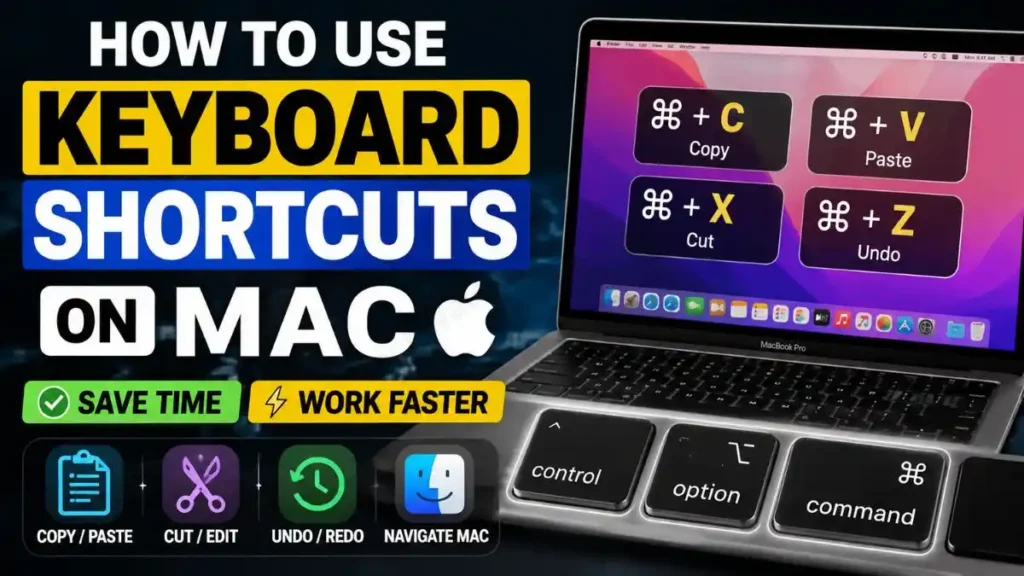
Windows vs Mac: Basic Keyboard Identification (The Command Key)
The first shock you get when you open the lid of a MacBook is when you look at the bottom row of the keyboard, the very lowest line. There, you won’t see your beloved “Windows” logo button, nor does “Alt” work the way you want it to. So, before you start mindlessly memorizing shortcuts, you need to get acquainted with this new family of modifier keys.
If you want to master this ultimate MacBook keyboard shortcuts cheat sheet, let’s see what the old Windows friends become on a Mac:
- The King: Command (⌘) Key: As we mentioned above, the Ctrl button on Windows is replaced by the Command button on Mac. All the major actions you used to perform with Ctrl like Save, Print, Undo, or Copy are done with the Command button on Mac. It’s the new boss of your keyboard. Its icon looks like a small four-petaled flower.
- The Shapeshifter: Option (⌥) Key: The button we call Alt on Windows is renamed to Option on a Mac. However, on newer MacBooks, ‘alt’ is also written in small letters just above the Option key so that switching users don’t get confused. This key is very useful for typing special characters and opening advanced menus.
- The Helper: Control (⌃) Key: It’s not that the Mac doesn’t have a Control key, but its function is completely different from Windows. On a Mac, the Control key is most often used for Terminal commands and to open the direct right-click, or Control + Click, menu.
- The Eraser: Delete Key: The key that performs the Backspace function on Windows is called Delete on a Mac. (Pro tip: To delete text from the front, like the Windows delete button, press Fn + Delete simultaneously).
Once you’ve memorized the positions of these four buttons in your mind and on your fingers, all the shortcuts you encounter from then on will be child’s play for you.
Also Read: How to Scan Windows PC for Corrupted Files
Top 12 Essential Mac Shortcuts You Should Know
As we mentioned earlier, almost every major shortcut revolves around the Command key. If you really want to boost your daily work speed and speed up your workflow on Mac, you need to keep these 12 basic shortcuts at your fingertips.
Here I’ve created a quick, scannable table for you so you can easily understand your copy-paste shortcut on Mac and other daily-use Command key shortcuts on Mac:
| Mac Shortcut (Key Combo) | Windows Equivalent (Old Method) | What exactly is its job? |
|---|---|---|
| Command (⌘) + C | Ctrl + C | To copy any text, image, or file. |
| Command (⌘) + V | Ctrl + V | To paste something copied to another place. |
| Command (⌘) + Z | Ctrl + Z | Undoing means bringing back something that was accidentally deleted. |
| Command (⌘) + Space | Windows Key + S | Open Spotlight Search, the most powerful search engine on your Mac, which lets you find anything. |
| Command (⌘) + Q | Alt + F4 | Completely quit any app. (Note: On a Mac, clicking the red “X” button only minimizes the app, not closes it.) |
| Command (⌘) + W | Ctrl + W | Close the current window or browser tab. |
| Command (⌘) + A | Ctrl + A | Select all the text and files on the screen at once. |
| Command (⌘) + F | Ctrl + F | To find a specific word within a webpage or document. |
| Command (⌘) + T | Ctrl + T | Open a new tab in Safari or the Chrome browser. |
| Command (⌘) + Tab | Alt + Tab | Switching from one app to another. |
| Command (⌘) + B | Ctrl + B | To bold any selected text. |
| Command (⌘) + K | Ctrl + K | To add a clickable link (URL/Hyperlink) to any word or text. |
Screen Capture & Multitasking Shortcuts (Be a Pro!)
After basic typing and editing, the two things we do the most are take pictures of the screen, i.e., screenshots, and run multiple apps at the same time.
Instead of using your mouse while multitasking, just press and hold Command (⌘) + Tab. This app-switching shortcut will show you a transparent bar on your screen with all your open apps. Keep pressing Tab and release Command when you’re on the app you want to switch to. You will then instantly switch to the other app.
Now let’s talk about the most frequently asked question: Windows has a ‘Print Screen’ button, but what are the Mac screenshot shortcut keys?
- Full Screen Photo: Press Command (⌘) + Shift + 3 simultaneously on your keyboard. You’ll hear a “click” sound and a screenshot of the entire screen will be saved to your desktop.
- Screenshot of a Part of the Screen: If you don’t want the whole screen but just a specific area, press Command (⌘) + Shift + 4. Your cursor will turn into a crosshair. Drag it to select the area you want to capture.
Expert Authority Tip: If you want to explore all these combinations in more depth, I recommend reading Apple Support’s official Mac Keyboard Shortcuts guide. This is a 100% verified and authoritative resource where Apple has listed all the hidden shortcuts, big and small, for its OS.
Everyday Mac Shortcuts: Finder, Emojis & Security
When Windows users first use a Mac, they find it most confusing to delete files or manage folders. These 3 shortcuts will be very helpful for getting things done faster in Mac’s ‘Finder’, which works like Windows’ File Explorer:
- Move to Trash (Delete File): Command (⌘) + Delete
- Windows Equivalent: Delete key
- Use: On a Mac, if you select a file and just press the ‘Delete’ button, it won’t be deleted. To send any file or image directly to the Trash (Recycle Bin), you have to use this shortcut.
- Empty Trash (Permanently Delete): Command (⌘) + Shift + Delete
- Windows Equivalent: Shift + Delete
- Use: If your Mac’s storage is getting full and you want to permanently empty the Trash bin in one go without opening it, this combination will be very useful.
- Create New Folder: Command (⌘) + Shift + N
- Windows Equivalent: Ctrl + Shift + N
- Use: This is the quickest and easiest way to create a new folder on your Desktop or anywhere in Finder. You won’t waste a lot of time repeatedly right-clicking to find ‘New Folder’.
Also Read: How to Speed Up Windows 11 Startup
Pro Tip: Custom Shortcuts & Automation (For Advanced Users)
If you’re one of those power users who like to customize every little detail to your liking, then Mac gives you the full freedom to create your own shortcuts.
1. Create Custom App Shortcuts
If your favorite software, like a video editor or photo editor, doesn’t have a shortcut for a specific menu item, you can easily assign one manually:
- To do this, open your Mac’s System Settings.
- Then, from the left menu, click on Keyboard and go to Keyboard Shortcuts.
- Here, select App Shortcuts and then click the ‘+’ button to set your custom key combination for any specific menu command, like “Export to Web” or another one.
2. Automate with the Apple ‘Shortcuts’ App
Just as Batch (BAT) scripts are written to maintain Windows systems, clean folders, or automate tasks, the built-in Shortcuts app in macOS provides the same advanced automation functionality.
- Using this app, you can easily combine multiple complex tasks like opening 5 specific websites at once, bulk resizing images, or organizing specific folders into a single workflow.
- Its best feature is that you can assign a keyboard hotkey directly to your custom automation workflows, making hours of work happen in a second.
Also Read: 10 Cool CMD Tricks to Look Like a Hacker
Frequently Asked Questions
Where is the ‘Alt’ key on a Mac keyboard?
On a Mac, the “Alt” key isn’t a separate button. The key right next to the Command (⌘) key, which we call the Option (⌥) key, is actually the Mac’s Alt button. On newer MacBooks, “alt” is also printed in small letters on this key so Windows users don’t get confused.
My Mac has frozen; how do I perform a Ctrl + Alt + Delete like on Windows?
If an app on your Mac hangs or freezes, the Windows Ctrl+Alt+Del method won’t work. Instead, press Option + Command + Esc all at once. This will open a small “Force Quit Applications” window, where you can immediately force-close any stuck app (like Chrome or Final Cut).
Can I accidentally reset the changed Mac keyboard shortcuts back to how they were before?
Yes, absolutely! If you’ve messed up while creating custom keys using the Mac keyboard shortcuts feature, go to System Settings, then Keyboard, then Keyboard Shortcuts. There, click the “Restore Defaults” button in the bottom left corner. All your shortcuts will revert to factory settings, just like new.
Conclusion
Friends, at first, the concept of how to use keyboard shortcuts on Mac can seem a bit strange and difficult. But trust me, once your fingers get used to the Command key, you’ll never want to go back to any other way.
To speed up your workflow, start by focusing on the basic copy-paste and window-switching essential Mac hotkeys. If you’d like, you can take a screenshot of the table above and save it to your desktop. With just a few days of practice, you’ll forget about using the trackpad and mouse and operate your Mac just like a tech pro.
If you’re facing any other problems with your Mac or want to know the shortcut for a specific software, be sure to ask in the comments below. We regularly post helpful tech tutorials like this!




