
Friends, whether your laptop is new or old, or if it’s been continuously using heavy software, accumulating junk files from the internet, or after an attack by an unknown virus, you’ve probably noticed that the system often becomes very slow or even starts hanging. Sometimes, even after installing new Windows updates, technical glitches occur that can’t be fixed by normal troubleshooting. In such cases, the easiest and most reliable way to restore the system to its fast, like-new state is to reset it.
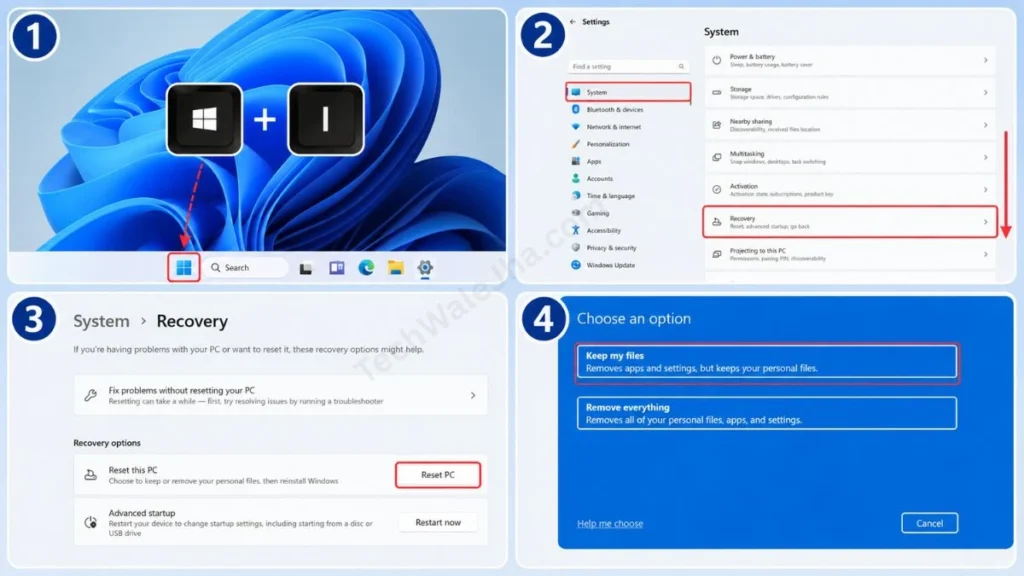
If you’re looking for a quick and straightforward solution on the internet on how to reset a PC in Windows 11, then the simplest and most direct answer is to open your Windows 11 PC’s ‘Settings’, then go to ‘System’ from the left-side menu and scroll down a bit to click on ‘Recovery’. Here you will see the ‘Reset this PC’ option. Click the ‘Reset PC’ button right next to it, choose the option ‘Keep my files’ or ‘Remove everything’ according to your needs, and carefully follow the simple on-screen instructions step by step.
Many people are afraid of this process because they think that formatting will delete all their photos, videos, and important documents. But there’s nothing to worry about. In today’s in-depth tutorial, I’ll show you how to reset Windows 11 without losing any data safely. So let’s solve this tech problem once and for all, so you won’t make any mistakes and your data won’t get deleted.
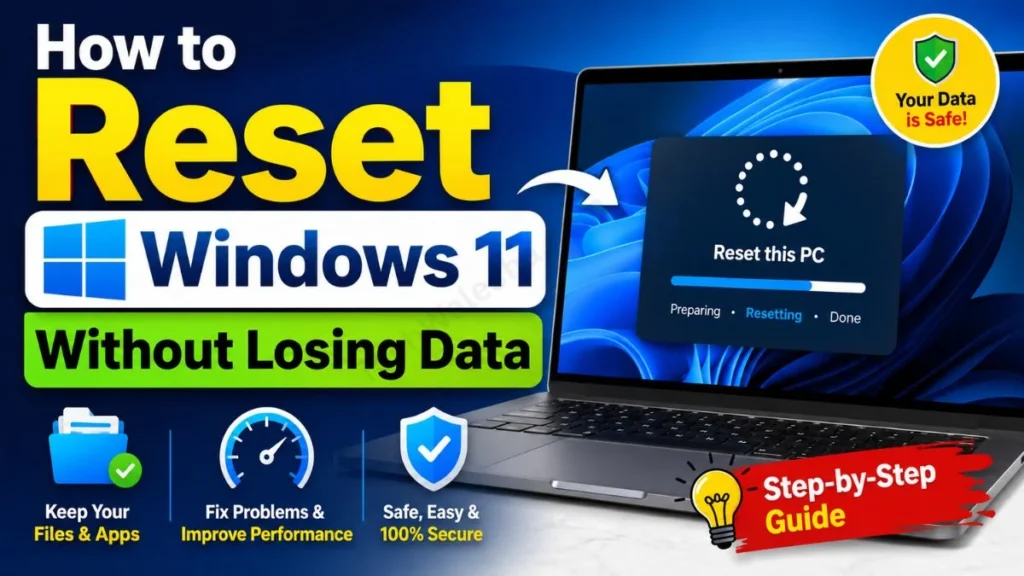
What to Know Before Resetting Windows 11 (Keep Files vs Remove Everything)
When you click the ‘Reset PC’ button using the steps above, Windows doesn’t start resetting immediately. Before that, a blue pop-up box opens asking you a very important question. A small mistake of clicking here without thinking can permanently delete all your important data.
Therefore, before getting to the final steps of how to reset Windows 11, carefully understand the difference between these two options so you can keep your data safe.
| Reset Option | What exactly does it mean? | When should you choose this? |
|---|---|---|
| 1. Keep my files | This option will delete all installed apps from your laptop, such as Chrome, MS Office, or games and settings, but it will not touch your personal files like photos, Word documents, or your desktop. | Choose this option when your PC has become slow or you’re facing a minor software problem, and you want to save your private data by using the Keep my files reset in Windows 11. |
| 2. Remove everything | This is a complete and deep factory reset process for Windows 11. It will completely wipe everything—apps, Windows settings, accounts, and even all your personal files—from the hard drive. | Only choose this option when you’re selling your laptop to a stranger, or if your PC has a really nasty virus or ransomware that just won’t go away. |
Expert Tech Tip: Friends, no matter which option you choose, as a tech content creator, I will always advise you not to trust technology 100%. Before starting the reset process, be sure to back up your most important documents, family photos, and work files to an external flash drive, hard disk, or Google Drive. A small power cut (if the laptop is on battery) or an update glitch can corrupt your files. That’s why you should always start the reset process with the laptop connected to a charger.
Also Read: How to Activate Windows 11 (With & Without Product Key)
Method 1: How to Reset Windows 11 from Settings (The Easiest Way)
Once you have backed up your data and decided on your reset option, such as ‘Keep my files’ or ‘Remove everything’, the rest of the process is quite straightforward. To do this:
- Open Settings on your PC. You can also use the shortcut Windows Key + I.
- From the left-side menu, click on System and scroll down to select the Recovery option.
- Then, click the Reset PC button located right next to ‘Reset this PC’.
- Select your chosen option: whether to keep your files or remove everything.
Cloud Download vs Local Reinstall: What’s the Difference?
Immediately after selecting the option, Windows will show you another blue screen and ask how you want to reinstall the OS. This is where many people get confused and get stuck between a Windows 11 cloud download vs local reinstall. Let’s clear up this confusion:
- Cloud Download: If you have fast Wi-Fi at home and 4GB-5GB of data available, then this option is best for you. It installs a completely fresh and latest copy of Windows 11 from the internet, directly from Microsoft’s servers. This fixes old bugs.
- Local Reinstall: If you have internet issues or limited data, use this. It uses the old recovery files already hidden on your laptop to reset Windows to a like-new state.
If you want to understand these two technical backup methods in more detail, you can check the official Windows recovery guide from Microsoft Support, which is Microsoft’s 100% accurate tech authority page.
Also Read: How to Free Up Disk Space in Windows 11 (2026 Guide)
Method 2: How to Reset from the Lock Screen or Boot Menu? (When the PC Won’t Open)
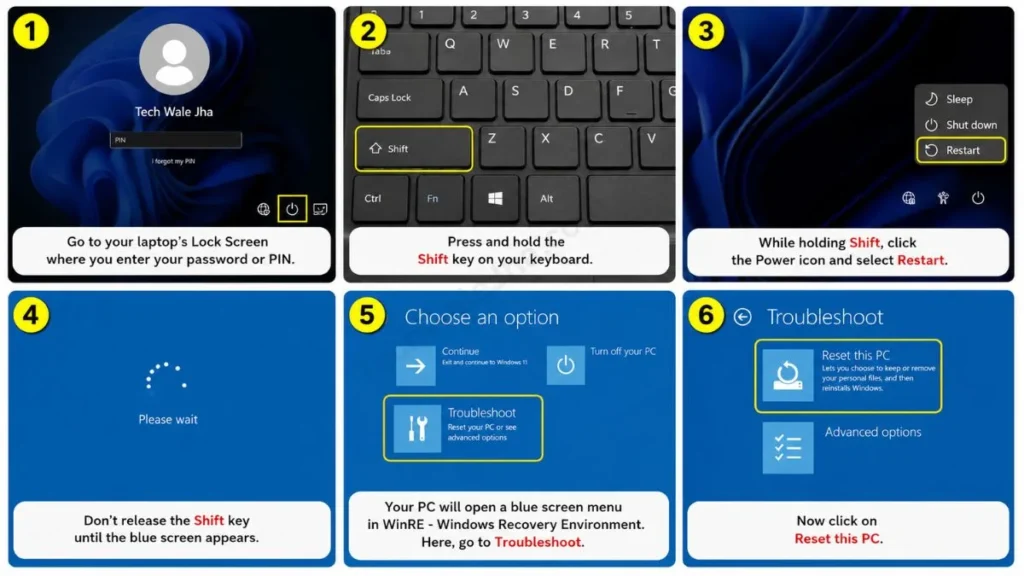
Sometimes the system hangs so much or you get a black or blue screen (BSOD) that you can’t unlock the PC or get to the Settings. In such cases, you can format the PC from the outside using the Windows 11 advanced startup reset trick. To do this, you:
- Go to your laptop’s Lock Screen where you enter your password or PIN.
- Now, press and hold the Shift key on your keyboard. Then, click the Power icon in the bottom-right corner of the screen and select Restart. And yes, don’t release the Shift key until the blue screen appears.
- After this, your PC will open a blue screen menu in WinRE – Windows Recovery Environment.
- Here, go to Troubleshoot and then click on Reset this PC.
Now the same old process will begin, and you will be able to fix the system easily.
Also Read: How to Install Windows 11 Without Microsoft Account
Frequently Asked Questions
How long does it take to reset, and what should you do if it gets stuck?
A normal Windows 11 reset process can take anywhere from 30 minutes to 2 hours, depending on the speed of your hard drive, such as an SSD or HDD. If you think your Windows 11 reset is stuck, like it’s been paused for a long time at 33% or 99%, there’s absolutely no need to panic. And under no circumstances should you turn off the laptop’s screen or force a shutdown, otherwise Windows will become corrupted (or “dead”). So, just let it take its time.
Will formatting or performing a reset remove my original Windows 11 license?
Not at all! Your Windows 11 digital license is deeply linked to your laptop’s motherboard and your Microsoft account. Once the reset process is complete, as soon as you reconnect your PC to Wi-Fi (the internet), Windows will automatically activate in the background.
Can I start the reset process using only the laptop’s battery?
No, that would be a huge mistake. Always keep your charger plugged in. If the battery dies halfway through, the system will crash with incomplete files and the laptop won’t turn on afterward.
Conclusion
Friends, the process of how to reset Windows 11 might seem a bit long or intimidating at first glance, but if you patiently follow the easy steps mentioned, honestly, it’s a piece of cake. A fresh reset not only makes your PC as fast as a rocket and lag-free, but it also gets rid of those persistent error pop-ups for good.
Hopefully, this guide has 100% solved your slow PC problem! If you have any other tech-related questions, be sure to ask in the comments, and if you have any suggestions, please share them with us as well.




