
Hello friends, is your laptop or PC taking a long time to boot? Or does it completely hang as soon as you open multiple tabs? If you’re really bothered by this problem, rest assured you’re not facing it alone.
Whenever we run new software on our computer, browse the internet, or play a game, Windows creates some hidden files in the background. We call these ‘Temporary Files’. Initially, these files help your apps load faster, but over time they accumulate in GBs (Gigabytes) and make your PC or laptop very slow.
While you can clean these files manually, you’d have to remember a lot of commands for it. That’s why I’ve created a 1-Click PC Speedup Script that lets you instantly clean all your temporary files with a single click. So, let’s go over how to run it step-by-step.
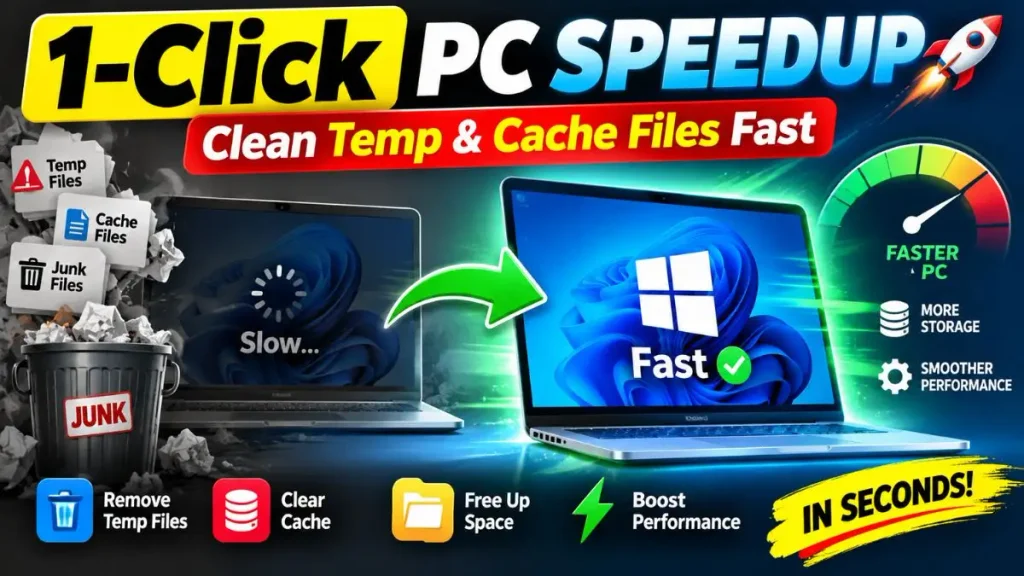
Impact of Junk on RAM & Disk Usage
When your C: drive starts filling up with junk files, it directly affects your hardware.
- 100% Disk Usage: Then, in the background, Windows tries to read these thousands of accumulated useless files, causing your hard drive or SSD to work overtime.
- High RAM Consumption: Available memory is reduced due to the cache and background processes, which makes it very difficult for new apps to open.
To solve this problem, you need to regularly optimize your system. And this is where our 1-Click PC speedup script will prove to be a lifesaver for you, making your system fast as new without any effort.
Also Check This: View Saved WiFi Passwords Windows 11 (1-Click BAT File)
What is the 1-Click PC Speedup Script?
Often people install CCleaner or other heavy third-party optimizers to speed up their PC. But the problem is that these programs run in the background and consume a lot of system RAM. On top of that, they display annoying ads that make the PC run even slower.
The best solution is a Windows batch script for PC cleanup. This is a simple, plain-text program that safely cleans the system by using native Windows commands. It’s a great fix for a slow laptop on Windows 11 and older versions.
Comparison: Batch Script vs Third-Party Software
| Features | 1-Click PC Speedup Script | Third-Party Cleaners (e.g., CCleaner) |
|---|---|---|
| Size & Speed | Extremely lightweight (KBs), runs in seconds | Heavy (MBs), takes time to scan |
| Background Process | Zero. It runs hot and then shuts down. | It always runs in the background. |
| Privacy & Ads | 100% Safe, No Ads, No tracking | Often contains ads and collects usage data |
| Cost | Completely Free forever | Premium versions required for full features |
Folders Targeted by This Script
You might be wondering if this script will delete your personal photos or passwords. You’re mistaken; it absolutely won’t do that. Instead, this script only targets folders that Windows no longer needs. It cleans up these specific system paths:
- User Temp (%temp%): Temporary files created by your daily apps.
- Windows Temp (C:\Windows\Temp): Cache files left behind by the OS and updates.
- Prefetch (C:\Windows\Prefetch): Boot and app loading cache (Here we execute the command to clear prefetch files in Windows 10 and 11).
After cleaning these temp and cache files, your PC will feel much smoother, faster, and more lag-free than before.
Also Check This: Fix Windows Update Errors in 1 Click | Reset Script
How to Create the PC Speedup Script Manually
Friends, if you’re tech-savvy and want to avoid downloading unknown files from the internet, you can create your own script. In this process, you’ll see the actual code, which will help you understand how this safe temp cleaner script works.
To create your own personal optimizer on your PC, follow these steps carefully:
- Now press the Windows key on your keyboard, search for Notepad, and open it.
- After that, copy the code provided below and paste it into your Notepad:
@echo off
color 0A
echo =========================================
echo       Cleaning Windows Temp Files
echo =========================================
echo.
echo Cleaning User Temp...
del /q /f /s "%temp%\*"
echo.
echo Cleaning Windows Temp...
del /q /f /s "C:\Windows\Temp\*"
echo.
echo Cleaning Prefetch...
del /q /f /s "C:\Windows\Prefetch\*"
echo.
echo =========================================
echo       PC Cleaned Successfully!
echo =========================================
pause- After pasting this code into your Notepad, click on the File menu, select the “Save As” option, and save it.
- Then, in the “Save as type” drop-down, select All Files or name the file Speedup.bat and save it to your Desktop. But remember, it’s essential to add .bat to the filename, otherwise the code won’t work.
Congratulations! Your Windows batch script for PC cleanup is now ready. Whenever your PC feels slow, right-click on it and select ‘Run as Administrator,’ and it will immediately clear your cache.
Also Check This: Best Free Windows 11 Debloat Script Batch File
Download the 1-Click PC Speedup Script (ZIP File)
If you don’t want to get into coding or are having trouble changing extensions, there’s no need to worry. I’ve created a ready-made, perfectly tested script for you. It’s a small ZIP file that’s completely safe and virus-free. By using it, you can easily boost your PC’s performance naturally with just one click.
Step-by-Step: How to Extract and Run as Administrator
Running such script files directly from within the ZIP folder can cause an error. Therefore, after downloading, please follow these simple steps carefully:
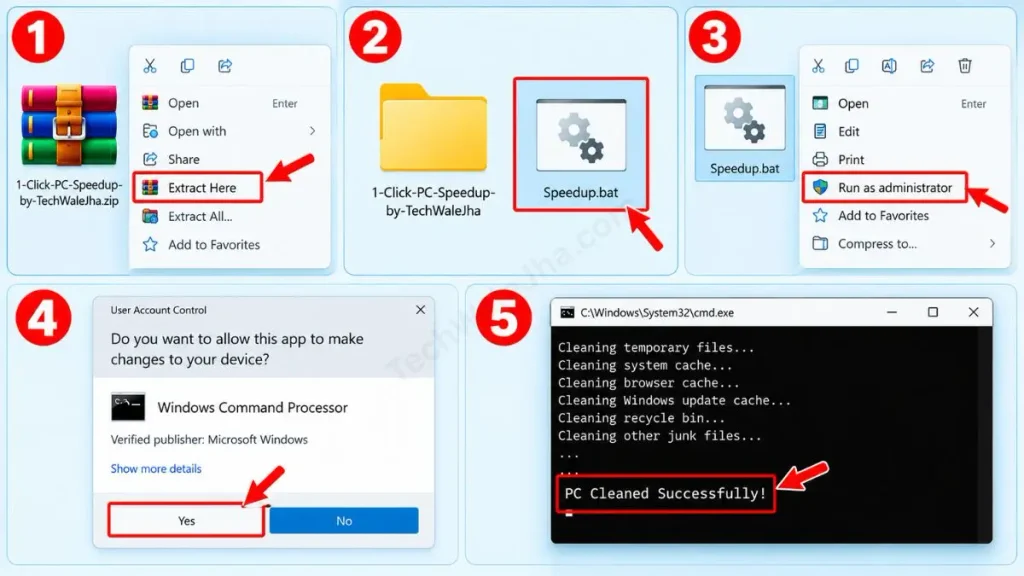
- Step 1: Right-click on the downloaded 1-Click-PC-Speedup-by-TechWaleJha.zip file.
- Step 2: From the menu, click ‘Extract Here’ or ‘Extract All’. You will then see a new folder or a Speedup.bat file appear.
- Step 3: Now, right-click on the Speedup.bat file and select ‘Run as Administrator’.
- Step 4: A User Account Control (UAC) prompt will appear on the screen then click ‘Yes’.
- Step 5: A black screen (Command Prompt) will appear, all hidden GBs of junk files will be cleaned in the background, and finally, “PC Cleaned Successfully!” will be displayed.
Press any key to close that black window. With this one click, your system will run at its maximum speed, you'll free up a lot of storage, and the Windows issue of 100% disk usage will be resolved.
If you want to learn more in detail about the technical background of these temporary files, be sure to read Wikipedia's Temporary File Guide.
Also Check This: Enable God Mode Windows 11 & 10 in One Click Folder Script
Frequently Asked Questions (FAQs)
Is this BAT script safe for my PC?
Yes, absolutely! This script is 100% safe. It only deletes temporary and cache files that Windows no longer needs. It was specifically created with Microsoft's safe parameters in mind.
Will it delete my personal files, photos, or passwords?
No. This script only targets the Windows Temp and Prefetch folders on the C: Drive. Your personal data like photos, videos, documents, Chrome history, and saved passwords remain completely 100% safe.
How often should I run this 1-click script?
To maintain your PC's best performance and continuously free up C drive storage, you can run this script once a week.
Can I use this on Windows 11?
Yes! This script is universally compatible. It works perfectly on all versions of Windows 7, Windows 10, and the latest Windows 11, without any issues.
Conclusion & Call to Action
So friends, this was the easiest and fastest way to make your PC run smoothly. After this, you won't need any expensive software or heavy applications like CCleaner. Just run this 1-Click PC speedup script and in just a few seconds, make your system fast as new.
I hope this little trick has definitely boosted the speed of your slow laptop or PC and freed up quite a few GBs of storage.
Your feedback is very important to me, so be sure to let me know in the comments below how much space you freed up on your PC and what difference it made in speed after running this script.
For more fun, hidden Windows tricks and daily tech hacks, don't forget to follow and subscribe to my channel and pages @TechWaleJha on YouTube, Instagram, and Facebook! See you in the next article. Until then, take care and bye-bye.
Disclaimer: This script and the information provided are for educational and tech-troubleshooting purposes only. Although this 1-click .bat file is fully tested and safe, cleaning or modifying system files is entirely your responsibility. TechWaleJha will not be held responsible for any unforeseen data loss, system errors, or hardware or software damage. Please use this tool at your own risk.




