
If you have recently installed Windows 11 on your laptop or PC, or if you have bought a new laptop, then you must have noticed that the system comes with many unnecessary apps like TikTok, Instagram, and Facebook pre-installed. This is known as “Bloatware” is called. Not only do these take up your PC’s storage, but they also run in the background, slowing down both your system’s speed and your RAM. In this article, I’m providing you with a safe and effective Windows 11 debloat script Batch File. This is a completely tested remove bloatware Windows 11 BAT file that will make your PC super fast and clean.
Why is Windows 11 Debloat Important?
Microsoft runs many services in the background in Windows 11 that are of no use to a normal user. These include continuous data collection (Telemetry), Cortana, and Bing web search results in the Start Menu. All these hidden processes keep using your CPU, RAM, and internet data for no reason.
If you game, run heavy software like a video editing application, or just want smooth multitasking, then removing (debloating) these useless services and third-party apps is crucial. This significantly improves your system’s boot time and overall performance.
Why Should You Use This Script?
There are many debloaters available on the internet, but some of them are so aggressive that they can crash Windows by making incorrect changes to the registry. If your main goal is to speed up Windows 11 with a single click without any technical knowledge, then you should definitely try this script. This script is completely safe and optimized:
- 100% Safe: This script does not delete any core or essential system files.
- Privacy Protection: It blocks Microsoft’s unwanted data collection (Telemetry).
- Clean Start Menu: It disables annoying Bing search suggestions from the Start menu.
- One-Click Clean: It safely removes unwanted pre-installed apps like Spotify, Twitter, Instagram, etc., in a single click.
How to Use It? (Step-by-Step Guide)
Using this debloat script is very easy. Just follow the steps below carefully:
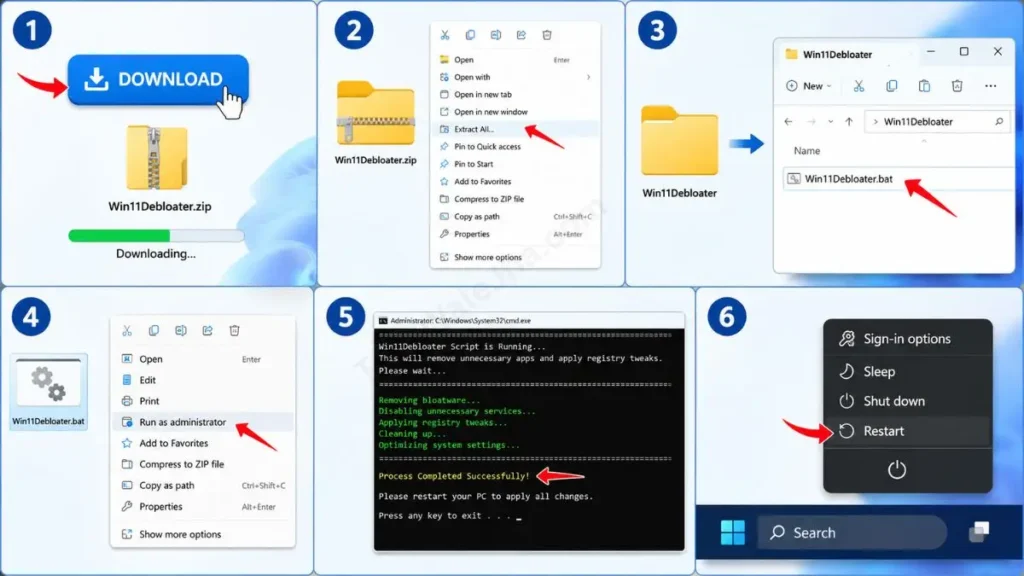
- Download The Script: Download the Win11Debloater.zip file by clicking the download button below.
- Extract the File: After downloading, right-click on the ZIP file and extract (unzip) it. Inside, you will find a .bat script file.
- Run as Administrator: Right-click on the .bat file and select “Run as Administrator.” Note: without admin permissions, this script cannot make changes to the registry.
- Wait for the Process: A black CMD window will open where the process will run. The script will automatically do its work, which may take 1-2 minutes.
- Restart PC: After “Process Completed Successfully” appears on the screen, be sure to restart your PC so that all the changes can be properly applied.
Pro Tip: Before running any technical script, always create a System Restore Point on your PC. This way, if you need to restore any apps, you can easily return the system to its previous state.
Disclaimer: This article and script are shared solely for educational and PC optimization purposes. Although this script is completely safe and tested, use it at your own risk. Always create a System Restore Point before modifying any system file. TechWaleJha or the website administration will not be held responsible for any system errors, app crashes, or data loss after running the script.




