
To fix the “Low Disk Space” error, the delete files older than 30 days batch script is the safest, software-free solution. It automatically scans your cluttered Downloads, Logs, or Backup folders and instantly removes unused files, freeing up gigabytes of storage immediately without installing heavy third-party apps like CCleaner.
Does your system’s C: drive always show up in red? If your answer is yes, it’s very important for you to understand the reason behind it. We download new PDF files, images, software, and some setups from the internet every day, but after we’re done with them, we forget to delete them. After months, these “temporary” files end up taking up gigabytes of storage, causing your PC to slow down and hang because there isn’t enough space for it to run properly.
Or in such cases, people get very worried when they see a “Low Disk Space” popup and install heavy third-party software to free up storage. But I always say, when Windows has the built-in power to automatically delete old files, why install unnecessary apps on your PC? right? These third-party softwares often show a lot of ads, consume RAM in the background, and make the system even slower.
So, we’re going to create our own smart and lightweight delete files older than 30 days batch script. The benefits of this custom script are very clear, such as:
- 100% Free & Fast: No installation is required, and cleaning starts with a single click.
- Zero Background Process: It doesn’t consume any RAM because it only runs when you choose to run it.
- Fully Safe & Transparent: You decide which specific folder to clean, so there’s no risk of deleting any important files.
Also Check This Tool: 1-Click Game Booster Script: Fix Lag & Boost FPS
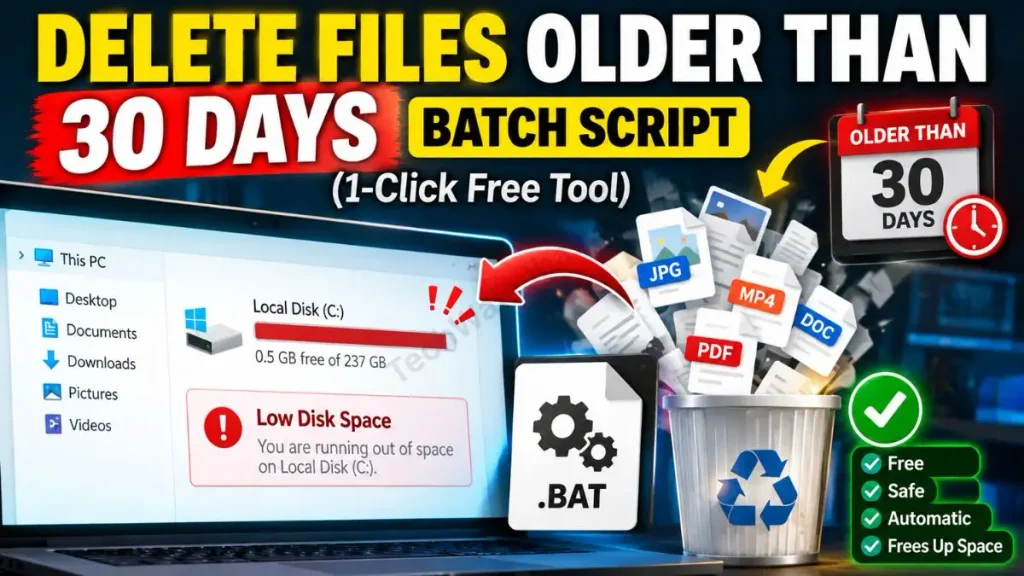
Create the Delete Files Older Than 30 Days Batch Script (.Bat Code)
Friends, whether you’re a regular user or part of the tech community, everyone enjoys original and technical problem-solving. If you’re even a little tech-savvy, using Notepad to create your own system-level tool provides a unique level of satisfaction.
Also Check This Tool: 1-Click Laptop Battery Health Checker Script (Windows)
To create your own custom Delete Files Older Than 30 Days batch script without any external apps, just follow these simple steps:
- To create it, press the Windows Key on your PC or Laptop, then type “Notepad” in the search and open it.
- Now, carefully copy the code given below and paste it into your Notepad:
@echo off
color 0E
echo =========================================
echo Auto-Delete Files Older Than 30 Days by Techwalejha.com
echo =========================================
echo.

:: Niche target_folder ke aage apna folder path dalein
set "target_folder=C:\Users\YourUsername\Downloads"
set "days=30"

echo Scanning folder: %target_folder%
echo Deleting files older than %days% days...
echo.

ForFiles /p "%target_folder%" /s /d -%days% /c "cmd /c del /q @file" 2>nul
echo.
echo =========================================
echo    Old Files Deleted Successfully!
echo =========================================
pause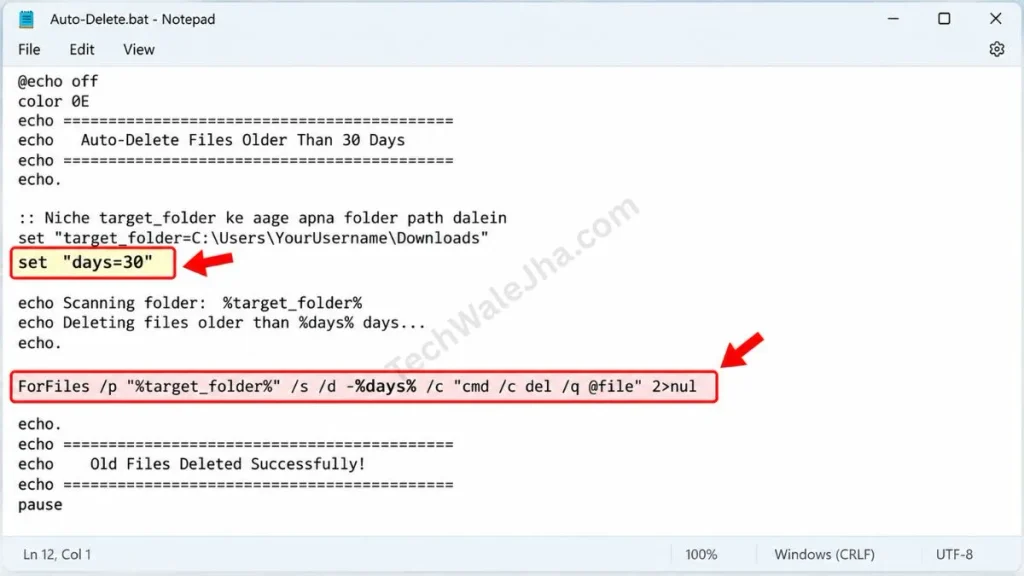
- After pasting the code into Notepad, click on File at the top and select Save As. Then, set the ‘Save as type’ drop-down to All Files.
- After that, name the file Auto-Delete.bat and save it to your Desktop.
Also Check This Tool: 1-Click Folder Locker Script For Windows: Hide & Lock Files Safely
Line-by-Line Code Breakdown (How does it work?)
I have explained each line of this code here so that you have no doubts about the security. Let’s understand how this delete files older than x days cmd script works perfectly. We’ve used the logic of Windows’ most powerful command, ForFiles, in this. If you want to read its official server-level documentation, you can check the Microsoft ForFiles documentation.
set “target_folder=...”: Here we set a variable. The script focuses only on this location.ForFiles /p: This function directs the tool to the exact folder path you provide./s: This is the subdirectory command. It allows you to automatically check subfolders within the main folder./d -%days%: This is the masterstroke of this script! It successfully applies the forfiles logic to delete files older than 30 days, so only those files that are exactly 30 days old are filtered. New files remain safe./c “cmd /c del /q @file”: The execute (/c) command silently (/q) and permanently deletes the old files that are filtered out.
Also Check This Tool: 1-Click Windows Auto Repair Tool Script: Fix BSOD & Errors
Download the 1-Click Auto-Delete Script (ZIP File)
Download our ready-to-use delete files older than 30 days batch script, securely packed in a ZIP file. This completely free tool lets you safely clean up old backups and clear your Downloads folder without manually typing any CMD commands.
If you want to avoid Notepad and coding errors, or you have absolutely no time to manually type the script, I’ve made it even easier for you because, as an expert tech blogger, I’ve already created this ready-made, extensively tested file for you. You can directly download this clean old backups batch file from the link provided below.
Is this ZIP file completely safe?
Yes, it's 100% safe. The thing is, it's a very common problem that when we download a .bat (Batch) file directly from the internet, Google Chrome, Edge, or Windows Defender block it as a false-positive (a false alarm). They think it's a harmful command. That's why I've packed this file inside a ZIP folder, so the browser won't block it and your download will go smoothly. There is absolutely no third-party bloatware or hidden virus in it, because I made and tested it myself, so you can download and use it on your system without any fear.
Also Check This Tool: One Click Windows Telemetry Disable Script (Boost Speed 2026)
How to Set Up the Batch Script for Your Folders?
Friends, since everyone's PC has different folders they want to clean, the most important step before running this script is to add your specific folder path to it. This can become a perfect batch script to clear the Downloads folder if you set it up correctly. To set it up, carefully follow the simple steps given below:
- Step 1: First, extract the downloaded ZIP file to your Desktop. To do this, right-click on the ZIP file and click “Extract All” or “Extract Here.”
- Step 2: After the folder is extracted, right-click on the Auto-Delete.bat file inside it and select “Edit with Notepad”. This will open the batch file directly in your Notepad.
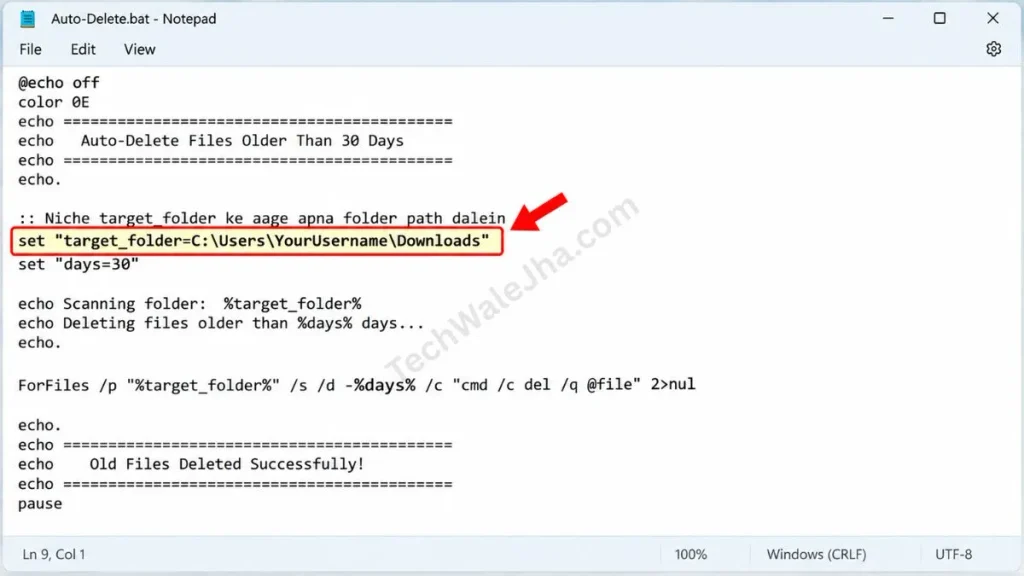
- Step 3 (Most Important): Look carefully inside the code where it says “
set ”target_folder=C:\Users\YourUsername\Downloads“”. Delete the old path from there and copy-paste the path of the folder you want to clean up. For example:set “target_folder=D:\CCTV-Backups”orE:\LogFiles.
- Step 4: If you want only files that are 7 or 10 days old to be deleted instead of 30 days old, you can easily customize it. To do this, simply change the “
days=30” in the code to “days=7”. - Step 5: After making the changes, press Ctrl + S on your keyboard to save the file and close Notepad.
After that, whenever your folder is full, just double-click this BAT file. A black screen will appear, and in a fraction of a second, your GBs of space will be freed up.
Also Check This Tool: One Click Network Fixer Script: Fix WiFi No Internet Fast
Bonus Tip - Automate it with Windows Task Scheduler!
Friends, now let's get to that pro-level trick that will set you apart from the average user. If you don't want to manually double-click this script every week or every month, why not put it on autopilot for life? This trick is perfect for anyone who regularly manages CCTV backups, server logs, or heavy download folders.
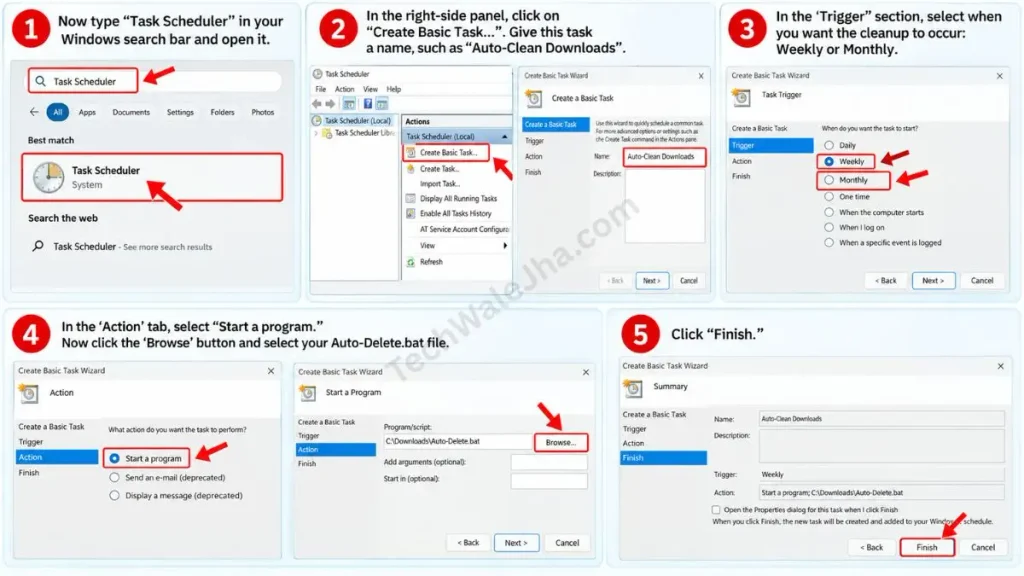
You can automate the entire process using the Windows Task Scheduler's auto-delete feature. Just set it up once and then forget about it:
- Step 1: Now type “Task Scheduler” in your Windows search bar and open it.
- Step 2: In the right-side panel, click on “Create Basic Task...”. Give this task a name, such as “Auto-Clean Downloads”.
- Step 3: In the ‘Trigger’ section, select when you want the cleanup to occur: Weekly or Monthly.
- Step 4: In the ‘Action’ tab, select “Start a program.” Now click the ‘Browse’ button and select your Auto-Delete.bat file.
- Step 5: Click “Finish.” You don't need to do anything else, because this script will automatically run in the background and you'll be stress-free.
Also Check This Tool: 1-Click Shortcut Virus Remover Script (Fix Pendrive)
Frequently Asked Questions (FAQs)
Will this script delete folders inside the target directory?
No. This script specifically only deletes files (like .pdf, .mp4, .jpg, .txt, .zip). Your folders (directories) will remain completely safe; only the old files inside them will be removed.
Can I change the 30-day limit to 10 days?
Yes, absolutely! You can simply right-click the BAT file, select ‘Edit,’ and change the ‘days=30’ in the code to ‘days=10’ or ‘days=7’. It's completely customizable.
Are the deleted files moved to the Recycle Bin?
No. Because this script uses the CMD (del command) at a system level, the files are deleted instantly and permanently. They do not go to the Recycle Bin. Therefore, be careful to run the script on the correct folder.
Is it safe to use this on the C: Drive?
You can safely use this on personal folders on the C: Drive, such as Downloads or Documents. However, do not run it on system folders like C:\Windows or C:\Program Files, even by mistake, or your PC might crash.
Conclusion
So friends, this is the smartest, safest, and most professional way to automatically maintain your storage without any heavy third-party apps. Now that annoying red “Low Disk Space” warning will never bother you again.
Which specific folder did you use this script to clean? Did you clean Downloads or a Backup folder? Be sure to share your experience in the comments below.
If you want more advanced automation scripts, technical CMD hacks, and daily troubleshooting tips like this, be sure to follow and subscribe to your tech-buddy @TechWaleJha on YouTube, Facebook, and Instagram.
Disclaimer: Friends, I have personally tested all the Batch (.bat) scripts provided in this article, and they are completely safe. However, since everyone's PC configuration is different, please use them at your own risk. Before running any system-level script, be sure to back up your important data. TechWaleJha, its author, or this website will not be held responsible for any unexpected data loss, system errors, or PC crashes. Please run the script exactly as per the steps provided and avoid making any unintended changes to the code.




