
Have you ever noticed that on your laptop or PC, even when you haven’t opened any heavy game or application, the fan is still running at full speed and making a lot of noise? In that moment you think, “Bro, what on earth is running in the background?” Then as soon as you open Task Manager, you see CPU and RAM usage at 80 to 90%. Naturally, the question pops into your head: if I’m not doing anything, why is the system using so many resources?
Hello friends, I’m your very own TechWaleJha, and welcome to another detailed Windows Telemetry Disable Script guide where you can easily optimize your PC with a single click using this script.
So, friends, there can be many reasons behind this, but one hidden reason in Windows could be Telemetry. Some of Windows’ telemetry and diagnostic services collect usage and diagnostic data from the system in the background. This process isn’t always a problem, but on some PCs you may see unnecessary background activity and resource usage.
If your PC’s CPU or RAM usage stays unnecessarily high even when you’re not running any heavy applications, you can limit unnecessary data collection by checking Windows’ telemetry-related settings. And in this guide I’ll show you a simple way to control your Windows PC’s background telemetry activity and keep your system a bit cleaner and more responsive.
Microsoft secretly collects your usage data in the background on your PC and uploads it to its servers. In this process, your internet, RAM, and processing power are all being wasted. But don’t worry! In today’s article, I’ll give you a magical Windows telemetry disable script I created. With just one click, you’ll be able to permanently kill these background services, making your PC as fast and secure as new.
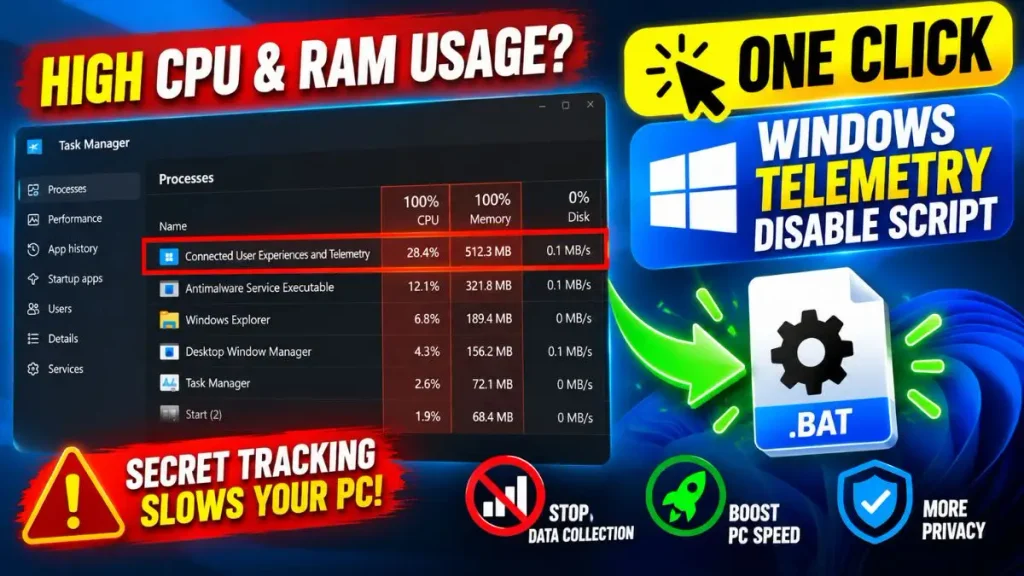
What is Windows Telemetry and why should you disable it?
Windows Telemetry (DiagTrack) is a built-in service that constantly tracks your app usage, system errors, and keyboard typing data to send back to Microsoft. You should disable it to protect your privacy, reduce unnecessary RAM/CPU load, and save background internet bandwidth.
In simple terms, it’s a default Windows service called Connected User Experience and Telemetry (known as DiagTrack in technical terms). Microsoft says this feature helps them to “improve” make Windows ‘better.’ But the truth is that it constantly records a lot of your personal information, such as which apps you use and what errors are occurring in the system. If you want to read about this tracking from an official source, you can check out Microsoft’s Privacy Statement.
Also Check This: One Click Network Fixer Script: Fix WiFi No Internet Fast
To unlock your PC’s true performance, you should definitely disable Windows Telemetry. Let’s look at the top benefits of turning off this service:
Top 3 Benefits of Disabling Windows Telemetry
| Feature | What Happens When You Disable It? | Benefit for You |
|---|---|---|
| Privacy Protection | This completely stops Microsoft’s data collection. | 100% Privacy: Your typing data and app usage will remain limited to your PC. |
| Hardware Performance | When the DiagTrack service is disabled, background tasks are killed. | Save CPU & RAM: Heavy tasks like gaming and video editing will run completely smoothly. |
| Network Speed | In the background, data uploads to Microsoft’s servers stop. | Save Internet Data: Your ping will improve and unnecessary data won’t be wasted. |
Optimizing your Windows 11 privacy settings should be your first step every time after getting a new laptop or installing the OS.
How to Create the Telemetry Disabler Script Manually? (Code Included)
Friends, tech experts always value originality and deep knowledge. So, if you’re tech-savvy, I recommend that you create your own optimize PC for gaming script. That way, you’ll know exactly what changes are being made to the system, and there will be complete transparency.
To create your own script, follow these steps:
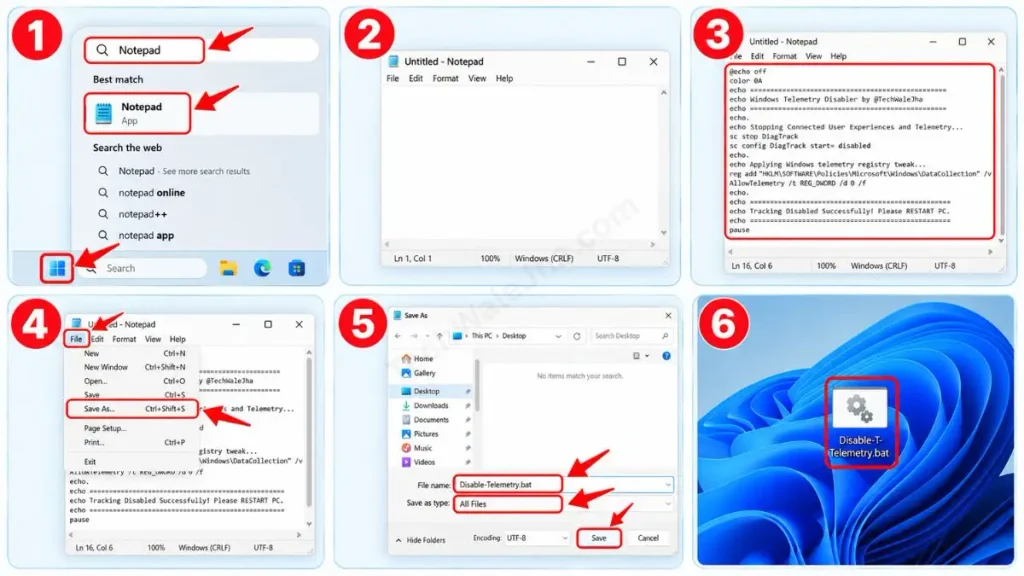
- Press the Windows key on your keyboard, type “Notepad” in the search bar, and open it.
- Then copy the code below and paste it into Notepad:
@echo off
color 0A
echo ==================================================
echo Windows Telemetry Disabler by @TechWaleJha
echo ==================================================
echo.
echo Stopping Connected User Experiences and Telemetry...
sc stop DiagTrack
sc config DiagTrack start= disabled
echo.
echo Applying Windows telemetry registry tweak...
reg add "HKLM\SOFTWARE\Policies\Microsoft\Windows\DataCollection" /v AllowTelemetry /t REG_DWORD /d 0 /f
echo.
echo ==================================================
echo Tracking Disabled Successfully! Please RESTART PC.
echo ==================================================
pause- After pasting this code into Notepad, click on File at the top and then select Save As. Change the “Save as type” to All Files, name the file Disable-Telemetry.bat, and save it to your Desktop.
Line-by-Line Code Breakdown (How does it work?)
I have explained this code line by line so that you will know what the function of each line of code is. So, let’s understand this code:
sc stop DiagTrack: This command immediately stops the currently running telemetry service on your PC. This instantly solves your high CPU usage Windows telemetry problem.sc config DiagTrack start= disabled: This command ensures that when you restart your PC, this service does not automatically start again (Permanently disables the DiagTrack service).reg add ... AllowTelemetry /t REG_DWORD /d 0 /f: This is an advanced Windows telemetry registry tweak that forces Microsoft’s group policy to set the data collection limit to ‘0’ (Zero). If you want to learn in detail about the registry keys, you can read Microsoft’s official Registry documentation.
Also Check This: 1-Click PC Speedup Script: Clean Temp & Cache Files Fast
Download the One Click Windows Telemetry Disabler (ZIP File)
Get our free, ready-to-use one click telemetry disabler download that safely stops Microsoft data collection without manual coding. This tool is packed in a ZIP file to prevent antivirus false positives and ensure a completely safe PC optimization process.
If you don’t want to get into the technical hassle of Notepad, extensions, or the registry, don’t worry. I have packed this same code into a safe, ready-made file. You can download it directly from the link below and extract it on your PC or laptop to use.
Why did I provide this file in ZIP format?
Often when we download .bat files directly from the internet, Google Chrome or Windows Defender block them as “harmful” and call it a false positive. Keeping it in a ZIP folder prevents your file from getting corrupted and allows the browser to download it safely. This file is 100% virus-free and safe, created specifically with Windows 11 privacy settings in mind.
How to Apply the Script Safely? (Step-by-Step)
Friends, since this script directly modifies the Windows Registry and core services, the way to run it is a bit specific. If you double-click it normally, you'll get an “Access Denied” error because of system security.
To apply this tool perfectly and safely, follow these steps carefully:
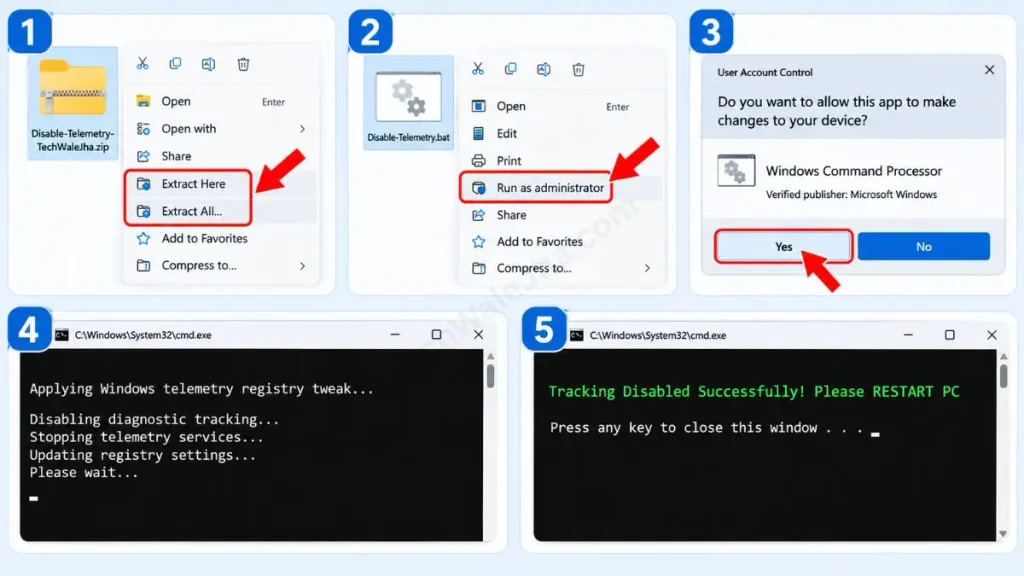
- Step 1: Right-click on the downloaded Disable-Telemetry-TechWaleJha.zip file and select ‘Extract Here’ or ‘Extract All’.
- Step 2: Right-click the Disable-Telemetry.bat file in the folder and be sure to select “Run as Administrator.” This is the most crucial step.
- Step 3: A User Account Control (UAC) prompt will appear on the screen. Click Yes to grant permission.
- Step 4: A black Command Prompt screen will appear, applying the Windows telemetry registry tweak in seconds.
- Step 5: When the message “Tracking Disabled Successfully! Please RESTART PC” appears on the screen, press any key to close the window.
After that, just restart your PC once. Once it restarts, you'll see that your high CPU usage Windows telemetry issue has completely disappeared and the fan noise you were hearing is now gone.
Also Check This: Best Free Windows 11 Debloat Script Batch File
Frequently Asked Questions (FAQs)
Is it safe to disable Windows Telemetry?
Yes, it's absolutely safe. Disabling telemetry will not harm any software, driver, or normal function on your PC. This Windows telemetry disable script only stops the specific service that sends your typing and usage data to Microsoft.
Will disabling telemetry stop Windows Updates?
No. Your Windows updates will work just as normal. This script only stops the “DiagTrack” data collection service, which has no connection to the Windows Update service.
How can I check if telemetry is actually disabled?
To check this, press the Windows key + R on your keyboard and type services.msc in the run box. Then, in the Services list, search for “Connected User Experiences and Telemetry.” After running the script, its ‘Startup Type’ and ‘Status’ will show as ‘Disabled’.
Can I reverse this setting if I want to?
Yes, easily. If you want to change this setting back to how it was in the future, go to services.msc, right-click on the service, open its properties, change the Startup type back to ‘Automatic’, and click Start.
Conclusion
So friends, this is the easiest, safest, and most 1-click way to protect your PC from Microsoft's background tracking. With this little trick, you not only secure your privacy but also bring heavy CPU and RAM usage under control.
Now your PC will be faster, more responsive, and optimized for gaming than ever before.
I want to know, after using this one click Windows telemetry disable Script, did you notice a reduction in CPU and RAM usage in your Task Manager? Please share your experience and any RAM drops in the comments below. I personally read and respond to all comments.
For more fun tech hacks, coding scripts, and daily troubleshooting tips, be sure to follow my channel and social media handles @TechWaleJha on YouTube and Instagram. See you in the next article; until then, take care and bye-bye.
Disclaimer: Friends, I have personally tested all the Batch (.bat) scripts provided in this article, and they are completely safe. However, since everyone's PC configuration is different, please use them at your own risk. Before running any system-level script, be sure to back up your important data. TechWaleJha, its author, or this website will not be held responsible for any unexpected data loss, system errors, or PC crashes. Please run the script exactly as per the steps provided and avoid making any unintended changes to the code.




