
Friends, imagine you’re in a very important client meeting, or about to submit a new project before the deadline, and suddenly a dreaded yellow triangle appears on the WiFi icon in your taskbar, showing an error like “No Internet, Secured” or “Connected, No Internet.” This error is nothing short of a nightmare for all Windows users. Every time this glitch happens, restarting the router or opening CMD (Command Prompt) and typing long codes to get the internet back is extremely irritating and time-consuming.
But what if I told you that you could eliminate this frustration for good? What if with just a double-click your PC could automatically diagnose and repair all your network issues?
Yes, friends! In today’s in-depth guide, I’ll teach you how to create and use a custom Network Fixer Script that will reset your network adapters with a single click. If you’re tired of repeatedly searching online for fixes for Wi-Fi disconnecting in Windows 11 or for that annoying “Fix No Internet Secured” error, then you’ve come to the right place. Once this 1-click batch script is created, you’ll never have to waste your time on manual troubleshooting again. So, let’s make your PC or laptop a little smarter without wasting any more time.

Why Does Your Windows PC Lose Internet? (Main Causes)
Before jumping straight to the script and fix, as a tech-savvy user we should definitely understand why a perfectly fine internet connection suddenly drops. When you connect to the internet, thousands of tiny network requests are processed in the background. In this network chain, there are mainly three main culprits that break the connection, such as:
- Corrupted DNS Cache (DNS Glitches): Friends, just as your Chrome browser has a history where website data is saved, your Windows PC also maintains a “DNS Cache.” This cache remembers IP addresses. But when this cache becomes overfilled or corrupted, the system can’t establish new connections and you have to clear it manually.
- IP Address Conflicts: Many times, your WiFi router mistakenly assigns the same IP address to two different devices, like your laptop and smartphone. When this happens, Windows immediately drops the network connection to prevent a data conflict. In such cases, your default Windows 11 network troubleshooter often fails as well.
- Corrupted TCP/IP Stack: TCP/IP (Transmission Control Protocol/Internet Protocol) is your system’s core network stack that handles internet communication. Third-party VPNs, antivirus software, or new software updates can corrupt this stack, completely blocking internet access.
- Outdated Network Drivers: If the network adapter in the background (whether it’s an Intel or Realtek adapter) isn’t syncing properly with the hardware, then the WiFi signals will continuously drop.
Now that we’ve understood the root cause of the problem, we know we need to reset these 3-4 things. And this is exactly what our automated Windows network repair script does in a second.
Also Check This: 1-Click PC Speedup Script: Clean Temp & Cache Files Fast
Manual Fixes to Restore Connection (The Old Way)
Before creating a script, every smart user should know what’s actually happening in the background. If you want to fix your internet manually without a script, you normally have to follow the steps given below.
Fix 1: Manually Flushing the DNS Cache
When a website doesn’t load or you get a DNS error, the first step is to clear the cache:
- To do this, first click the Start menu and type CMD in the search bar.
- Then, right-click on ‘Command Prompt’ and select ‘Run as Administrator’.
- Then, when the black screen (console) opens, type: ipconfig /flushdns.
- After that, press Enter. You will see the message “Successfully flushed the DNS Resolver Cache.” Then, close the window and restart your PC.
Fix 2: Resetting the TCP/IP Stack
If clearing the cache doesn’t fix the issue, you need to reset the core network. This process is called a TCP/IP reset command.
- To do this, open CMD again and type: netsh winsock reset
- Press Enter, and after the command completes, enter the second command: netsh int ip reset
- After applying this, manually restart your PC once more.
(These same core commands are also recommended for network issues in Microsoft’s official guide. You can read Microsoft’s Advanced Network Troubleshooting Guide here for more details).
Now, think about how boring it gets to type these 4-5 commands over and over again whenever the internet goes down. Let’s automate this with a single double-click.
The 1-Click Custom Script Fix (Automated .BAT File)
Friends, if you’re tech-savvy and avoid downloading tools or files directly from the internet, you can easily create your own flush DNS cache script using Notepad. This way you’ll see the actual code and know exactly what’s being executed on the system.
To create your own personal network fixer, just follow these simple steps below:
- Press the Windows key on your keyboard, type “Notepad” in the search bar, and open it.
- Copy the powerful winsock reset command script below and carefully paste it into your Notepad:
@echo off
color 0B
echo ==============================================
echo 1-Click Network and WiFi Fixer by @TechWaleJha
echo ==============================================
echo.
echo Flushing DNS Cache...
ipconfig /flushdns
echo.
echo Releasing Current IP Address...
ipconfig /release
echo.
echo Renewing New IP Address...
ipconfig /renew
echo.
echo Resetting Winsock Catalog...
netsh winsock reset
echo.
echo ==============================================
echo Network Reset Complete! Please RESTART your PC.
echo ==============================================
pause- After pasting the code correctly into Notepad, go to the File menu in the top left and click “Save As”.
- A pop-up will then appear. In the “Save as type” drop-down, select “All Files”. Please note that if you save it as a .txt file, it will not work at all.
- And name the file Network-Fixer.bat and save it to your Desktop. Also, remember that it is very important to add .bat to the end of the filename, otherwise the file will not work.
If you have followed the steps correctly, congratulations! Your custom One Click Network Fixer Script is now all set.
Also Check This: Best Free Windows 11 Debloat Script Batch File
How the Network Fixer Script Works (Line-by-Line Breakdown)
Many times users are very afraid of randomly downloading scripts from the internet. That’s why, as a developer, I explain each command of this flush DNS batch file script in simple terms so you can trust it:
- @echo off & color 0A: This makes the script look clean and gives it a cool green color like in the movie The Matrix.
- ipconfig /release: This command forcibly releases your current IP address.
- ipconfig /flushdns: This clears the corrupt cache, paving the way for new connections.
- ipconfig /renew: This is the most important part of a proper ipconfig release/renew script. It requests a brand-new, error-free IP address from the router.
- netsh winsock reset: This command resets your network adapter’s internal software to factory defaults.
- >nul: We have placed >nul in front of some commands so that the long, boring details of background processes do not appear on your screen and the script looks clean.
Download the One Click Network Fixer Script (ZIP File)
If you don’t want to get into the hassle of coding or extensions and you need an error-free, ready-made tool, then I have already prepared a file for you. You can download it completely free by clicking the ZIP file link below.
I am providing this WiFi fixer bat file in ZIP format so that Google Chrome, Edge, or Windows Defender do not block it as a false-positive. This file is 100% safe, tested, and virus-free, so you can download it without any fear.
Also Check This: Fix Windows Update Errors in 1 Click | Reset Script
How to Use the Downloaded One Click Network Fixer Script Correctly? (Very Important)
Note: Do not run this script by double-clicking it normally, otherwise you will get an “Access Denied” error on the screen! The script requires admin rights to change the system's internet settings so that it can automatically renew the IP address.
Follow these steps carefully to solve the problem correctly:
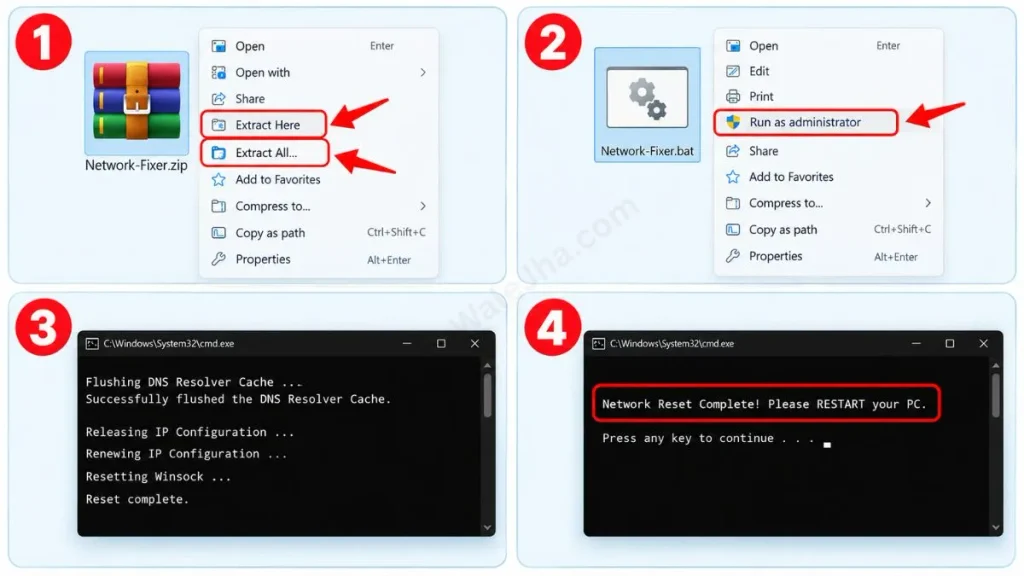
- Step 1: First, right-click on the downloaded ZIP file and click the ‘Extract Here’ or ‘Extract All’ option to extract it.
- Step 2: After extraction, right-click the Network-Fixer.bat file and be sure to select “Run as Administrator.”
- Step 3: A small black Command Prompt window will appear on the screen, which will clear your old, corrupt network cache in seconds.
- Step 4: As soon as the message “Network Reset Complete! Please RESTART your PC.” appears on the screen, press any key to close the window and be sure to restart your laptop or PC.
Once it restarts, your system will get a fresh IP from the router, and the yellow triangle will disappear for good.
If you want to learn more in-depth about networking and how the Internet works, you can read the detailed guide on the Internet Protocol Suite (TCP/IP) here on Wikipedia.
Also Check This: View Saved WiFi Passwords Windows 11 (1-Click BAT File)
Frequently Asked Questions (FAQs)
Will this script delete my saved WiFi passwords?
No. This script only resets the system's core network settings (like TCP/IP and Winsock). Your PC's previously saved WiFi networks, their passwords, and your browsing history will remain completely safe. It does not touch them at all.
Why does it show “Access Denied” when I run the script?
Windows requires admin permission to change the system's core network settings, like IP and Winsock. If you double-click the file, you will get this error. To fix this, right-click the file and select “Run as Administrator”.
Do I need to restart my PC after running this?
Yes, absolutely! Restarting the PC is very important to successfully apply the Winsock reset and new IP configuration to the system. The changes will not take effect without a restart.
Does this work on both LAN (Ethernet) and WiFi connections?
Yes, this script resets and fixes both LAN cable (Ethernet) and Wireless (WiFi) network adapters at the same time. So whether you're using LAN on a gaming PC or WiFi on a laptop, it's perfect for both.
Is running a batch (.bat) script safe for my PC?
It's completely safe! This Network Fixer Script is not any external third-party software or a virus. It's just a collection of the same official, built-in Windows commands that Microsoft itself recommends in its troubleshooting guides. You can right-click on your script file and edit it to check the code for yourself.
How often should I run this Network Fixer Script?
You don't need to run it every day like you do a PC cleanup. Use this one-click script only when your internet suddenly stops working, websites stop loading, or you see a yellow “Fix No Internet Secured” icon in the taskbar. It works like an emergency first-aid kit.
Conclusion
So friends, you no longer need to be bothered by the frustrating “WiFi connected but no internet” error. With just one click, your network will be completely fresh and error-free.
I hope this one small One Click Network Fixer Script has solved your internet problem. If your internet is working fine, please be sure to let me know in the comments below! Reading your comments makes me very happy.
For more fun PC tips, secret scripts, and daily tech hacks, don't forget to subscribe and follow my channel and social media handles @TechWaleJha. See you in another new article. Until then, take care and bye-bye.
Disclaimer: This script and article are provided solely for educational and tech-troubleshooting purposes. Although this one-click .bat file is fully tested and safe, modifying Windows network settings and system files is entirely your responsibility. TechWaleJha will not be held liable for any unforeseen network loss or system errors. Please use this tool with admin rights and at your own risk.




