
Friends, there’s nothing like installing a fresh Windows 11 on a brand-new laptop. The system runs absolutely buttery smooth. But the real frustration starts when you try to run one of your favorite third-party software, an open-source tool, or a game mod made by a small developer, and suddenly a big popup appears on the screen saying, “Smart App Control blocked an unrecognized app.”
You know 100% that the file is perfectly safe and doesn’t have a virus, but Windows won’t listen to you. Because of this strict security lockdown, many genuine apps simply won’t run. If you’re also a victim of this problem and are constantly searching online for exactly how to turn off Smart App Control Windows 11, then you’ve come to the right place.
In this step-by-step tech guide from your very own TechWaleJha, today we’ll learn how to permanently disable this aggressive security feature. and if you implement this in your Windows 11, after this tweak your computer will be back under your control, and you’ll be able to easily install your favorite software without any annoying pop-ups. So let’s fix this problem without wasting any more time.
Also Check: How to Show Hidden Files in Windows 11 (2 Easy Methods)
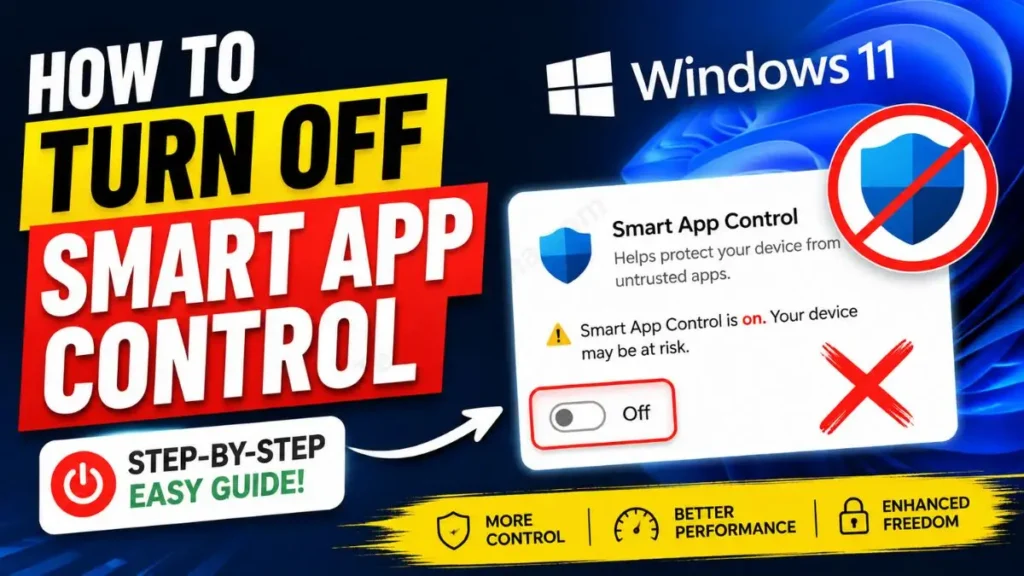
What is Smart App Control (And Why is it Blocking My Apps?)
Before you disable this feature, as a smart tech user, you should know how it actually works and why the Windows 11 Smart App Control blocking apps problem even exists.
In plain terms, Smart App Control (SAC) is Microsoft’s new AI-based, cloud-driven security system, which is somewhat different from traditional antivirus programs like Windows Defender. Antivirus blocks files that contain virus code. But, as stated in Microsoft’s official Smart App Control guide, Smart App Control blocks any app that has a poor internet ‘Reputation’ or is completely new.
Why are your safe apps being blocked? There are 3 main reasons for this:
- No Digital Signature: Large software like Chrome or Premiere Pro have expensive digital certificates. But small independent developers don’t have this certificate. In such cases, the SAC considers every unsigned file dangerous and starts blocking it.
- Low Cloud Reputation: If you’ve downloaded a new open-source tool from GitHub that very few people in the world are using, Microsoft’s cloud AI will mark it as ‘Untrusted’ and block it.
- Strict Policies: This feature is great at preventing malware, but its policies are so strict that it behaves like an overprotective parent.
The “Evaluation Mode” Mystery:
A very interesting thing is that when you freshly install Windows 11, this feature doesn’t turn on by default. It first stays in Smart App Control evaluation mode. In this mode, Windows quietly observes your app usage in the background without blocking anything. Then, if the system determines that you’re a user who needs SAC, it automatically turns itself on. And once it’s on, running unsigned files becomes impossible.
If you want full freedom with your PC or laptop, the only way is to manually disable this feature.
Also Check: How to Fix Laptop Battery Draining While Shut Down in Windows 11
Step-by-Step: How to Turn Off Smart App Control Windows 11
If you genuinely want to execute the process of turning off Smart App Control in Windows 11, then follow the steps given below exactly as they are provided:
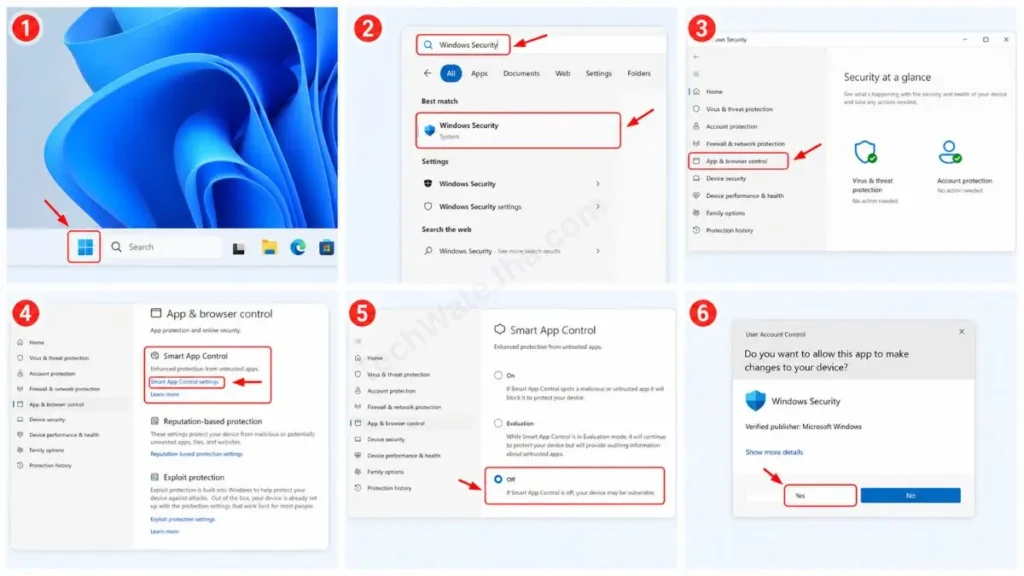
- Click the Start button (the Windows icon) on your taskbar and type “Windows Security” into the search bar. Open this app. This is Microsoft’s built-in security hub.
- Now, in the menu on the left side or on the home screen, click on the “App & browser control” section. This is where all the settings for Windows 11’s app and browser control are located.
- Here, you will see a dedicated box for “Smart App Control” at the very top. Click on the Smart App Control settings link written just below that box.
- After this, a new page will open where you will see 3 radio buttons: On, Evaluation, and Off.
- Now, to fix your problem, click directly on the Off button.
- After that, Windows will ask for User Account Control (UAC) permission one last time. A pop-up will appear on your screen then click on Yes.
Congratulations! You have successfully completed the process of disabling Smart App Control in Windows 11. Now you can install your favorite third-party apps and tools without any interruptions.
A Crucial Warning Before Disabling
As a tech expert, it is my duty to honestly inform you about the risks of disabling Windows Smart App Control.
Smart App Control acts as an extra shield to protect your PC from unknown viruses and ransomware. When you remove this shield:
- Your Responsibility Increases: Windows will no longer stop you from running an unknown file. This means that if you download cracked software or a pirated game from an untrusted website, malware can enter your system directly.
- Dependence on Antivirus: After turning this off, all your security will depend solely on the standard Windows Defender or your third-party antivirus.
My Advice: If you’re a sensible user who only downloads files from official websites or trusted open-source platforms like GitHub, then there’s no problem keeping it turned off. But if your PC is also used by children at home who click on anything, then think twice before disabling it.
Also Check: How to Fix Can’t Remove Bluetooth Device Windows 11
The Big Catch: Can You Turn Smart App Control Back On?
If you’re thinking, “I’ll just turn it OFF for now to run my software, and turn it back ON later,” then think again. Microsoft has a very strict rule in place for this.
Once you turn this setting to ‘Off’, you can’t switch it back to ‘On’ or ‘Evaluation’ mode, no matter what you do, because the button will be permanently locked. This is why many people search online for why their Smart App Control is greyed out in Windows 11.
In reality, you haven’t turned it off by mistake, but have done so intentionally to permanently disable Smart App Control. Microsoft’s logic is that when SAC (Smart App Control) is turned off, any untrusted app can be installed on the PC that can manipulate security features in the background. Therefore, the OS can no longer trust the system.
So now the question is, how do you turn it back on?
There is only one way to turn it back on, and that is to do a clean reinstallation of Windows 11 by formatting your entire PC. Therefore, always think carefully before deciding to turn it off.
Also Check: Can’t Open Settings Windows 11 After Update? Fixed!
Frequently Asked Questions
Why is the Smart App Control option grayed out (unclickable) on my computer?
There can be two main reasons for this. First, you or someone else has manually turned it off. Second, you have updated your PC from Windows 10 to Windows 11. This is because Smart App Control is only available on new PCs or with a fresh (clean) install of Windows 11. If you upgraded from an older OS, it will remain greyed out and ‘Off’ by default.
Is there a way to whitelist or bypass Smart App Control for just one app?
Unfortunately, NO. Unlike Windows Defender, it doesn’t have an ‘Exclusions’ (whitelist) folder. If you think you can allow a blocked app to run by making a specific file an exception, like you can with Windows 11, that option doesn’t exist. Microsoft has designed it with an ‘All or Nothing’ approach, meaning it’s either fully ON or fully OFF.
Does turning off Smart App Control also disable my Windows Defender Antivirus?
Not at all, because Smart App Control and Windows Defender are two separate features. SAC blocks unknown and untrusted apps, while Defender scans for actual viruses and malware. Your Windows Defender will remain active and working even after you turn off SAC.
Conclusion: Become the True Owner of Your PC!
Friends, this new Smart App Control in Windows 11 is great for those who have no computer knowledge at all and who accidentally download any virus. But for a smart user, gamer, or tech enthusiast, this feature feels less like a helpful tool and more like an obstacle.
I hope this step-by-step guide has cleared up all your doubts and you’ve learned how to safely execute the smart app control turn-off in Windows 11. Enjoy your freedom, but always keep your common sense and vigilance ON when downloading files from the internet.
For more in-depth tech guides, PC hacks, and Windows optimization tutorials, stay tuned to our brand TechWaleJha.com. If you have any questions about this, you can ask us in the comments, and I’ll do my best to answer them.
Disclaimer: This guide and the PC settings described herein are for educational and informational purposes only. Disabling Smart App Control may expose your PC to unknown malware or virus threats. Please disable it at your own risk. TechWaleJha or its author will not be held responsible for any data loss, virus attack, or system damage. Always download software and files from trusted sources.




