
You should delete empty folders from your PC or laptop because thousands of leftover directories from uninstalled software keep forcing the Windows indexer to scan unnecessary paths. Removing them makes Windows Search faster, keeps your file system organized, and improves overall PC performance without any third-party bloatware.
Hello friends, it’s your own TechWaleJha! Have you ever gone into your PC’s “Program Files” or “Downloads” folder? Whenever we install and then uninstall new software, or move new files by copying and pasting, Windows leaves behind a lot of empty (empty) folders. It may seem like these folders are 0 bytes and won’t cause any harm, but the real problem isn’t storage, it’s processing.
When thousands of such empty folders accumulate on your system, “Windows Search” becomes very slow. Why? Because the Windows Search Indexer running in the background has to scan all these useless and empty paths to find files.
Searching for and deleting thousands of folders one by one is practically impossible. And heavy, ad-supported software like CCleaner makes your PC even slower. That’s why today I’m going to teach you how to create an empty folder cleaner script. This is a small system-level tool that will easily and automatically find and delete empty folders on your PC in just 10 seconds. With it, you can safely delete empty folders in Windows 11 and your PC will feel completely organized and fast. So let’s not waste any more time and find out how to build it.
Also Check This Tool: 1-Click Windows Frozen Screen Fix Script: Unfreeze PC Safely
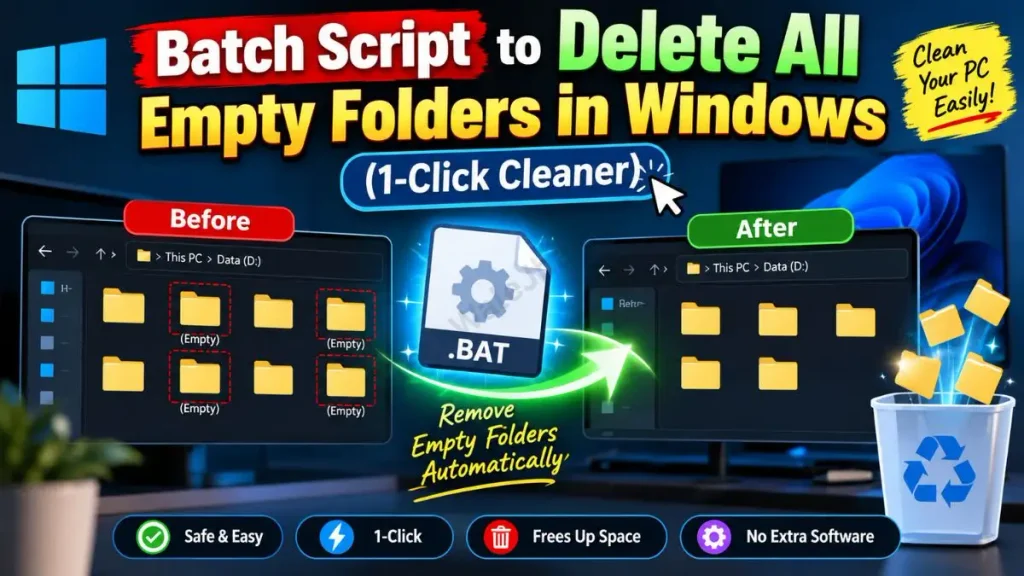
Create the Empty Folder Cleaner Script Manually (BAT Code)
Friends, if you’re tech-savvy and like to understand the technical details of commands, then using Notepad to create your own custom bat script to delete empty folders is the best option. This way you know exactly which command is running in the background and what it’s deleting.
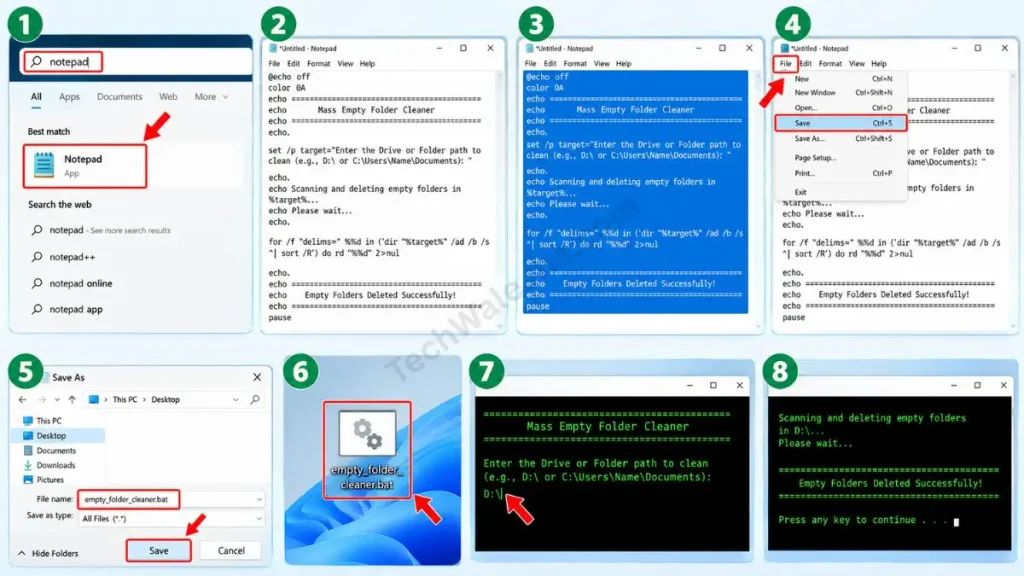
To create your own mass folder cleaner, follow these simple steps:
- Now on your laptop or PC, press the Windows key, type “Notepad” in the search bar, and open it.
- Copy the code below and carefully paste it into Notepad:
@echo off
color 0A
echo =========================================
echo Mass Empty Folder Cleaner By Techwalejha.com
echo =========================================
echo.
set /p target="Enter the Drive or Folder path to clean (e.g., D:\ or C:\Users\Name\Documents): "
echo.
echo Scanning and deleting empty folders in %target%...
echo Please wait...
echo.
for /f "delims=" %%d in ('dir "%target%" /ad /b /s ^| sort /R') do rd "%%d" 2>nul
echo.
echo =========================================
echo    Empty Folders Deleted Successfully!
echo =========================================
pause- After pasting the code into Notepad, click File at the top, then click Save As.
- Then, in the ‘Save as type’ drop-down, select All Files.
- Or, name the file Empty-Folder-Cleaner.bat and save it to your Desktop.
Also Check This Tool: Delete Files Older Than 30 Days Batch Script (1-Click)
Line-by-Line Code Breakdown (How does it work?)
Let me explain the technically advanced workings of this script so you can understand exactly how this remove empty directories cmd command is executed:
set /p target=...: This line makes the script interactive. It prompts you for the specific drive or folder location (path) so that only that area is scanned.dir “%target%” /ad /b /s: This command scans all the sub-folders (/ad) inside the folder you provided, without extra details (/b), and also scans their sub-folders (/s), creating a list of them.sort /R (The Master Stroke): This is the script’s smartest logic. It sorts the list in reverse (/R) order. This means the script will delete the innermost (deepest) sub-folders first, and then move on to the outer main folder. If it didn’t do this, the outer folder wouldn’t be deleted because it would still contain another empty folder!rd “%%d” 2>nul: This is therd(Remove Directory) command. It only deletes empty folders. If a folder contains even a single file, it will be skipped, and2>nulwill prevent any error messages from appearing on the screen.
Also Check This Tool: 1-Click Game Booster Script: Fix Lag & Boost FPS
Download the 1-Click Empty Folder Cleaner (ZIP File)
Friends, if you don’t want to get bogged down in Notepad and coding hassles, or you’re worried about making mistakes while typing, then I won’t waste your time at all. I have packed this same script for you in an error-free, ready-to-use format. You can download this mass empty folder cleaner completely free by clicking the button below.
Is this ZIP file safe to download?
Yes, it's 100% safe! Often when we download a .bat (Batch) script directly from the internet, Google Chrome, Microsoft Edge, or Windows Defender block it as a false-positive. They think this file could run a harmful command. To avoid this problem, I have securely packed this tool into a ZIP folder. This is a safe empty folder deletion tool and it contains absolutely no third-party bloatware or hidden viruses, so you can download and use it without any fear.
Also Check This Tool: 1-Click Laptop Battery Health Checker Script (Windows)
How to Use This Tool Properly?
Because this script scans all the folders on your PC or laptop, it's very important to specify the correct path. To use this tool flawlessly and delete thousands of empty folders in seconds, carefully follow the steps given below:
- Step 1: First, extract the downloaded ZIP file to your Desktop and double-click on Empty-Folder-Cleaner.bat.
- Step 2: A black CMD (Command Prompt) screen will open and it will say: “Enter the Drive or Folder path to clean”.
- Step 3 (Most Important): Now you need to enter the path. If you want the entire D drive to be cleaned, simply type
D:and press Enter. If you want to clean the C drive, typeC:. - Step 4: But if you want to clean a specific folder (like only Documents or Downloads), open that folder, copy its path from the address bar, such as
C:\Users\YourName\Documents. Then go back to the black CMD screen and simply right-click. As soon as you right-click, the path will be pasted. Then press Enter.
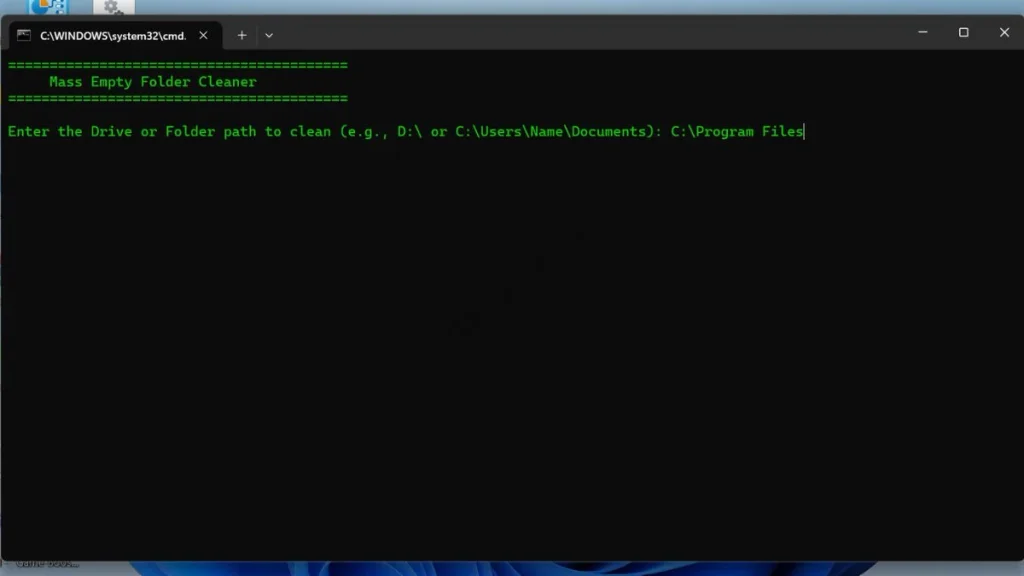
- Step 5: After this, the script will start working. Depending on the number of folders you have, it will take 5 to 10 seconds, and all the empty folders will disappear in the background.
This way, you can easily make your PC light and fast by automatically cleaning empty folders.
Also Check This Tool: 1-Click Folder Locker Script For Windows: Hide & Lock Files Safely
Frequently Asked Questions (FAQs)
Will this script delete folders that have files inside them?
Absolutely not! This script only uses the CMD rd (remove directory) command. The Windows system will not delete any folder as long as it contains even a single small file, no matter if it's just 1KB. Your actual data will remain 100% safe and untouched.
Is it safe to run this on the C: Drive?
The C: Drive (system drive) contains many empty folders that are necessary for Windows and installed apps. Therefore, instead of running it on the entire C: Drive at once, use it only on your personal folders, such as C:\Users\YourName\Downloads or Documents.
Why did it show some errors while deleting?
If an empty folder is being used by a background software, or it contains a ‘hidden system file’ that you can't see, the script will not delete it and will display an error/skip message. This is actually a built-in safety feature!
Can I use this on my external hard drive or USB drive?
Yes! You can also clean your USB drive, SD card, or external hard drive with this script. Just type your external drive's letter (like F:\ or E:) on the CMD screen and press Enter.
Conclusion
So friends, that was the fastest and most technical way to clean all the junk folders from your PC without using a heavy and slow software like CCleaner. Now your Windows Search will feel much faster and more organized than before.
Tell me honestly, how many thousands of empty folders did this script delete from your PC? Be sure to share your folder count and experience with me in the comments section below.
If you want to learn more time-saving PC optimization scripts, command prompt hacks, and advanced tech troubleshooting tricks, be sure to follow your tech-buddy, TechWaleJha, on Instagram, Facebook, and YouTube. Until we meet again with another amazing script, take care and bye-bye.
Disclaimer: Friends, I have personally tested all the Batch (.bat) scripts provided in this article, and they are completely safe. However, since every PC's configuration is different, please use them at your own risk. Before running any system-level script, be sure to back up your important data. TechWaleJha or this website will not be held responsible for any unexpected data loss. Please run the code exactly as per the steps provided.




