Just as our brain controls our entire body, the CPU (Central Processing Unit) is the “brain” of your computer. Whether you’re playing a heavy game, editing videos, or having 50 Chrome tabs open, everything depends on this processor.
But when the CPU works continuously under a heavy load, it generates a lot of heat. If that heat isn’t properly vented out of the case, the processor reduces its speed to protect itself from damage, which in technical terms is called “thermal throttling.” If you feel your PC has suddenly slowed down or you’re experiencing frame drops while gaming, it’s directly related to your CPU’s health.
Many people think that only by getting a new processor can a PC become fast, but the truth is that with just a bit of physical and software maintenance you can fix your system. If you’re looking for how to improve CPU health and extend its lifespan, this latest 2026 guide has everything you need. With these simple tricks, you can easily boost CPU performance.

Quick Answer: How to Improve CPU Health?
If you’re in a hurry and want to know how to improve CPU health, tech experts recommend these proven steps:
- Clean Dust Regularly: Clean your PC fans and heatsink with compressed air every 3-4 months.
- Apply New Thermal Paste: Replace the old paste every 2 to 4 years, which is a guaranteed fix for CPU overheating.
- Optimize PC Airflow: Manage cables inside the case and use exhaust fans properly.
- Monitor Temperatures: Use tools like HWMonitor and close background apps to focus on reducing CPU temperature.
Pro Tip: Spending just 15 minutes cleaning your PC every few months can prevent frame drops and double your processor’s lifespan!
Temperature & Monitoring: Measure Your Processor’s Heat
If you feel that your PC is suddenly getting hot, it’s better to check the actual numbers than to just guess. Monitoring the CPU temperature is the very first step to understanding your system’s health.
What is the Safe CPU Temperature Range?
Gamers often ask what a safe CPU temperature should be while gaming. The table below provides a general guideline that applies to both Intel and AMD processors:
| PC Usage State | Recommended CPU Temperature | Status |
|---|---|---|
| Idle (Screen on, no apps) | 30°C – 45°C | Excellent (Healthy) |
| Normal Usage (Browser/Office) | 45°C – 65°C | Good |
| Gaming / Video Editing | 65°C – 80°C | Normal for heavy load |
| High Load / Stress Test | 80°C – 85°C | High, but acceptable |
| Overheating Warning | Above 90°C | Dangerous (Needs fix) |
If your CPU is constantly running at 90°C, understand that your hardware is being damaged or about to be.
Monitor CPU Temperature (Top Tools)
To measure your CPU’s heat, you don’t need a thermometer, but rather one of these free software programs, such as:
- HWMonitor or HWiNFO: These are both excellent tools that show the temperature and voltage for each core.
- MSI Afterburner: Best for gamers because it shows live temperatures in the corner of the screen while playing games.
- Core Temp: This is a very lightweight software and shows the temperature in the taskbar.
Physical Maintenance: Remove Dust and Heat
Software tools have their place, but if your PC is full of dust, no software can lower the CPU’s temperature. Let’s get practical and fix the hardware.
Clean Dust From Your PC Safely
Dust blocks your cooling fans, causing hot air to circulate inside.
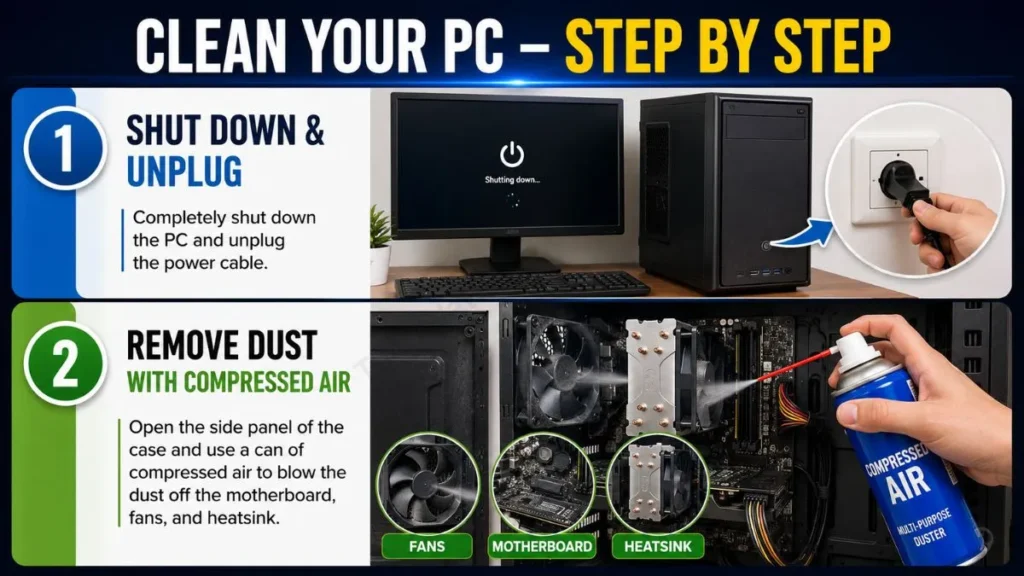
- Step 1: Completely shut down the PC and unplug the power cable.
- Step 2: Open the side panel of the case and use a can of compressed air to blow the dust off the motherboard, fans, and heatsink.
Warning: Never use a regular household vacuum cleaner inside the PC, as it generates static electricity that can permanently short out the motherboard. (This cleaning is necessary once a month).
Replace Thermal Paste (When and How?)
Thermal paste fills the tiny gap between the processor and the cooler fan. Over time, this paste dries out.
If your PC is making noise and heating up even with no load, then a CPU thermal paste replacement is the cheapest and most effective fix for CPU overheating.
- When to replace: A normal user should replace it every 2 to 4 years.
- How to do it: Remove the cooler, clean off the old paste with isopropyl alcohol and a microfiber cloth, apply a pea-sized drop of new paste to the center of the CPU, and reinstall the cooler.
Applying thermal paste correctly is very important. So if you want to understand in detail how much paste to use and how to apply it, you can read PCGamer’s detailed thermal paste guide.
Improve Airflow Inside the Case
Even if you have the best cooler, if the airflow path inside the case is blocked, it’s all useless. That’s why PC airflow optimization is very important:
- Wire Management: Tie the excess wires and cables to the back so they don’t block the airflow path.
- Fan Placement: You should always have intake fans in the front (which pull in cool air) and exhaust fans in the back/top (which push out hot air).
Never keep your PC completely enclosed inside a desk or cabinet. Always leave space for ventilation.
Software Tweaks: Reduce System Load
Dusting is very important, but if your CPU is getting too many tasks from the background, it will always stay at a high load. That’s why it’s very important to lighten the system at the software level.
Close Unnecessary Background Apps
You might think you’re just playing one game, but Windows might have 50 different small applications running in the background. These apps consume CPU power and RAM for no reason.
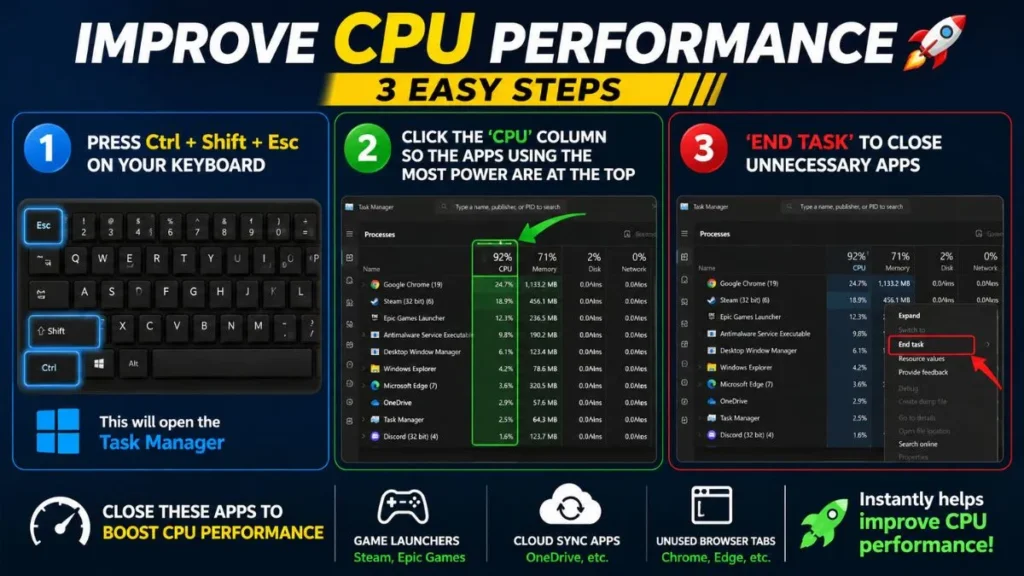
- Use Task Manager: Press Ctrl + Shift + Esc on your keyboard.
- Check Processes: Click the ‘CPU’ column so the apps using the most power are at the top.
- Action: ‘End Task’ to close game launchers (Steam, Epic Games), cloud syncing apps (OneDrive), and unused browser tabs (Chrome). This step instantly helps improve CPU performance.
Update Drivers & BIOS
How your motherboard and CPU communicate with each other depends on their software (Drivers/BIOS). If these are outdated, power management will not work properly.
- Chipset Drivers: Always download and install the latest ‘Chipset Drivers’ from your motherboard’s official website (e.g., Asus, Gigabyte). This helps Windows control the CPU more effectively.
- BIOS Update: If your PC is new or the CPU is getting very hot, it might be necessary to update the BIOS. But be careful, this step is a bit risky, so only do it if you have a power backup (UPS) and you know what you’re doing.
Note on System Maintenance: Your CPU will only deliver its full 100% when your operating system is properly optimized. Unnecessary junk files, corrupt system data, and background clutter directly put a load on the CPU. So to keep your OS clean and fast, you can check our step-by-step guide: How to Maintain Your Windows System (2026 Guide).
Fix Rogue Apps: Sometimes the settings of certain background apps get corrupted and they continuously run your CPU at 100% load. Without deleting or reinstalling those apps, you can learn here an easy way to reset them with a small hidden setting: How to Reset Any Application on Windows.
Advanced Tuning & Upgrades: For Pro Users
If you’ve cleaned up and closed background apps, but the temperature still isn’t going down, then it’s time to take some ‘Advanced’ steps.
Avoid Unnecessary Overclocking & Try Undervolting
These days, gamers, in the pursuit of higher FPS, “Overclock” their CPUs. Overclocking simply means giving the CPU more power than its limit, and more power means more heat! If you don’t have a heavy-duty liquid cooler, keep your CPU on its default settings.
On the other hand, there’s a pro-technique called “Undervolting.”
- What is Undervolting? In this, we slightly reduce the voltage (power) supplied to the CPU without reducing its speed.
- Benefit: This keeps the processor very cool and doubles its lifespan. It’s an ultimate CPU overheating fix for laptops. (This can be done with software like Intel XTU or Throttlestop).
Upgrade Your CPU Cooler (Air vs Liquid)
If you’re a heavy video editor or a hardcore gamer, the small ‘Stock Cooler’ that comes free with the processor won’t cut it. You should get a new cooler by following the best CPU cooling tips on the market.
- Air Coolers: These are budget-friendly and require zero maintenance. They are the best and most reliable for normal gaming and heavy tasks. (e.g., Deepcool, Cooler Master).
- Liquid Coolers (AIO): If you have a good budget and want a completely silent PC that dissipates heat through water, then install a 240mm or 360mm AIO liquid cooler. These are the fastest at directly reducing CPU temperature.
Monthly CPU Maintenance Checklist & Mistakes to Avoid
If you want your processor to run smoothly for years, take a screenshot of this CPU maintenance checklist and follow it every month:
Your Monthly To-Do List:
- Clean Dust: Thoroughly clean the dust accumulated around the vents and fans.
- Monitor Temps: Open HWMonitor and check the temperature while idle and during gaming.
- Software Updates: Keep Windows and chipset drivers up-to-date.
- Clear Background Apps: Check in the Task Manager to see if any unknown app is increasing CPU usage.
- Check Airflow: Ensure there is enough space around the PC for air to circulate.
Common Mistakes That Kill CPU Lifespan (Don’t Make These Mistakes):
- Placing a Laptop on a Bed: Putting a laptop on a bed or pillow blocks its bottom air vents, which is a major cause of overheating. Always use a flat surface or a cooling pad.
- Using Cheap Thermal Paste: Don’t use a cheap thermal paste just to save money. Always choose a good brand like Arctic Silver or Thermal Grizzly.
- Overclocking Without Cooling: If you only have the stock cooler, never try to increase the CPU’s speed (overclocking).
- Ignoring Loud Fans: If your PC fans suddenly start sounding like a jet engine, don’t ignore it. This is the CPU’s “Help” signal.
Conclusion: For a Long CPU Life
So, friends, the bottom line of this CPU health guide is that you don’t need to upgrade your hardware every year to keep your PC’s ‘Brain’ cool and fast.
If you regularly clean dust, change thermal paste at the right time, and keep unnecessary apps closed at the software level, you can lower your system’s temperature by 10°C to 15°C on your own. These small CPU cooling tips will not only improve your gaming and multitasking performance, but will also double your processor’s life. Check your PC’s temperature today and start the maintenance.
Frequently Asked Questions
What should the safe CPU temperature be while gaming?
For modern processors, a temperature between 65°C and 80°C is completely normal and safe while gaming. You only need to be concerned if it crosses 90°C.
How often should I clean my PC?
Under normal conditions, once every 3 to 4 months. But if you have a lot of dust in your home or have pets (dog/cat), then it’s very important to clean it every 1-2 months.
Does increasing RAM affect CPU health?
Not directly, but when you have less RAM, the system uses the hard drive, which slows down the entire PC. Increasing RAM allows the CPU to get data faster and prevents unnecessary pressure, helping it work more efficiently.
Should I update my BIOS regularly?
No! Only update your BIOS when the motherboard company has released a major security fix, or if you’re facing an issue with CPU/RAM compatibility. Updating the BIOS for no reason can be risky.
Disclaimer: The information provided in this guide is for educational and troubleshooting purposes only. Opening your computer case, cleaning components, changing thermal paste, and modifying BIOS/voltage settings carry inherent risks and may void your warranty. Always ensure your PC is fully disconnected from power before physical maintenance. We are not liable for any hardware damage, data loss, or system instability resulting from applying these methods. If you are unsure, please consult a professional technician.